


Virtual try-on
See a New Hairstyle on Your Own Photo
Use this AI hairstyle changer to preview a different haircut on one clear portrait. Choose from short cuts, bangs, layered styles, long hair, curls, and braids, then optionally apply a natural or creative shade. Leave Hair Color unselected to preserve the color in your uploaded photo. The edit targets the hair while retaining the face, expression, pose, clothing, lighting, and background as consistently as possible. AI previews can still vary, so check the hairline, face shape, and proportions before treating a result as a styling reference.
- Upload one portrait
- 240 hairstyle presets
- 13 hair colors
- Haircut and color controls
- One-image output
- Credits shown before each run
Style ideas
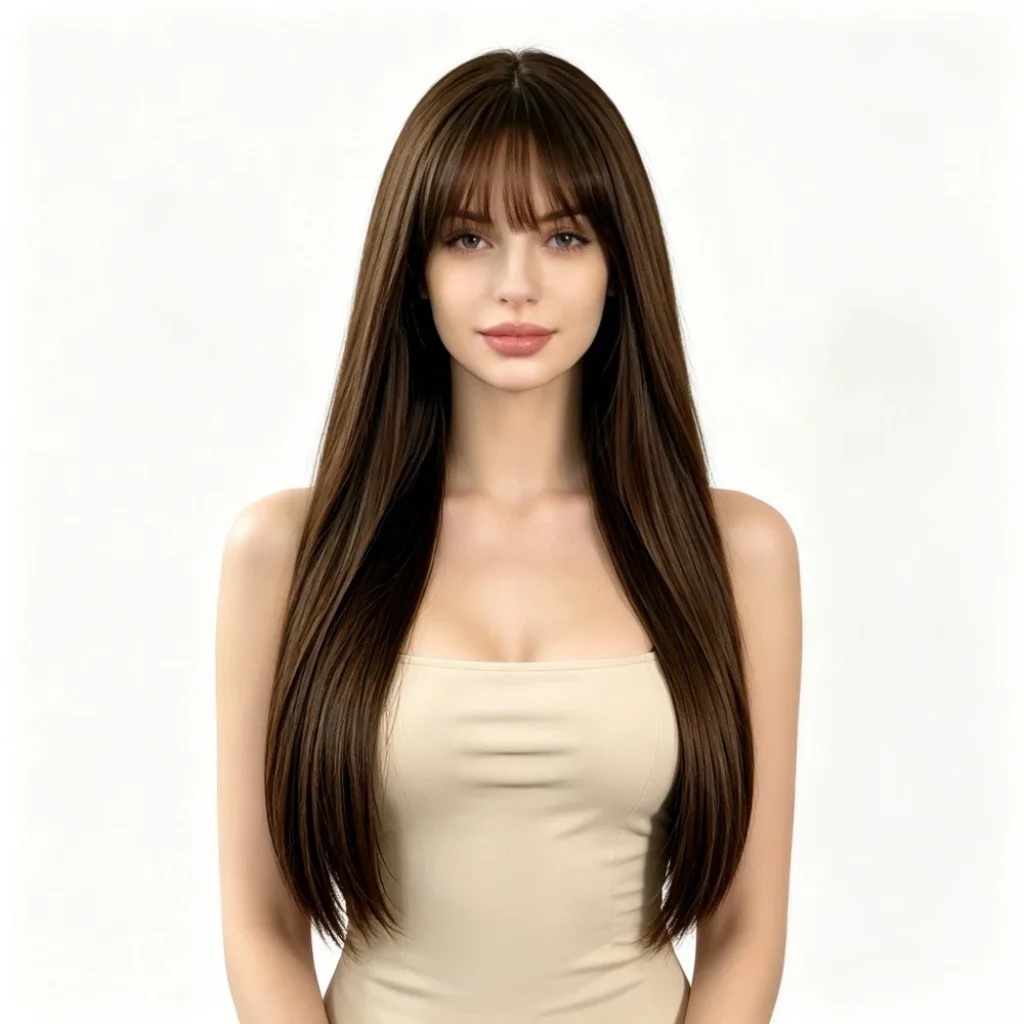
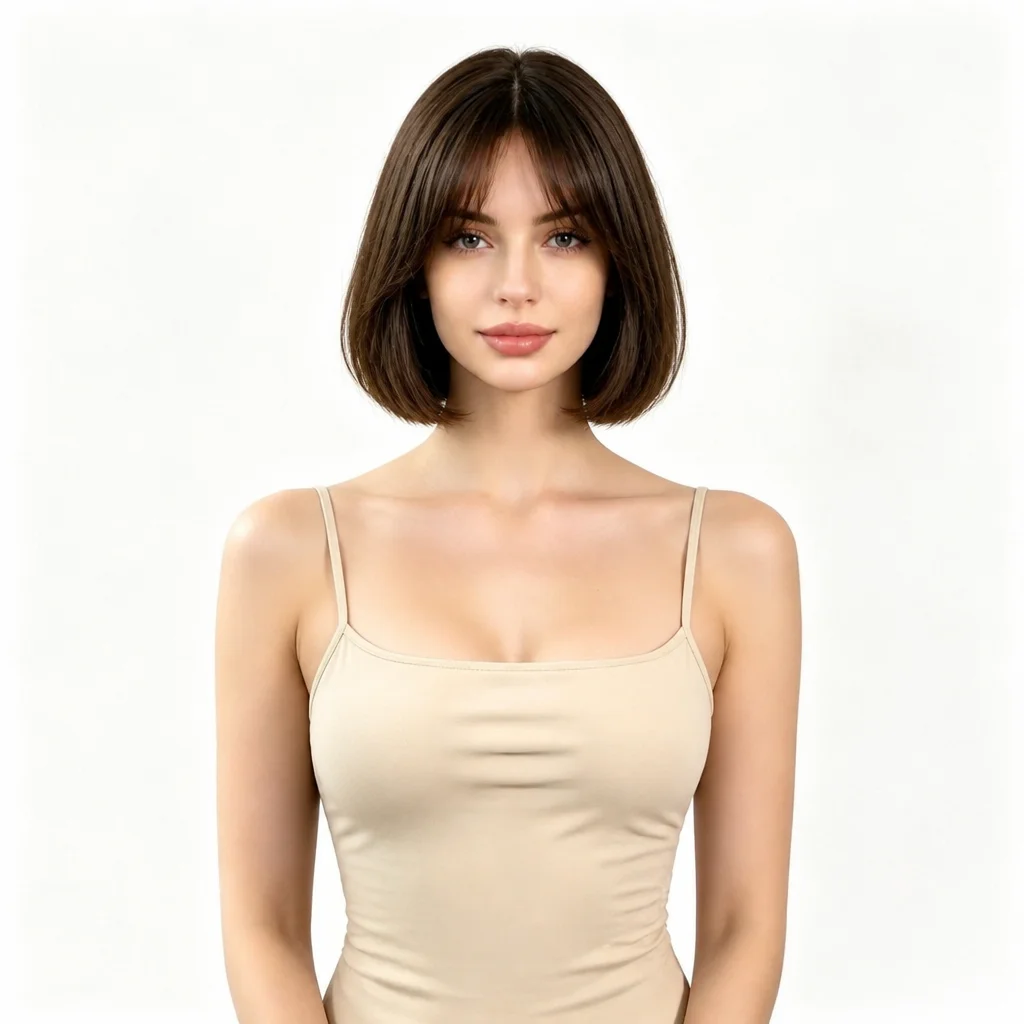
Hairstyle ideas to try
Browse distinct haircut directions, then choose the matching preset directly in the workbench.
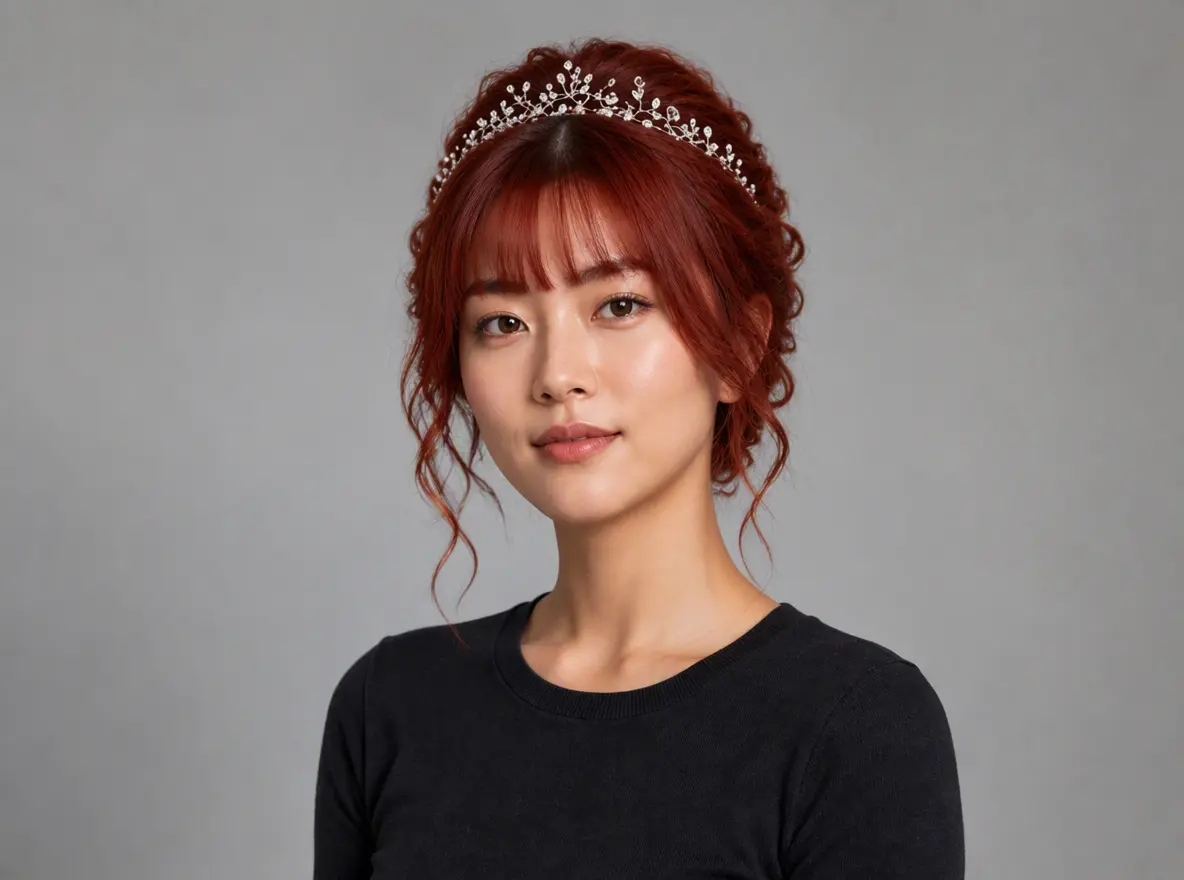
Red updo with accessory
An elegant red updo with face-framing waves, wispy bangs, and a crystal tiara.
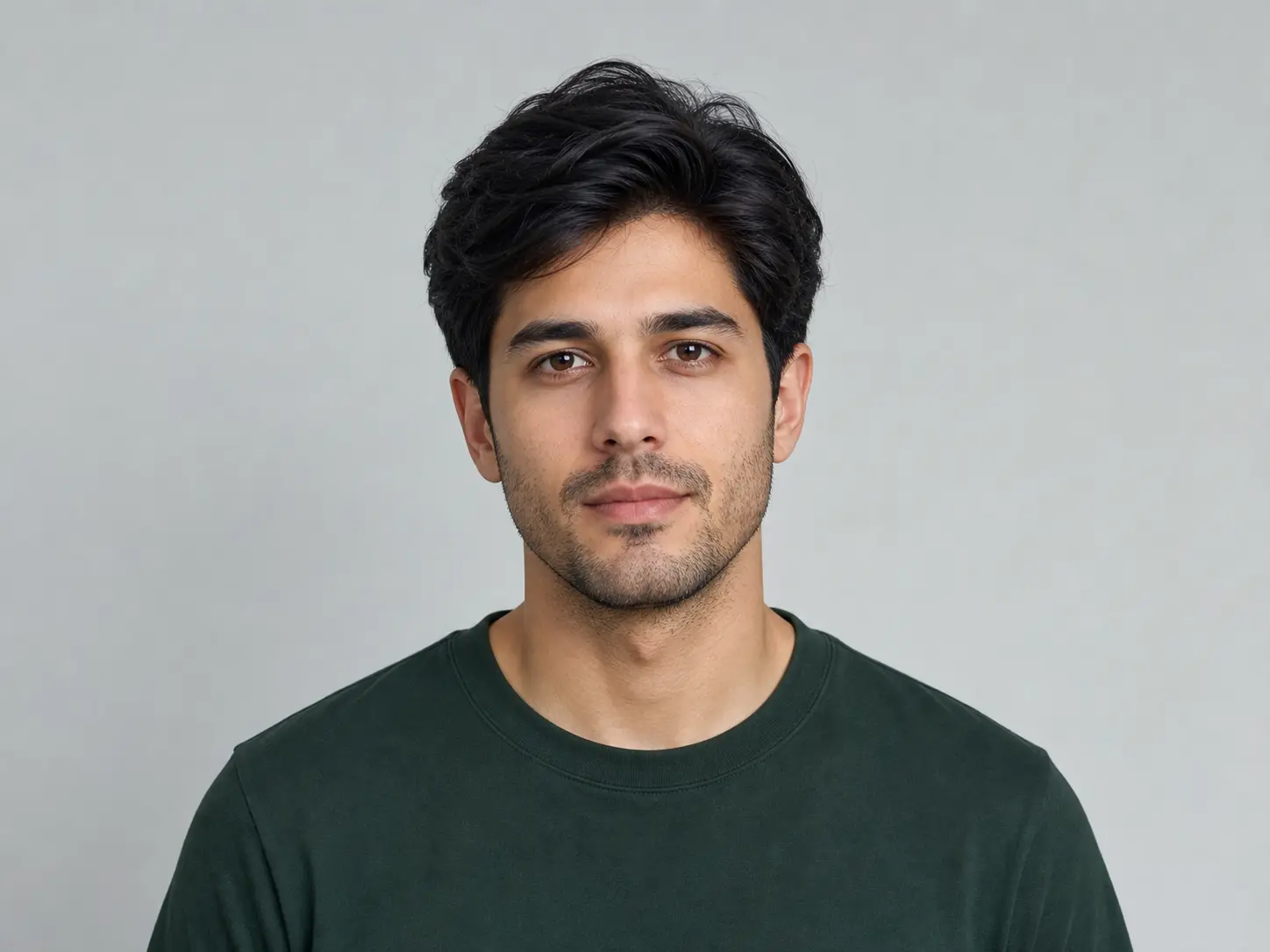
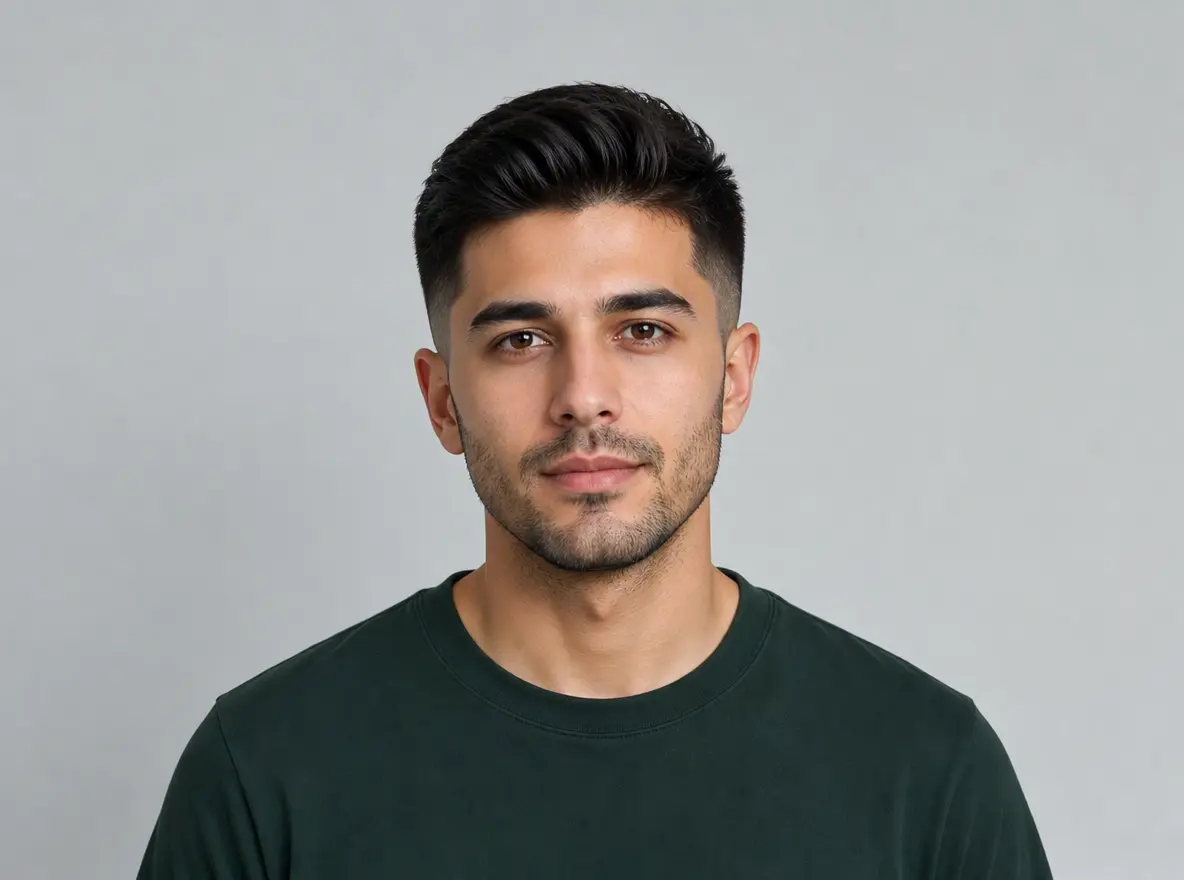
High fade with volume
A voluminous textured crop with a clean high fade and a defined hairline.
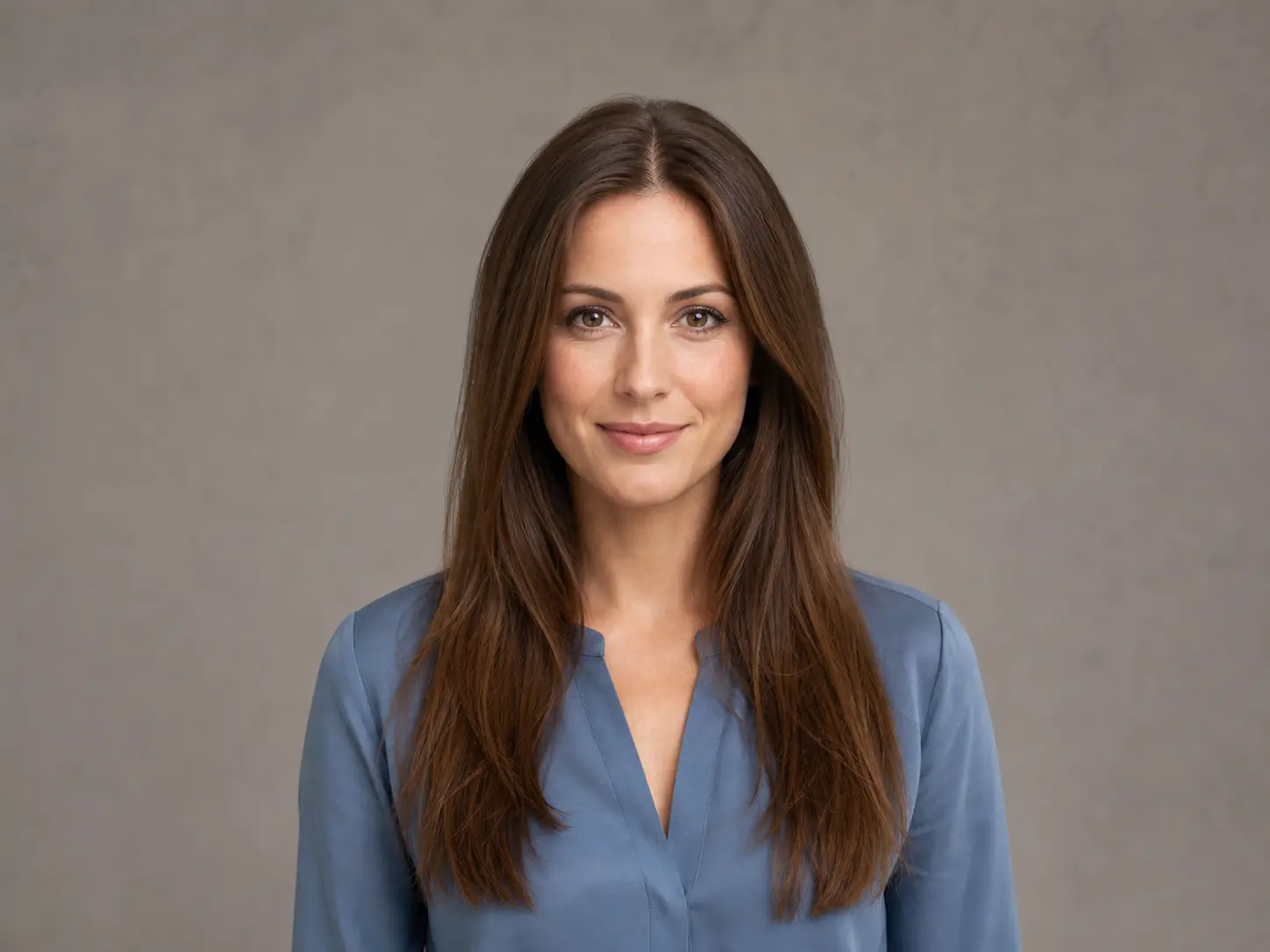
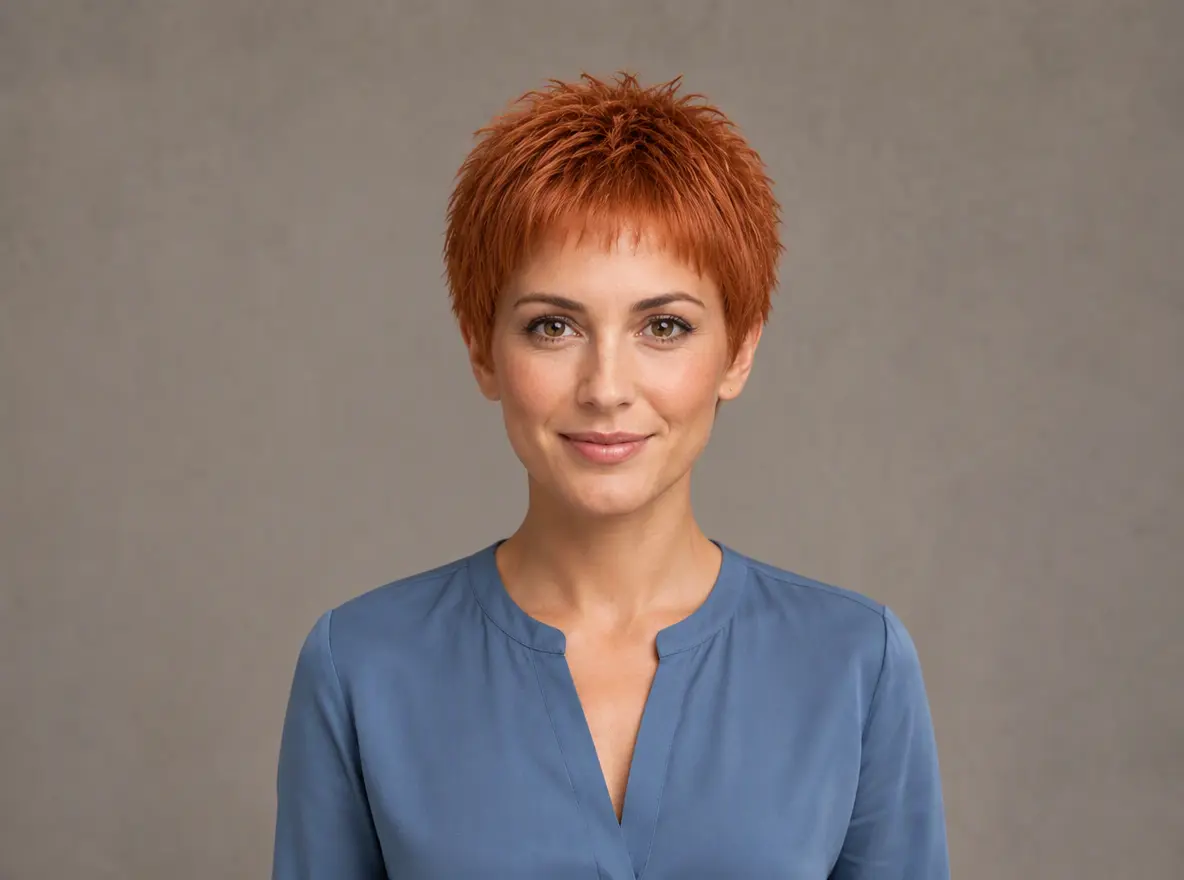
Copper pixie cut
A short textured pixie in copper with choppy layers and a natural hairline.
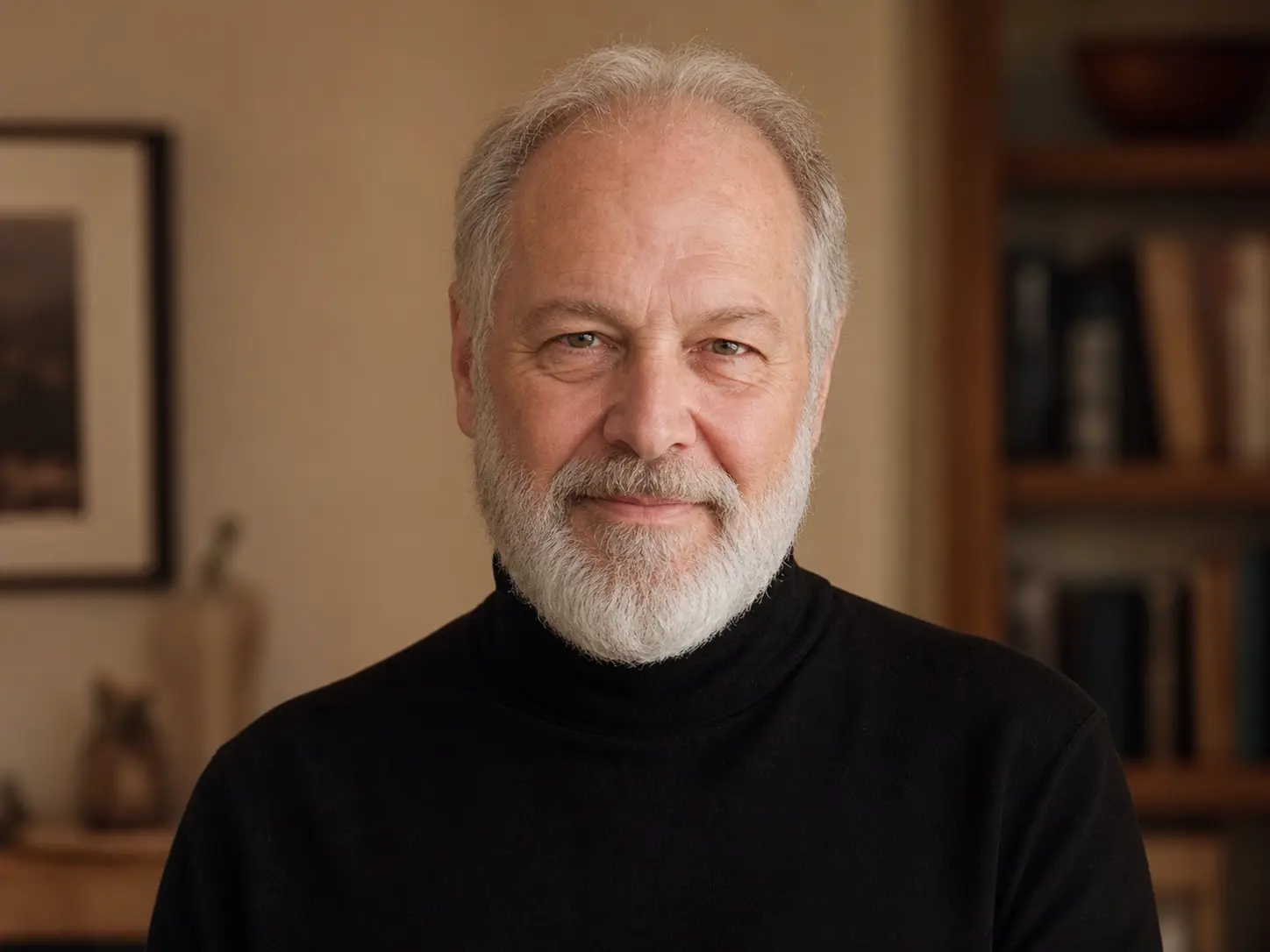
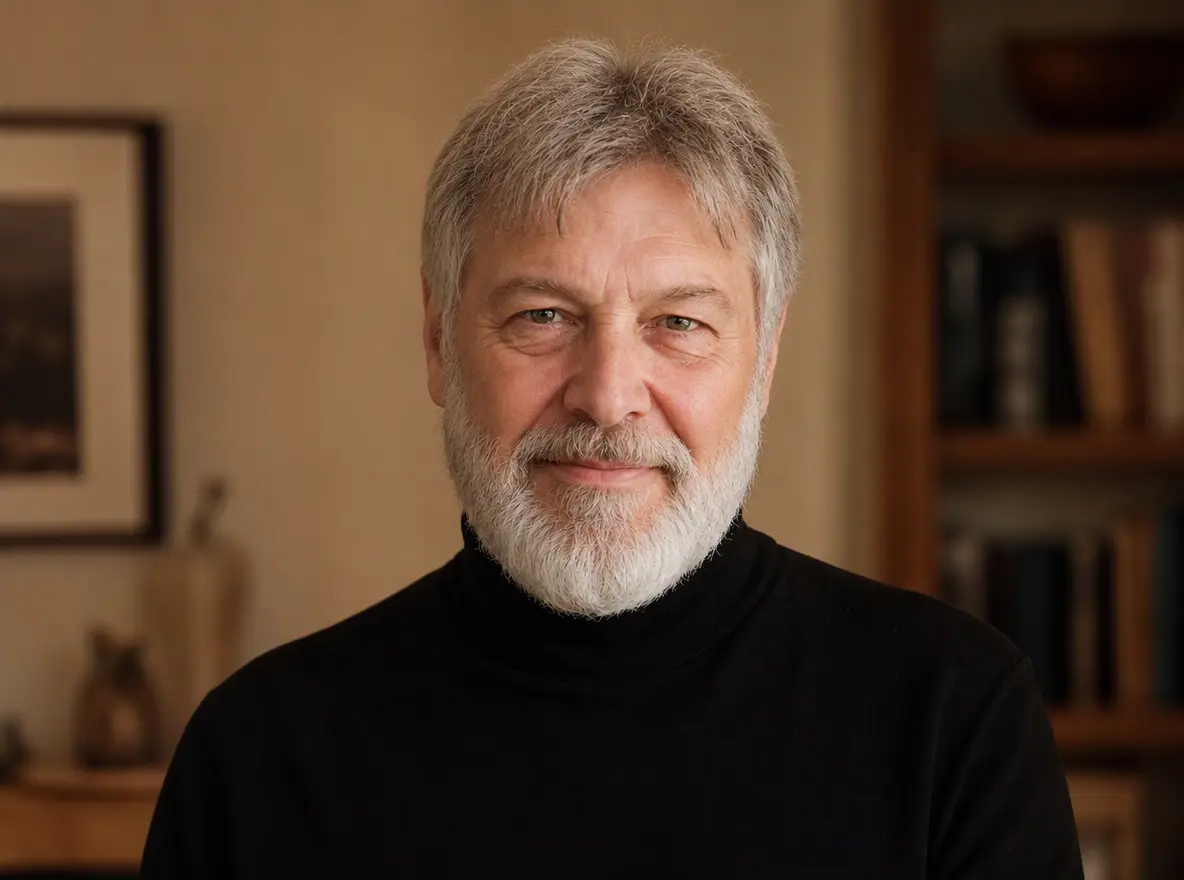
Fuller salt-and-pepper cut
A thicker textured short cut that restores volume while keeping a natural salt-and-pepper color.
Explore image models
More AI Image Generators
Explore specialized AI image models — each built for different creative styles and production needs.










What to control
A Focused Hair Edit, Not a New Portrait
Structured haircut and color controls keep each run focused and easy to compare.
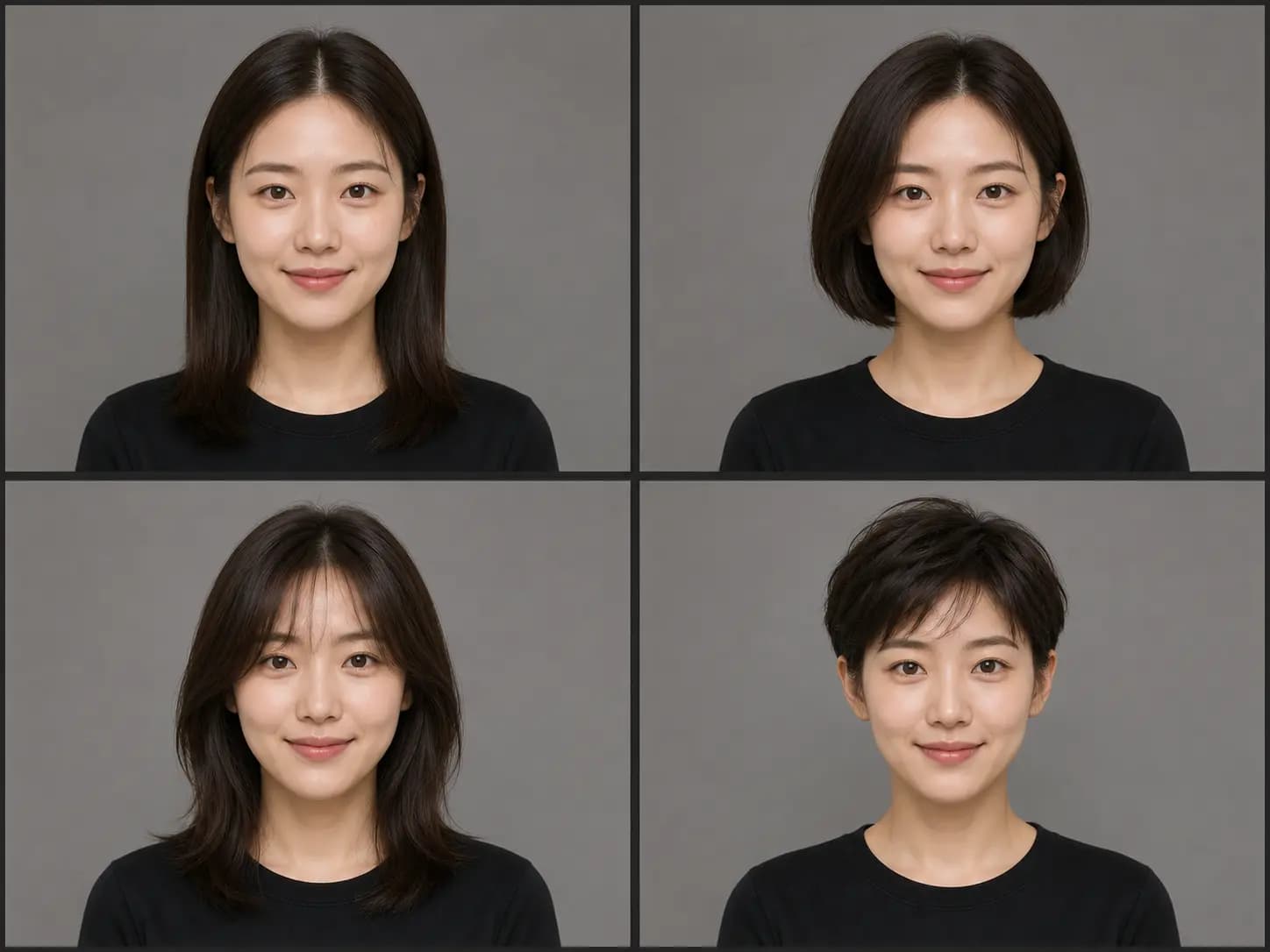
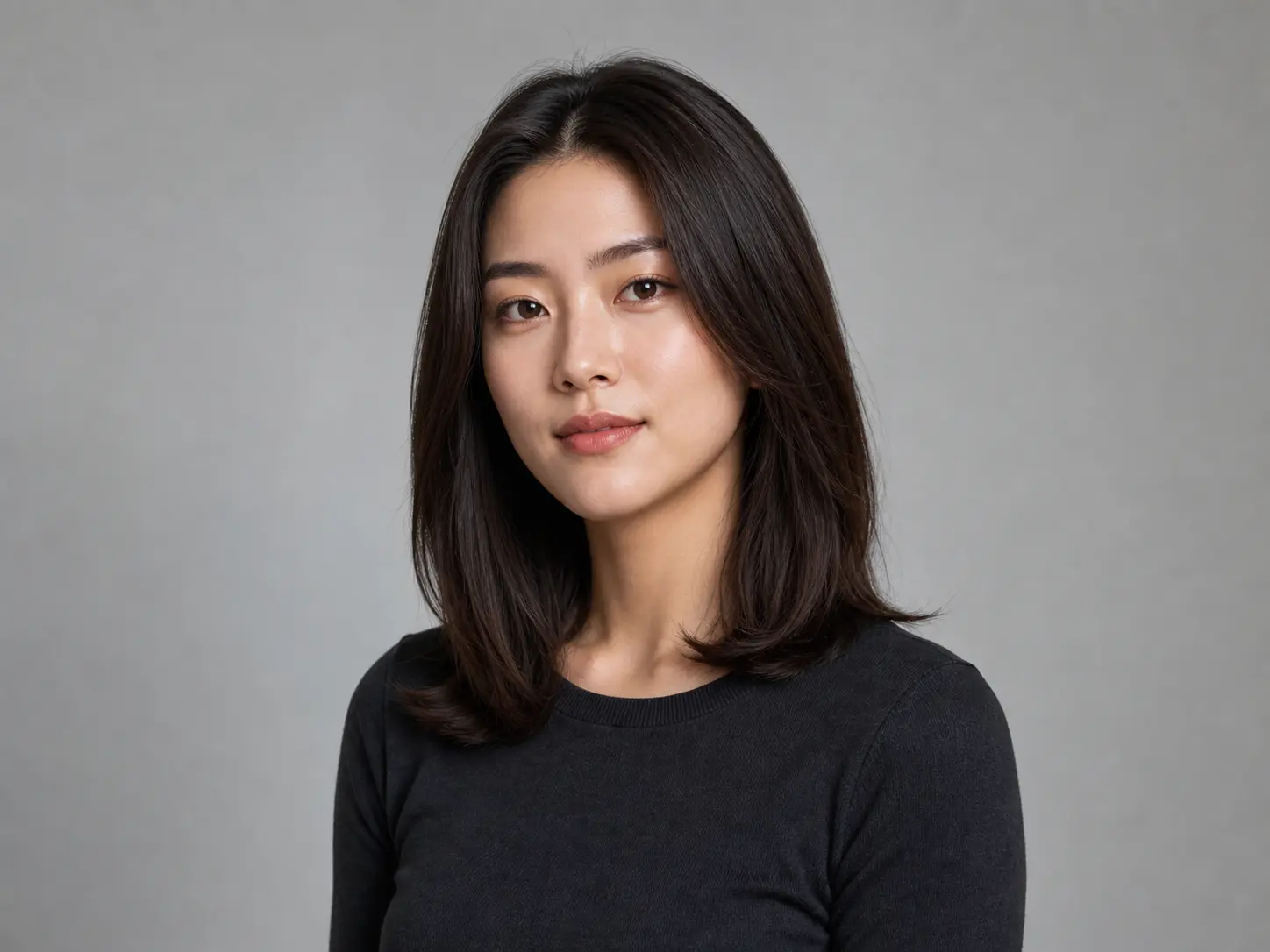
Start from a Recognizable Portrait
A clear front-facing or three-quarter photo gives the editor enough information about your current hairline, face outline, head angle, and lighting. Avoid tiny faces, heavy blur, hats, or hands covering most of the hair.
Upload a portrait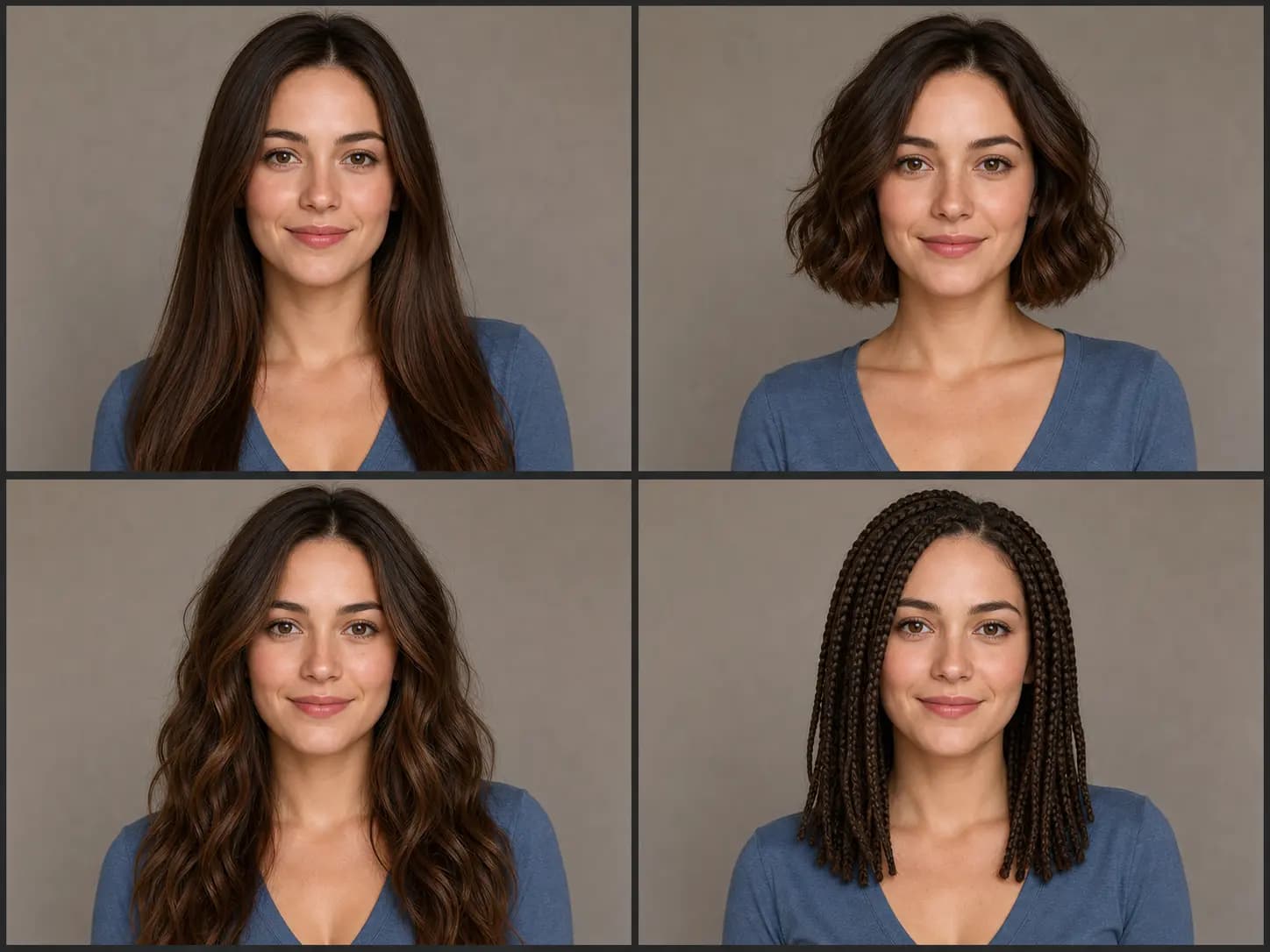
Change the Hairstyle, Keep the Scene
Each edit focuses on the hair while retaining identity, facial features, expression, pose, clothing, jewelry, framing, lighting, and background as consistently as possible. Review every result for unintended changes.
Choose a haircut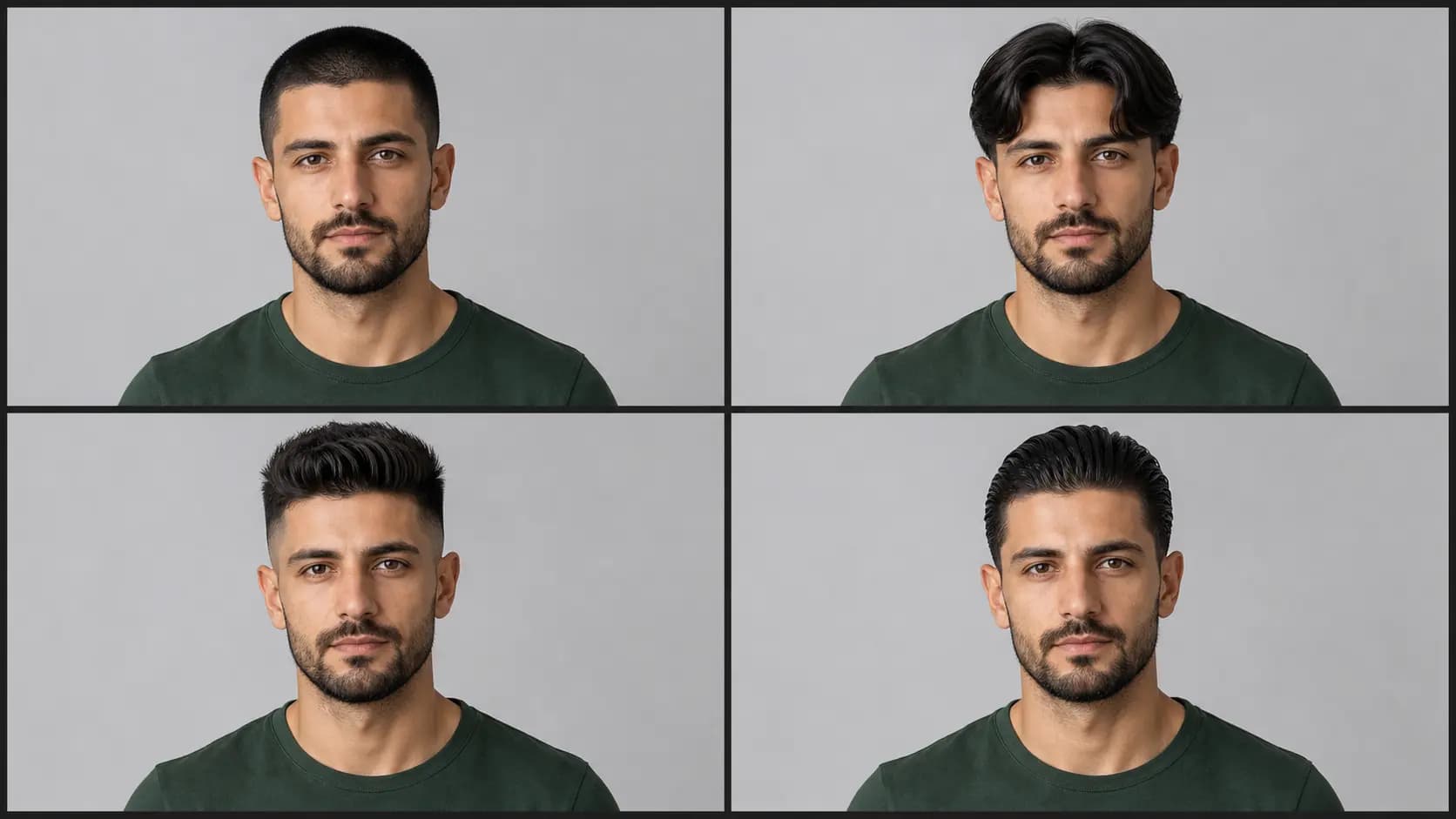
Choose a Distinct Haircut
Compare short cuts, bangs, medium layers, long styles, curls, and braids without writing a prompt. Run different presets on the same portrait to judge silhouette and proportion more consistently.
Keep or choose a hair color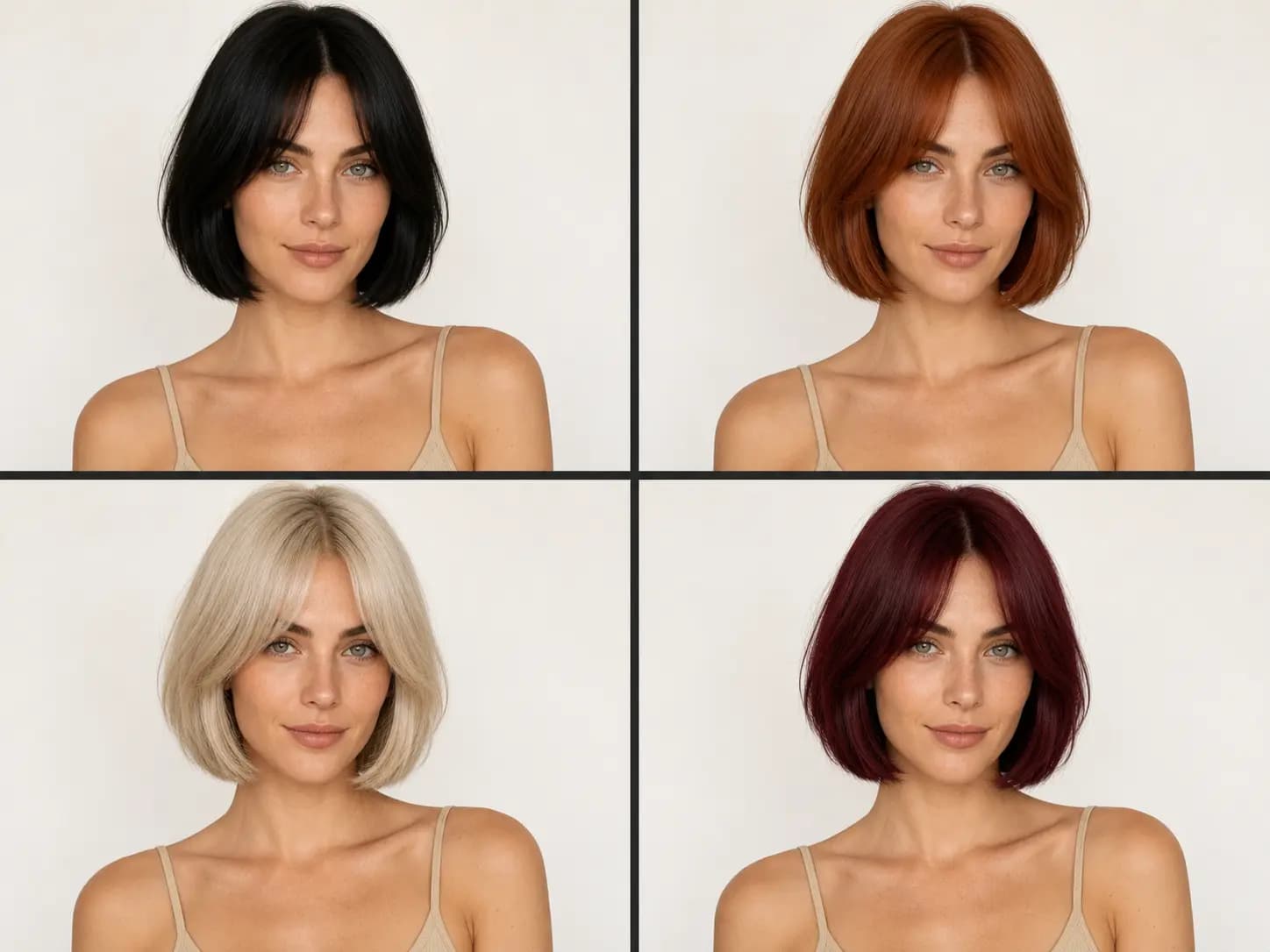
Keep or Change the Hair Color
Every run applies a selected hairstyle. Leave Hair Color unselected to preserve the color in your uploaded portrait, or choose a natural or creative shade to change the haircut and color together.
Generate the previewHow to use
How to Try a Hairstyle on Your Photo
The complete workflow runs on this page and uses one uploaded portrait per generation.
Upload One Clear Portrait
Choose a photo with visible hair, a natural head angle, and even lighting. Front-facing and three-quarter portraits make the before-and-after difference easiest to judge.
Choose a Hairstyle, Then Set Color
Select one hairstyle. Hair Color is optional: leave it unselected to preserve the color in your uploaded portrait, or choose a shade to change the hairstyle and color together.
Generate and Inspect the Result
Run the edit, then compare the face, hairline, head shape, ears, and background with the upload. Try another structured combination if you want to compare a different direction.
Use cases
When a Virtual Hairstyle Preview Helps
Use the result as a visual conversation starter, not a guarantee of how a real cut will behave on your hair.
Buzz Cut Filter
Preview a much shorter cut before committing. Check how the shorter outline interacts with the forehead, ears, and head shape, then bring the image to a barber as a direction reference.
Bangs and Fringe Check
Compare curtain bangs, a soft fringe, and blunt bangs on the same portrait. Keep the hair color unchanged to make placement and density easier to evaluate.
Short-Hair Exploration
Try a bob and a pixie cut as separate runs to compare two distinct silhouettes. Add length and texture details instead of asking for several cuts in one image.
Salon Consultation Reference
Use a promising result to communicate the overall silhouette, parting, length, or volume you like. A stylist can then assess whether the look suits your real hair density and texture.
Explore creative tools
More AI Image Tools
Explore focused AI image tools, each designed for a specific task — see how AI can turn your concepts into finished work.

FAQ
AI Hairstyle Try-On FAQ
Photo selection, haircuts, hair colors, credits, and realistic expectations.
- How do I try a hairstyle on my photo?
- Upload one clear portrait, choose a hairstyle, optionally select a hair color, and generate the edit. Leave Hair Color unselected to preserve the color in your uploaded photo, then compare the result with the original.
- Can I use this as a buzz cut filter?
- Yes. Choose Buzz Cut to request a short, even cut with a natural hairline. A clear portrait without a hat or heavy hair obstruction gives the editor a better starting point.
- Can I see how I would look with bangs or a fringe?
- Yes. Curtain Bangs gives a center-parted direction, Soft Fringe adds lighter texture across the forehead, and Blunt Bangs creates a straighter, denser edge.
- Will the tool keep my face unchanged?
- The editing instruction explicitly asks the model to preserve identity, facial features, face shape, skin tone, expression, head angle, pose, clothing, and background. AI edits can still drift, so inspect the face and surrounding details in every result.
- What type of photo works best?
- Use a well-lit front-facing or three-quarter portrait where the full hairline and most of the current hairstyle are visible. Avoid hats, strong motion blur, very small faces, and hands covering the hair.
- Can I keep my original hair color?
- Yes. Choose a hairstyle and leave Hair Color unselected. The edit is instructed to preserve the hair color from your uploaded portrait instead of copying the color from the hairstyle reference.
- How much does one hairstyle try-on cost?
- You choose 1K, 2K, or 4K. The hairstyle reference, and a color reference if you pick one, can add credits. The exact amount is shown in the workbench before generation.
- Does the preview guarantee how the haircut will look in real life?
- No. The result is an AI visual reference. Real outcomes depend on hair density, texture, growth pattern, styling, and the cut itself, so use the image to discuss direction with a qualified stylist.
Try a new look
Preview Your Next Hairstyle
Upload one portrait, choose a haircut, optionally set a hair color, and inspect the result before making a real change.
Try a hairstyle