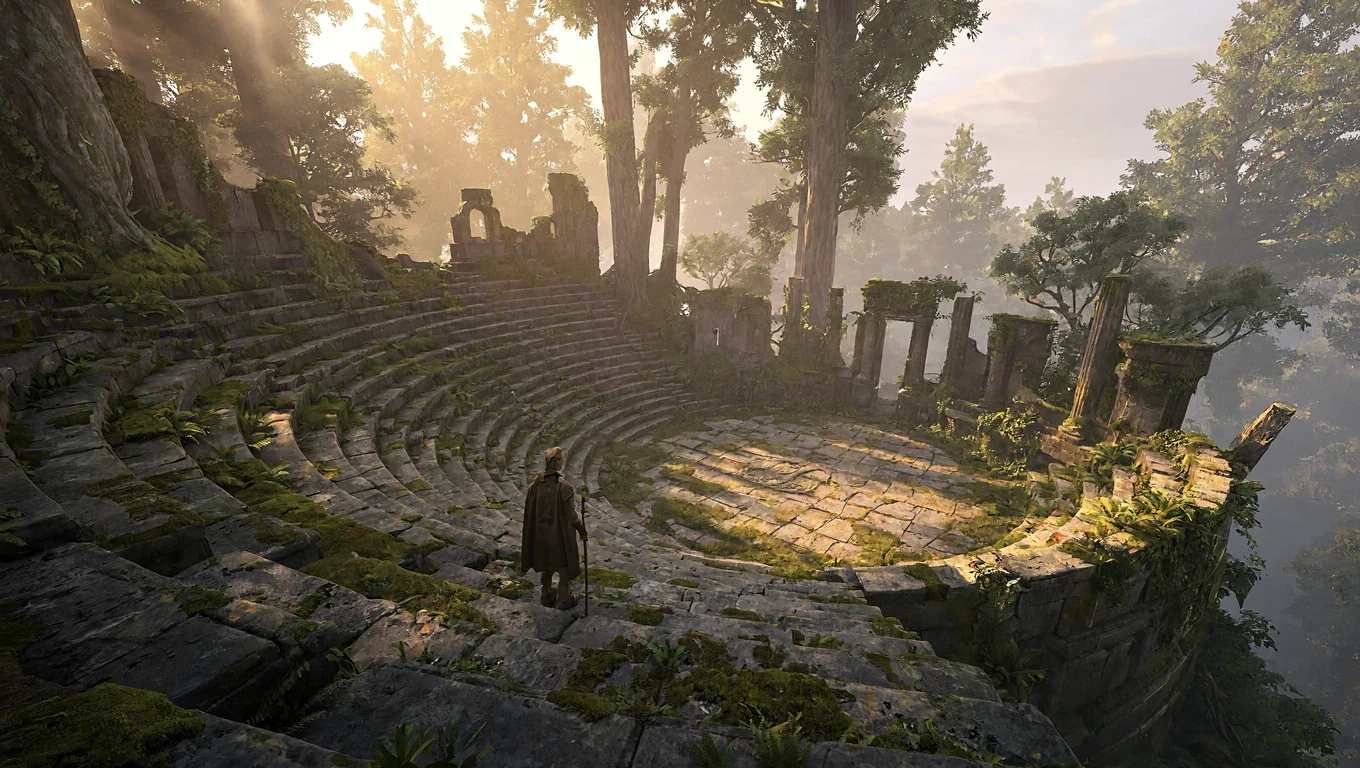
MiniMax H3 Image AI Image Generator
Generate in up to 4K or edit with up to 16 reference images using MiniMax H3 Image on Epochal — 15 aspect ratios, PNG, JPEG or WebP output.
Overview
MiniMax H3 Image: Type It, Then Take It to 4K
MiniMax's image model for text-to-image and reference editing. Start from a sentence and go up to 4K, or drop in as many as sixteen photos and tell it which one goes where. Fifteen aspect ratios, from a 3:1 banner to a 9:21 story.
- Up to 4K output
- 15 aspect ratios
- Up to 16 references
- PNG, JPEG or WebP
Gallery
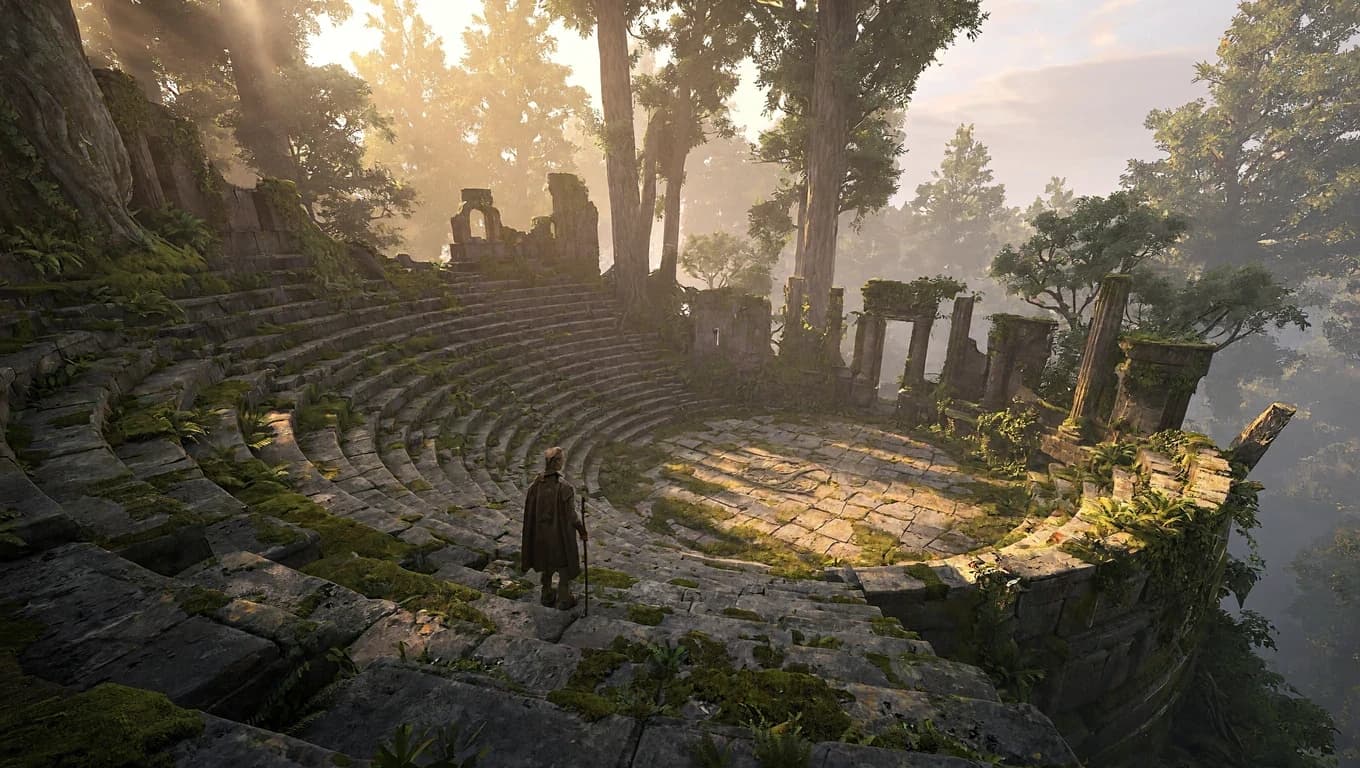
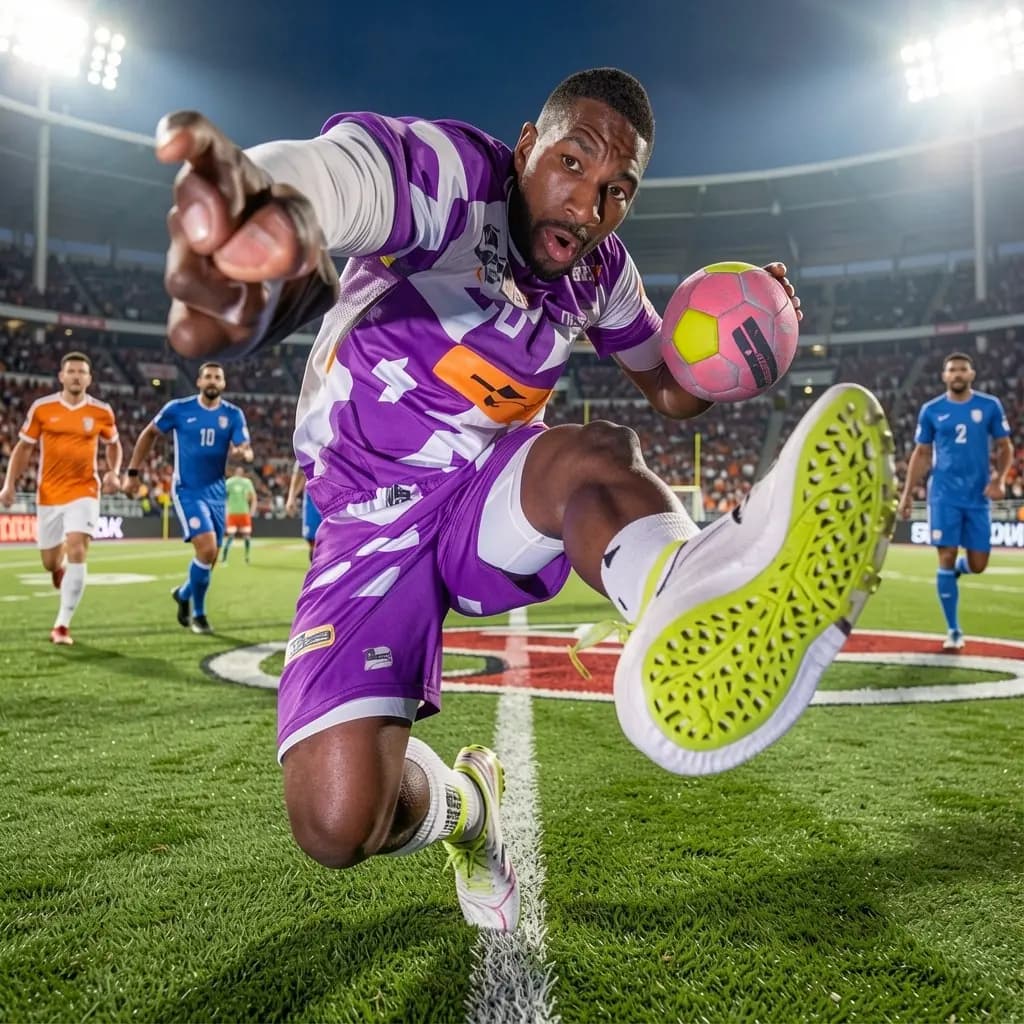
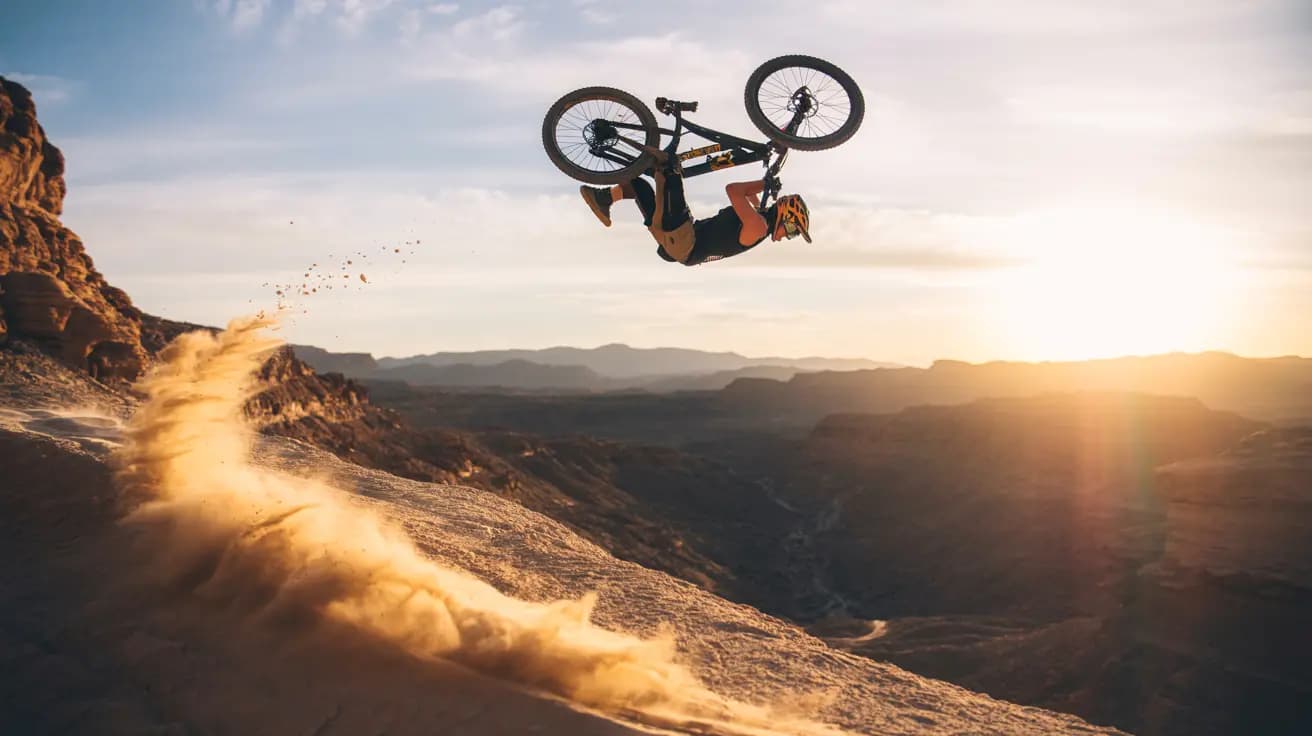
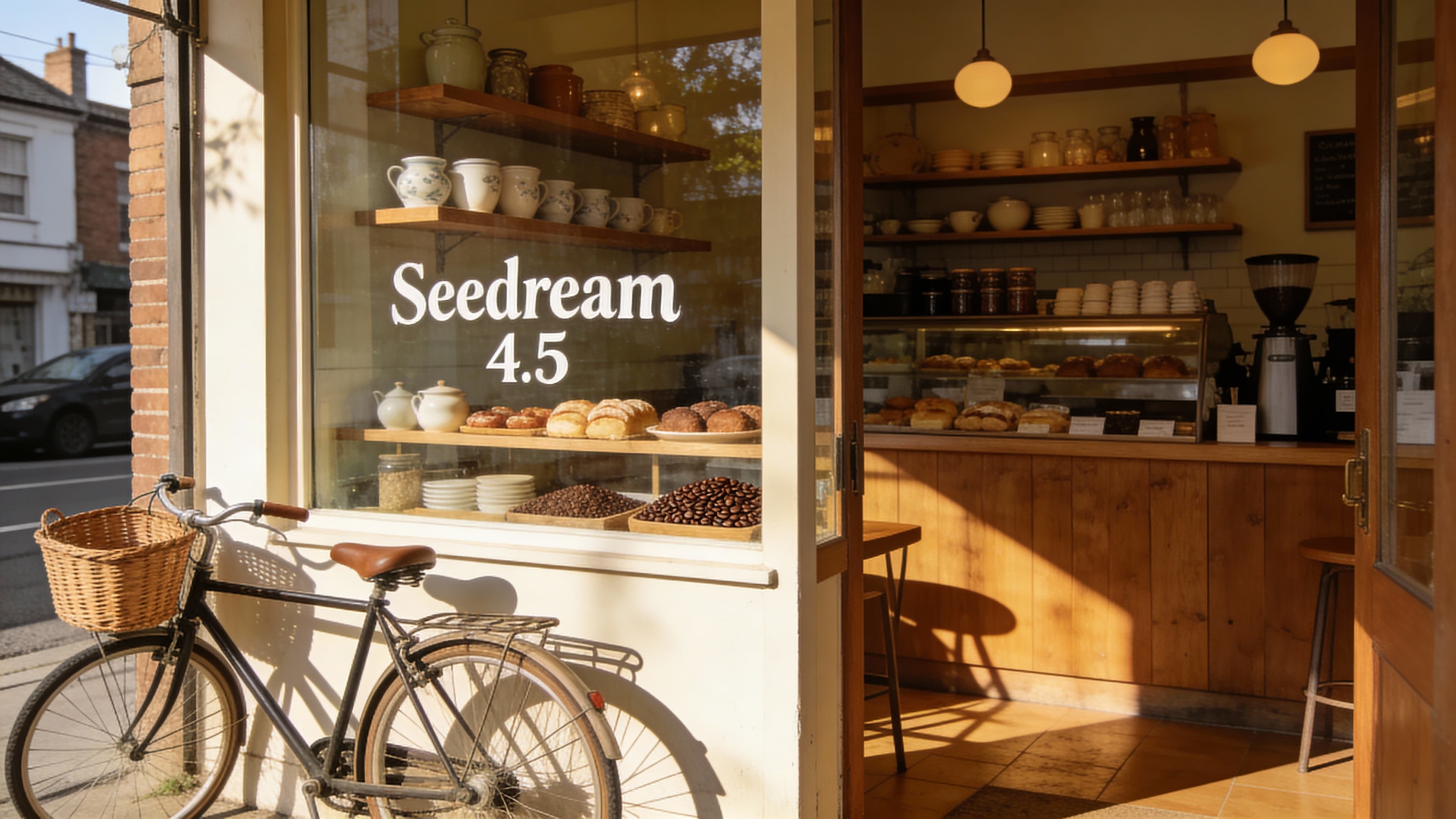
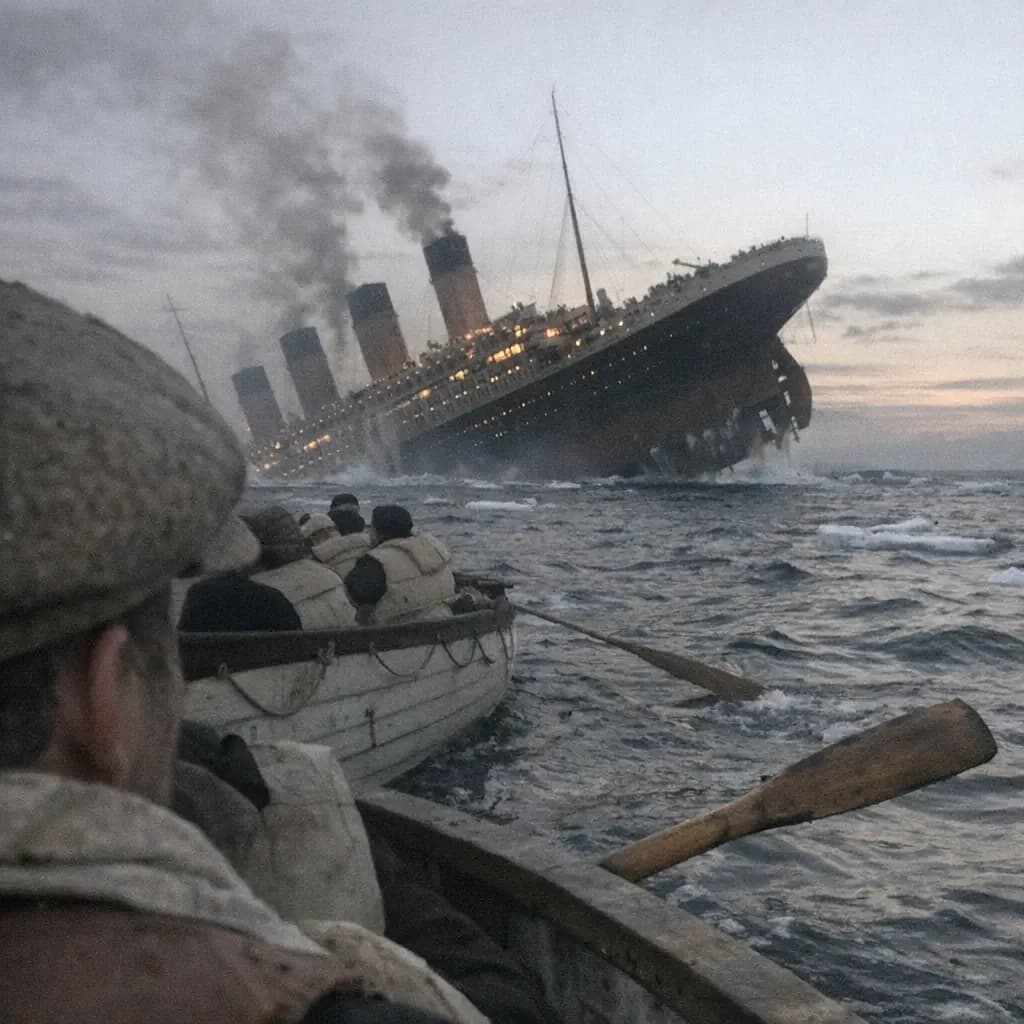
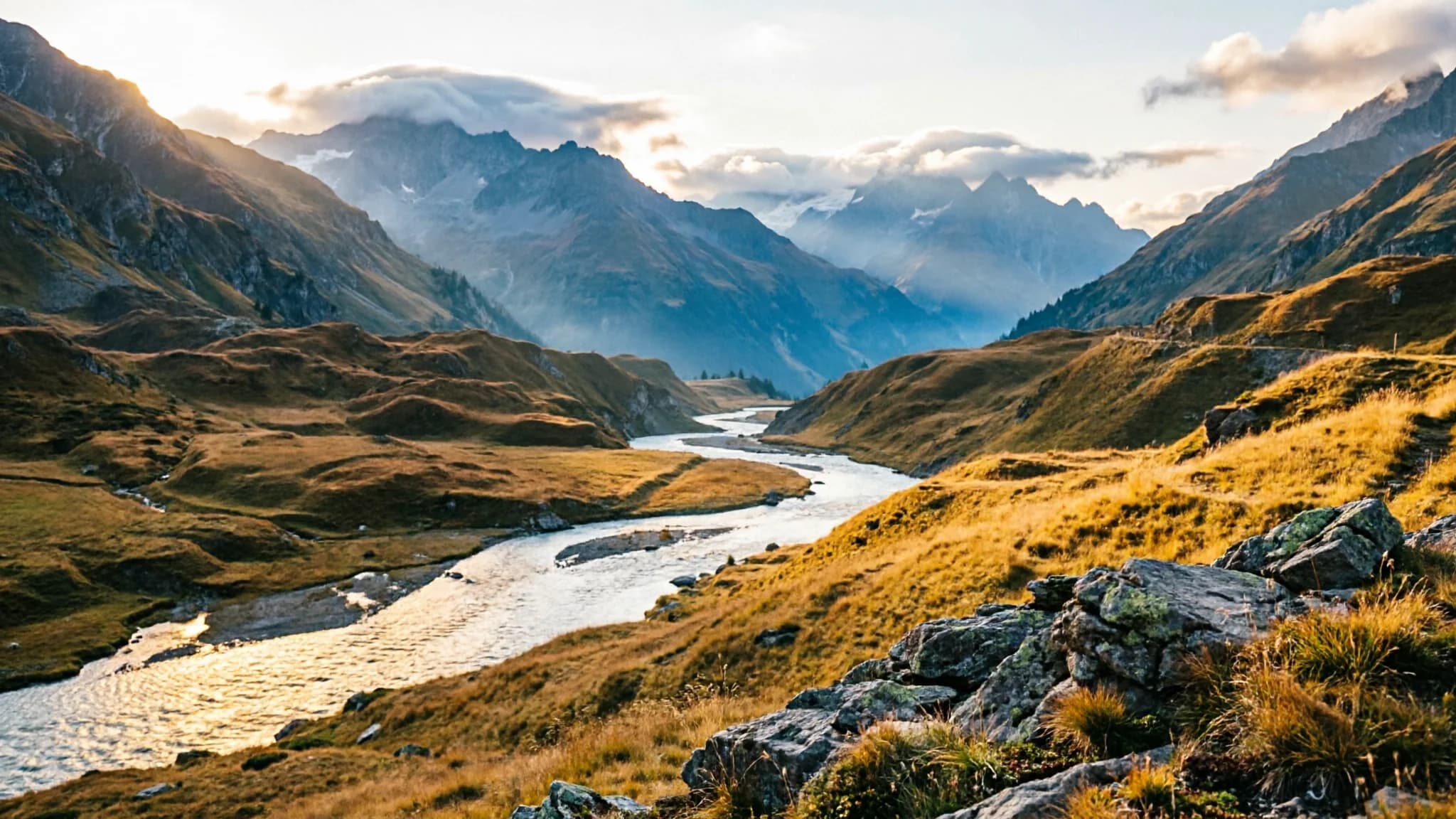
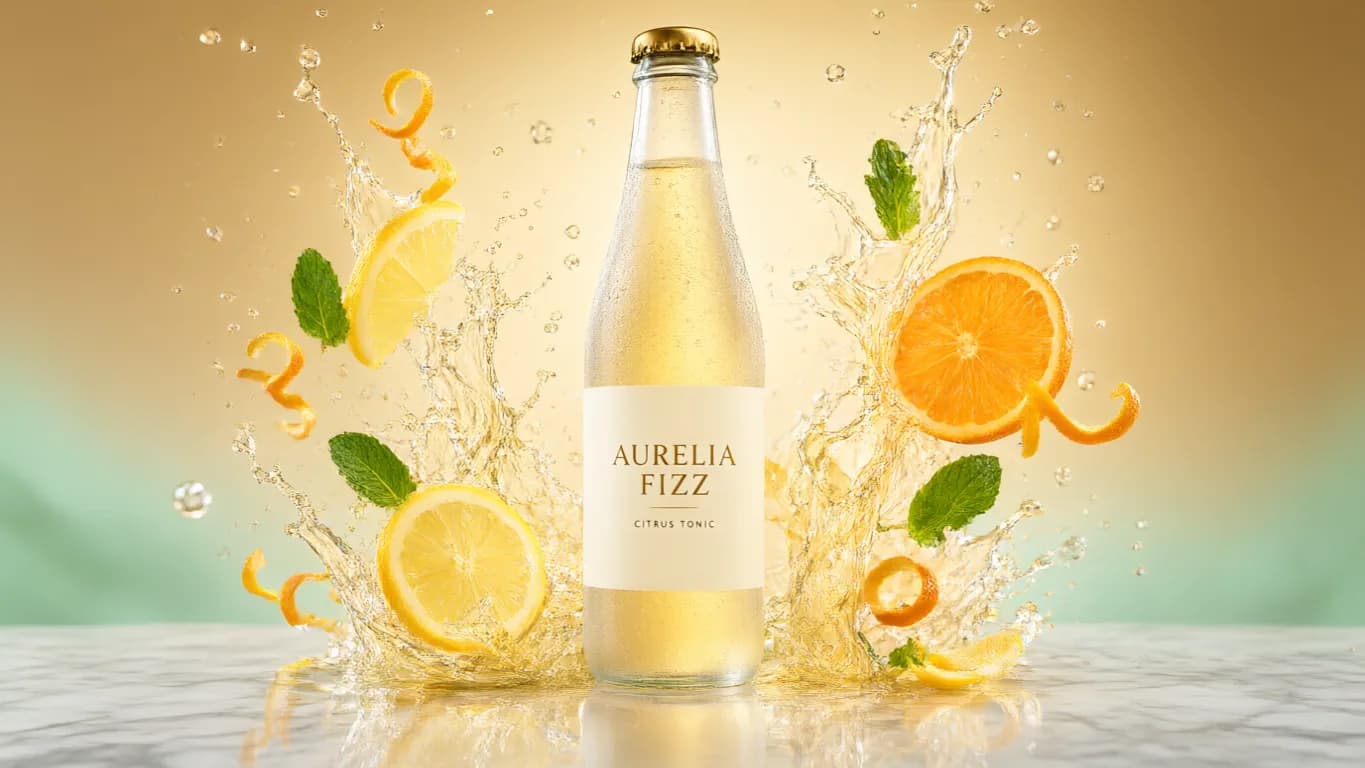
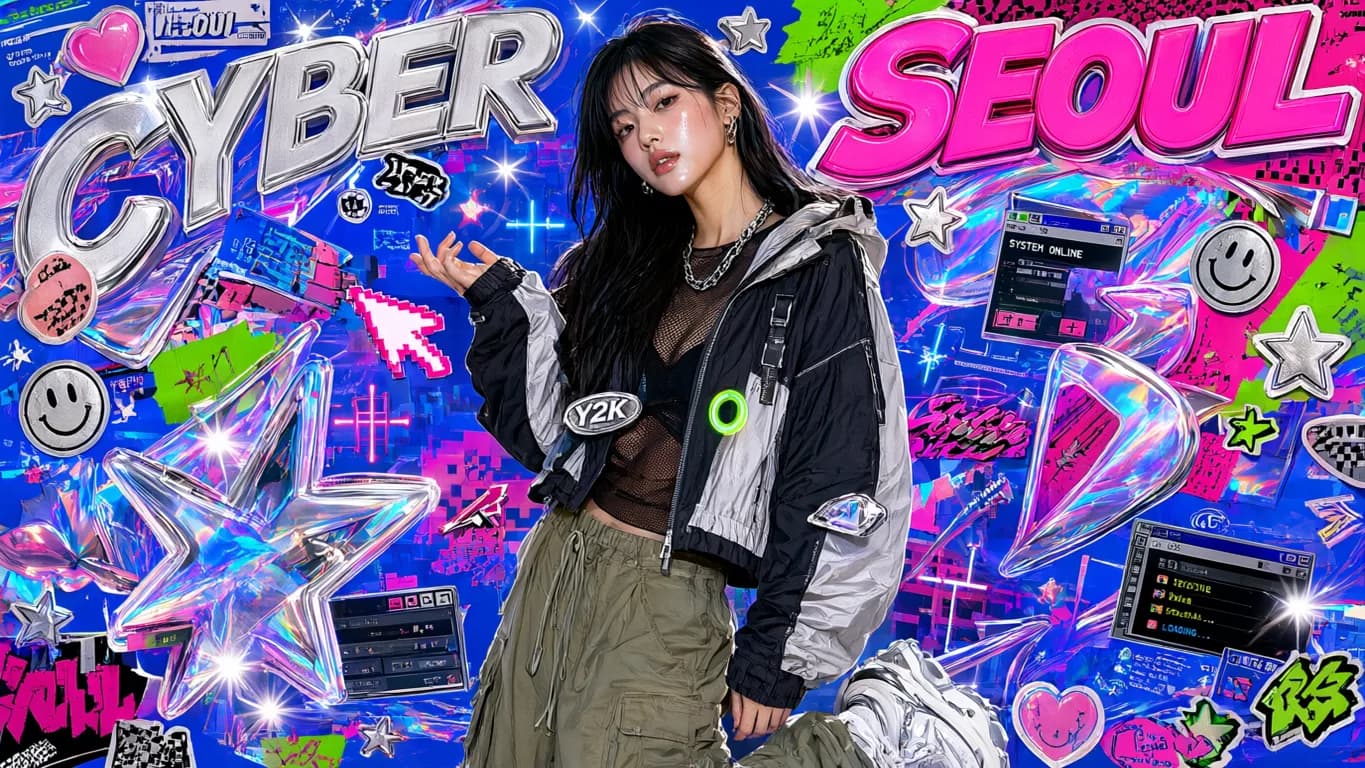
See what MiniMax H3 Image can create
Prompts you can run as they are — click a tile to drop its prompt into the workbench.
Explore image models
More AI Image Generators
Explore specialized AI image models — each built for different creative styles and production needs.



Features
MiniMax H3 Image Features
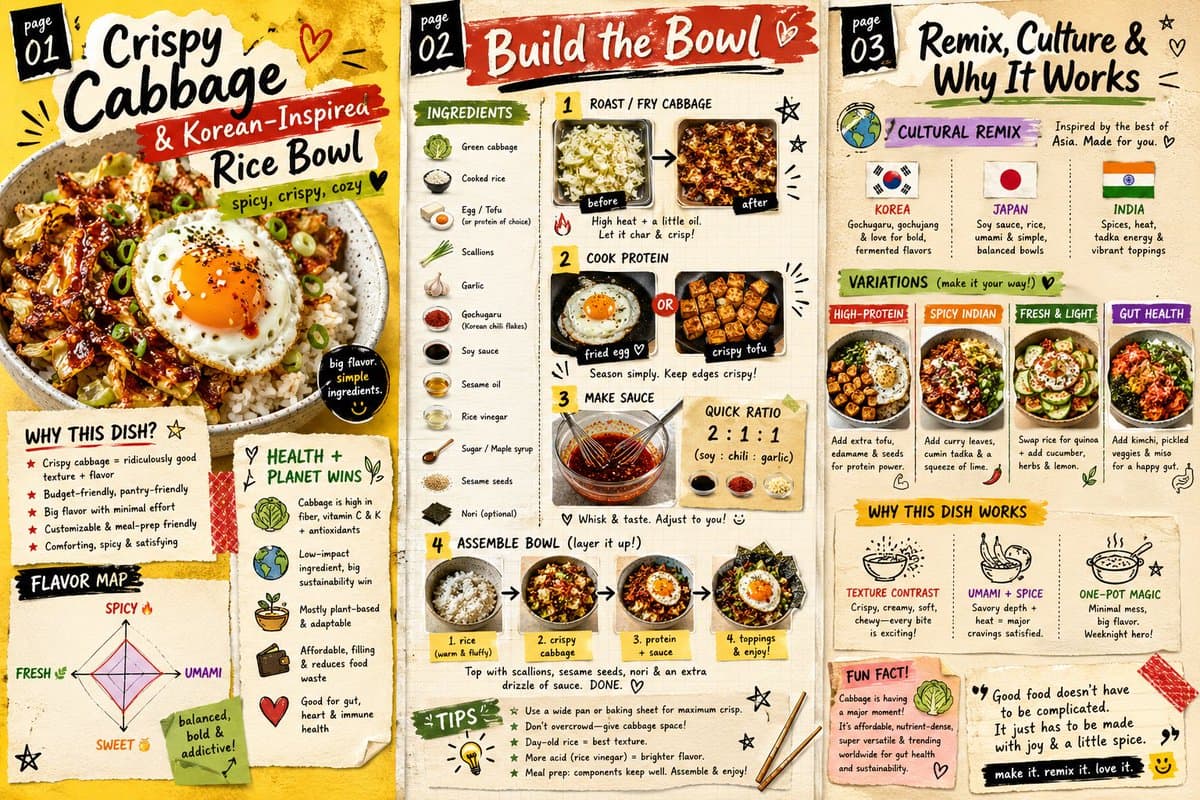
From a one-line prompt to a sixteen-photo composite, in the same workbench.

Up to 4K, in Three Sizes
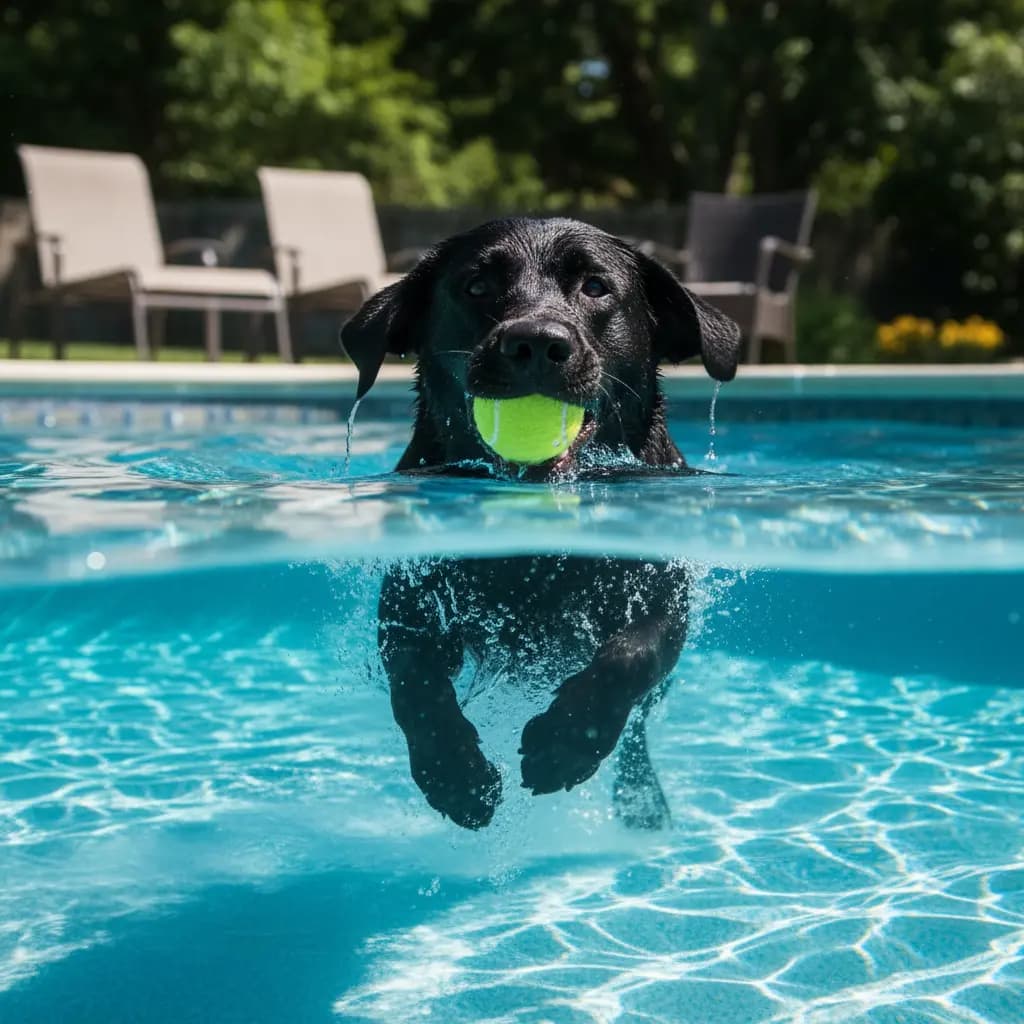
Choose 1K, 2K or 4K on every run. 1K is about one megapixel, 2K about four and 4K about sixteen, so you can try ideas small, check the detail at 2K and render the final frame at 4K.
Compare sizes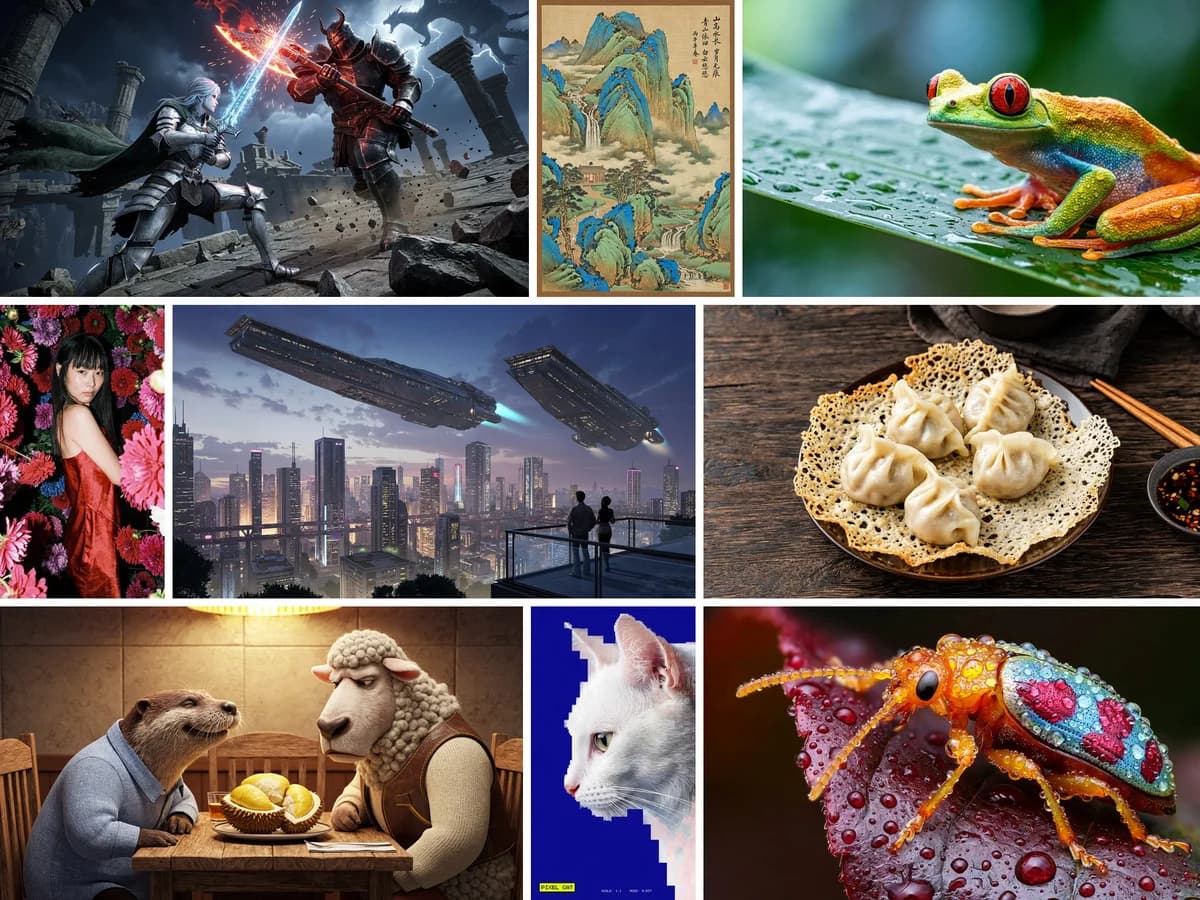
Fifteen Ways to Frame It
Square posts, tall stories, 3:1 banners, 21:9 widescreen — all fifteen ratios are one click away. Pick the crop for where the image is going and render it that way, instead of cutting a square down afterwards.
Pick a ratio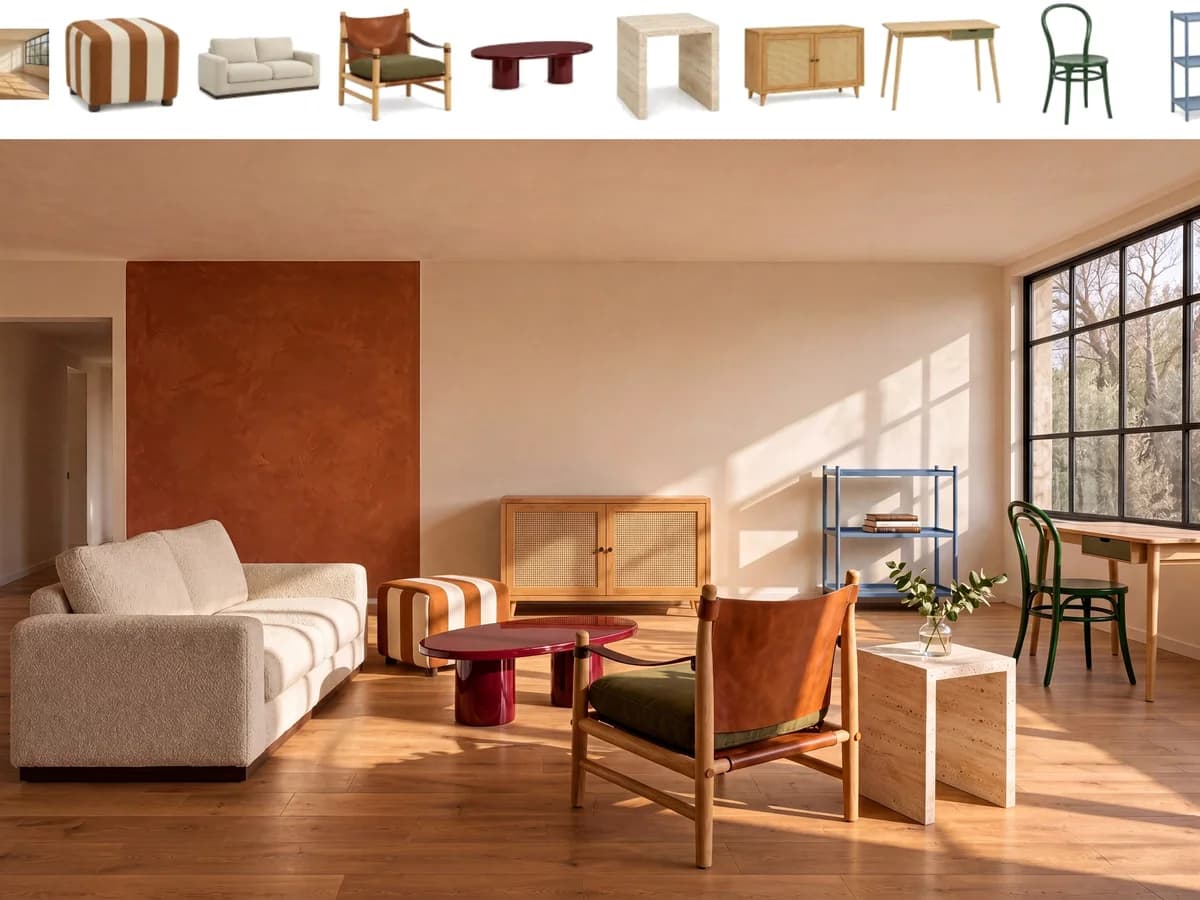
Sixteen References in One Edit
Upload up to sixteen photos and combine them: a person from one, a jacket from another, a room from a third. Refer to each by number in the prompt and the model works from that order.
Combine references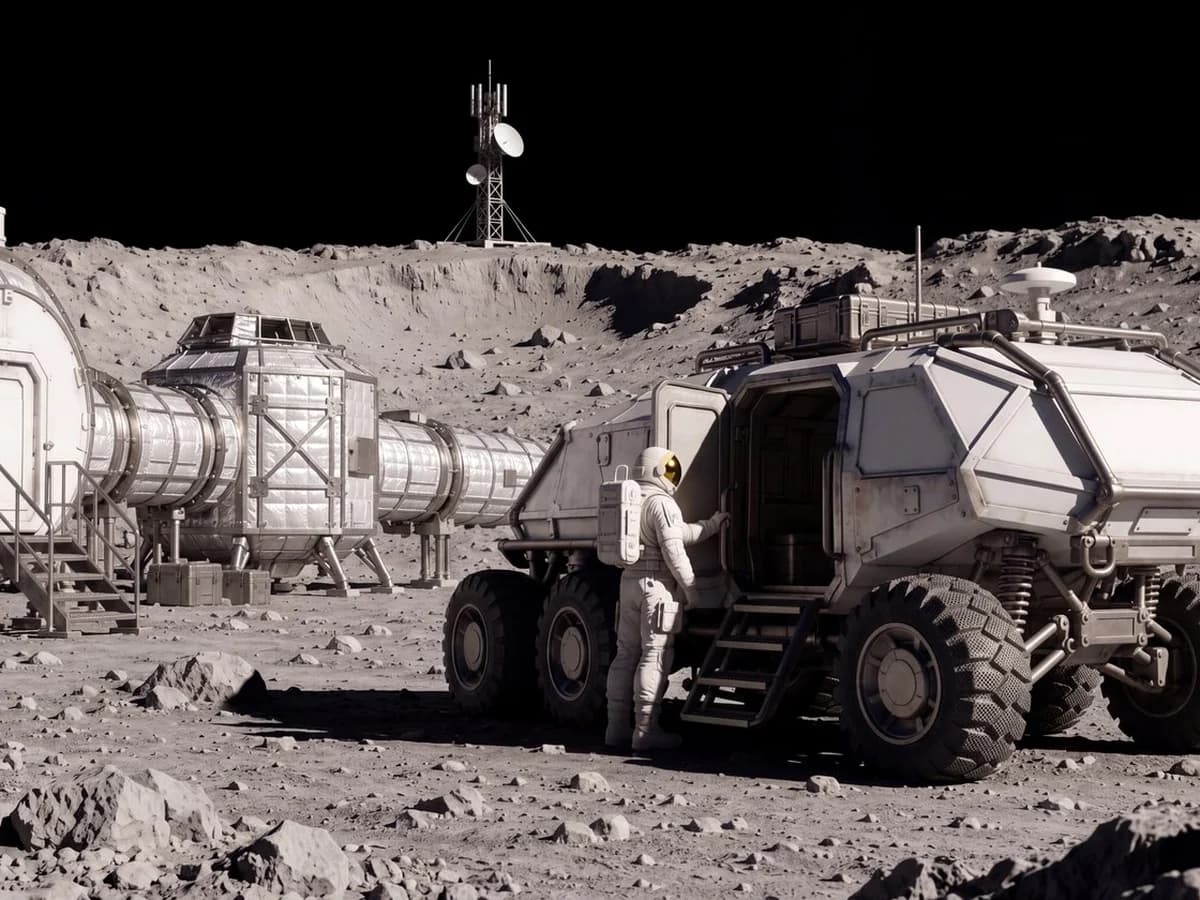
Edit by Saying What Stays
Tell it the change and tell it what must not move — the face, the bottle, the layout. Swap a background, restyle an outfit or build a product scene around a pack shot, and keep the part you already like.
Start an editHow to use
How to Use MiniMax H3 Image
Write a prompt or add references, choose the frame, and pick the size.
Describe the Picture
Name the subject and the composition first, then the light, the setting and the style. The clearer the first sentence, the less you fix later.
Add References to Edit
Upload 1 to 16 photos and refer to them as image 1, image 2 and so on. Say what should change and what has to stay.
Choose the Frame
Pick one of 15 aspect ratios, 9:16 for stories, 16:9 for widescreen, 21:9 for banners. On an edit, leave it on Auto and the frame follows your photos and your prompt.
Pick the Size and Format
1K to try an idea, 2K for a sharper file, 4K when the image is going big. Export as PNG, JPEG or WebP.
Who it's for
Who Should Use MiniMax H3 Image
People who need a big, clean file or one scene built from several photos.
Advertising & Campaign Teams
Concept frames, key visuals and campaign variations. Prompt a scene, or feed in product shots and brand references and run the same idea across several formats.
E-commerce & Product Teams
Pack shots, lifestyle scenes and new backgrounds around a product you already photographed. Up to sixteen references let you show the product, the props and the set at once.
Editorial & Content Creators
Cover art, article illustrations and social visuals in the ratio each platform wants, from 9:16 stories to 16:9 headers, exported as PNG, JPEG or WebP.
Portrait & Fashion Creators
Change the outfit, the styling or the location while the person stays the person. Number your references so the face and the garment come from the right photos.
Designers & Art Directors
Mood frames and layout concepts at up to 4K, with 3:1, 1:3, 21:9 and 9:21 for the long and tall slots that a square crop never fits.
Photographers & Retouchers
Background swaps, light changes and composites from shots you already have. Describe the edit, point at the reference by number and check the result before it goes out.
Explore creative tools
More AI Image Tools
Explore focused AI image tools, each designed for a specific task — see how AI can turn your concepts into finished work.
FAQ
MiniMax H3 Image FAQ
What it does, how editing works, and what a run costs.
- What is MiniMax H3 Image?
- MiniMax's image model. Write a prompt to generate a picture, or upload up to 16 reference images and edit or combine them.
- Is it fast?
- Generation is much faster than before, so you can try an idea, adjust the prompt and run it again without a long wait.
- Can it edit my own photos?
- Yes. Upload 1 to 16 images, describe the change, and refer to the photos as image 1, image 2 and so on, in the order you uploaded them.
- How many reference images can I use, and what size?
- One to sixteen on an edit. Each image needs to be between 128 and 8192 pixels on every side, and its long side can be at most four times its short side.
- What resolutions can I choose?
- 1K, 2K or 4K. 1K is about one megapixel, 2K about four and 4K about sixteen. Text-to-image costs 9 credits at 1K, 18 at 2K and 27 at 4K.
- Which aspect ratios and formats are available?
- Fifteen ratios, from 1:1 to 21:9, 9:21, 3:1 and 1:3. On an edit you can leave the ratio on Auto and it follows your images and your prompt. Output is PNG by default, with JPEG and WebP as options.
- How much does a run cost?
- Text-to-image is 9 credits at 1K, 18 at 2K and 27 at 4K. An edit with one reference is 12 credits at 1K, 21 at 2K and 30 at 4K, and adds about 3 credits for every extra reference.
- Should I use 1K, 2K or 4K?
- Try ideas at 1K, where a run costs the least. When the frame is right, run it again at 2K or 4K for more detail.
- How do I keep part of a photo unchanged?
- Say it in the prompt. Describe the change, then name what has to stay the same, such as the face, the product or the layout, and give each reference a clear job. If two photos pull in different directions, try fewer references.
- Can I use the results commercially?
- Yes — use what you generate under your Epochal account. Don't prompt trademarks, copyrighted characters, or real people you don't have rights to.
Start now
Make your next image on MiniMax H3 Image
Write a prompt, or upload references and edit from them.
Try MiniMax H3 Image