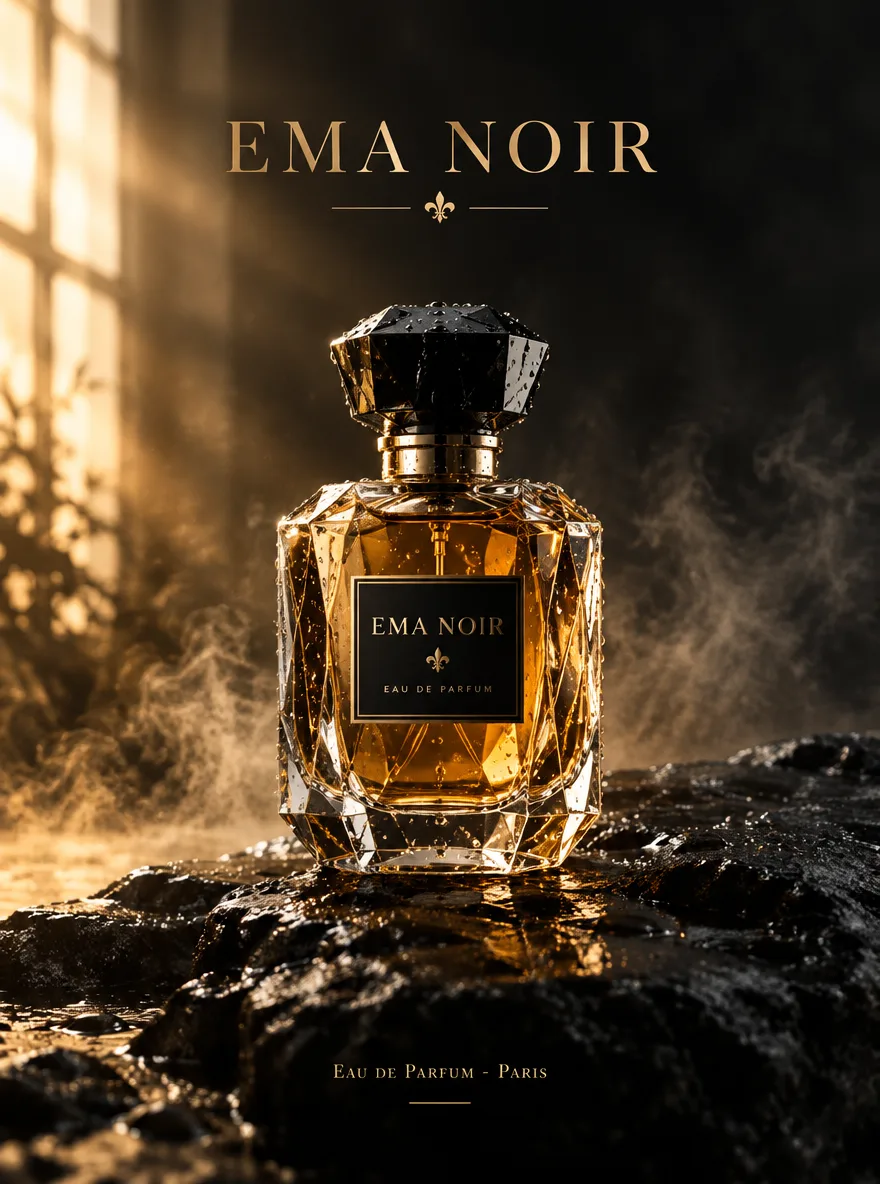



GPT Image 2.5 AI Image Generator
Generate or edit images with GPT Image 2.5 on Epochal — two engine modes, up to 16 reference images, 1K–4K output, five quality tiers.
Overview
Generate and Edit Images with GPT Image 2.5
Create and edit images with GPT Image 2.5 — pick Flare for fast everyday generations or Sunburst when a render needs more time spent on precision. Run text prompts or edit with up to 16 reference images, from quick 1K drafts to 4K finals.
- Flare / Sunburst modes
- Up to 16 reference images
- 1K / 2K / 4K output
- 5 quality tiers
- 15 aspect ratios
Gallery
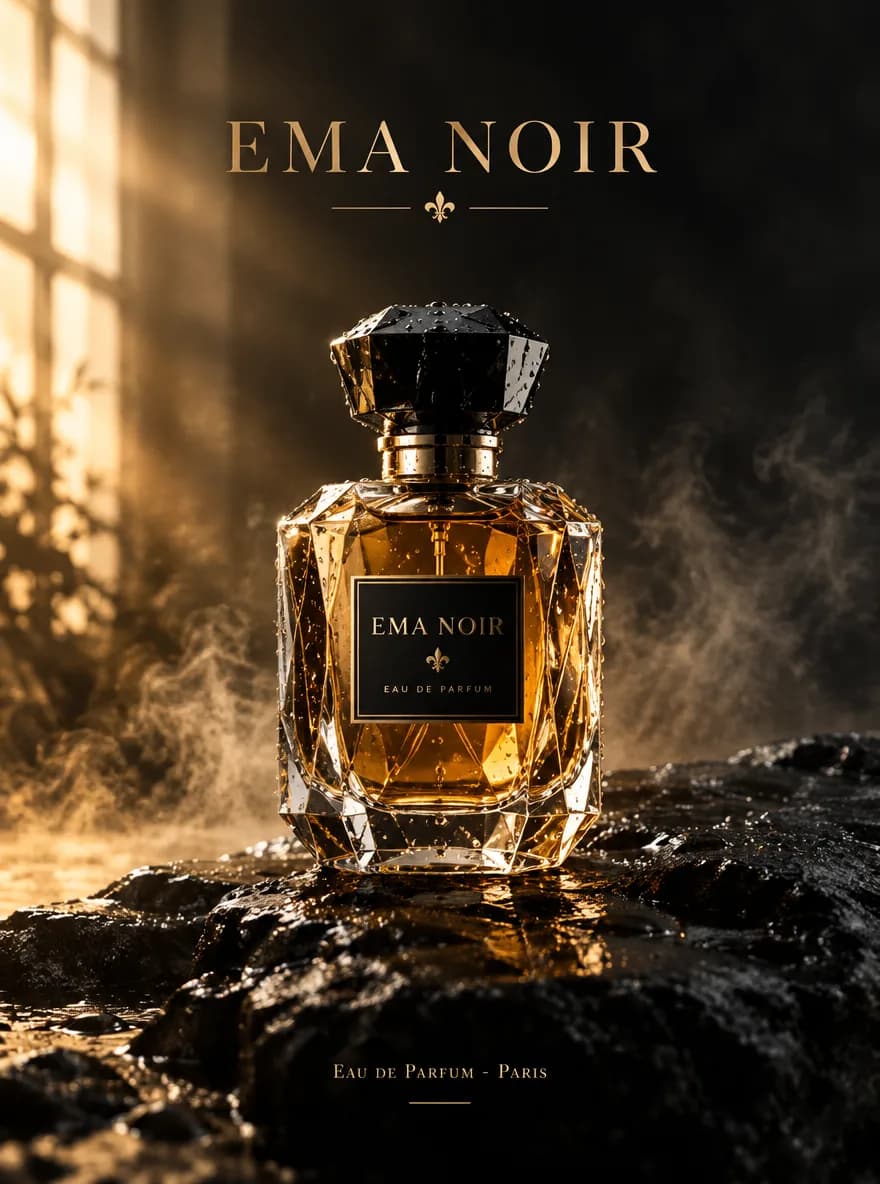
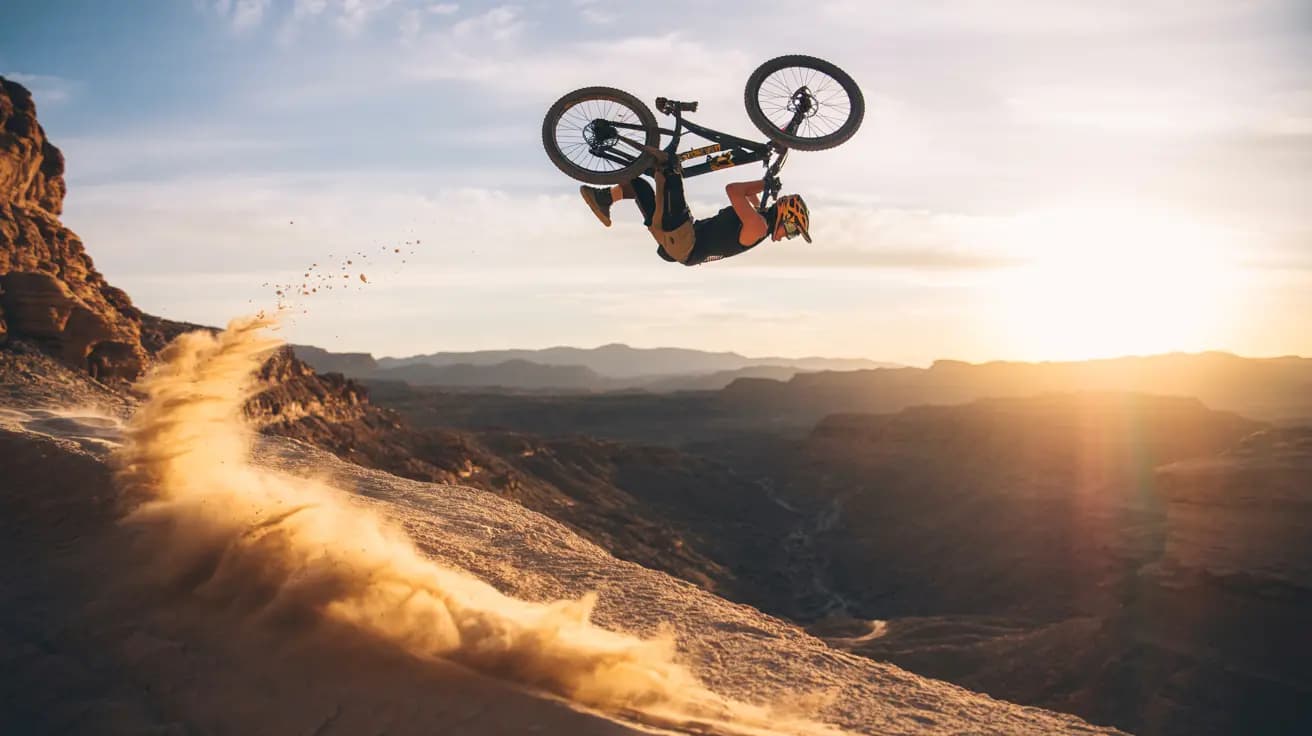
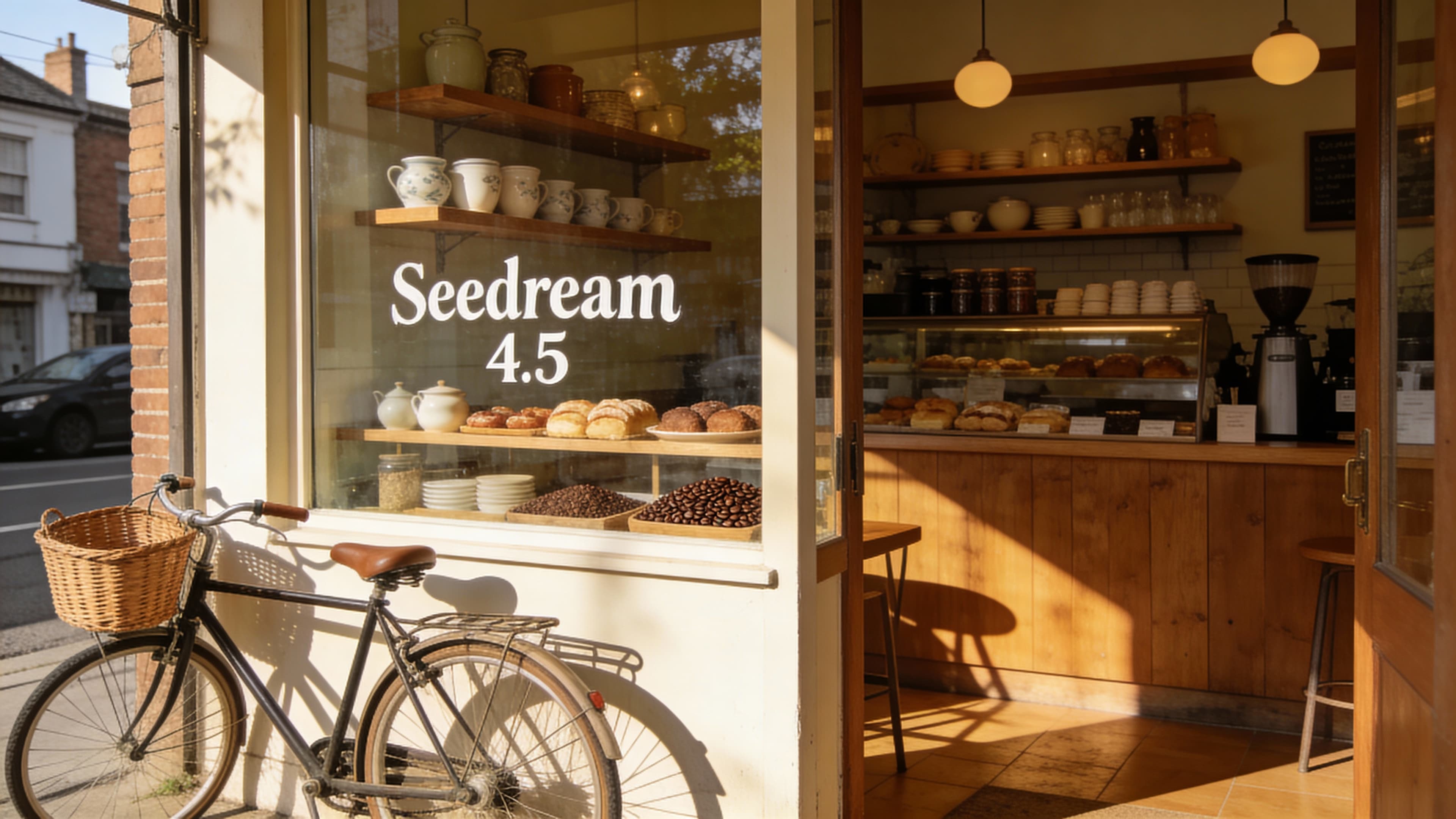
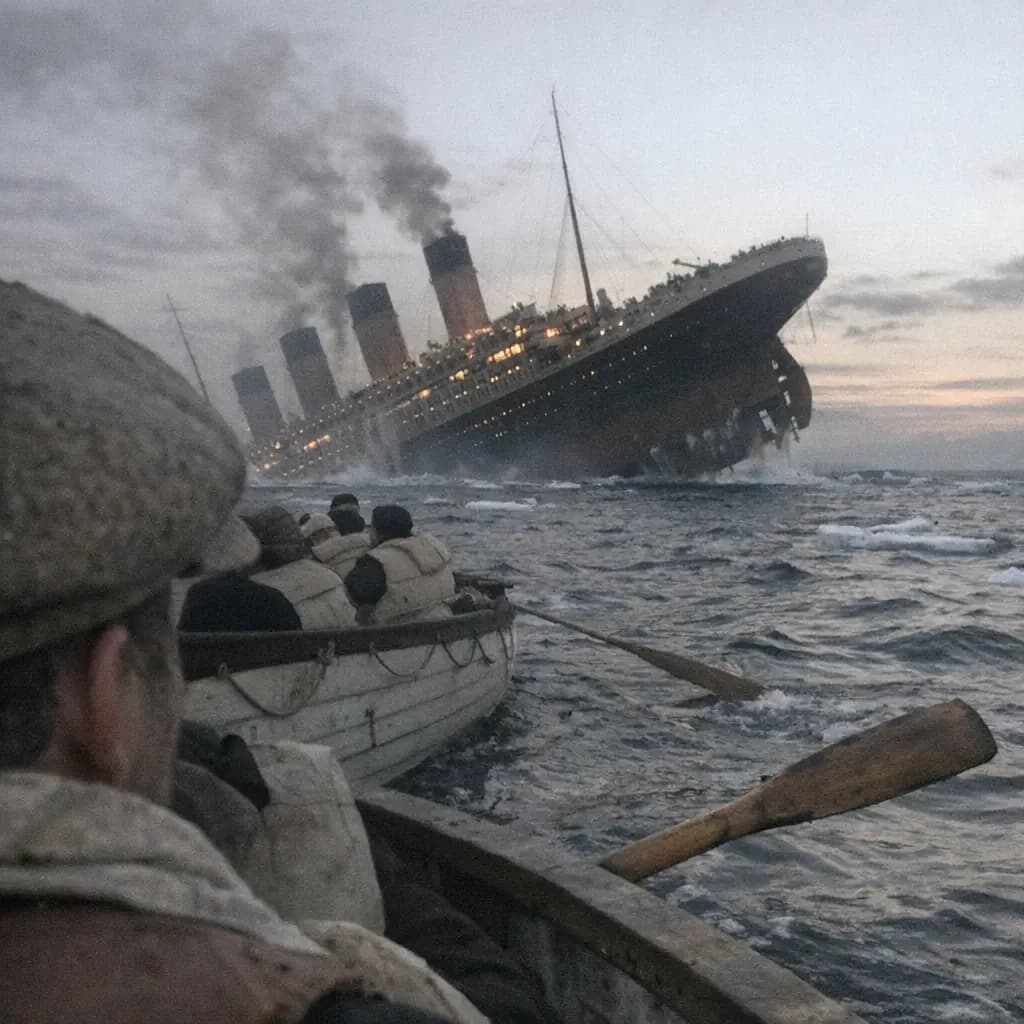
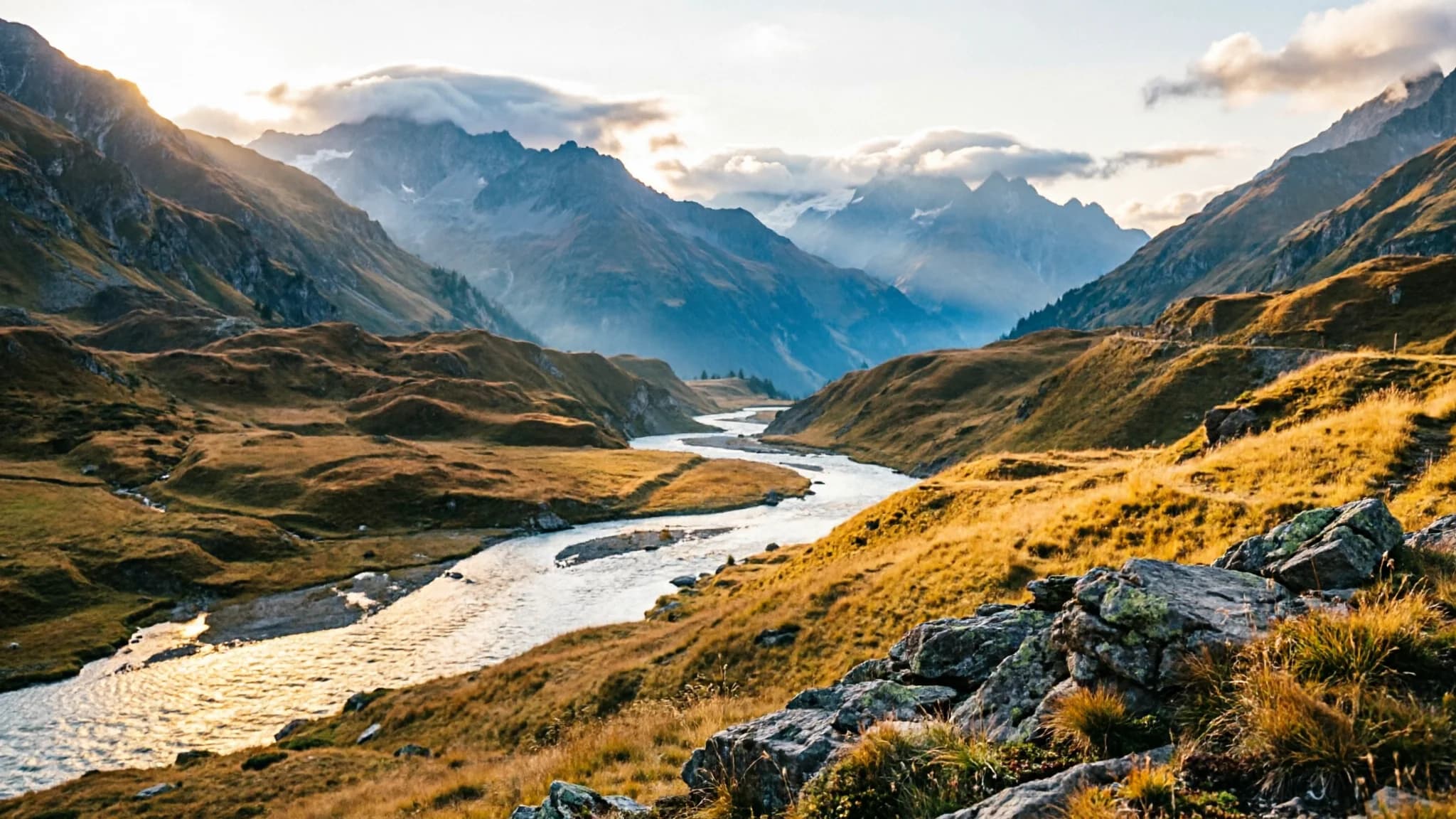
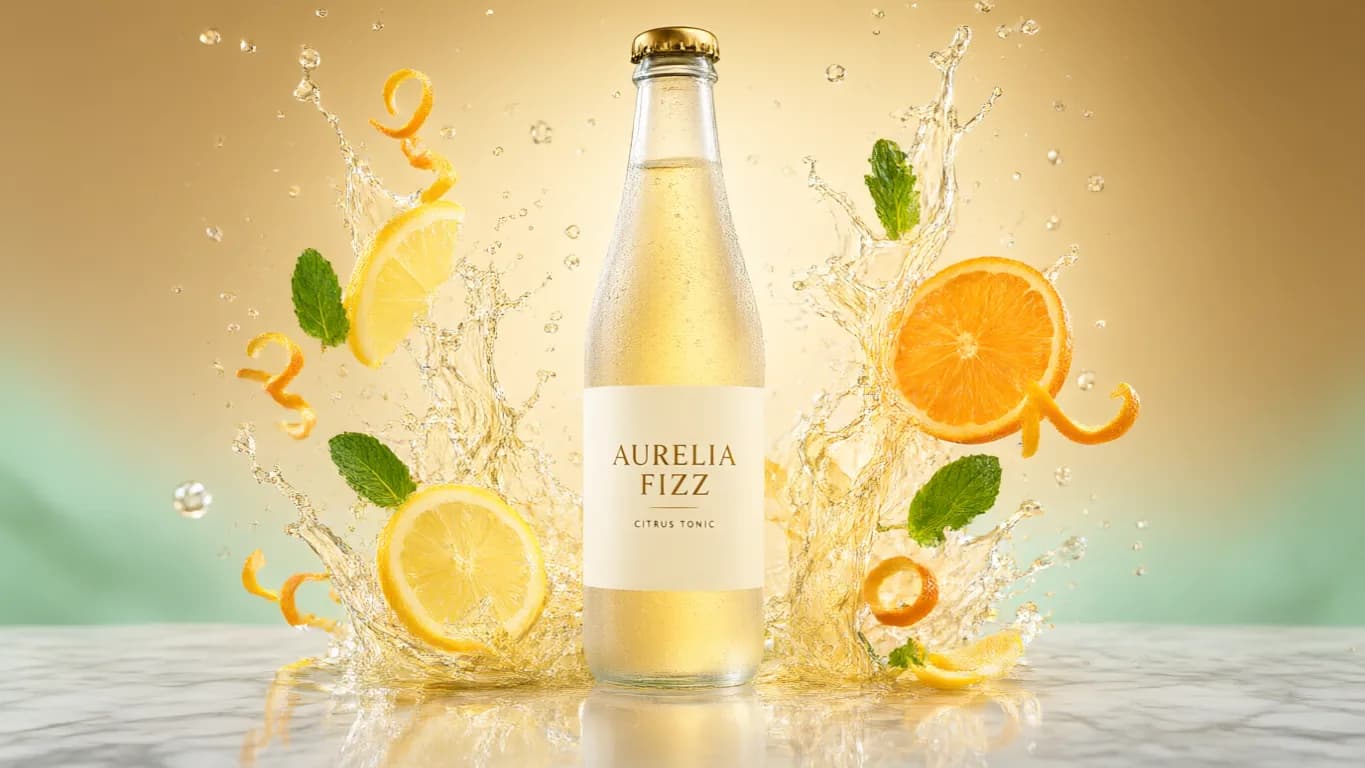
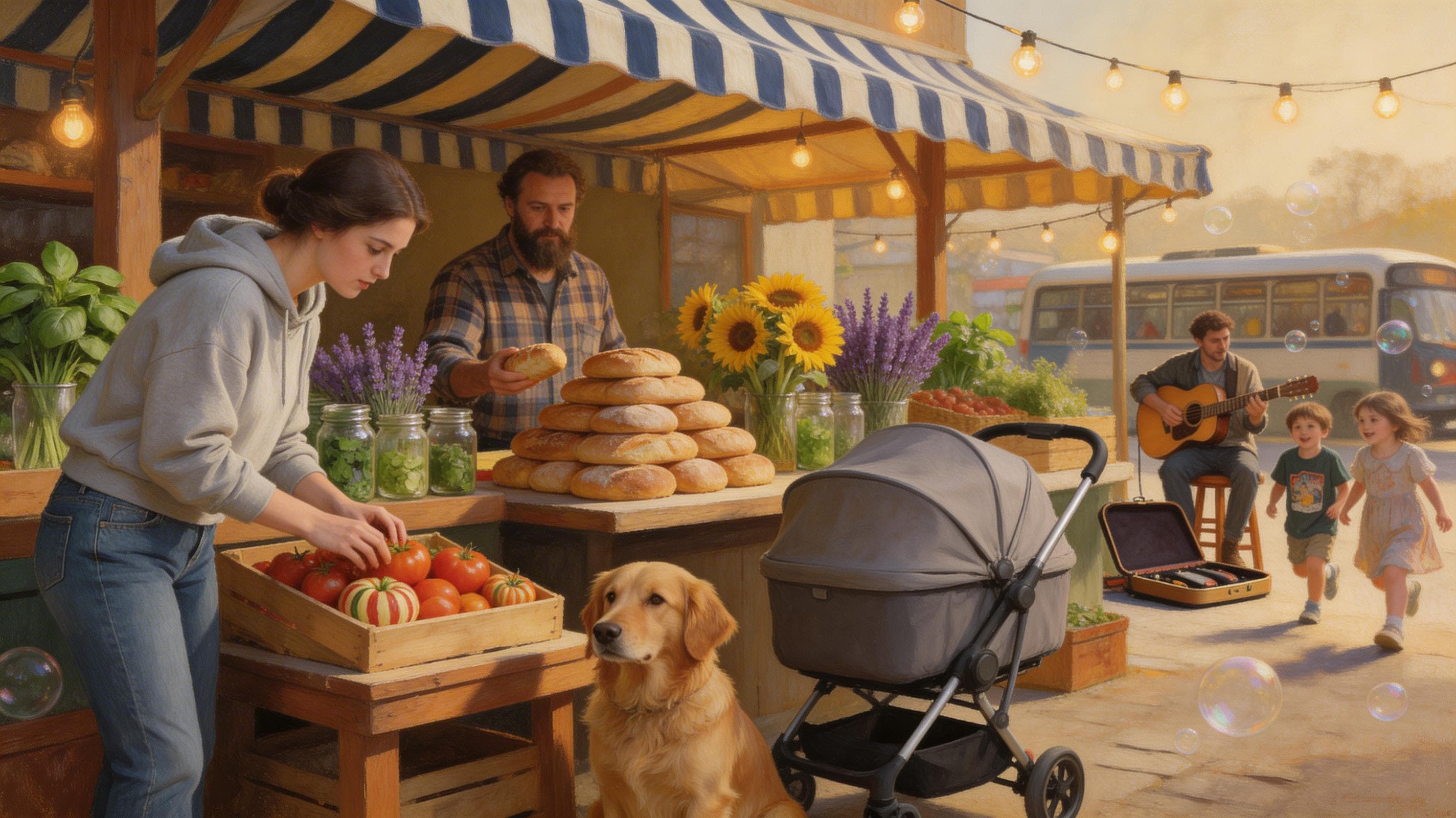
See what GPT Image 2.5 can create
Explore image models
More AI Image Generators
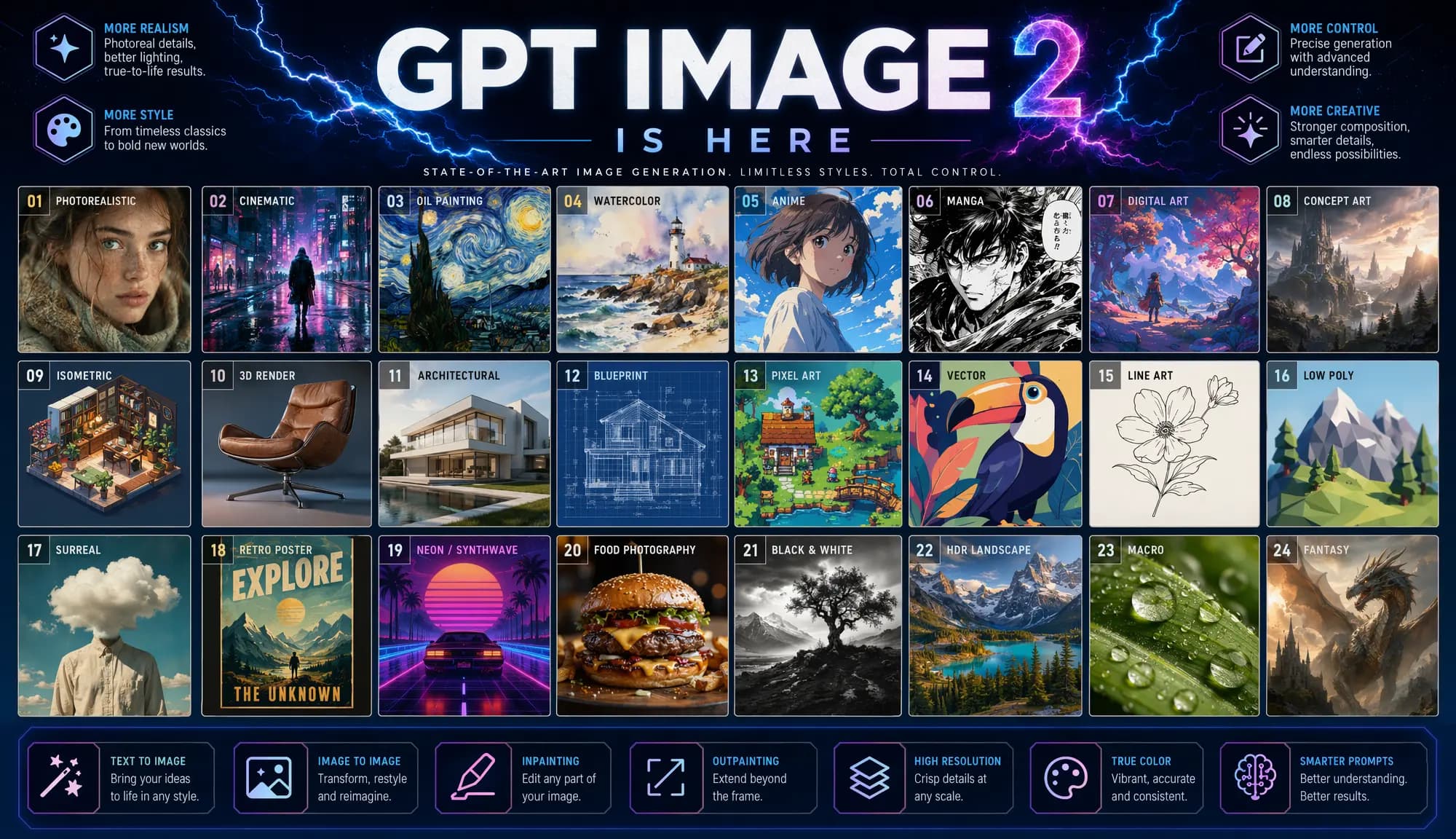
Explore specialized AI image models — each built for different creative styles and production needs.







Features
Core Capabilities of GPT Image 2.5
From a first draft to a reference-guided edit — one model covers the full image workflow.
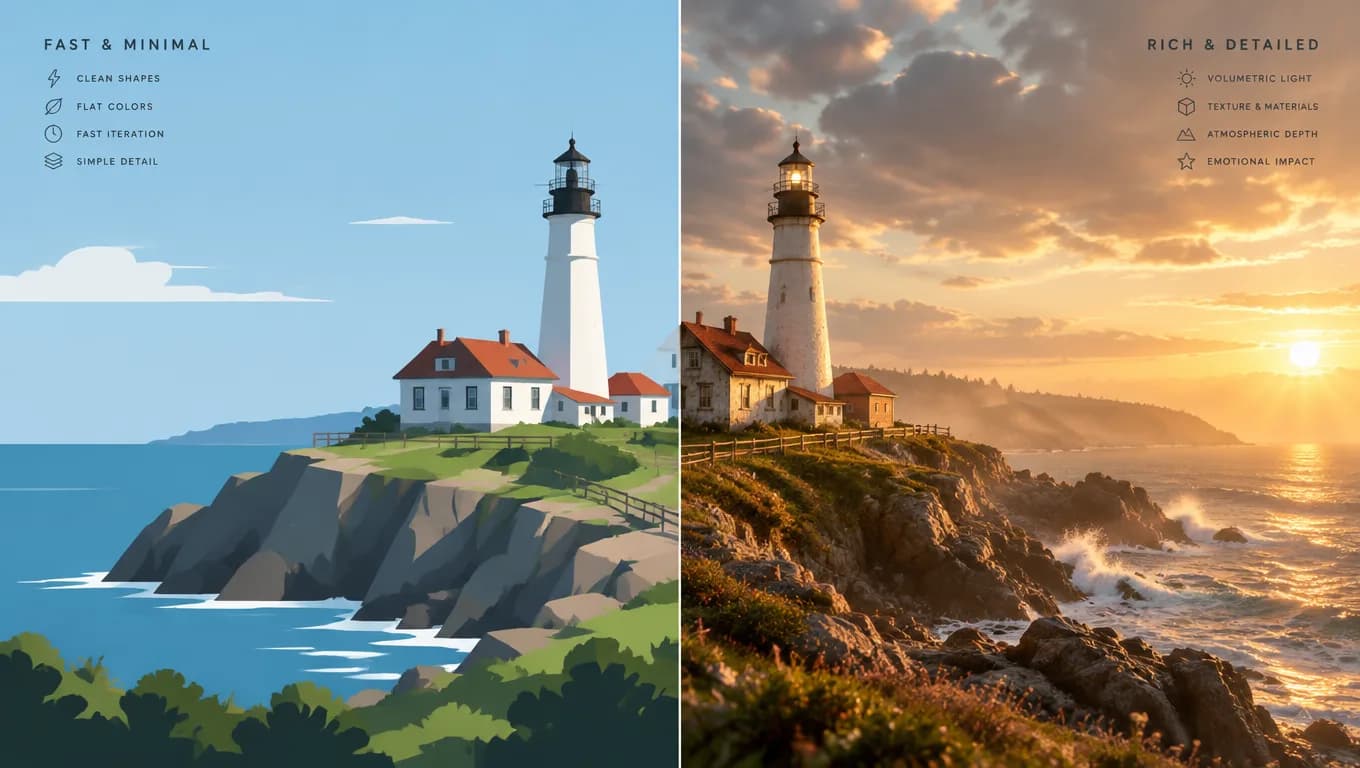
Two Engine Modes: Flare and Sunburst
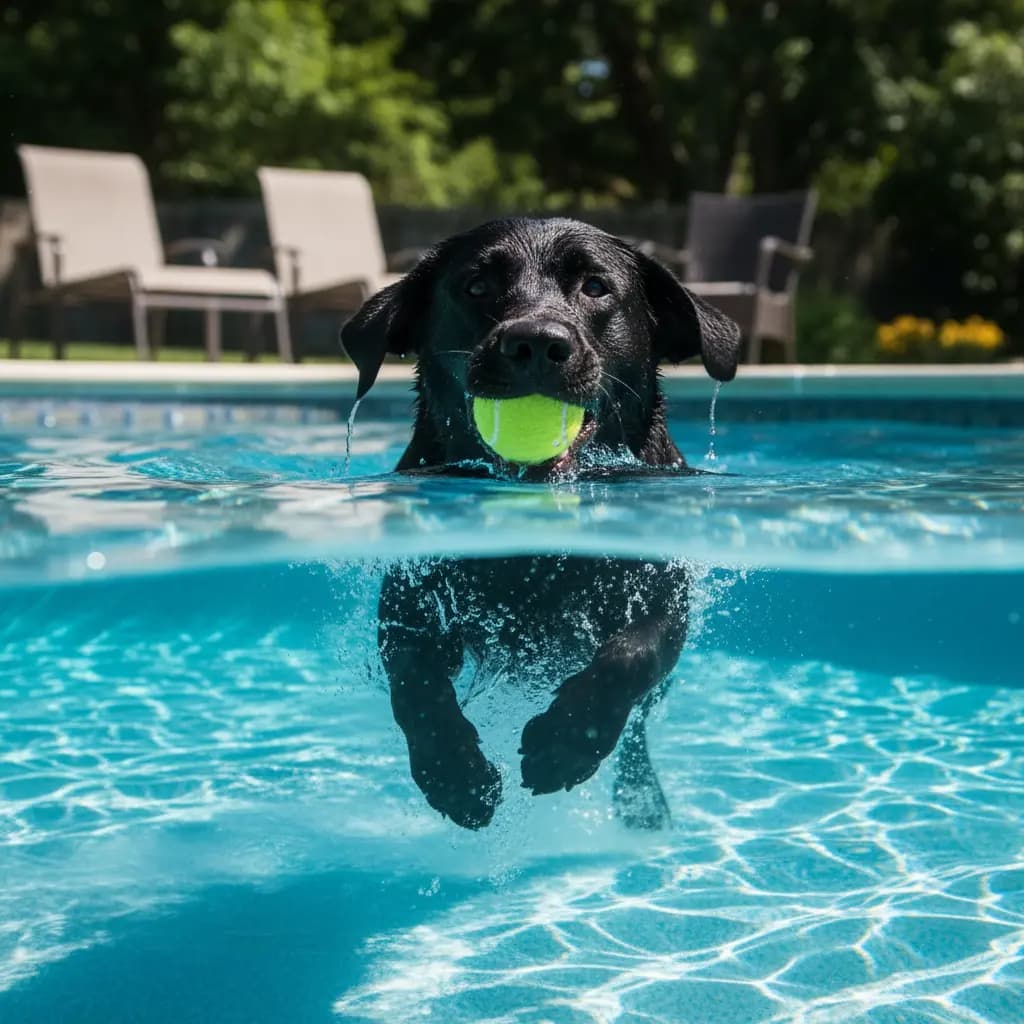
Choose Flare for fast, balanced generations that keep latency low across everyday volumes, or switch to Sunburst when a render deserves more time on precision and complex instructions. Both modes share the same prompt, parameters, and workflows, so switching is one click — no re-writing.
Try a prompt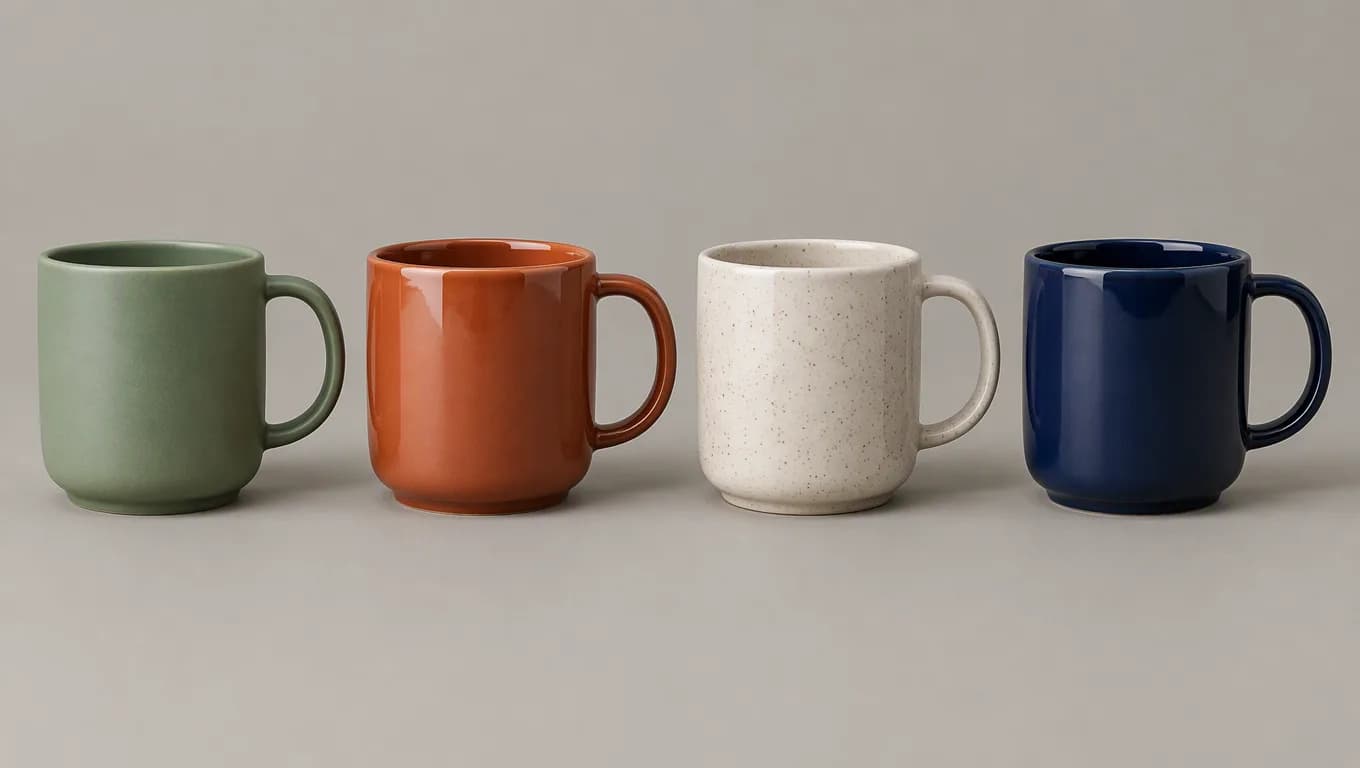
Reference-Guided Editing with up to 16 Images
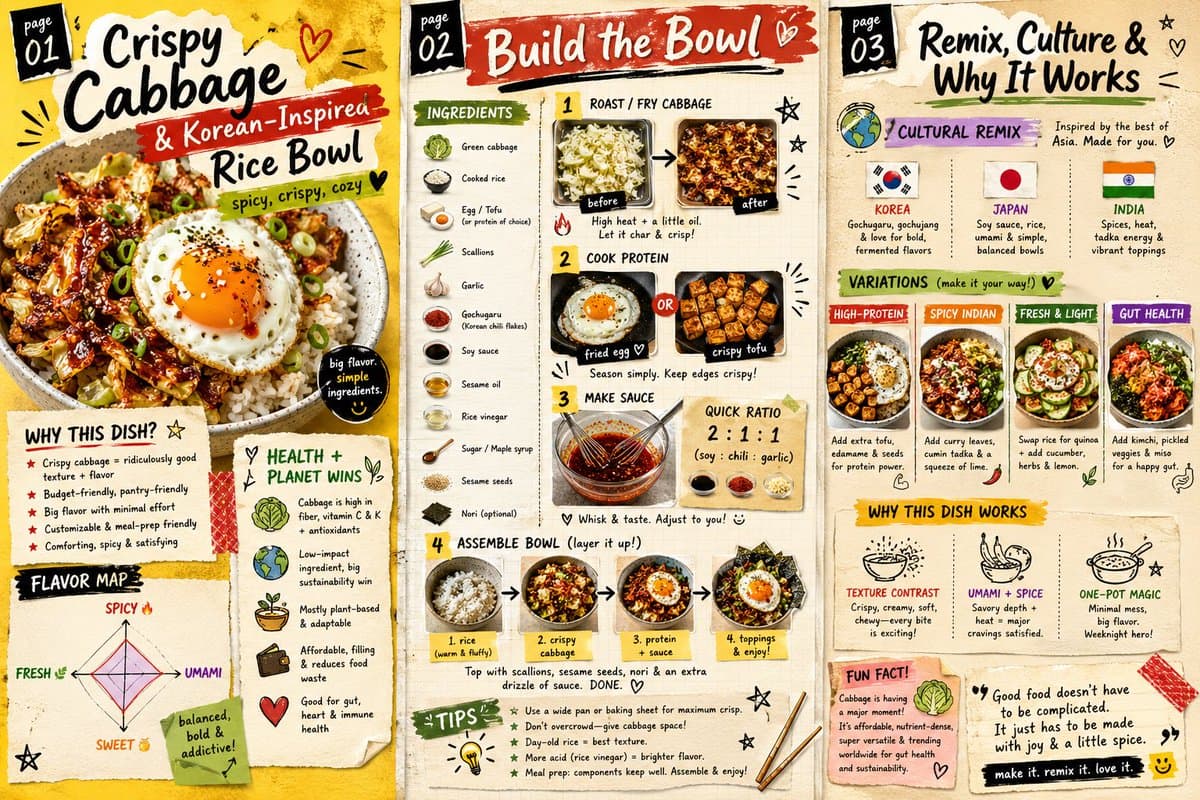
Upload up to 16 reference images and describe the change in plain language. The model reads the visible content, style, and composition of your references and applies your instructions on top — useful for product variants, character consistency, and brand-locked assets.
Test reference editing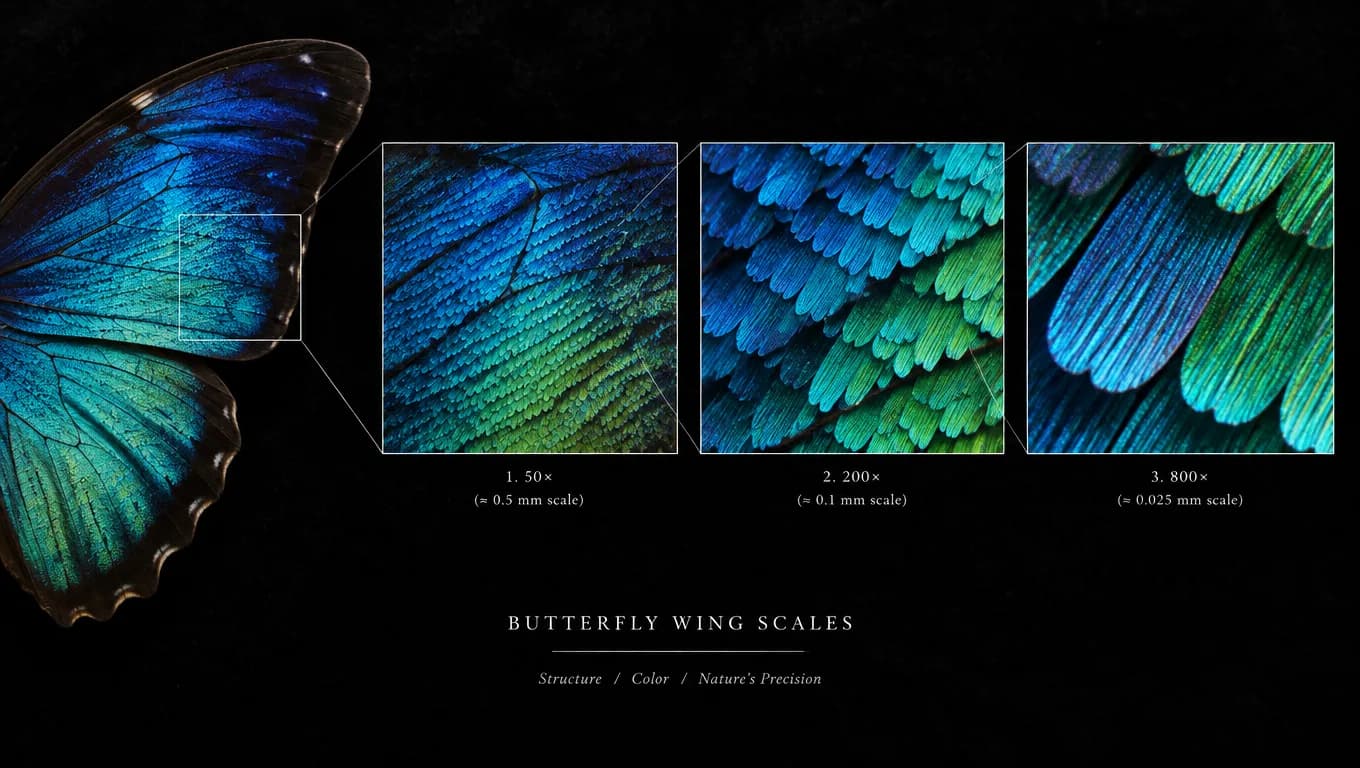
Five Quality Tiers up to 4K
Run low-tier 1K drafts while you iterate on the prompt, then finish on X-High or Max at up to 4K when the output needs to hold up at full size. Medium and High cover the middle ground between speed and fidelity.
Compare quality tiers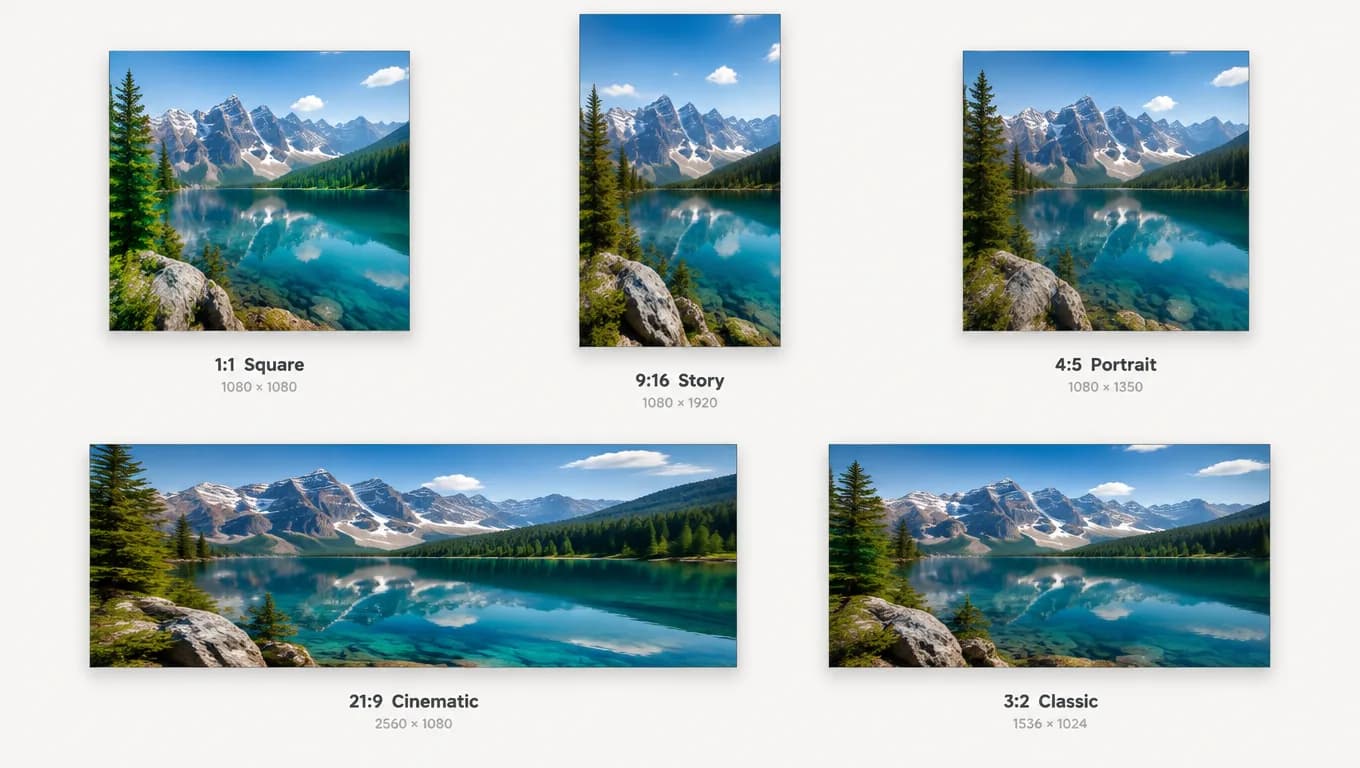
Full Format and Ratio Control
Pick from 15 aspect ratios — from 1:1 squares to 21:9 cinematic frames — and export as PNG, JPEG, or WebP. Set the frame and format once and every re-run stays consistent.
See all formatsHow to use
How to Use GPT Image 2.5
Pick a mode, write the prompt, and scale quality up only when the composition is right.
Choose Flare or Sunburst
Flare is the fast, balanced mode for everyday generations. Sunburst spends more time per image on precision — reach for it on complex edits and detail-heavy scenes.
Describe Your Vision
Type your subject, scene, lighting, and style. For edits, upload up to 16 reference images and describe the change you want in plain language.
Set Frame and Format
Choose one of 15 aspect ratios and a PNG, JPEG, or WebP output. The ratio defaults to 1:1, so set it before your first run.
Iterate, Then Finish High
Draft at low quality 1K while you refine the prompt, then re-run the winner on X-High or Max at up to 4K for the final render.
Who it's for
Who Should Use GPT Image 2.5
Creators and teams who need both fast drafts and precise, reference-guided edits.
Marketing & Ad Teams
Turn campaign briefs into ad creatives, social graphics, and banner sets. Draft variations on Flare at low quality, then render the approved direction on Sunburst at 2K.
E-commerce & Product Photographers
Upload product shots as references and restyle backgrounds, angles, or seasonal sets with text instructions — the original product stays locked in the frame.
Designers & Brand Teams
Keep characters, mascots, and brand elements consistent across a series by feeding them as reference images, and export in the format your pipeline expects.
Content Creators
Produce thumbnails, cover art, and post visuals in the aspect ratio each platform wants — from 9:16 shorts covers to 16:9 YouTube thumbnails.
Explore creative tools
More AI Image Tools
Explore focused AI image tools, each designed for a specific task — see how AI can turn your concepts into finished work.



FAQ
Common Questions About GPT Image 2.5
Modes, reference limits, quality tiers, credits, and how it fits next to GPT Image 2.
- What is GPT Image 2.5?
- GPT Image 2.5 is OpenAI's image generation and editing model, offered on Epochal in two engine modes: Flare, a fast and balanced mode for everyday generation, and Sunburst, a slower mode that spends more time per image on precision. Both modes support text-to-image and reference-guided editing.
- What is the difference between Flare and Sunburst?
- They share the same parameters and pricing. Flare is tuned for speed and balanced output; Sunburst spends more time per render, which shows on complex instructions and detail-heavy scenes. A practical workflow is to draft on Flare and render finals on Sunburst.
- How many reference images can I use for an edit?
- Up to 16. The first image is included in the base run cost, and each additional image adds 5 credits.
- How much does a run cost?
- At the default low quality and 1K resolution, a text-to-image run costs 3 credits and an edit starts at 8 credits. Costs rise with quality (five tiers up to Max) and resolution (up to 4K) — the workbench shows the exact cost before each run.
- How does GPT Image 2.5 compare to GPT Image 2?
- GPT Image 2.5 adds two engine modes (Flare and Sunburst), two extra quality tiers (X-High and Max), support for up to 16 reference images, and WebP output, alongside the aspect ratios and 1K–4K resolutions GPT Image 2 already covers.
- What formats and aspect ratios are supported?
- Output as PNG, JPEG, or WebP, in any of 15 aspect ratios from 1:1 to 21:9. For edits, the aspect ratio can be auto-detected from the first reference image if you don't set one.
Start now
Start creating with GPT Image 2.5
Start with free credits — generate and edit in your browser, no API key needed.
Try GPT Image 2.5