GPT Image 2.6 AI Image Generator
Create images from text or edit with up to 16 references using GPT Image 2.6 on Epochal: readable text, 1K to 4K, 15 aspect ratios, GIF and SVG output.
Overview
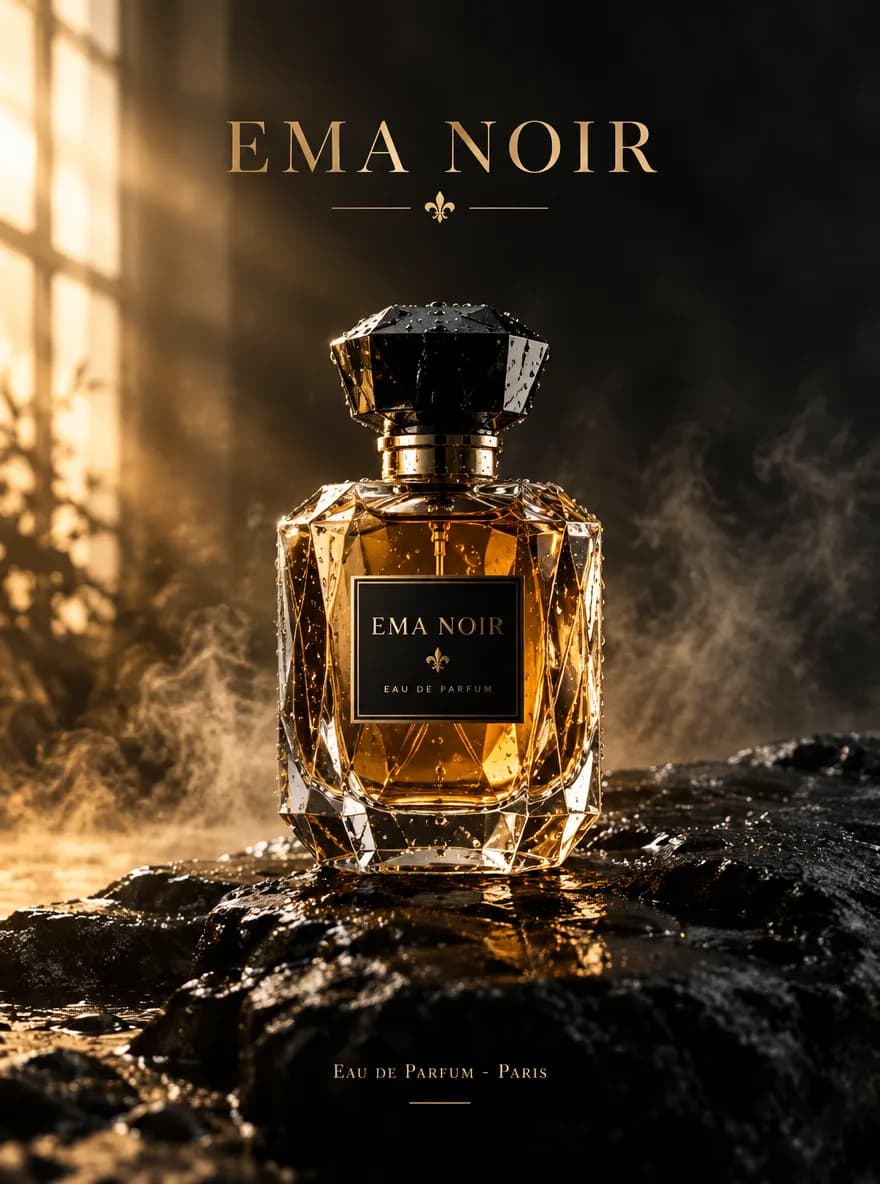
GPT Image 2.6: Pictures With Text That Reads
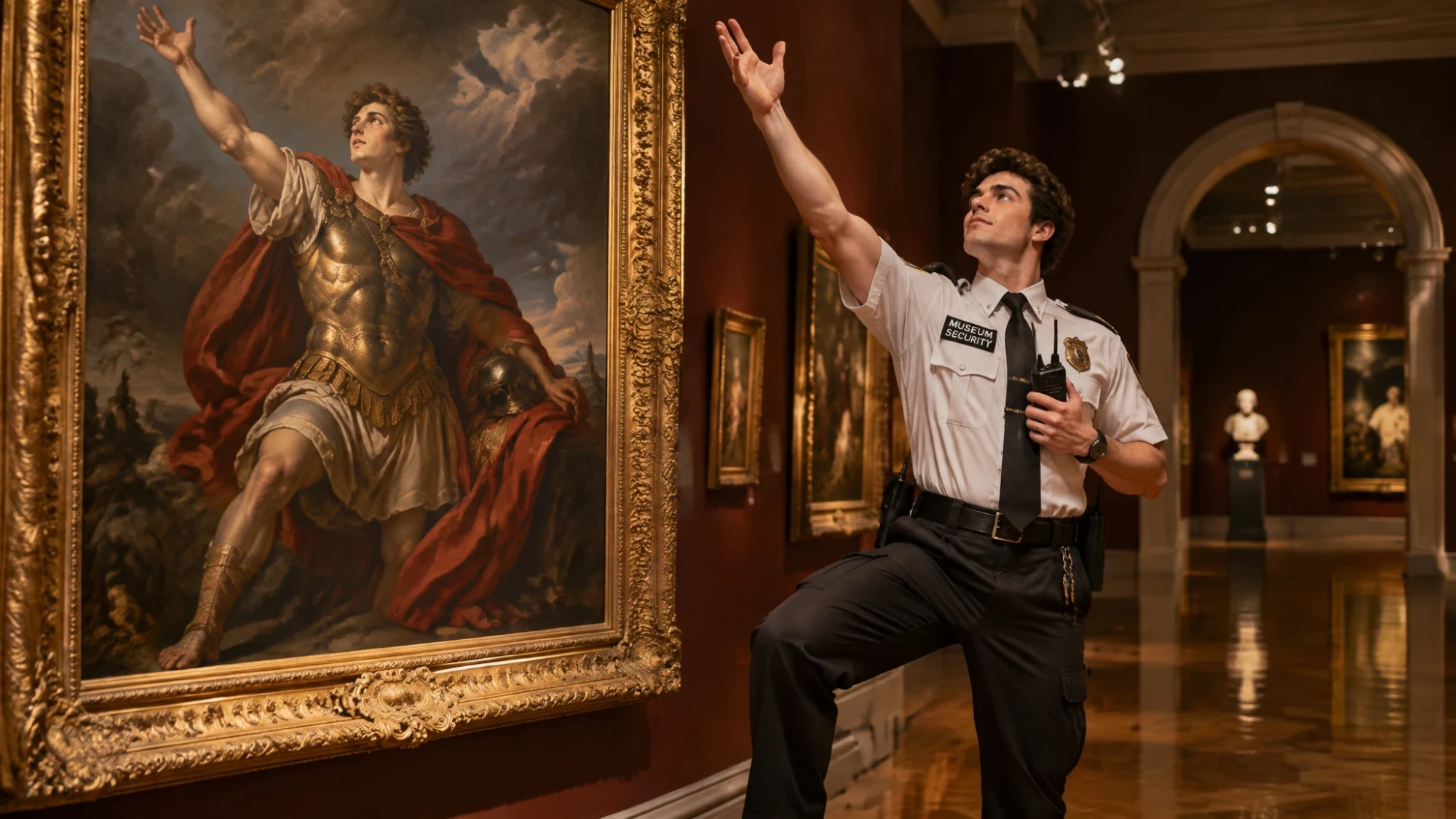
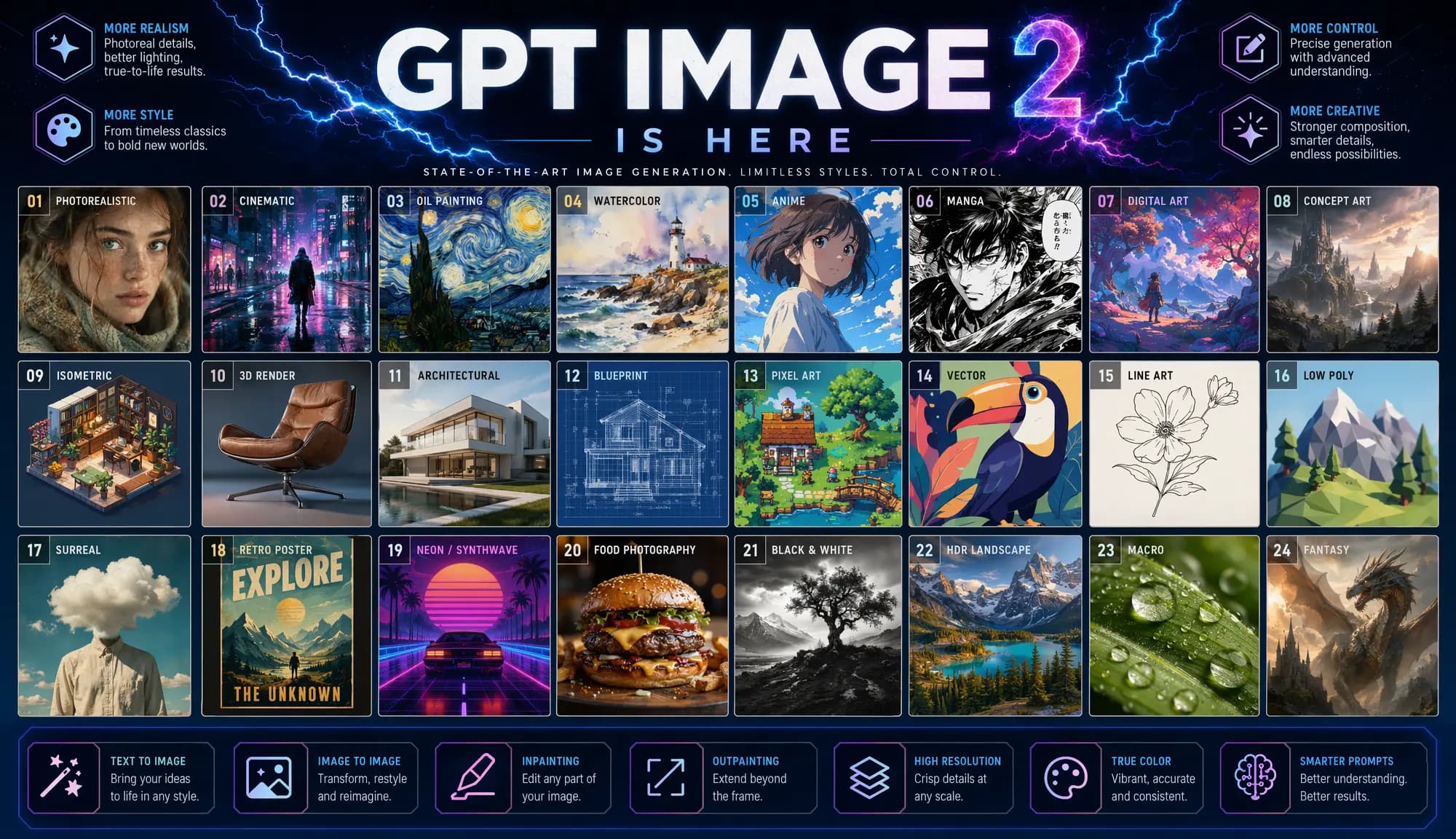
OpenAI's GPT Image 2.6 turns a written scene into a picture and a photo into an edit. Posters, menus and packaging come out with lettering you can read, and you choose how much detail to pay for, from a quick draft to Max at 4K. Need motion or a clean vector? Export a looping GIF or an SVG.
- Up to 4K output
- 15 aspect ratios
- GIF and SVG output
- Up to 16 references
Gallery
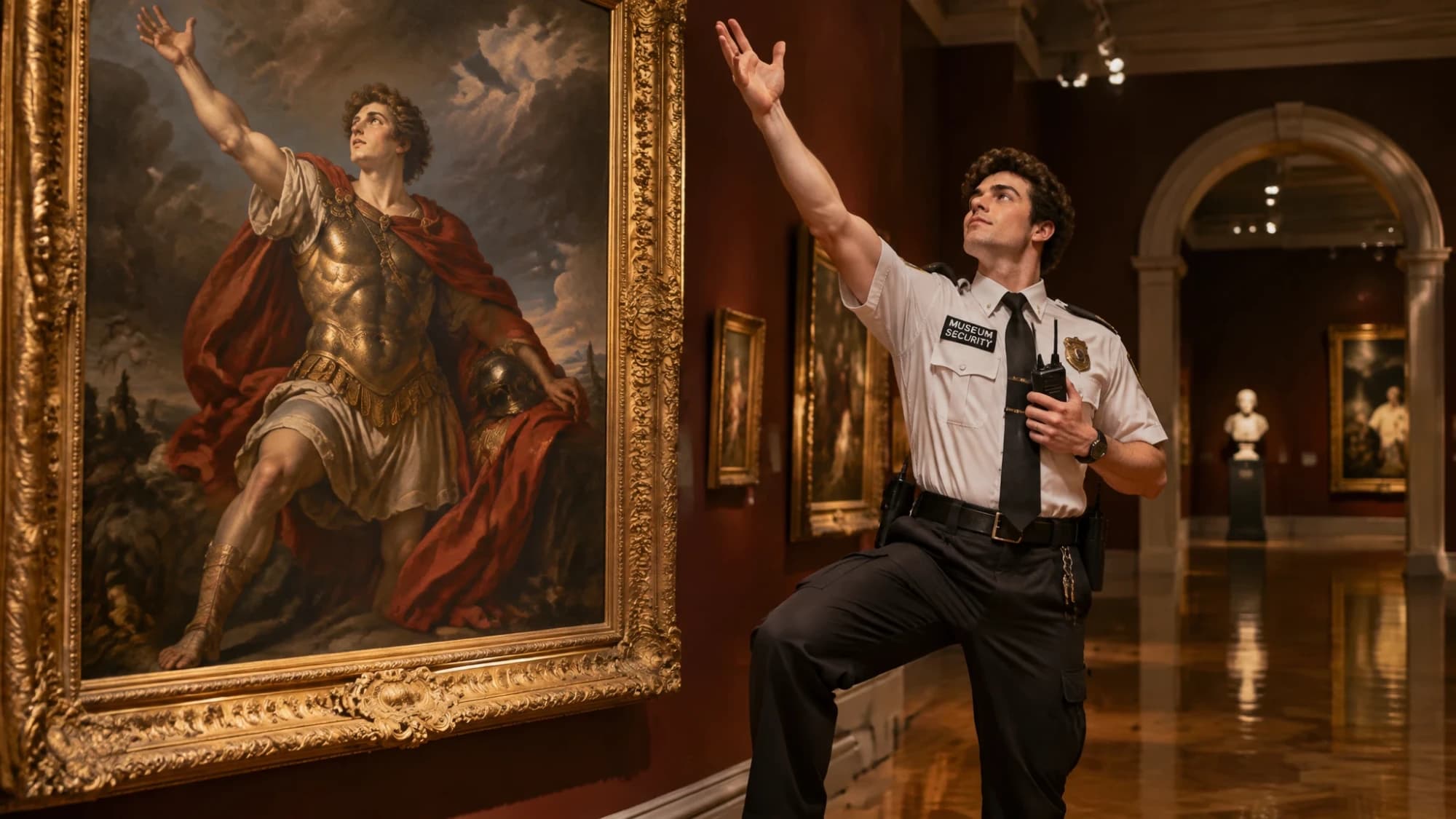
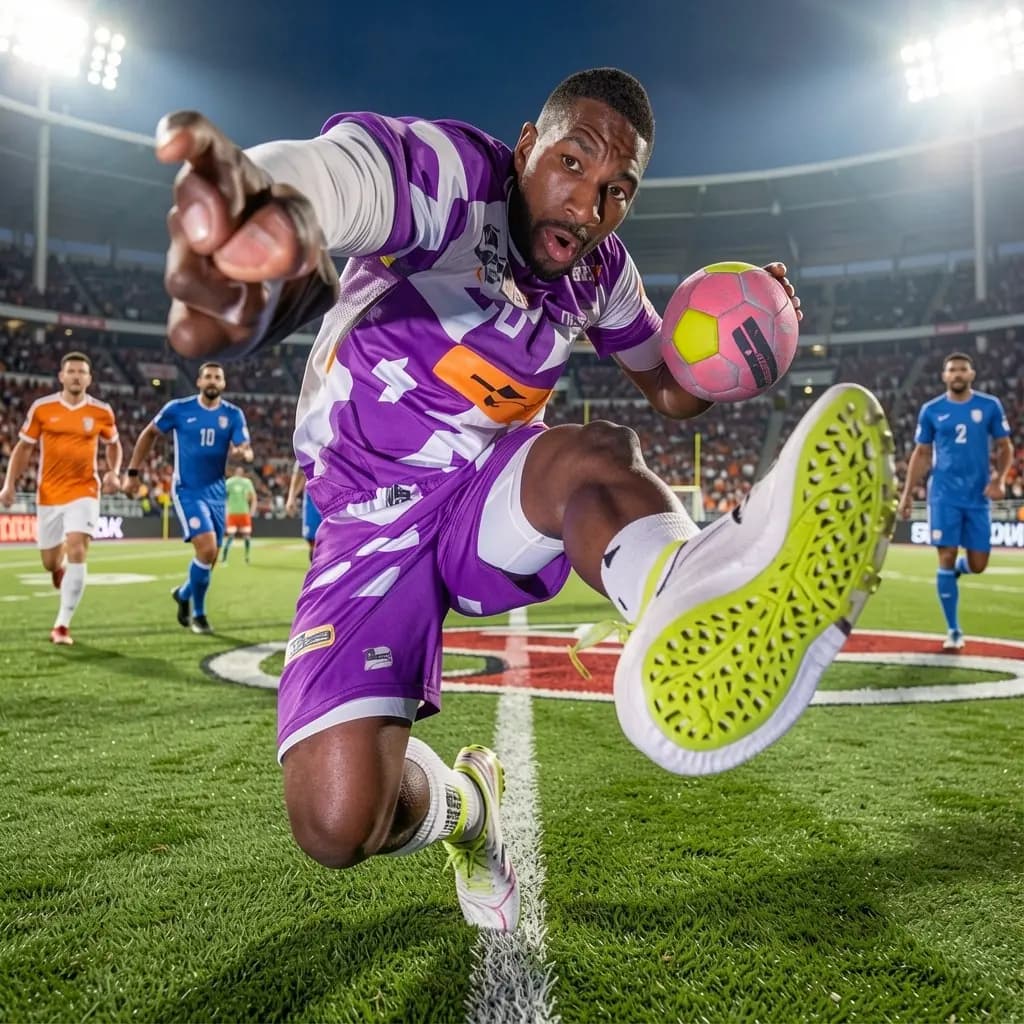
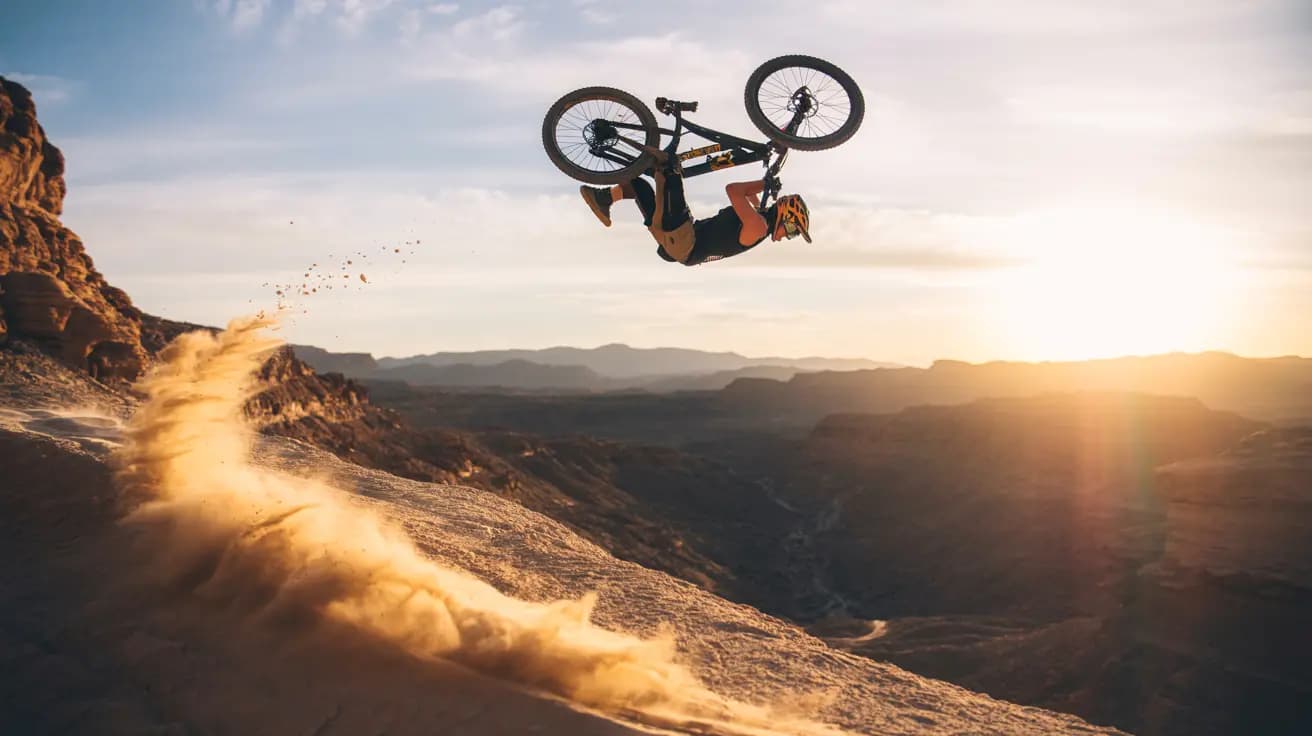
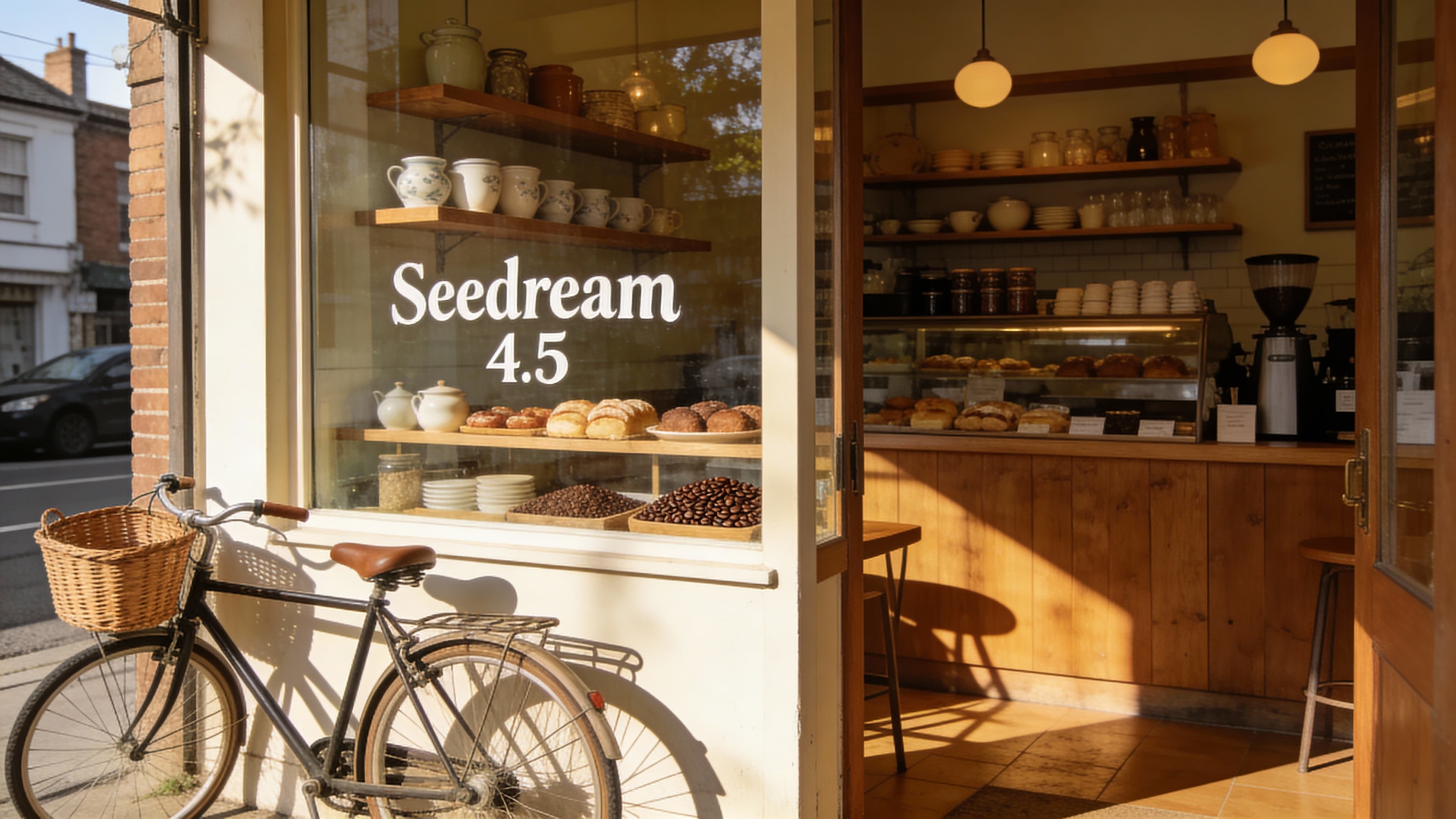
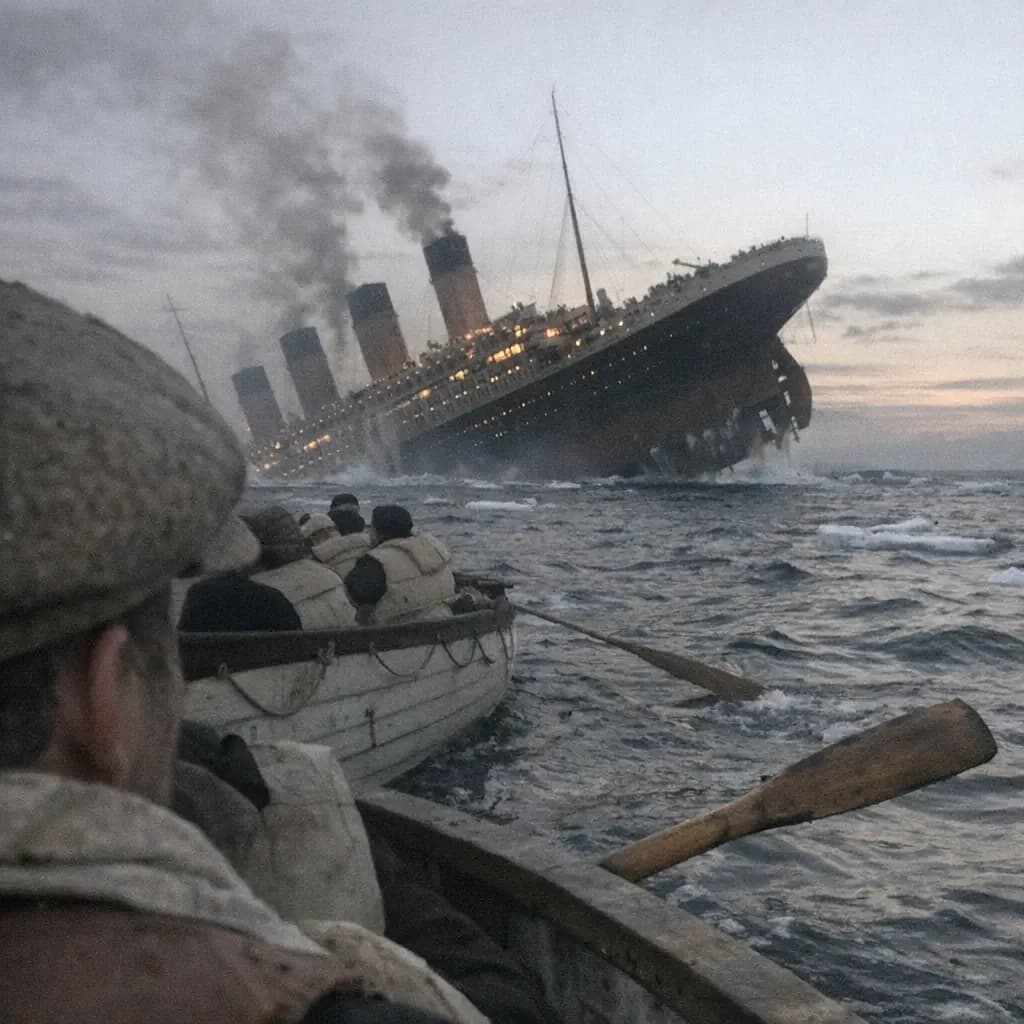
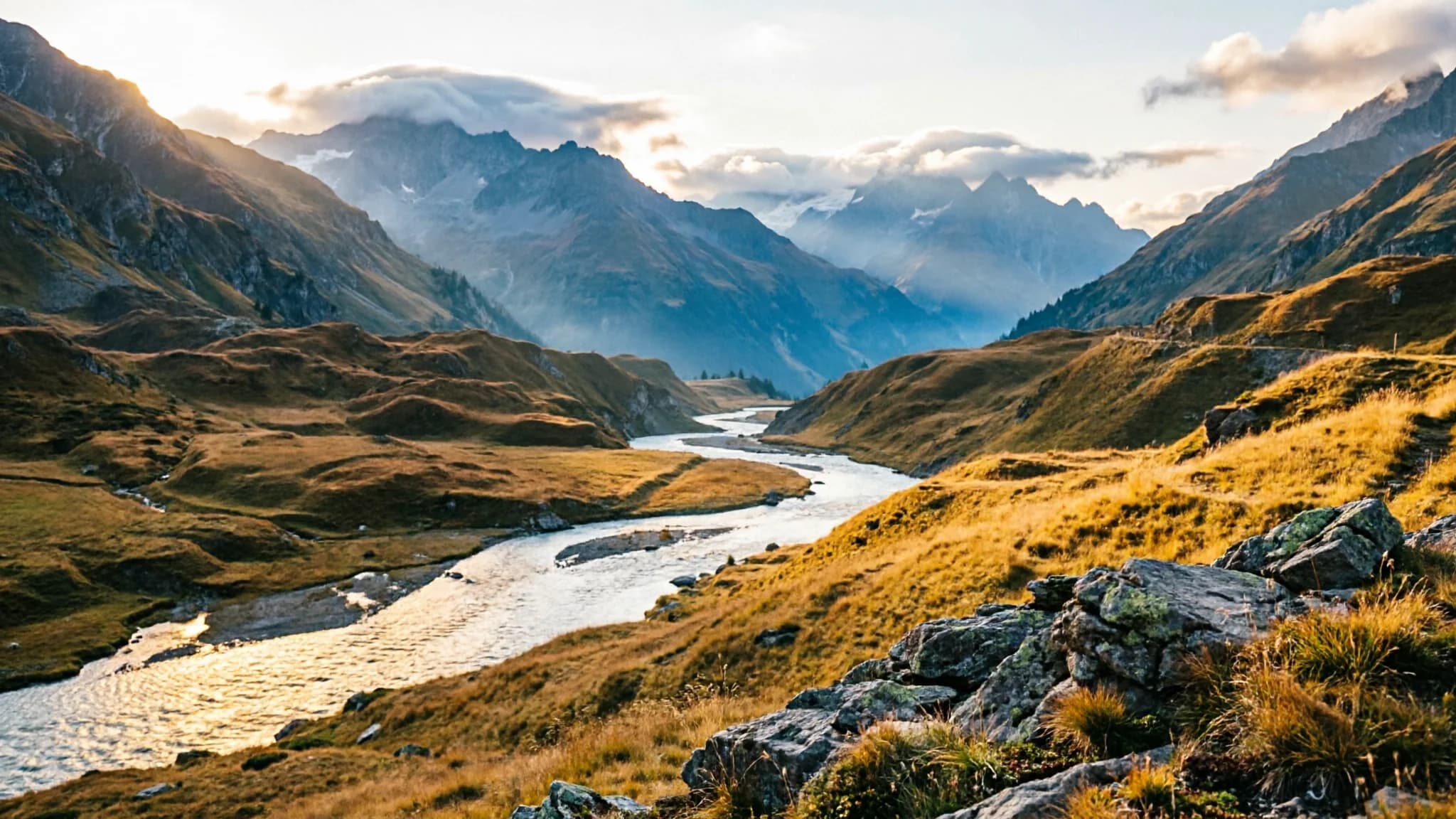
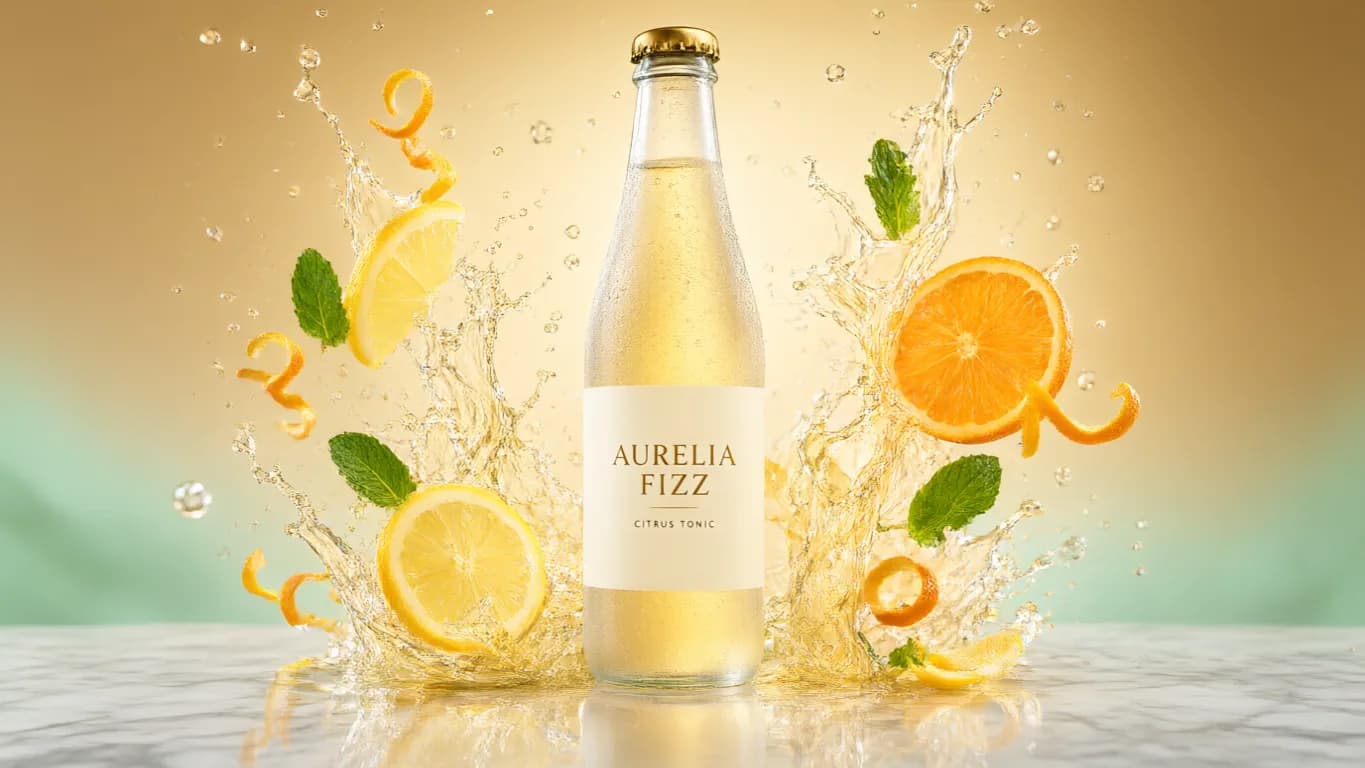
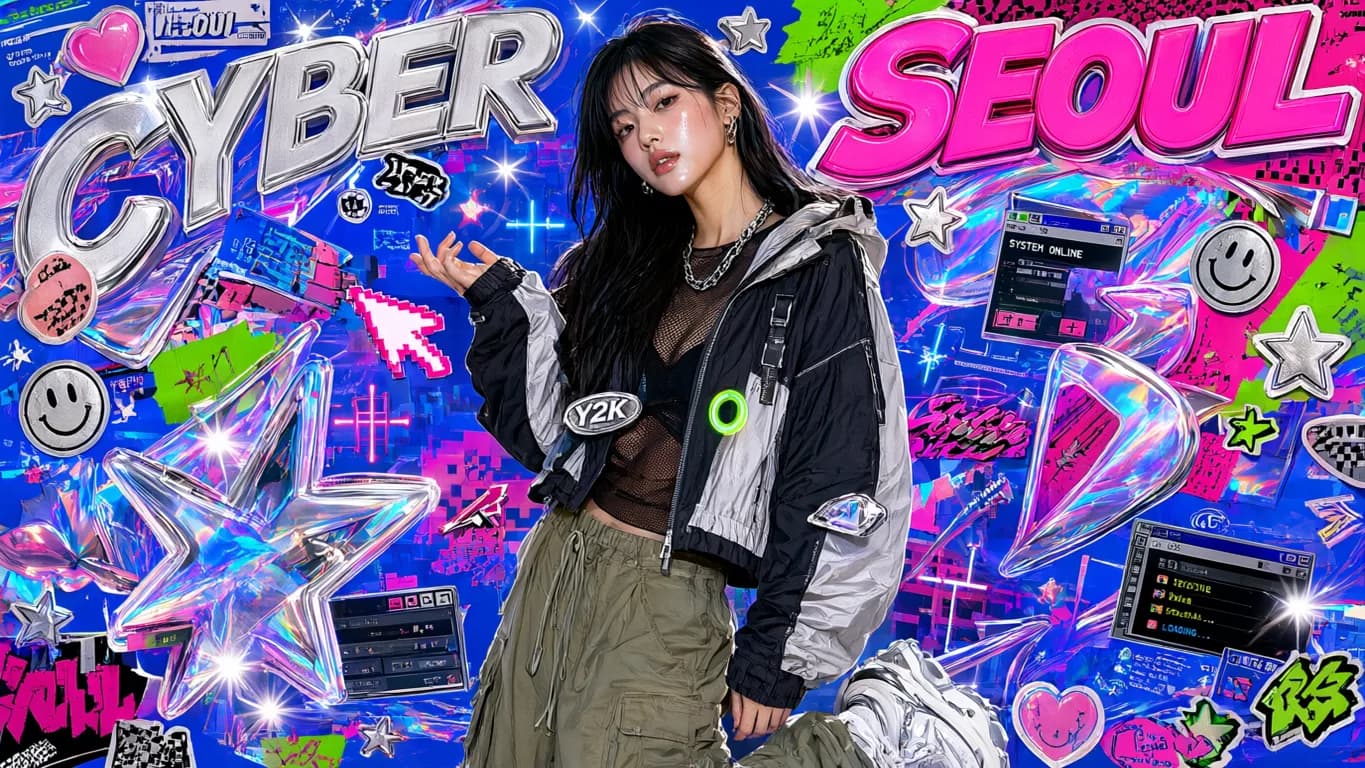
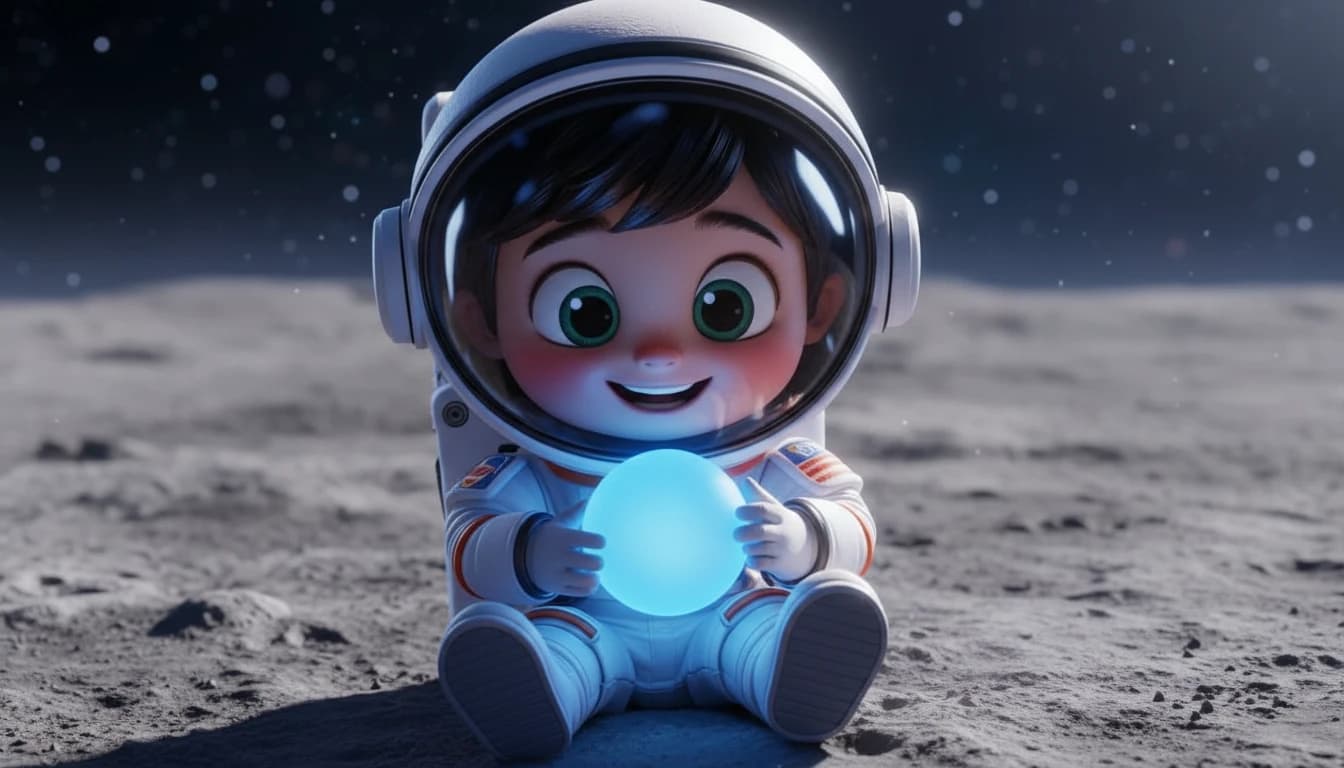
See what GPT Image 2.6 can create
Prompts you can run as they are. Click a tile to drop its prompt into the workbench.
Explore image models
More AI Image Generators
Explore specialized AI image models — each built for different creative styles and production needs.



Features
GPT Image 2.6 Features
Posters, loops, vectors and edits from one workbench.
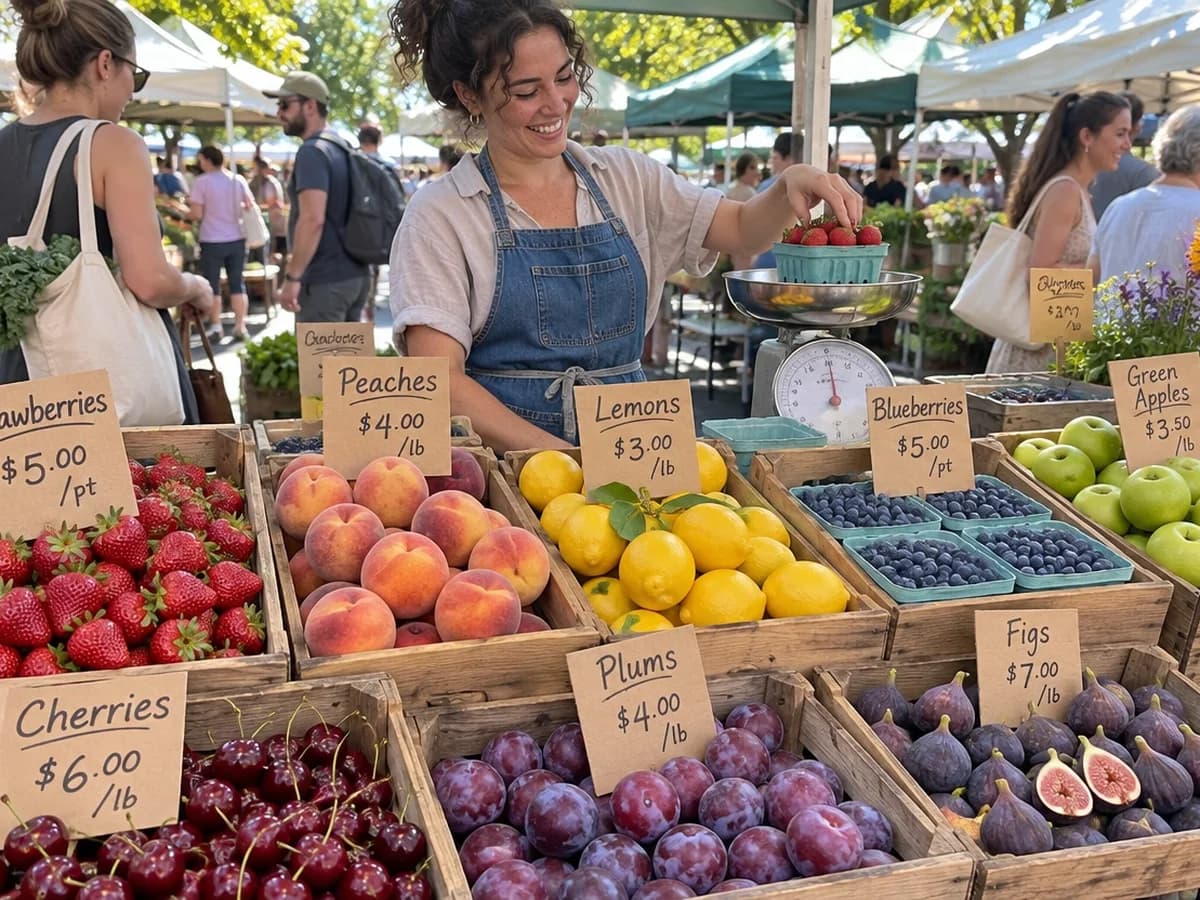
Text That Reads Right
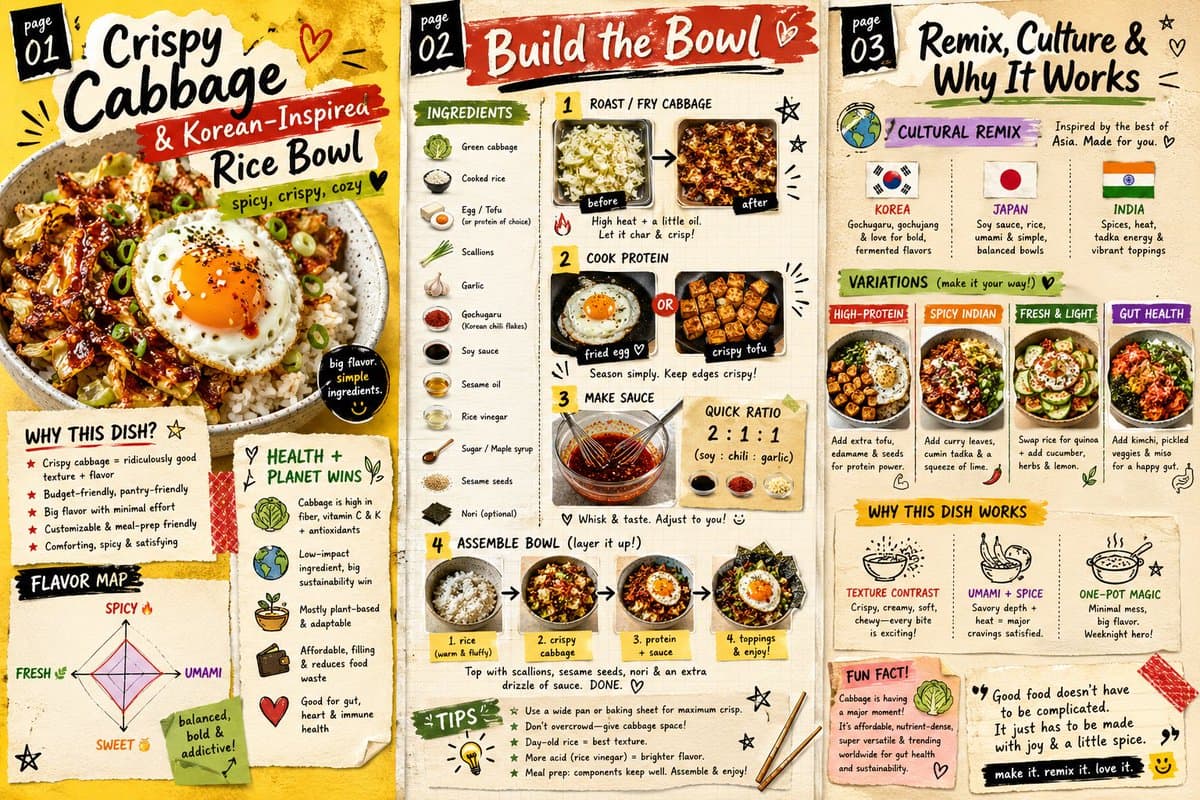
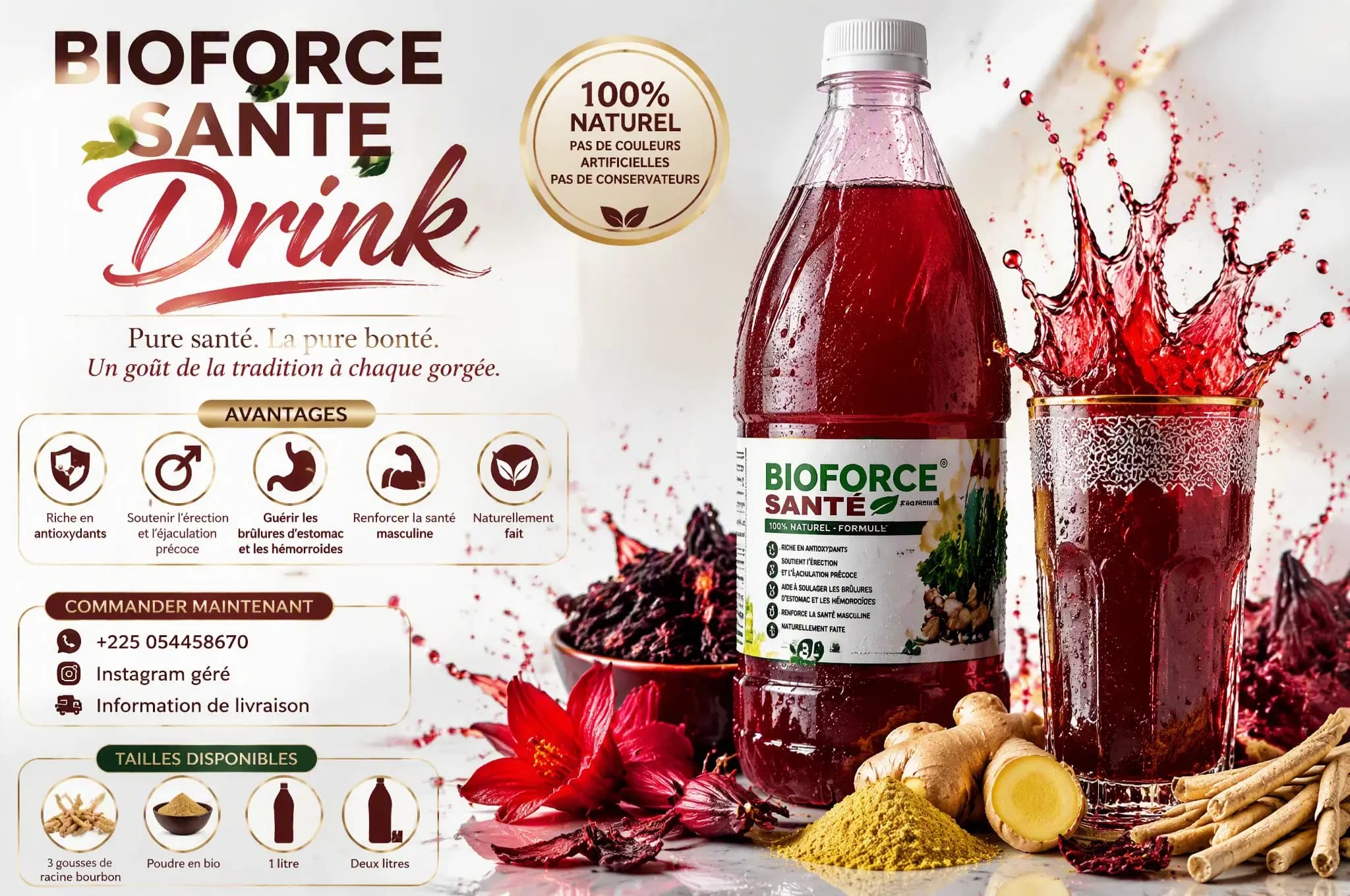
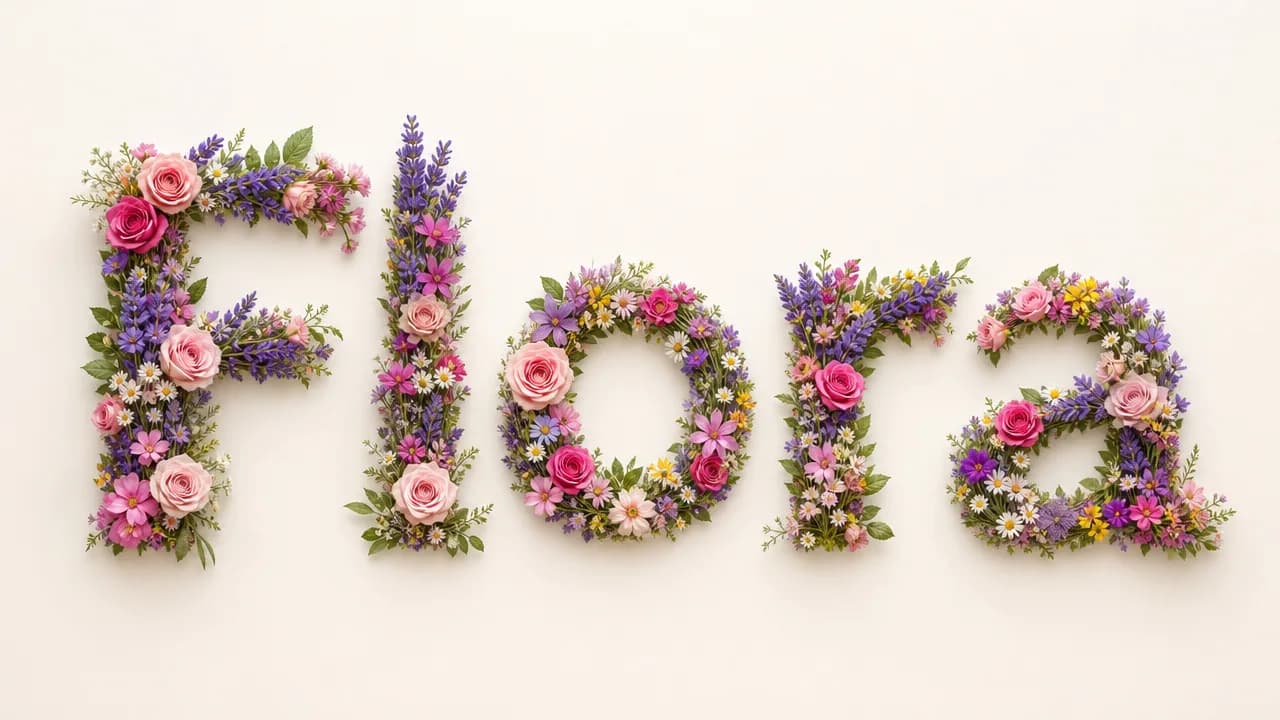
Headlines, signs, menus and infographic steps come out as real lettering instead of noise. Write the words you want in quotes and place them in the scene: a poster title, a shop sign, a five-step diagram.
Try a poster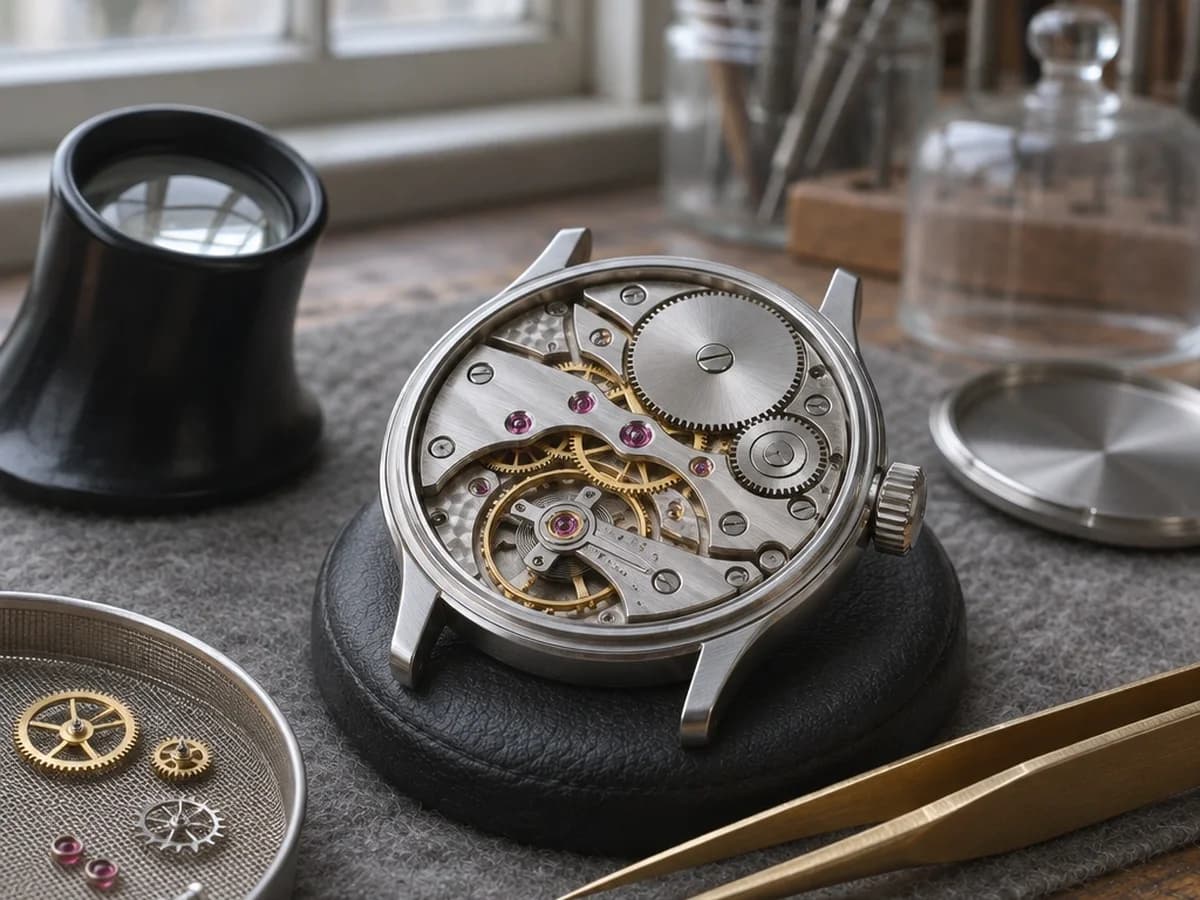
Five Quality Tiers
Low to Max sets how much rendering detail you pay for. Sketch ideas on Low at 1K, then run the one you like on a higher tier or at 4K when the image is going big.
Pick a tier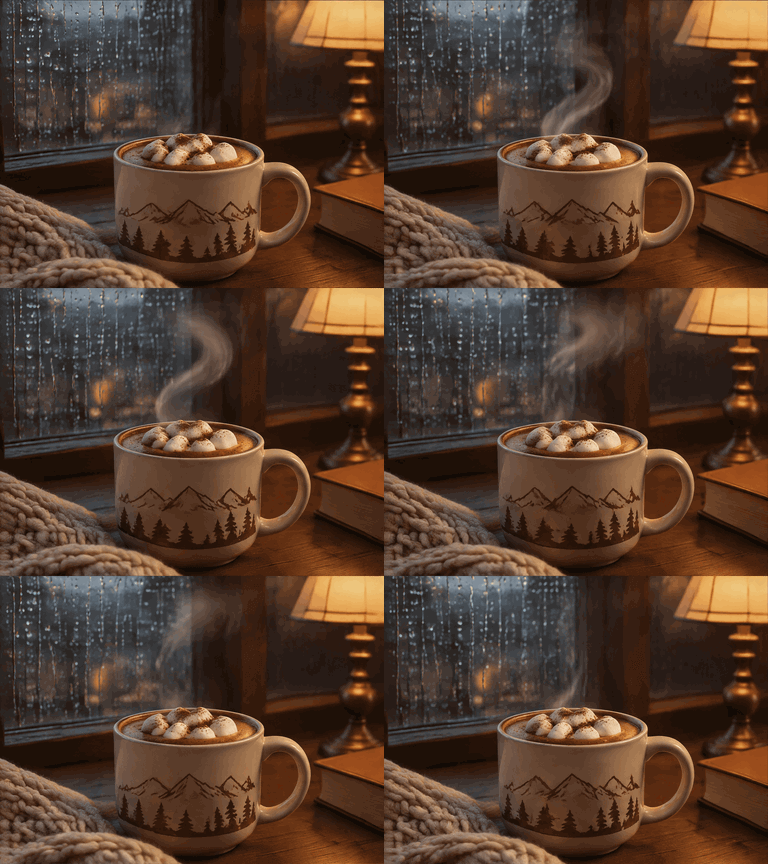
Stills, Looping GIFs and SVG Vectors
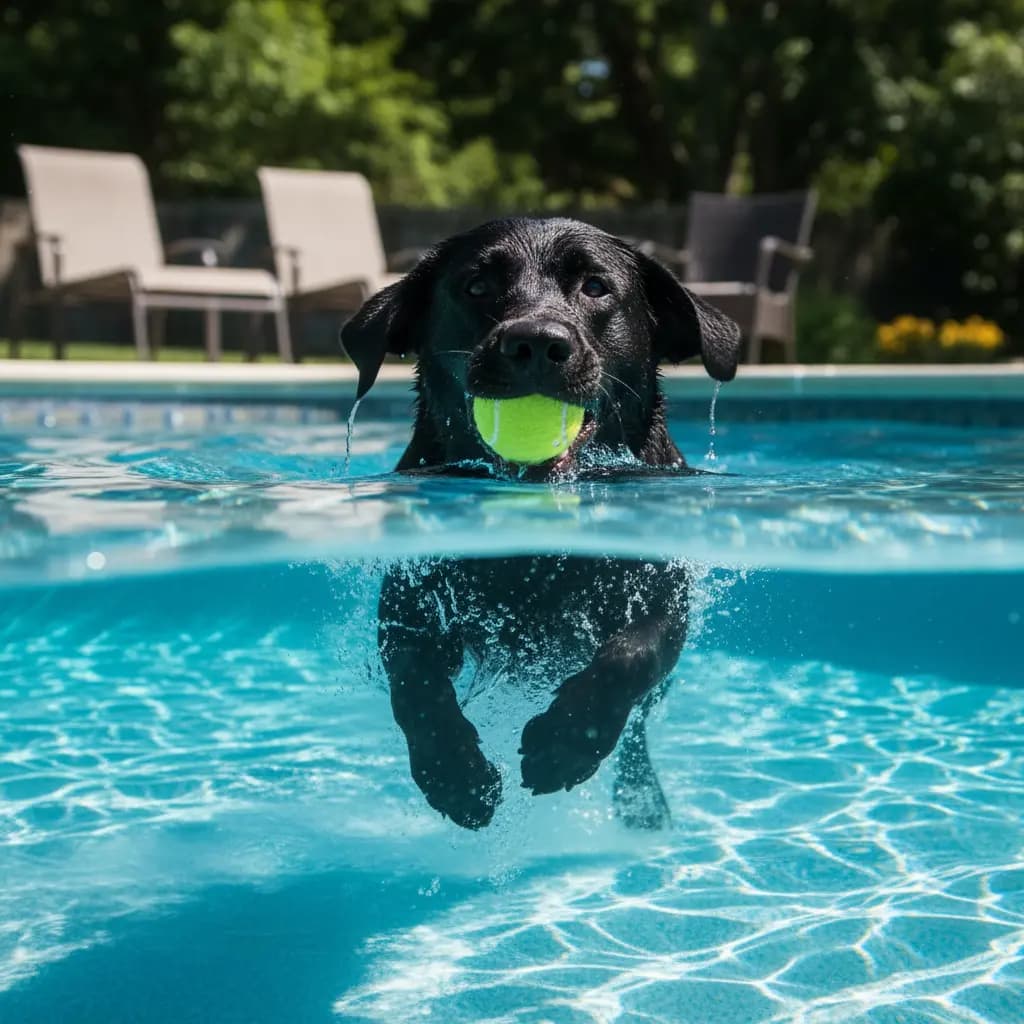
Switch the output to GIF, then set 2 to 16 frames and how long each one shows. Switch to SVG for icons, logos and flat illustrations that scale to any size.
Make a GIF or SVG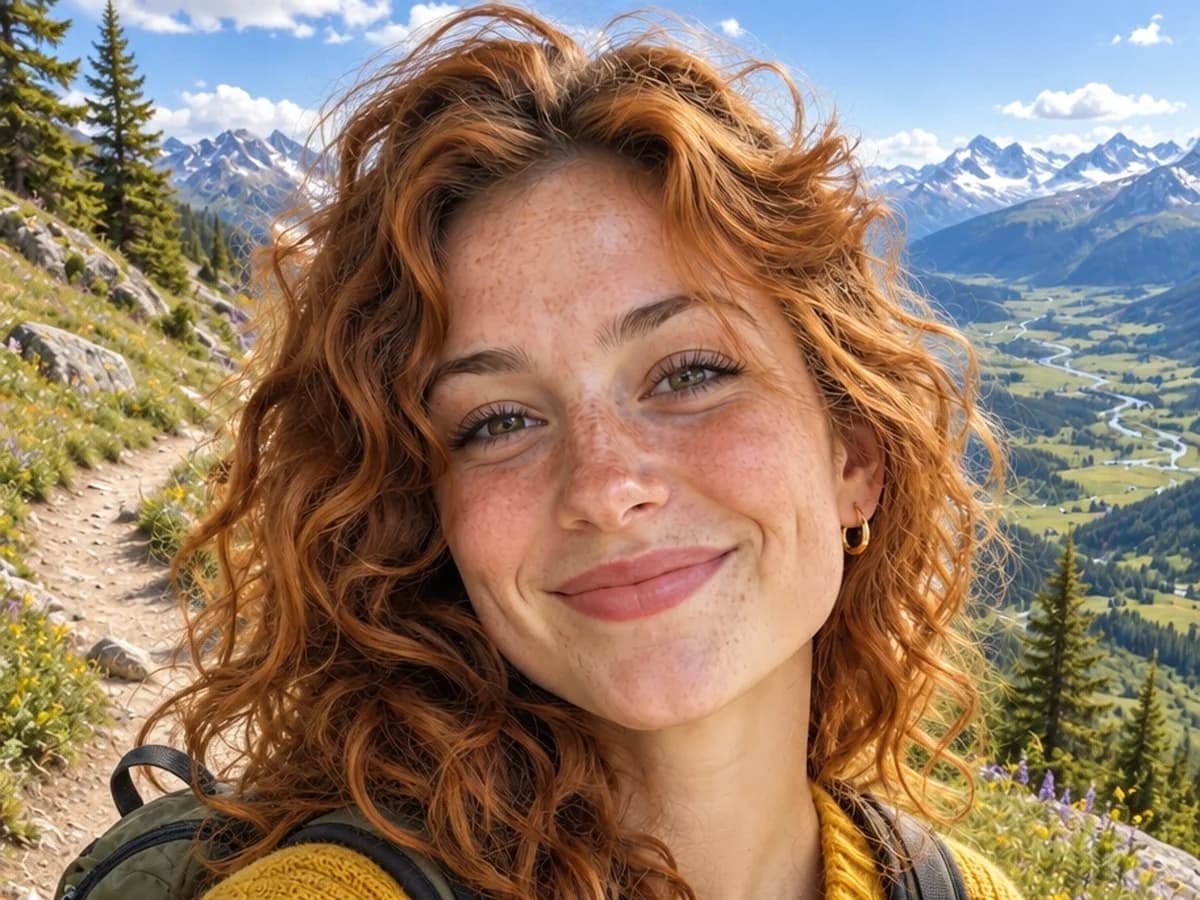
Edit With Up to 16 References
Upload up to sixteen photos, describe the change in plain language and name what has to stay. On Auto the frame follows your first photo, and the result can go up to 4K.
Start an editHow to use
How to Use GPT Image 2.6
Write a prompt or add references, set the quality, then choose the frame and format.
Describe the Picture
Say what is in the frame, then the light and the style. Put any words you want on the image in quotes, such as a headline or a sign, and they go into the scene.
Set the Quality
Low to Max sets how much rendering detail you pay for. Try an idea on Low, then run the keeper on a higher tier.
Choose the Frame and Format
Pick one of 15 aspect ratios and 1K, 2K or 4K. Export PNG, JPEG or WebP, or choose GIF for a short loop or SVG for a clean vector.
Edit From References
Upload up to 16 photos, describe the change and say what must stay. On an edit, leave the ratio on Auto and the frame follows your first photo.
Who it's for
Who Should Use GPT Image 2.6
People who need readable text in the picture, or one tool for stills, loops and vectors.
Advertising & Campaign Teams
Key visuals with the headline already in the frame: posters, banners and social ads in 15 ratios, from 9:16 to 3:1. Test the idea at Low, then run the version you send at High.
E-commerce & Packaging Designers
Pack mockups, labels and shelf shots with readable product names. Upload product photos as references and change the scene around them while the product stays.
Social & Content Creators
Cover art, infographics and step-by-step explainers in the ratio each platform wants, plus short looping GIFs for posts.
Brand & Icon Designers
SVG output for icons, logos and flat illustrations that scale cleanly, then PNG when you need the mockup.
Editors & Publishers
Article illustrations and infographic posters with captions and numbered steps that actually read.
Photographers & Retouchers
Background swaps, light changes and menu or sign rewrites on shots you already have. Describe the edit, say what stays, and check the result before it goes out.
Explore creative tools
More AI Image Tools
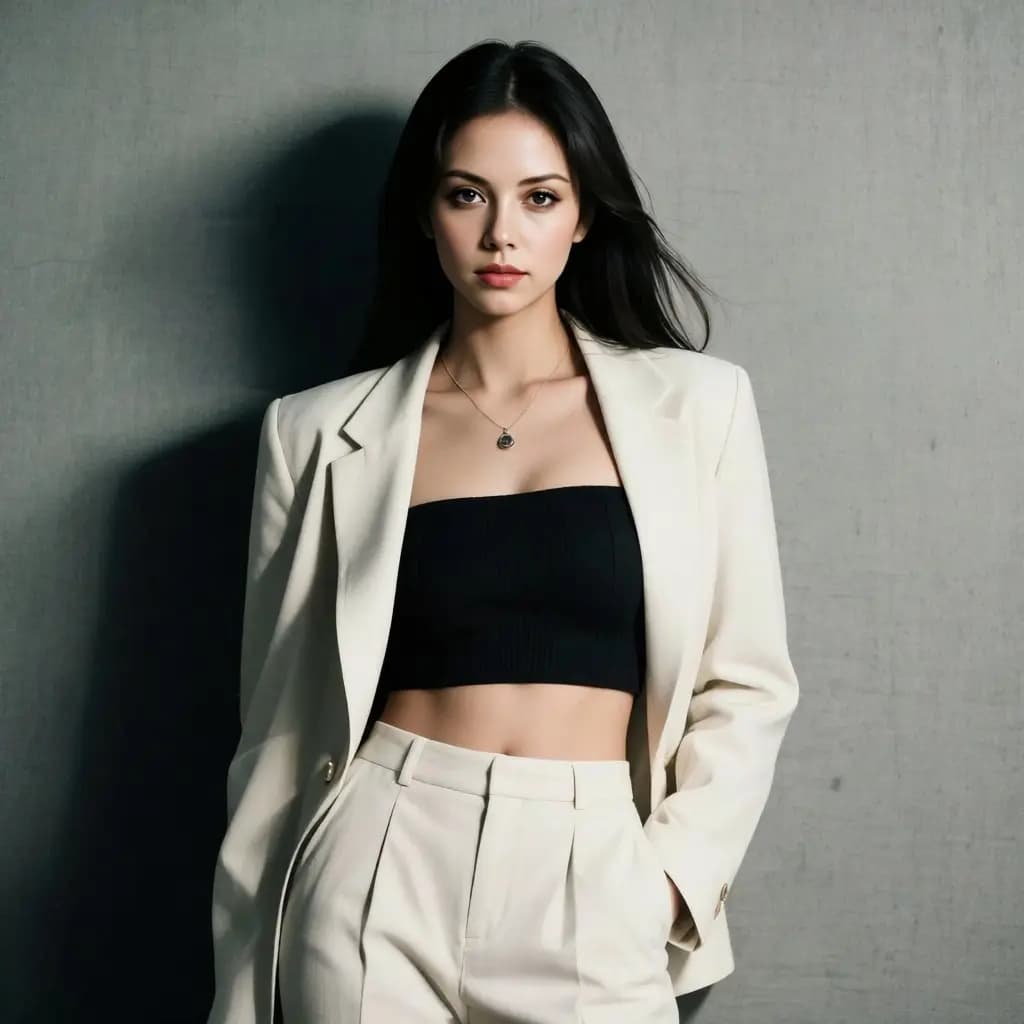
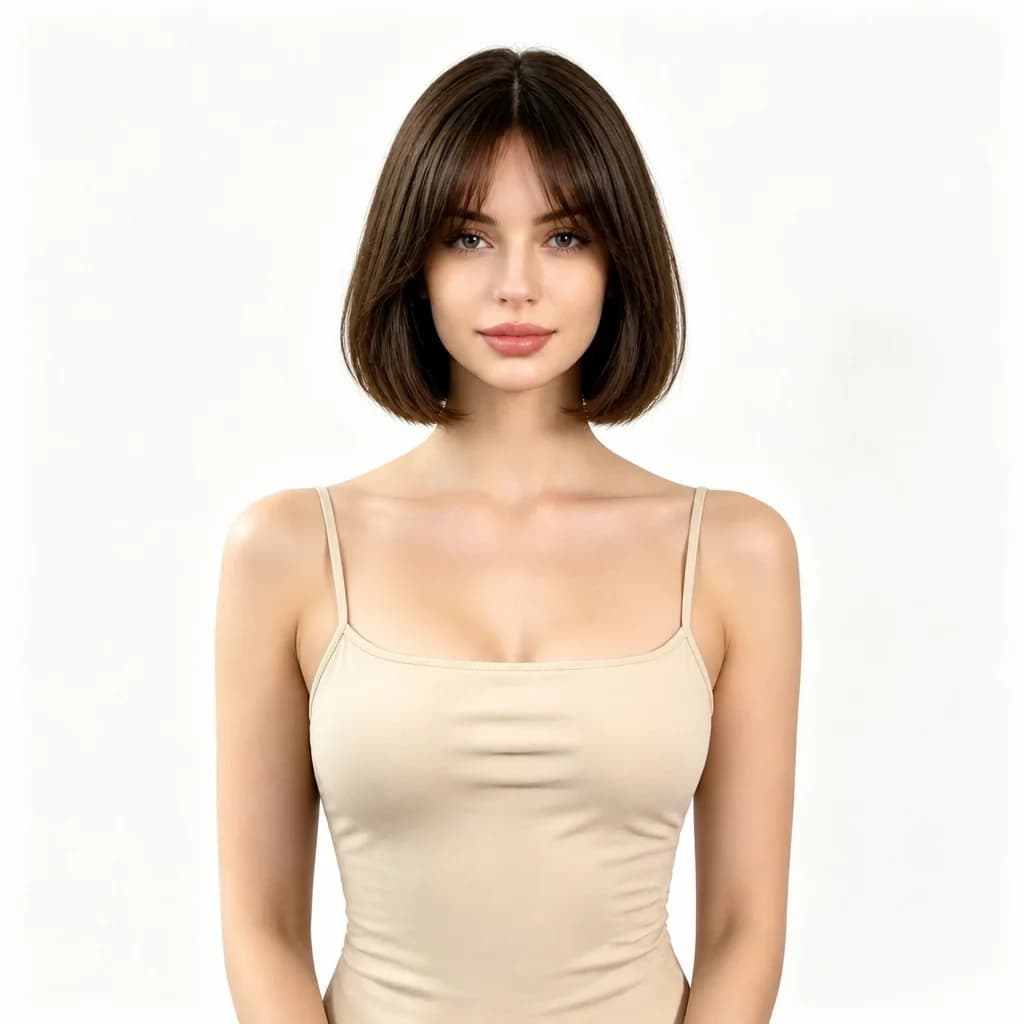
Explore focused AI image tools, each designed for a specific task — see how AI can turn your concepts into finished work.
FAQ
GPT Image 2.6 FAQ
What it does, how editing works, and what a run costs.
- What is GPT Image 2.6?
- OpenAI's image model on Epochal. Write a prompt to generate a picture, or upload up to 16 reference images and edit them with plain-language instructions.
- How good is the text in images?
- It is built for posters, ads, packaging and interface mockups that carry lettering. Put the exact words in quotes in your prompt, and if the lettering matters, keep it short.
- What does Quality change?
- Quality sets how much rendering detail you pay for, from Low to Max. Higher tiers add detail and cost more credits, so test an idea on Low first.
- Can it make GIFs and SVGs?
- Yes, in text-to-image. GIF gives a looping animation of 2 to 16 frames, and you set how long each frame shows, from 20 to 2000 ms. SVG gives a scalable vector, good for icons, logos and flat illustrations. Edits export PNG, JPEG or WebP.
- Which resolutions and aspect ratios are available?
- 1K, 2K or 4K, and 15 aspect ratios from 1:1 to 21:9, 9:21, 3:1 and 1:3. On an edit, Auto follows your first photo.
- How many reference images can I use?
- Up to 16 on an edit. Refer to what each one should contribute in your prompt, and say what has to stay the same.
- How much does a run cost?
- Text-to-image runs from 9 credits (Low, 1K) to 255 (Max, 4K); the default Medium at 1K is 15. SVG adds 6 credits and GIF costs the same as a still. An edit starts at 14 credits with one reference and adds about 5 for each extra one.
- Where should I start?
- Try an idea at Low and 1K, where a run costs the least. When the frame is right, run it again at a higher tier or at 2K or 4K.
- Can I use the results commercially?
- Yes. Use what you generate under your Epochal account. Don't prompt trademarks, copyrighted characters, or real people you don't have rights to.
Start now
Make your next image with GPT Image 2.6
Write a prompt, or upload references and edit from them.
Try GPT Image 2.6