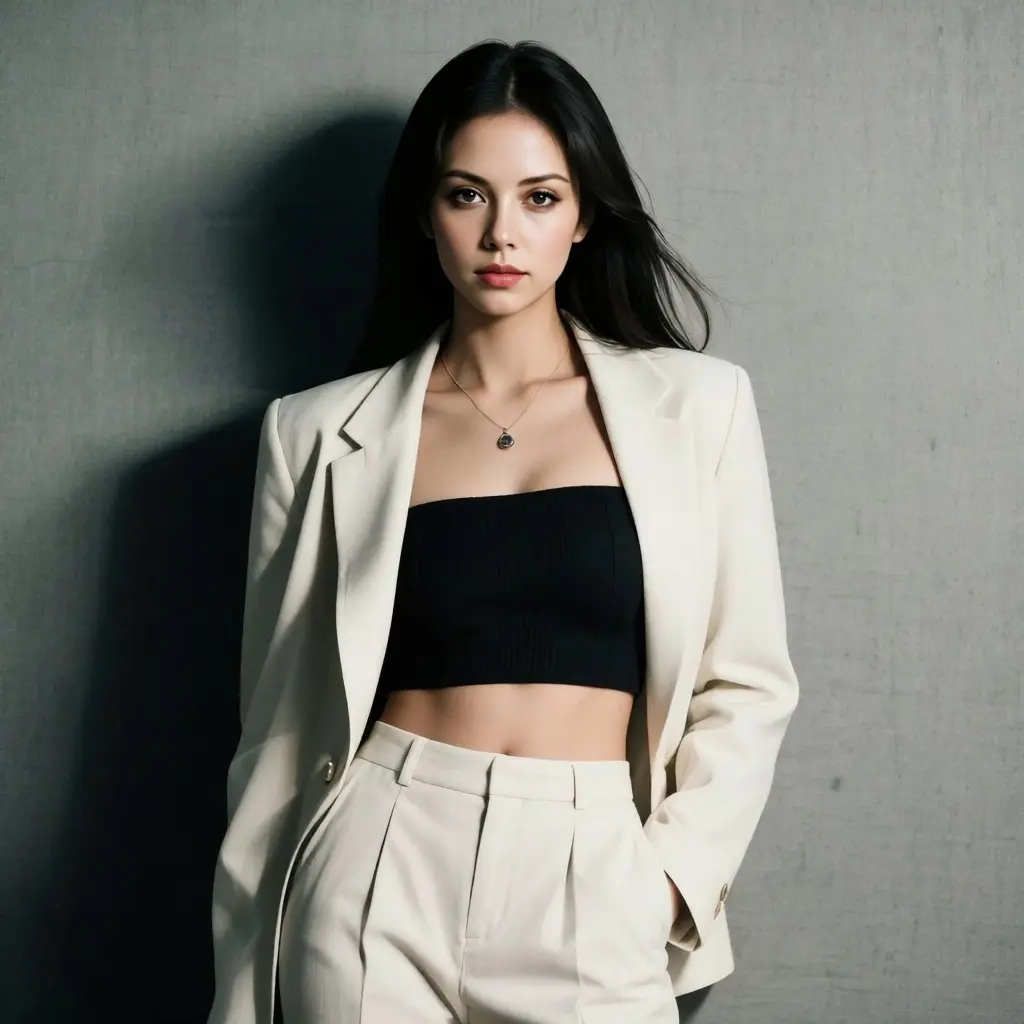



AI Image Face Swap Gallery
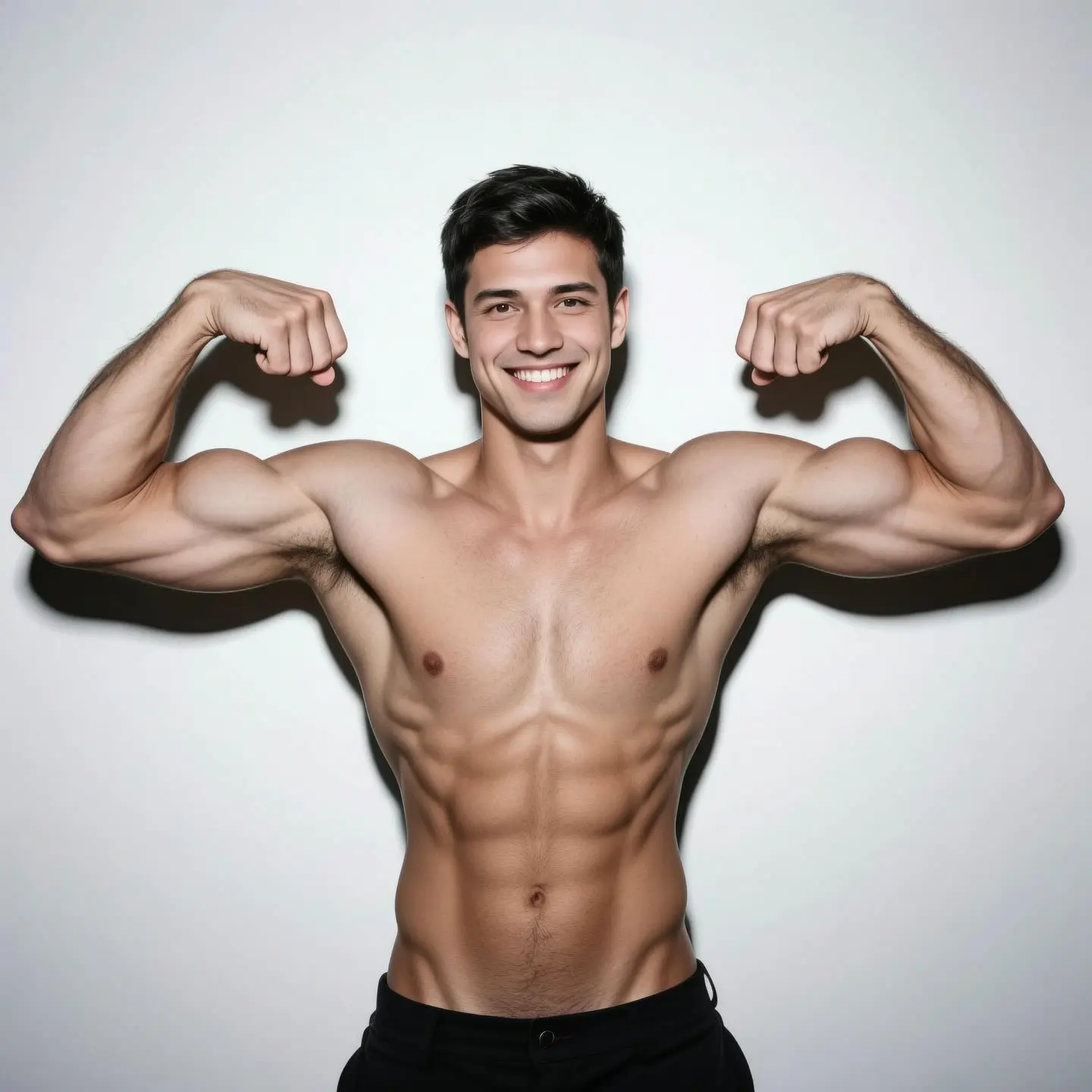
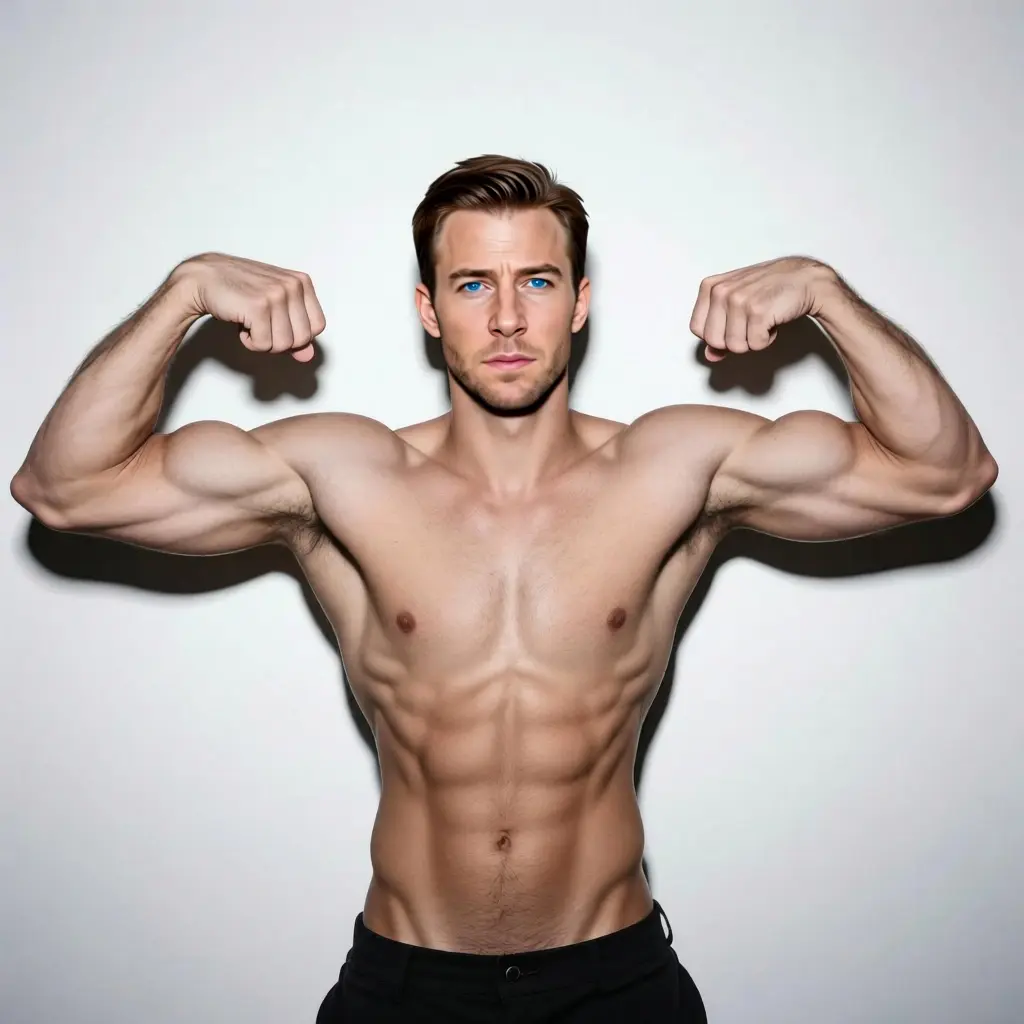
The gallery shows the full comparison flow: original photo, reference face, and generated face swap result. Use it to judge what kind of base image, reference face, pose, and lighting tend to produce a more realistic face swap.
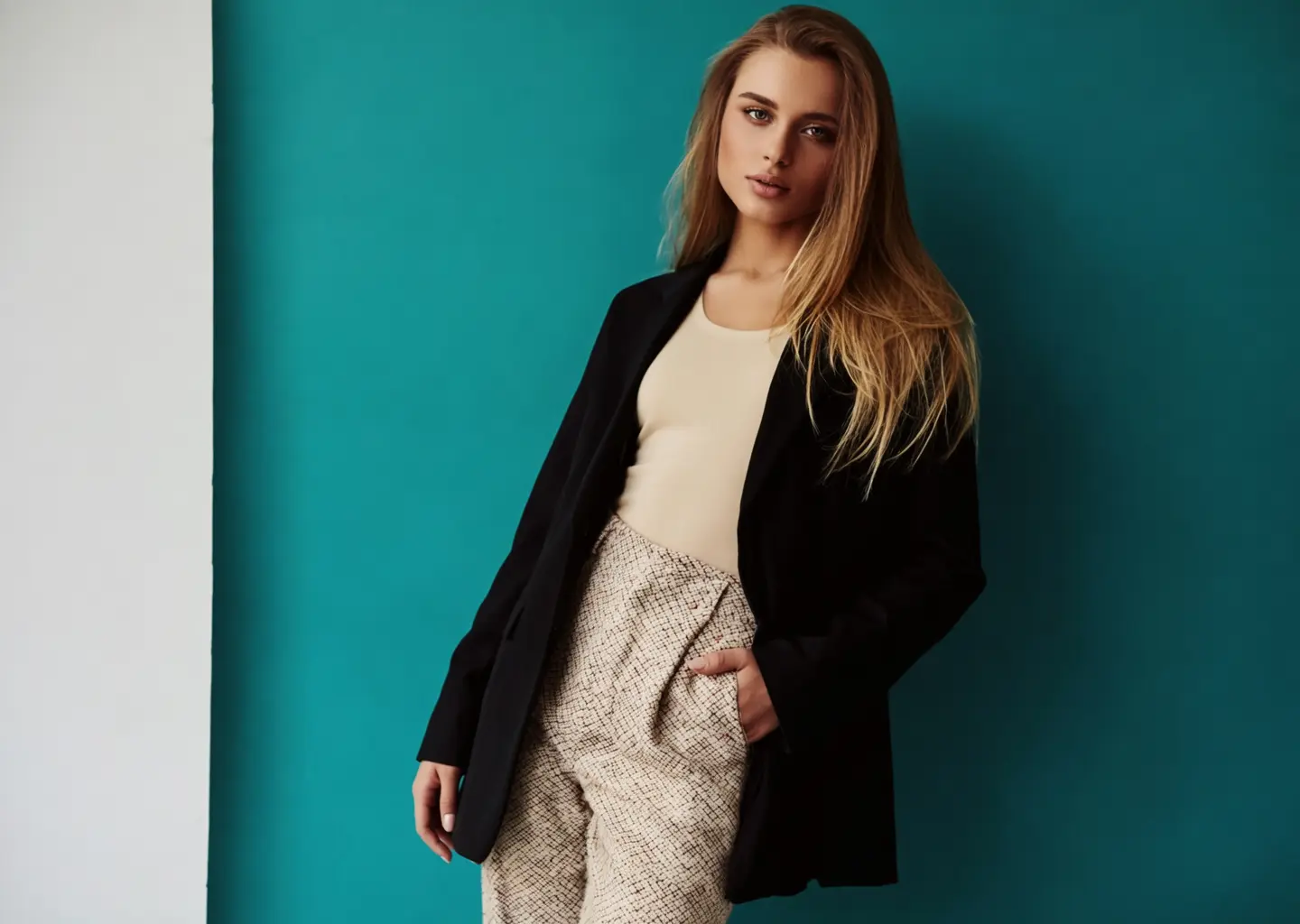
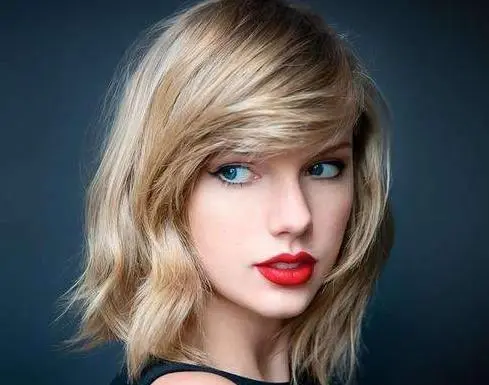
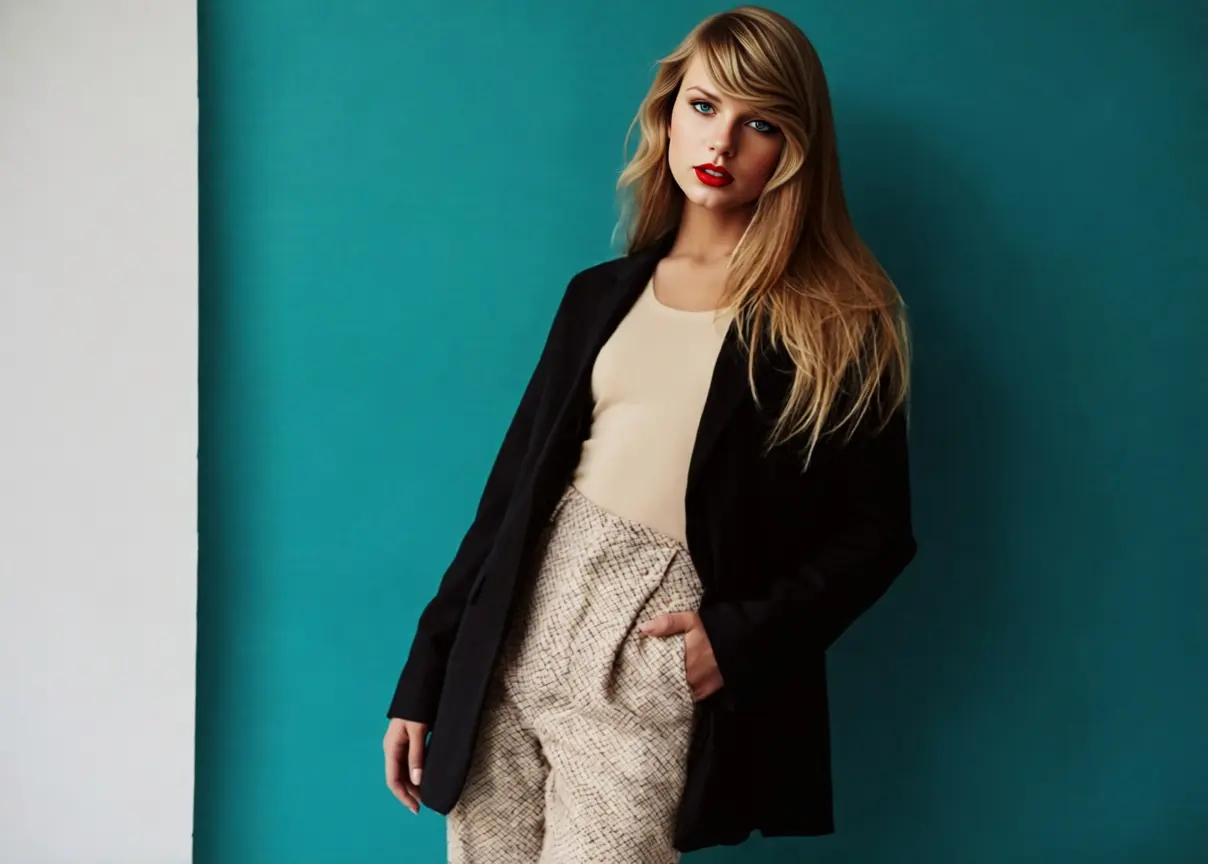
Portrait face swap
Use a clean portrait as the base image and a clear reference face to create a realistic AI face swap photo.
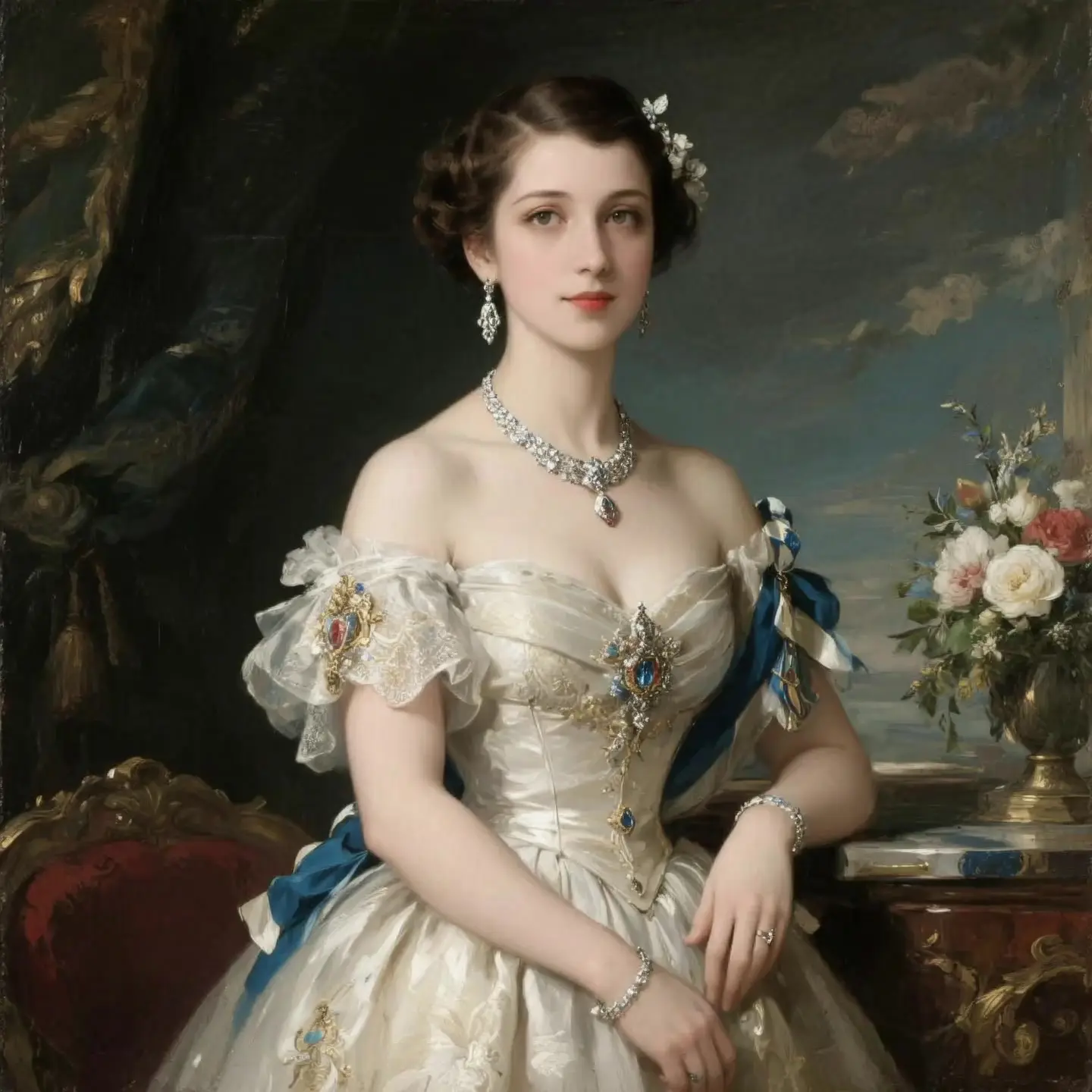
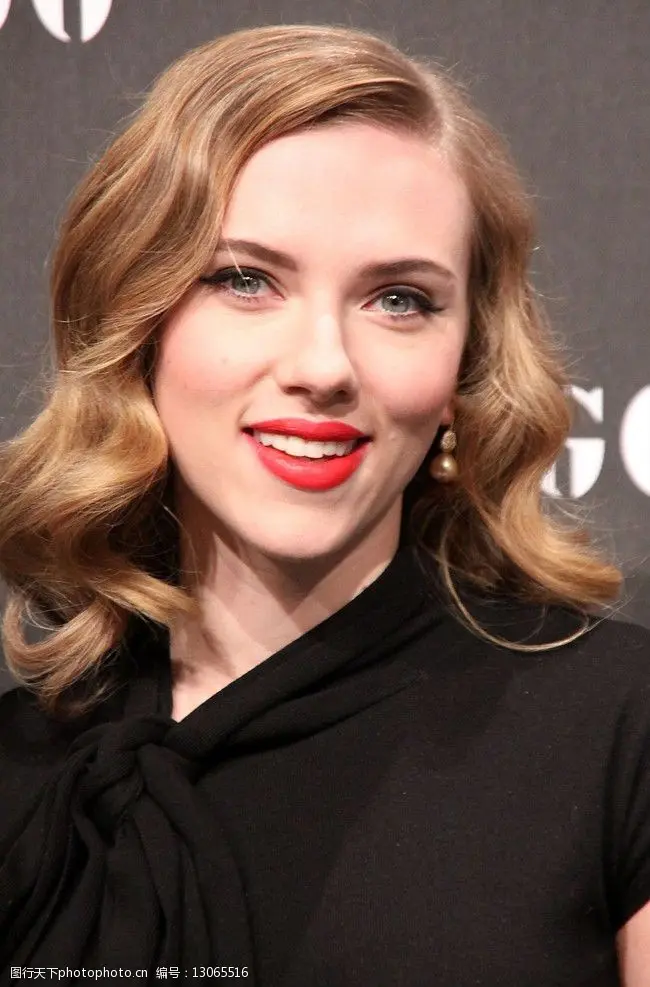
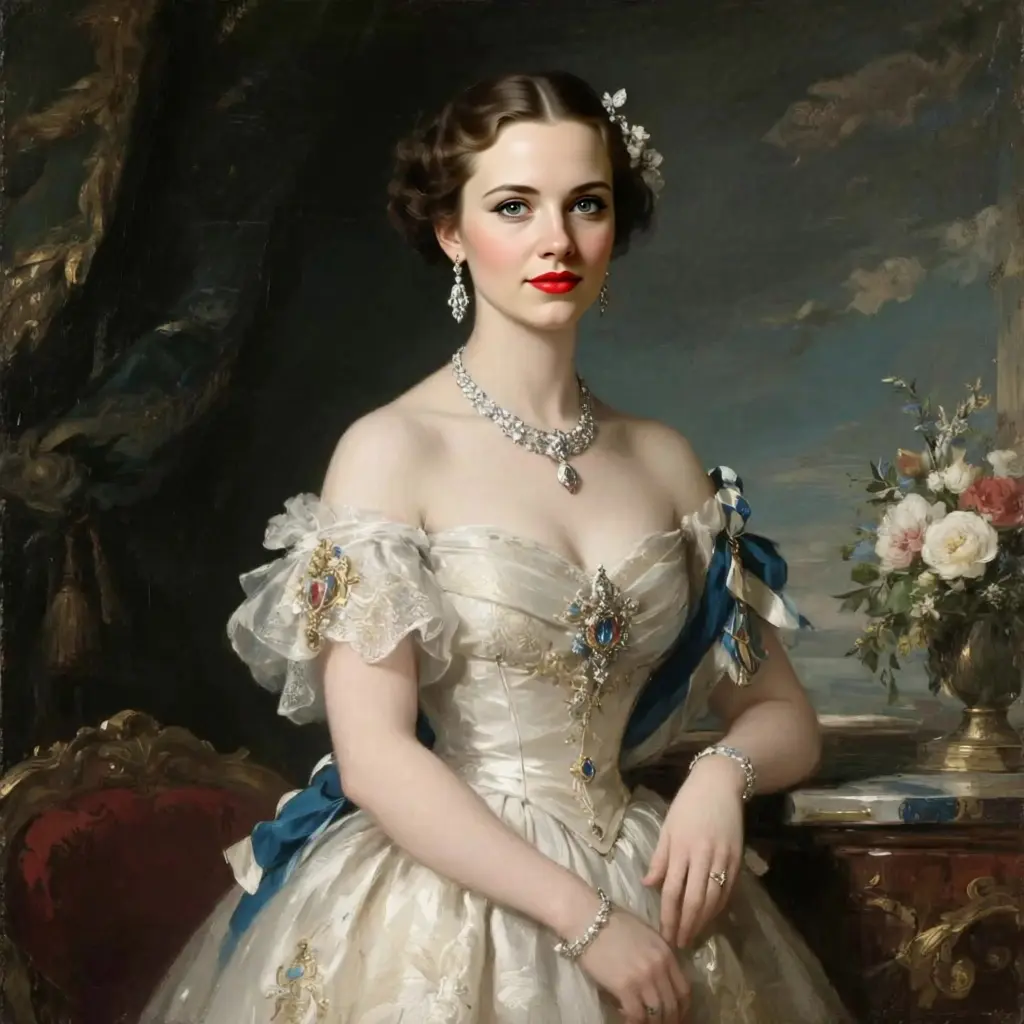
Creative character swap
Combine a strong source image with a separate face reference for visual concepts, social drafts, or casting tests.

Share-ready face swap image
Generate a downloadable face swap image for previews, profile concepts, or creative comparisons.
A realistic face swap depends mostly on the two input images.
For a natural face swap, the two input images matter most: the original photo should be clear, the reference face should be readable, and the angle and lighting should feel compatible. Cleaner source images make it easier to preserve the original scene while blending in the new face.
Base image
- Use an original photo where the face to replace is visible, sharp, and not blocked by hair, hands, sunglasses, or heavy shadow.
- For group photos, choose a version where the target face is larger and easier to detect to reduce wrong-face swaps.
- Stable pose and readable facial direction usually improve facial alignment, edge blending, and skin-tone consistency.
Reference face
- Use a clear front-facing or slightly angled reference face. Avoid blurry screenshots, heavy beauty filters, and low-resolution crops.
- A reference face with similar lighting direction, expression, and camera angle usually blends better into the original photo.
- If the first result looks distorted, changing the reference face is often more effective than changing output settings.
Choose the output image format.
- Export the generated face swap image as JPEG, PNG, or WebP. JPEG works well for quick sharing, PNG keeps cleaner image edges, and WebP is useful for lightweight web previews.
- Base photo + reference face + output format
If the face swap looks unstable
If the face swap result looks unnatural, start by checking the source images. These are the most common issues and the easiest ones to improve by choosing better inputs.
The result looks pasted on or the face edge feels unnatural.
Use a reference face with lighting closer to the original photo. Avoid mixing strong side light with flat front light.
The features distort or the expression looks strange.
Use a sharper, more front-facing reference face. Avoid low-quality selfies, exaggerated expressions, and cropped faces.
A group photo changes the wrong person.
Use a base photo where the intended face is larger, clearer, and easier to recognize. A tighter crop often works better than a crowded group photo.
AI Image Face Swap Features
Use two-image input, no-prompt generation, side-by-side comparison, and JPEG, PNG, or WebP export in one focused photo face swap tool. It fits portrait swaps, character concepts, profile drafts, and creative image tests.
Image Face Swap
Replace faces in photos using AI, with no prompt required.
Two-Image Input
Upload one original photo and one reference face to generate the swap.
Online Face Swap Editor
Runs in your browser — no app or install needed.
Downloadable Results
Export as JPEG, PNG, or WebP for drafts and social.
How to Use AI Image Face Swap
No prompt is required. Start with the original photo, add the reference face, generate the result, then inspect facial blend, edges, skin tone, and lighting. If the output looks wrong, replacing the source images usually helps more than changing settings.
Upload the original photo
Choose the image that contains the face to replace. Clear faces, stable angles, and minimal occlusion work best.
Add the reference face
Upload the face you want to transfer. A sharp face with similar lighting and angle usually creates a more realistic face swap.
Generate and inspect
Compare the result with both source images. Check facial alignment, edges, skin tone, and lighting before exporting.
AI Image Face Swap FAQ
Common questions about online photo face swap.
- What is AI image face swap?
- AI image face swap replaces a face in a photo using a reference face you provide — no text prompt, just two images.
- Can I swap faces in images online?
- Yes. Epochal runs in your browser, so you can swap faces in images online without installing an app.
- Is AI image face swap free?
- Image face swap costs 8 credits per generation. New accounts receive signup credits, and the exact charge is shown before you generate.
- Is this a video or GIF face swap tool?
- No. This tool supports photo and image face swap only. Video and GIF face swap are not supported.
- Which output formats are supported?
- JPEG, PNG, and WebP output formats are supported for the generated face swap image.
- Can I use my own images?
- Yes. Upload your own original photo and reference face — both images are provided by you.