


Portrait edit
Edit the Color of Eyes with Eye Color Editor
Upload one clear portrait and edit the color of the eyes while the rest of the photo stays as consistent as possible. Pick brown, hazel, amber, green, gray, blue, or violet. Each run changes only the iris on both eyes and keeps identity, face, hair, brows, clothing, lighting, and background. AI edits can still drift, so compare the result with the upload before you treat it as a reference.
- Upload one portrait
- 7 iris colors
- Change only the iris
- Keep face and scene
- 1K, 2K, or 4K
- Credits shown before each run
Color ideas
Iris Colors to Try
Browse four iris directions, then choose the matching Eye color chip in the workbench.
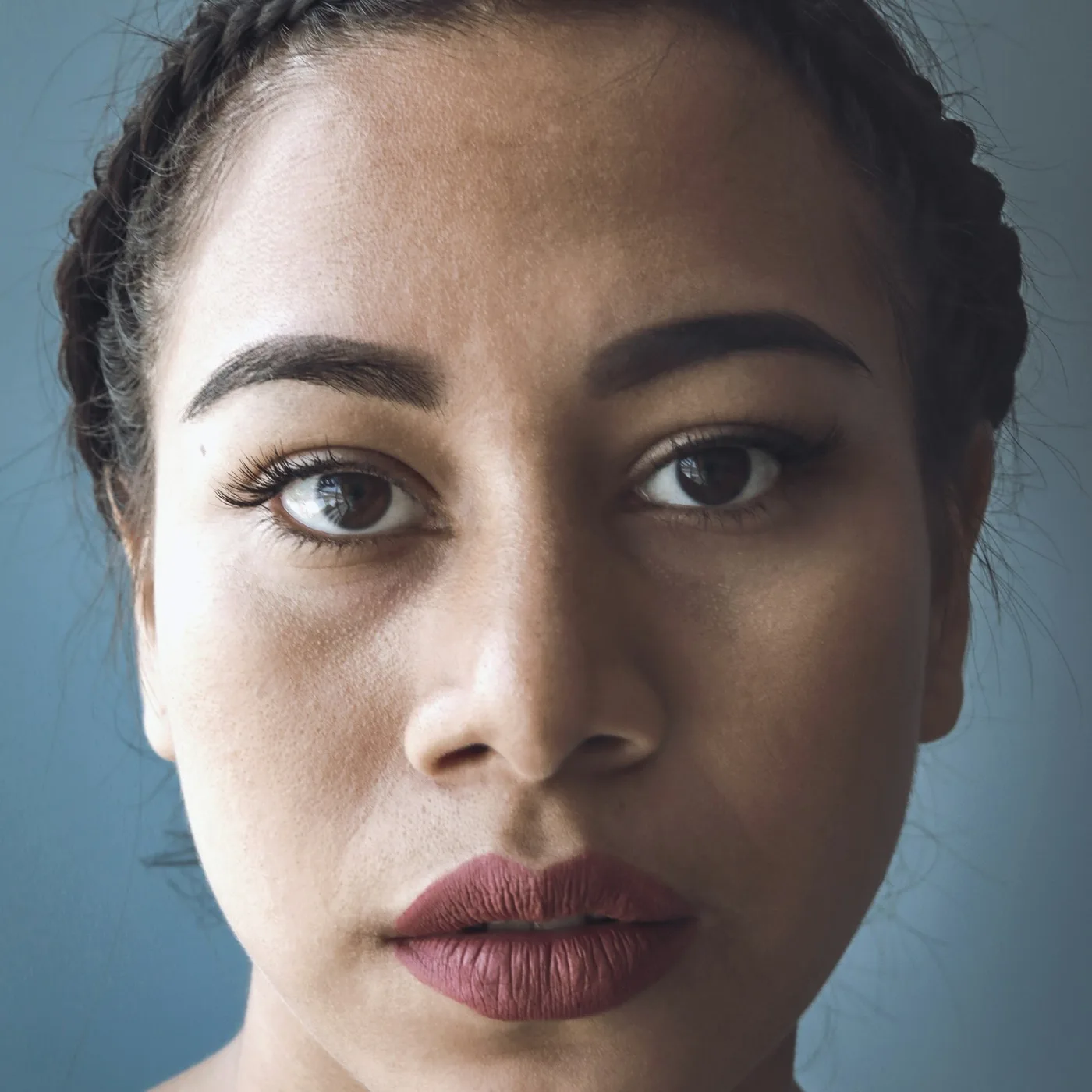
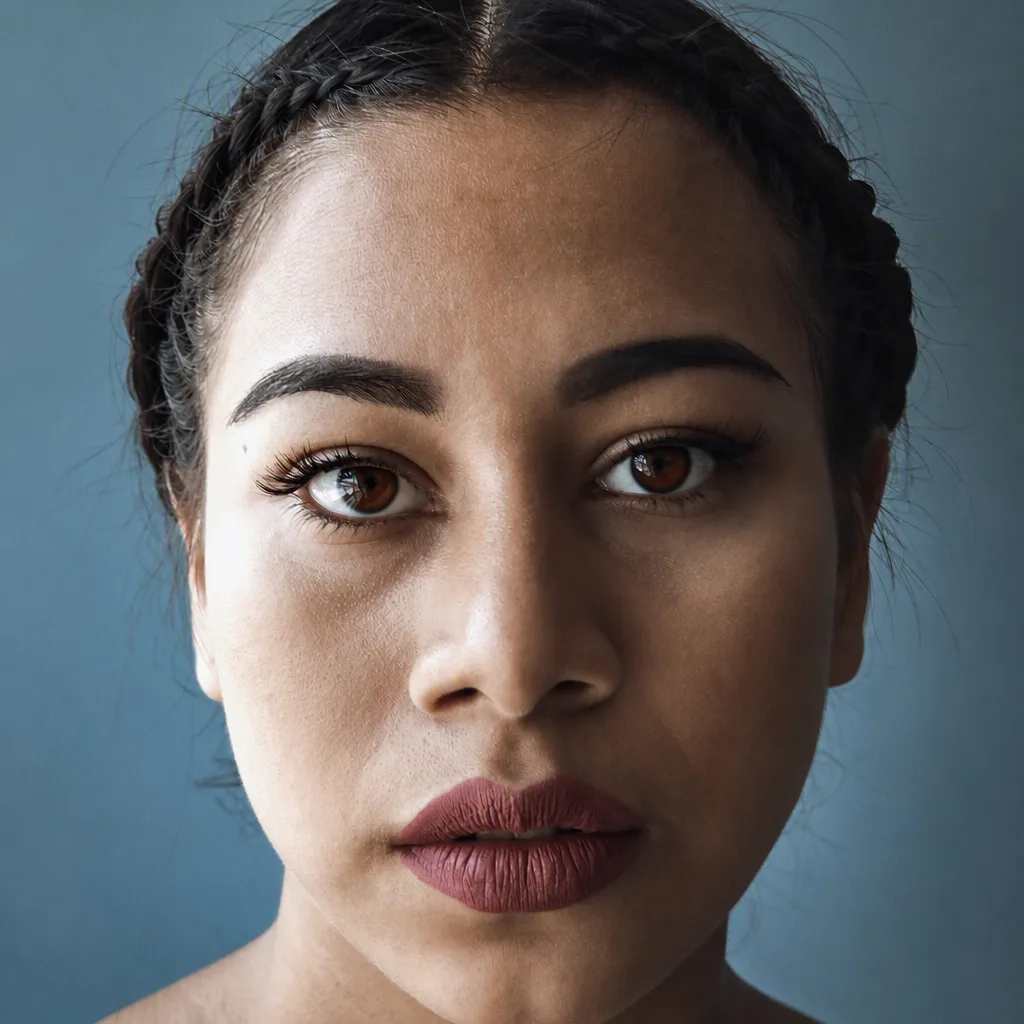
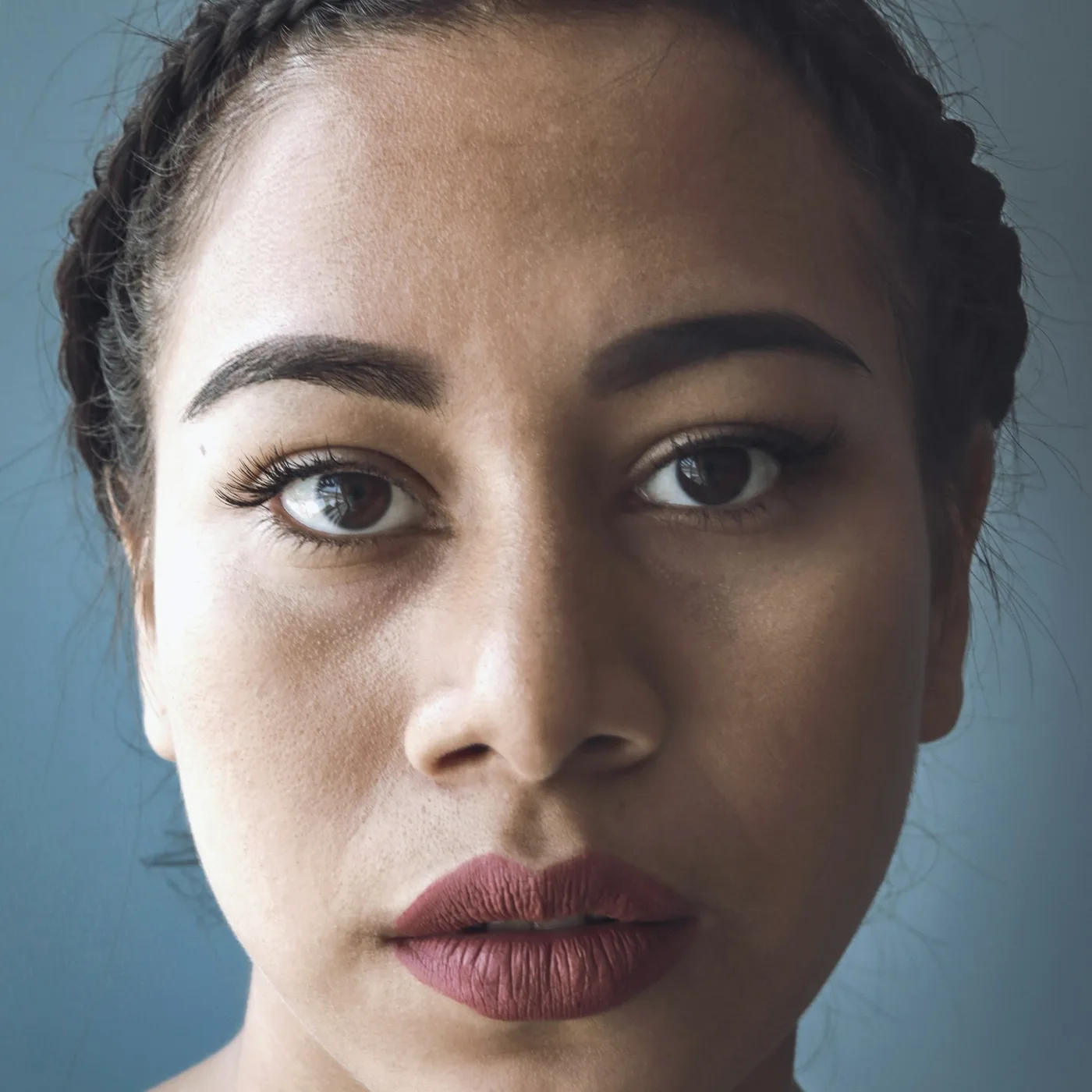
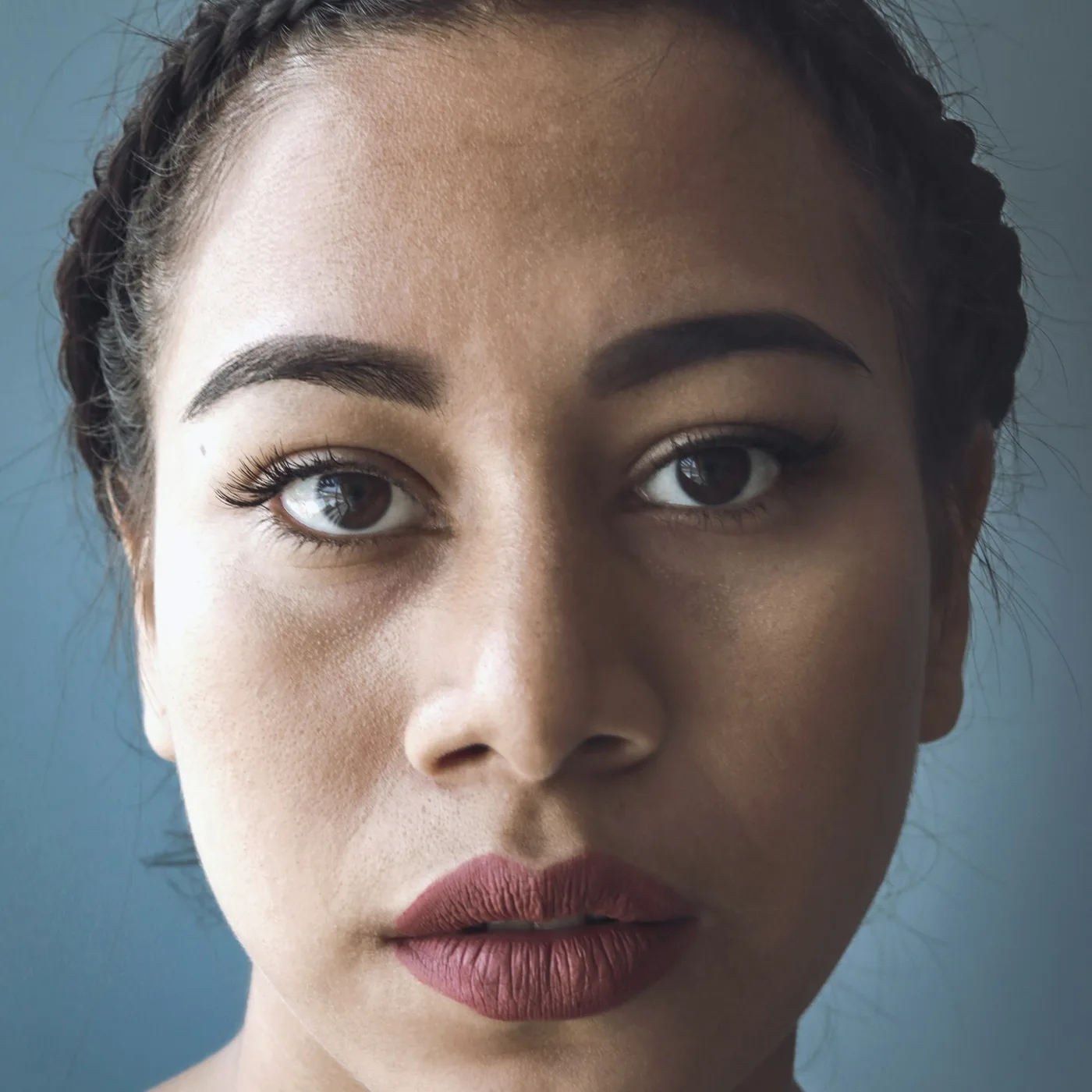
Warm brown irises
Change both irises to a natural warm brown.
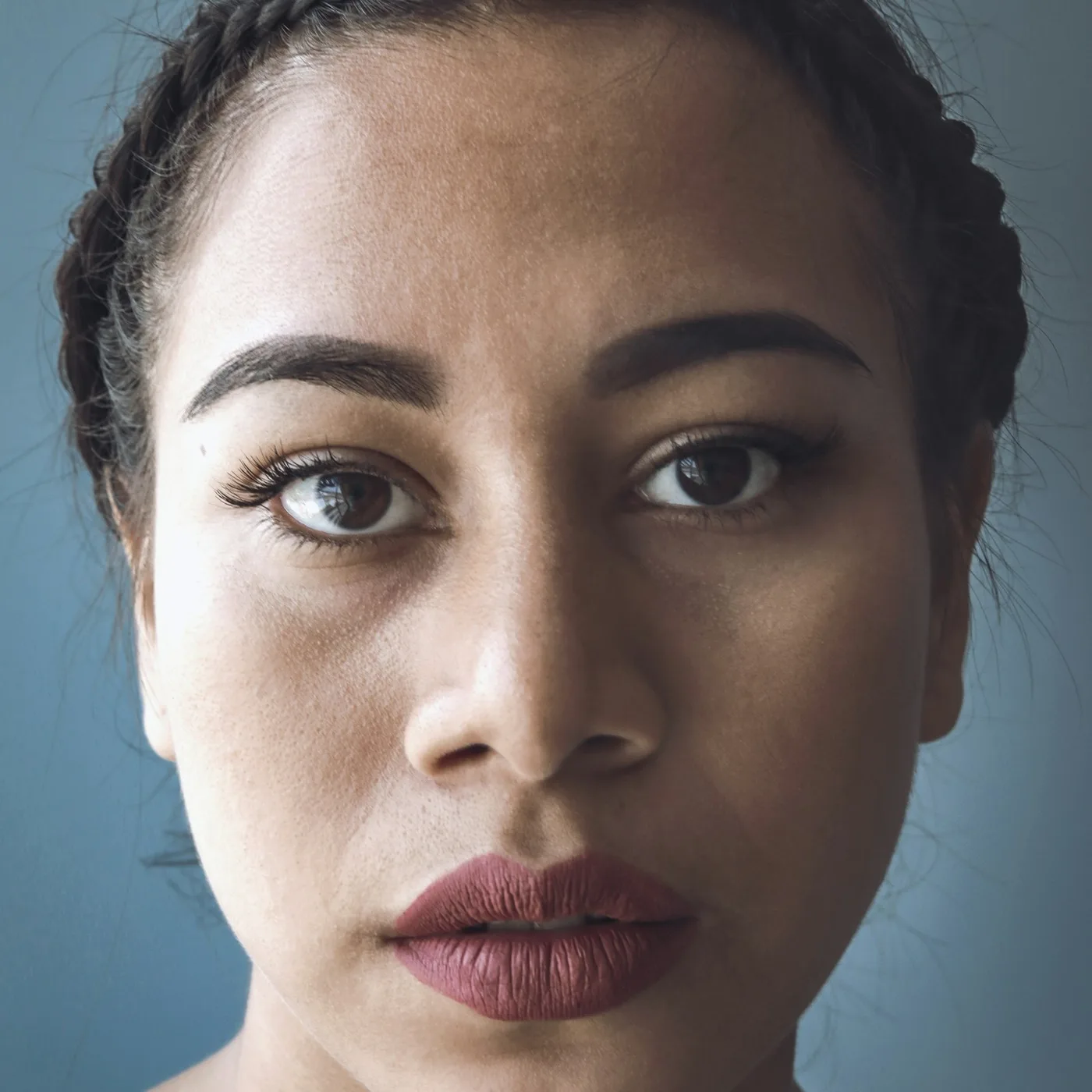
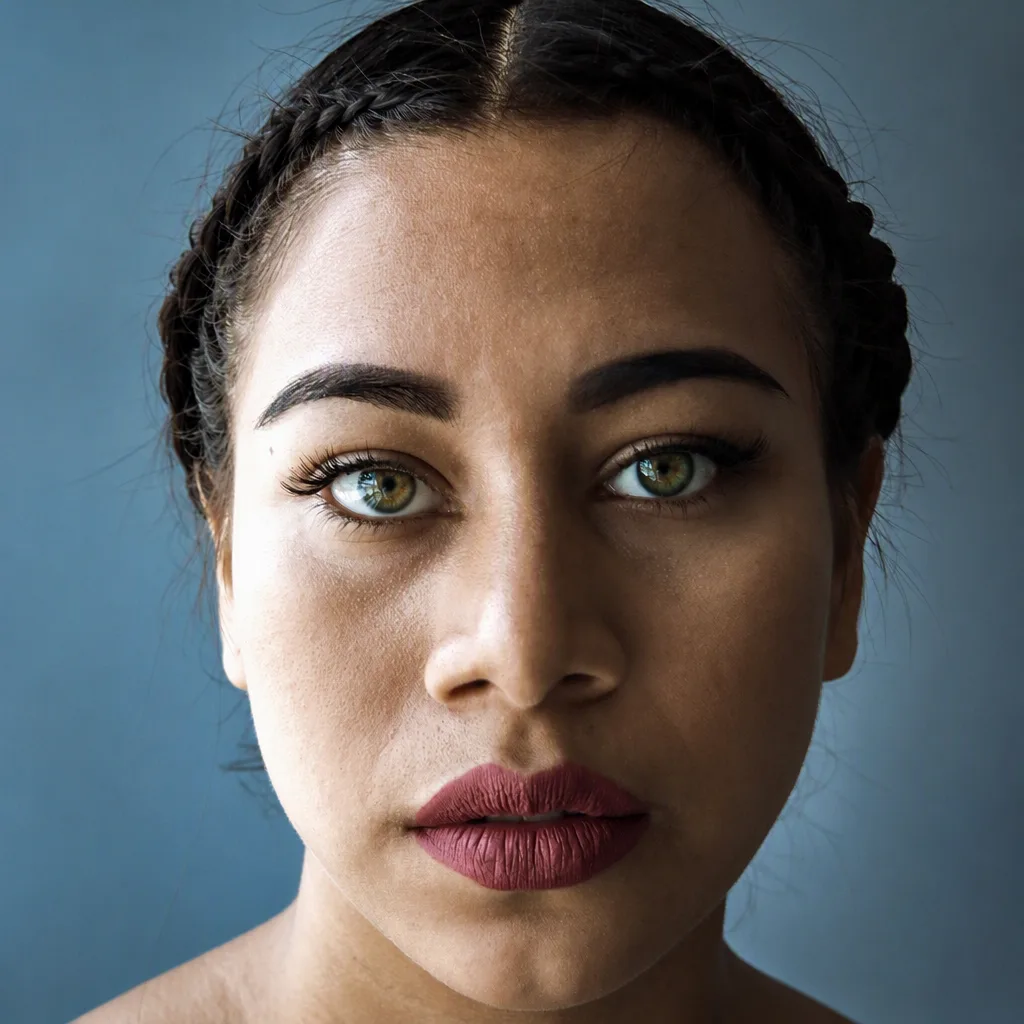
Natural green irises
Change both irises to a natural green with subtle gold flecks.
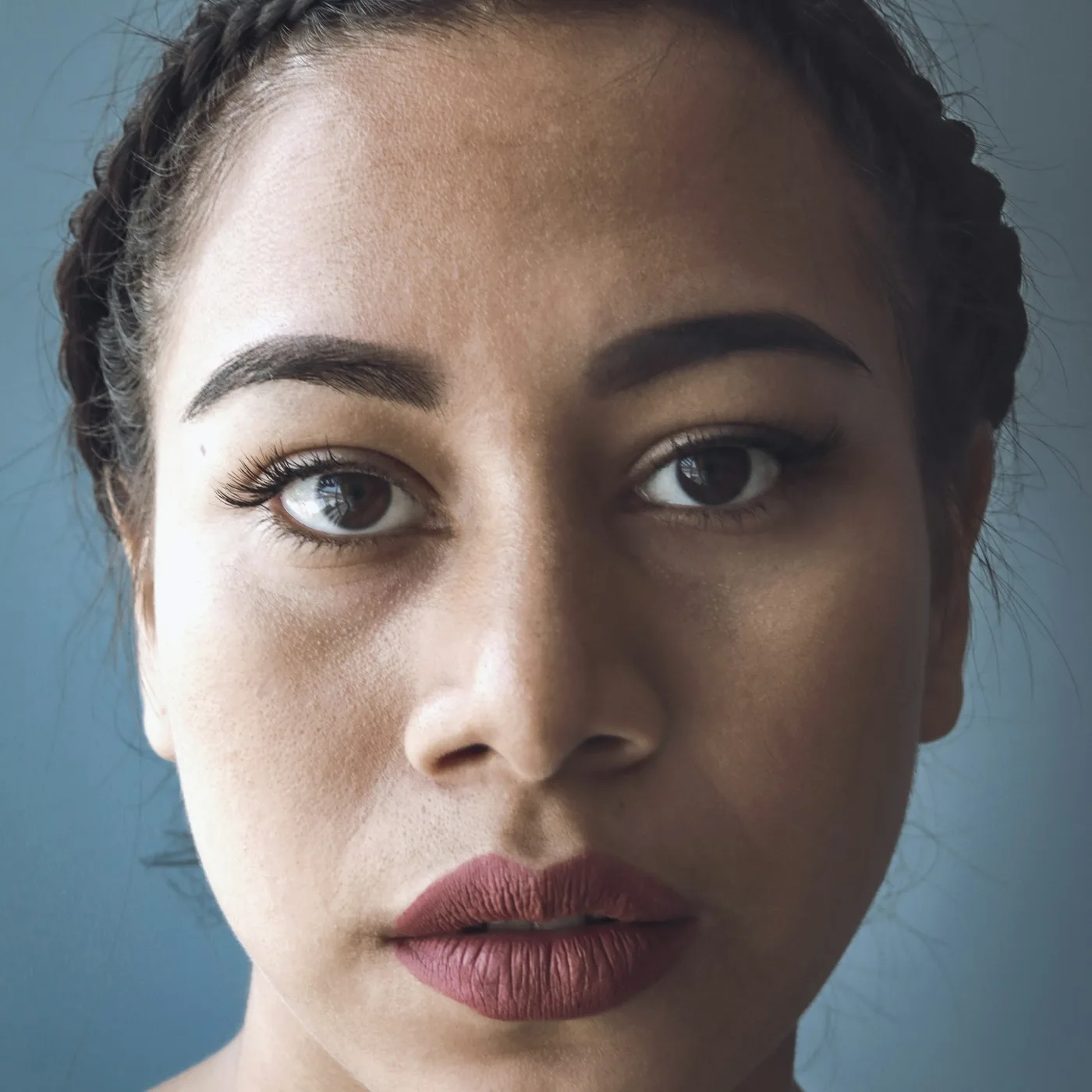
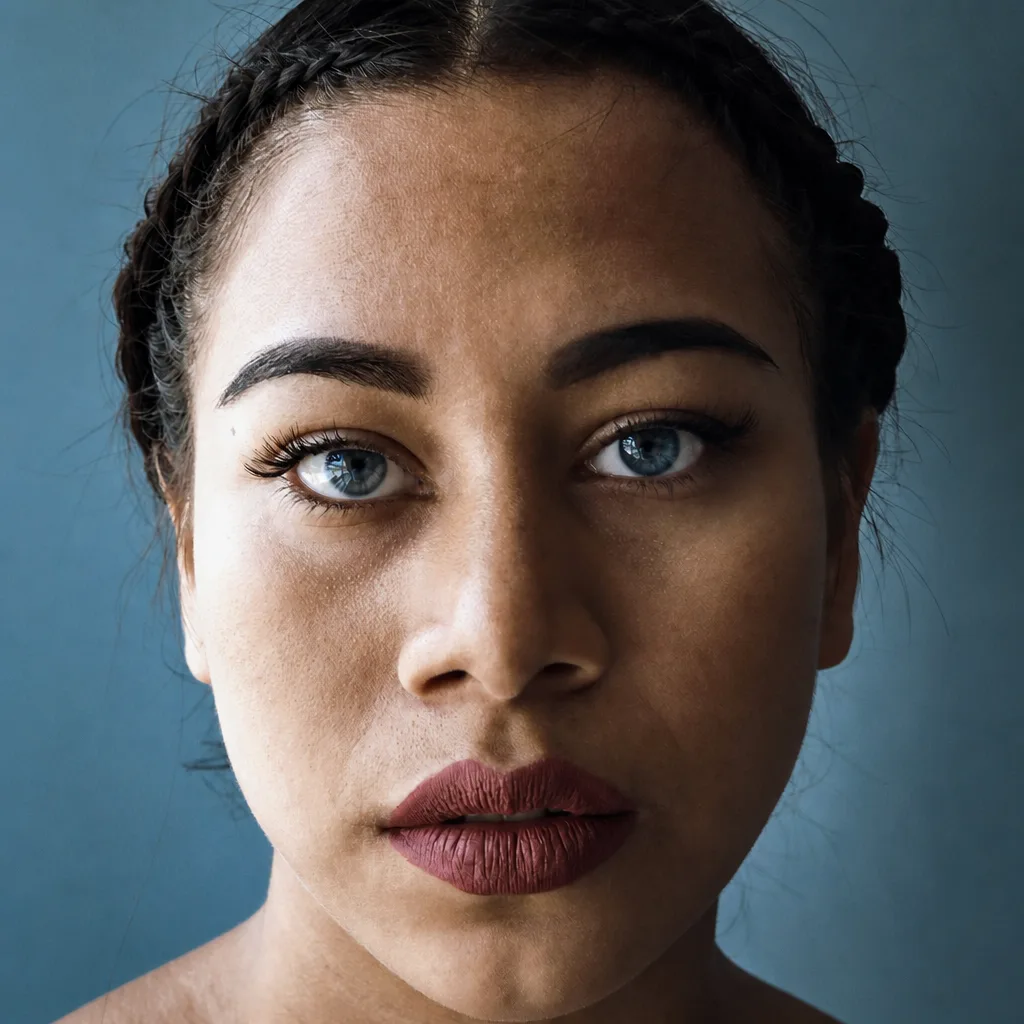
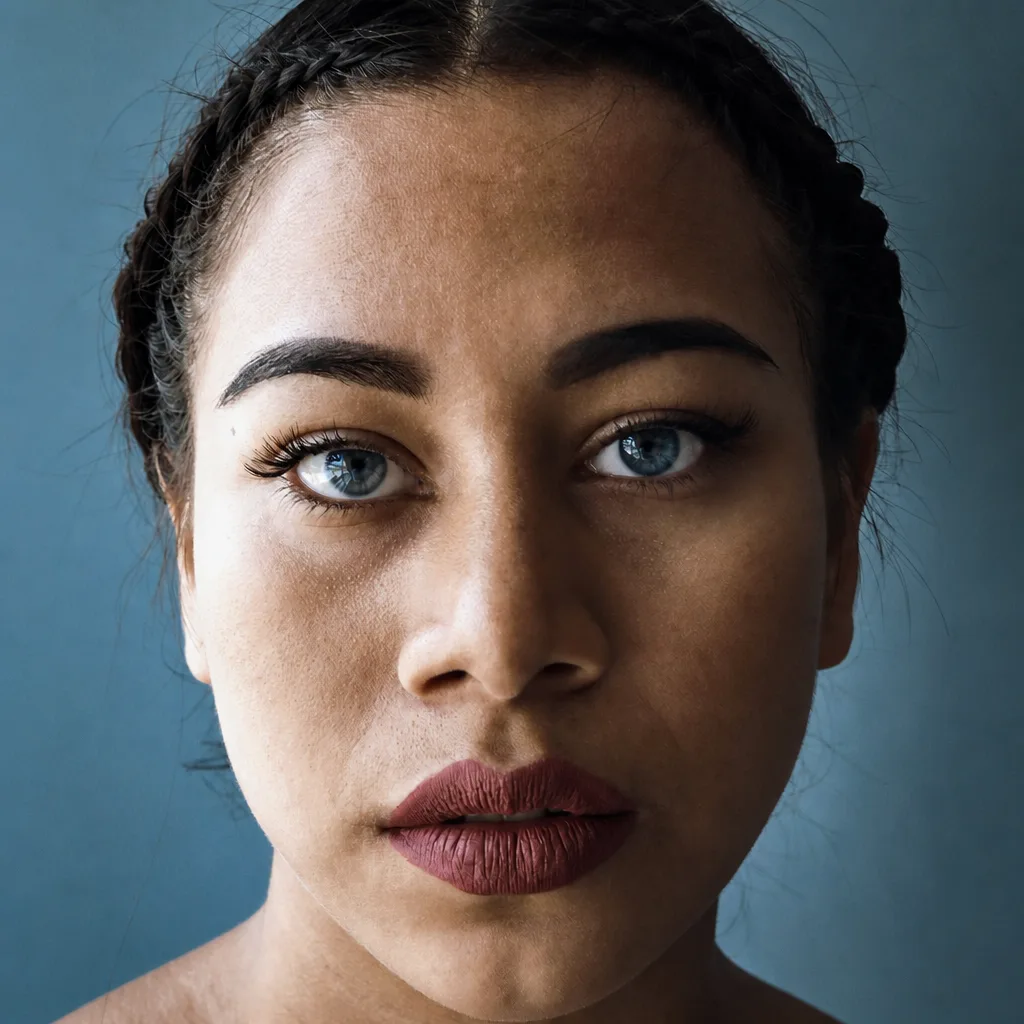
Soft blue irises
Change both irises to a natural blue.
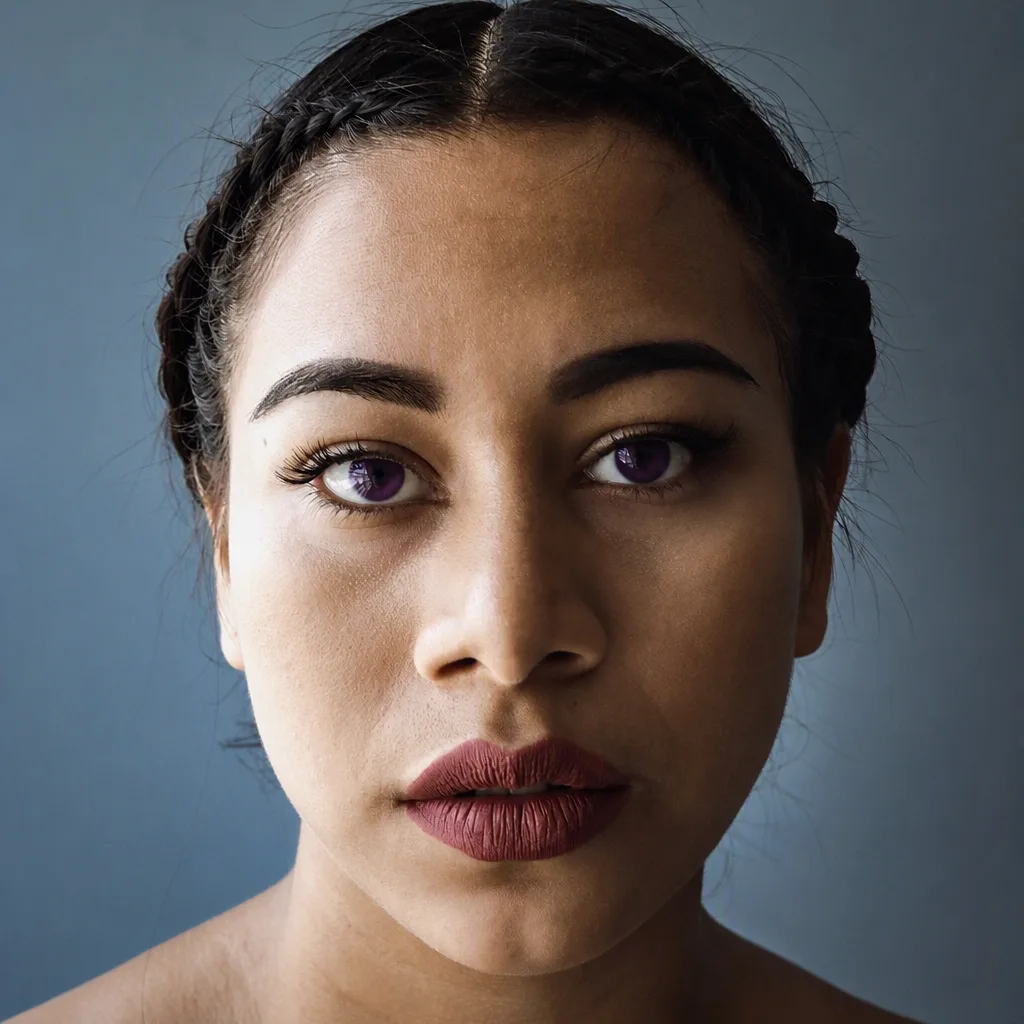
Deep violet irises
Change both irises to a deep violet that still reads as a real eye color.
Explore image models
More AI Image Generators
Explore specialized AI image models — each built for different creative styles and production needs.















What to control
Eye Color Editor Features
A short portrait workflow — upload a photo, pick an iris color, and review the face around the eyes.

Start from a Clear Portrait
A well-lit front-facing or three-quarter photo gives the editor a readable iris, catchlight, and eyelid shape. Avoid tiny faces, heavy blur, sunglasses, or hair covering both eyes.
Upload a portrait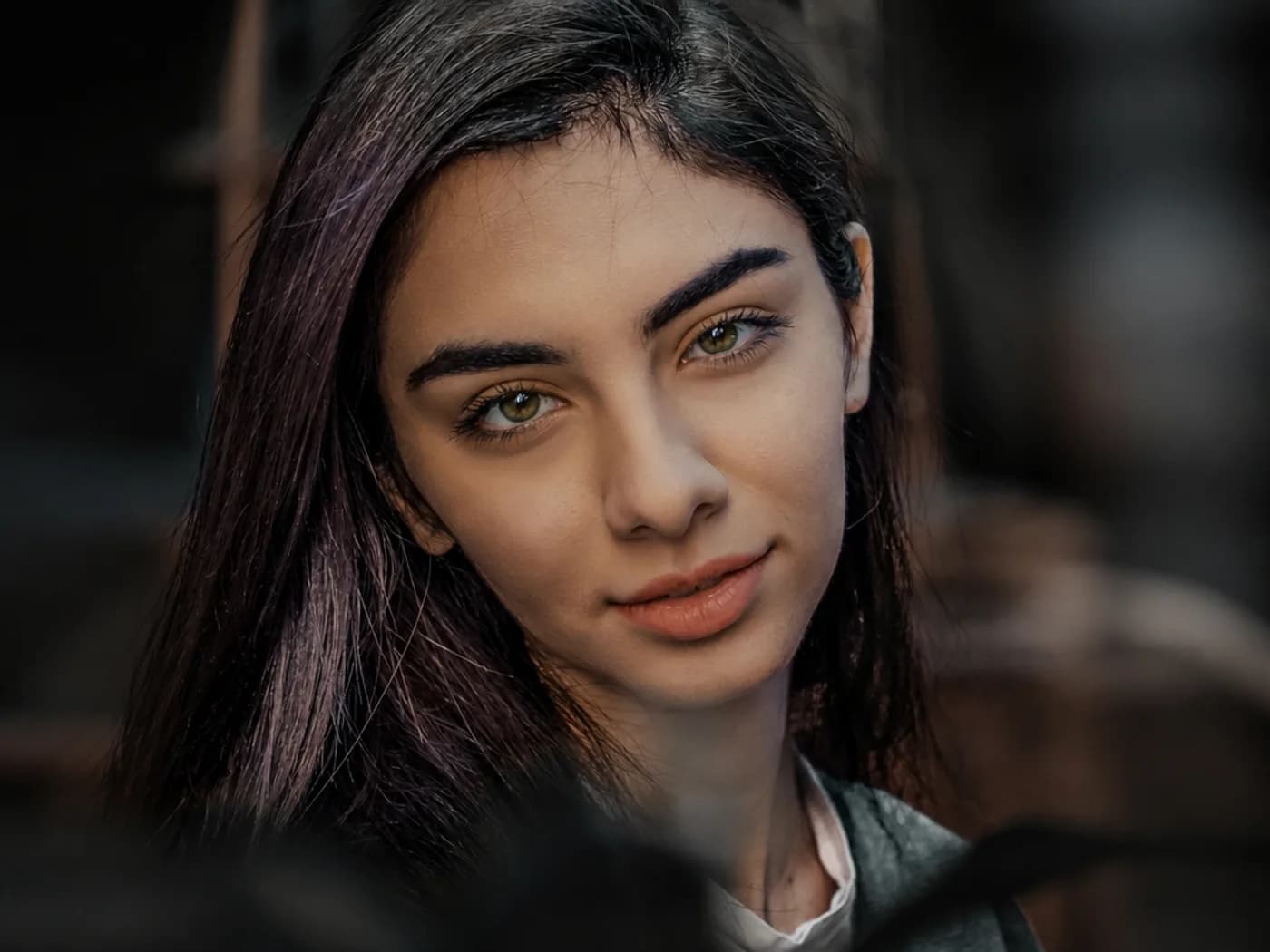
Change Only the Iris
Each run recolors both irises and keeps the pupil, sclera, lashes, makeup, hair, clothing, and background. Inspect every result for unintended changes around the eyes.
Choose an eye color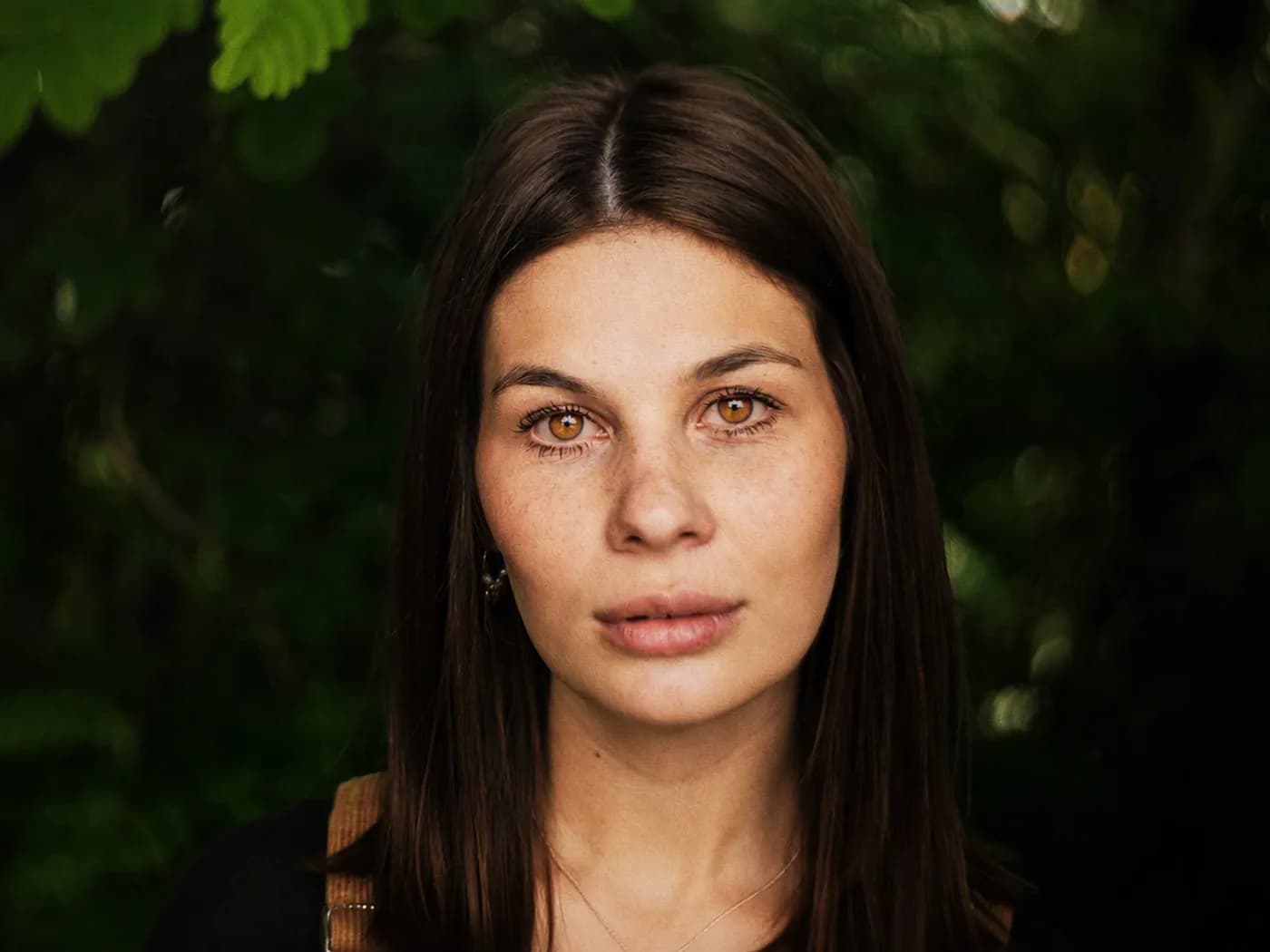
Pick from Seven Eye Colors
Compare brown, hazel, amber, green, gray, blue, and violet on the same portrait. Run one color at a time so you can judge hue and contrast without rewriting the rest of the face.
Compare iris colors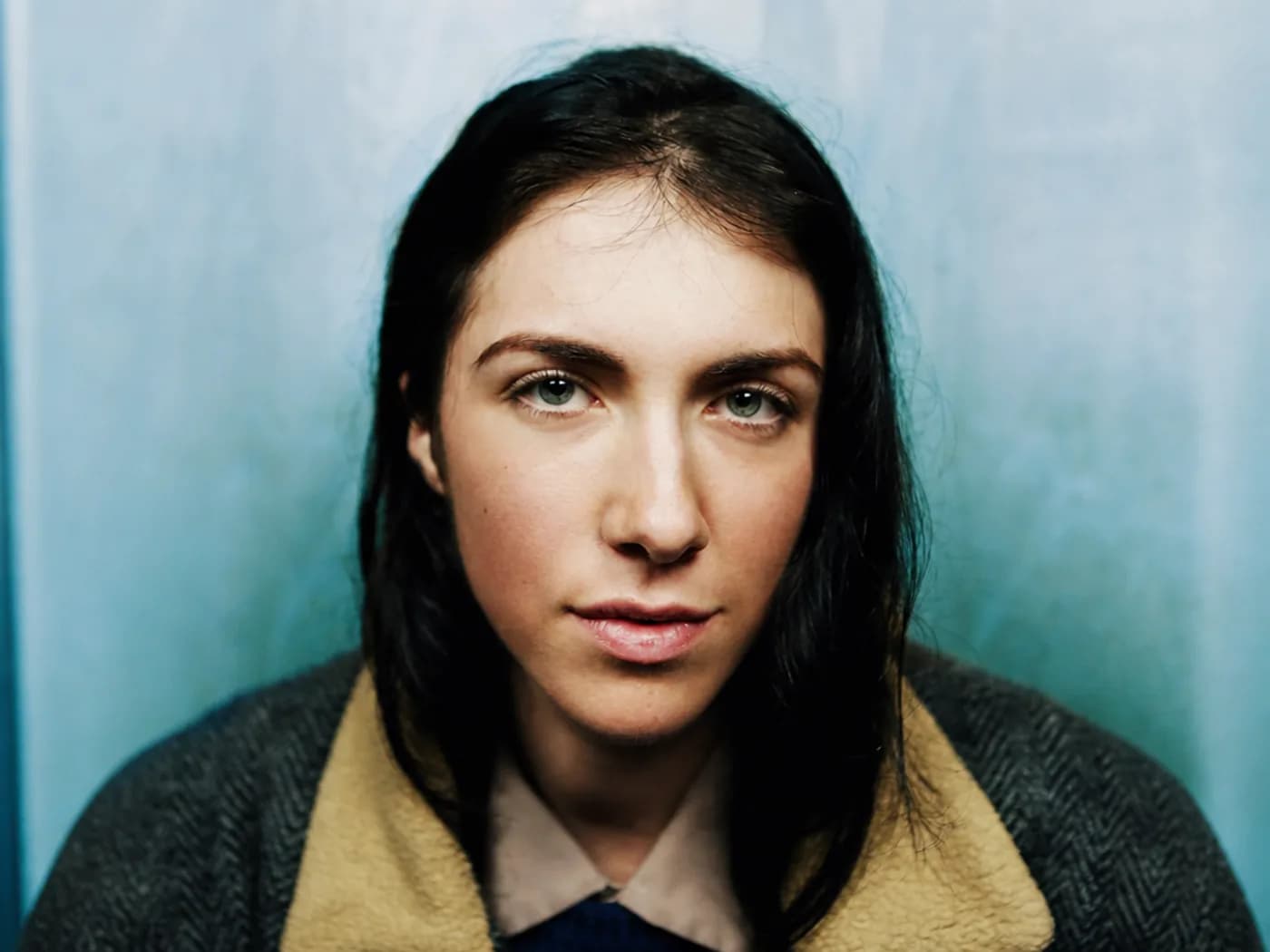
Keep Face, Hair, and Scene
The edit is meant to keep identity, expression, gaze, head angle, and lighting. Use the result as a visual reference, then try another color if the first pass drifts.
Generate the editHow to use
How to Use the Eye Color Editor
The complete workflow runs on this page and uses one uploaded portrait per generation.
Upload One Clear Portrait
Choose a photo where both eyes are visible and evenly lit. Front-facing and three-quarter portraits make the before-and-after difference easiest to judge.
Choose an Iris Color
Select brown, hazel, amber, green, gray, blue, or violet. The same color is applied to both eyes so you can compare one direction at a time.
Generate the Edit
Choose 1K, 2K, or 4K, then run the edit. The credit amount is shown in the workbench before generation.
Inspect Eyes and Face
Compare iris hue, catchlights, eyelids, expression, and background with the upload. Try another color if you want a different direction.
Use cases
Who Should Use the Eye Color Editor
People who want a visual reference for a new iris color on an existing portrait.
Portrait and Profile Editors
Test a new iris color on a headshot or profile photo before you commit to contacts or a retouch. Keep hair, clothing, and lighting so the only variable is the eye color.
Cosplay and Character Looks
Preview a character iris color on your own face for a costume test. Use the result to plan makeup and contacts, then check whether the rest of the portrait still matches the person in the photo.
Contact Lens Shoppers
Compare brown, green, blue, and other shades on the same portrait as a conversation starter. The image is a visual reference, not a fit, opacity, or medical recommendation.
Beauty and Campaign Teams
Generate iris-color variants of one approved portrait for a lookbook or campaign test. Review identity and lighting on every frame before you pass a result downstream.
Explore creative tools
More AI Image Tools
Explore focused AI image tools, each designed for a specific task — see how AI can turn your concepts into finished work.







FAQ
Eye Color Editor FAQ
Photo selection, iris colors, credits, and what the edit does not change.
- What is the Eye Color Editor?
- It is a portrait tool on Epochal for editing the color of eyes on a photo. You upload one portrait, pick an iris color, and generate an edit instructed to keep the rest of the face and scene as consistent as possible.
- Does it change only the iris?
- Each run recolors both irises and keeps the pupil, sclera, lashes, face, hair, clothing, and background. AI edits can still drift, so inspect the area around the eyes on every result.
- What photo works best?
- Use a well-lit front-facing or three-quarter portrait where both eyes are visible. Avoid sunglasses, heavy motion blur, very small faces, and hair covering the irises.
- Which eye colors can I choose?
- Brown, hazel, amber, green, gray, blue, and violet. Each run applies the same color to both eyes.
- Can I change only one eye?
- No. This page applies one selected color to both irises. It does not offer a two-color or heterochromia control.
- How much does one edit cost?
- You choose 1K, 2K, or 4K. The exact credit amount is shown in the workbench before generation.
- Does the result match real contact lenses?
- No. The output is an AI visual reference. Real contact-lens color, opacity, and comfort depend on the product and a qualified fitter, so use the image only to compare directions.
Try a new iris color
Edit the Color of Eyes on Your Photo
Upload one portrait, pick an iris color, and inspect the result before you treat it as a reference.
Open Eye Color Editor