


Overview
Combine Photos into One Image with AI Image Combiner
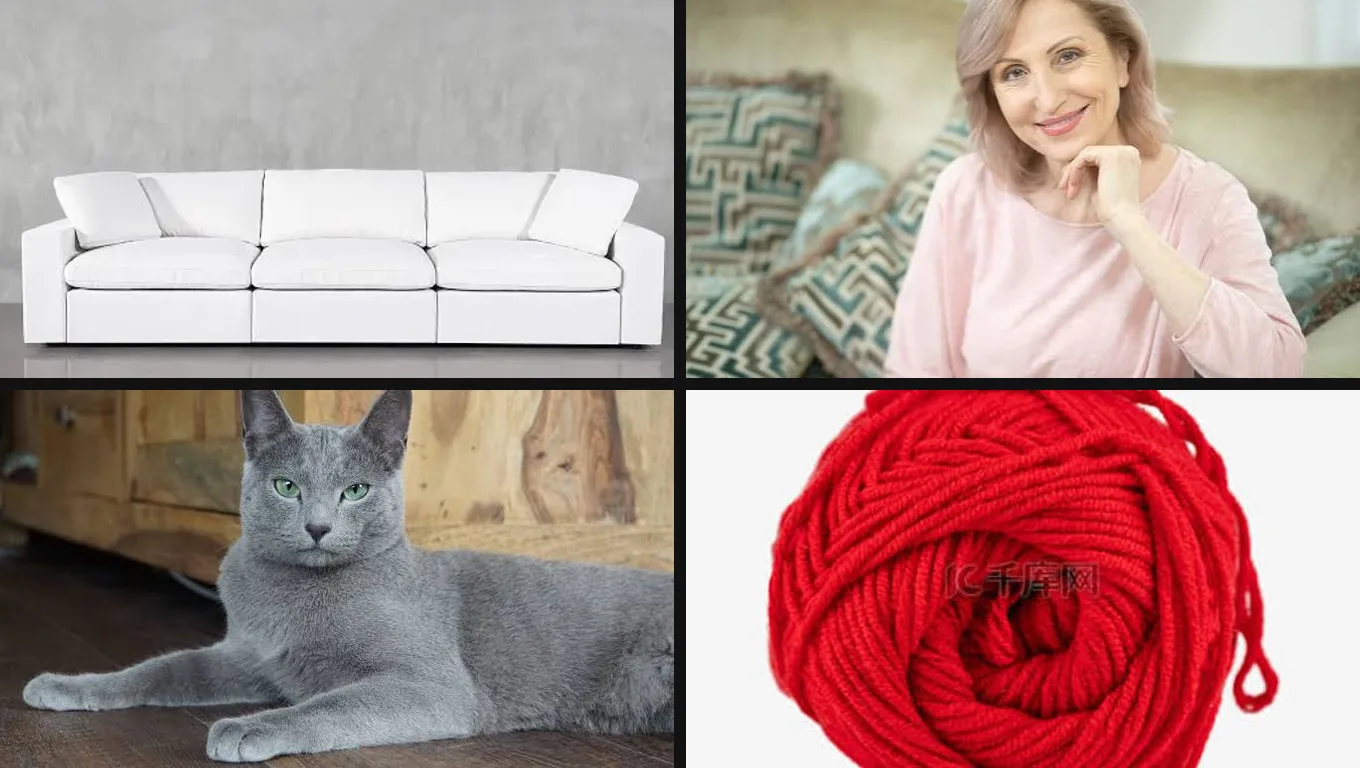
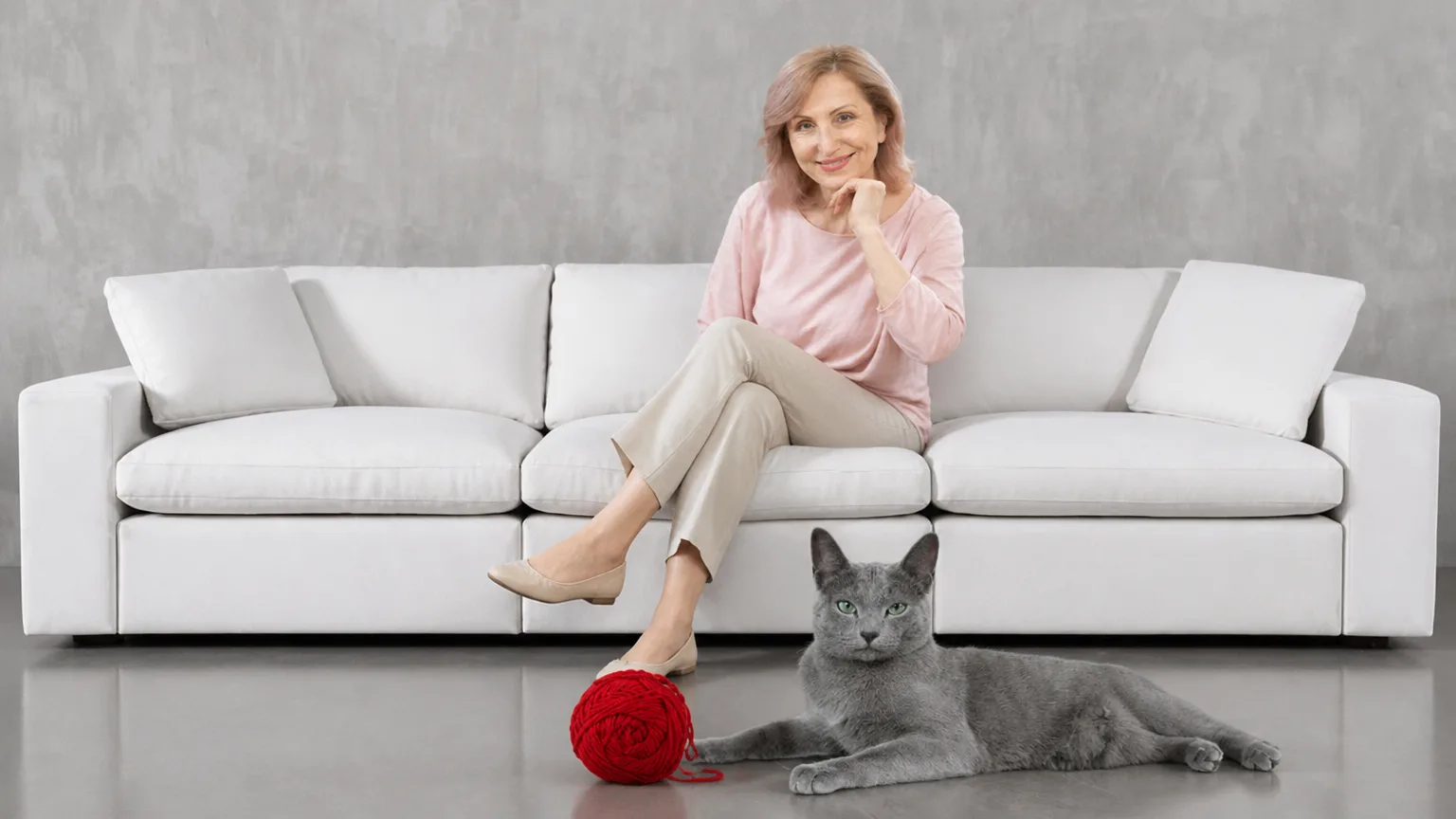
Upload two or more photos and describe how they should meet in one frame — a person into a new background, two people in the same shot, or a product on a different surface. The tool sends every upload as a reference and follows your instruction for the composite. You can add up to five photos. Credits are shown before each run.
- 2–5 photos
- One composite image
- Describe the merge
- 1K / 2K / 4K
- Credits shown before each run
Gallery
AI Image Combiner Gallery
Example merge instructions — click a tile to load its prompt.
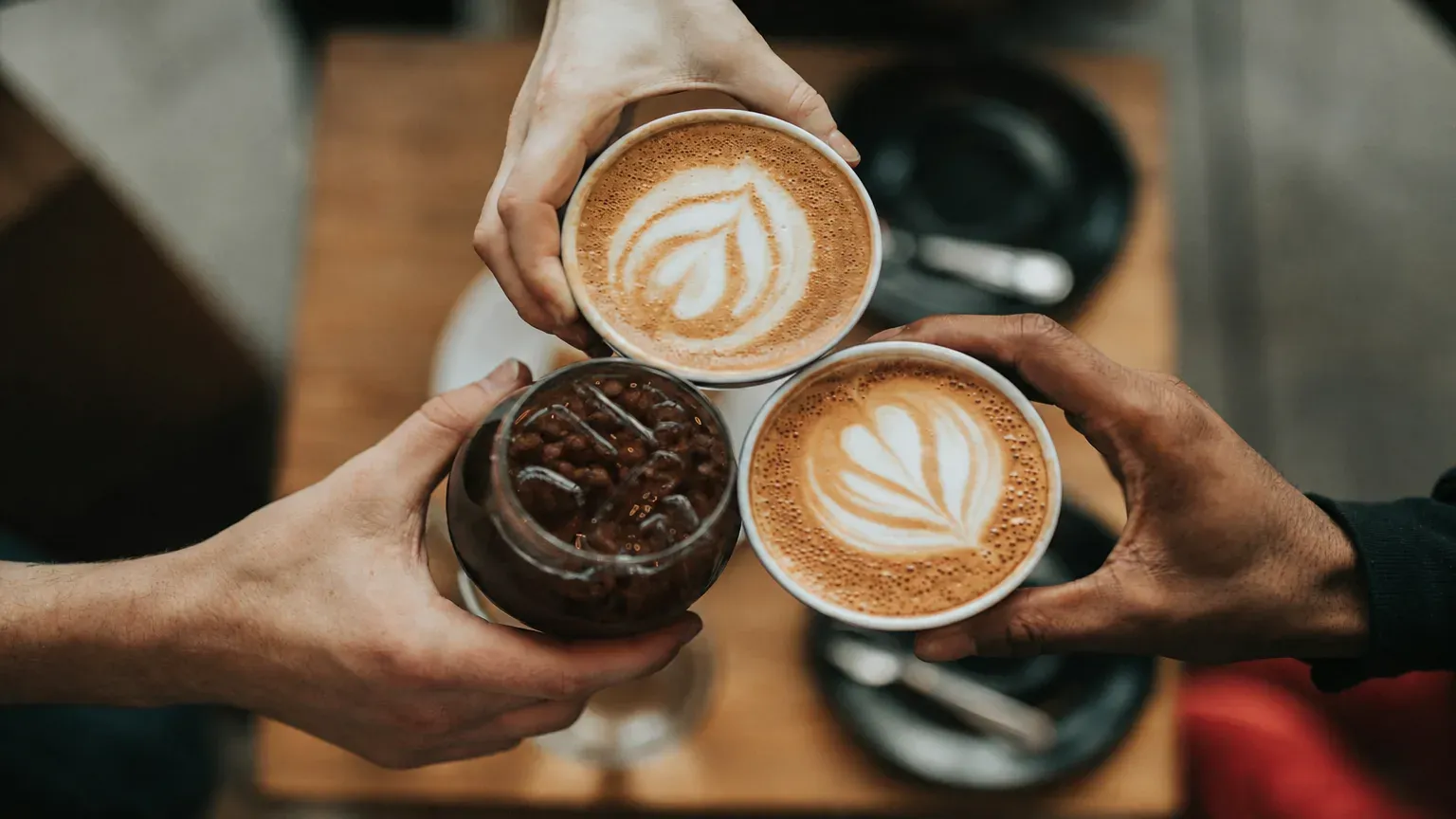
Product in a scene
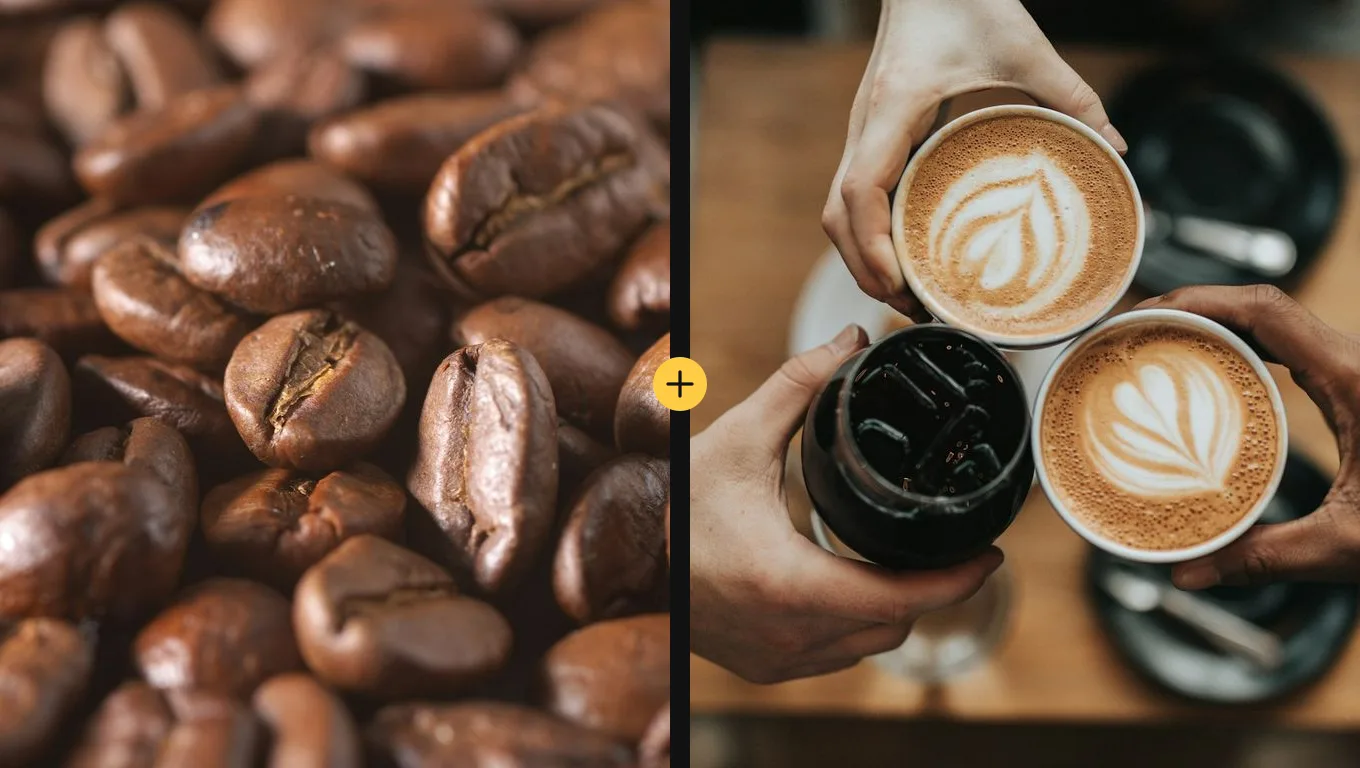
Place the product from Figure 1 into the scene from Figure 2. Keep the product shape and details. Match the lighting and shadows of the scene.
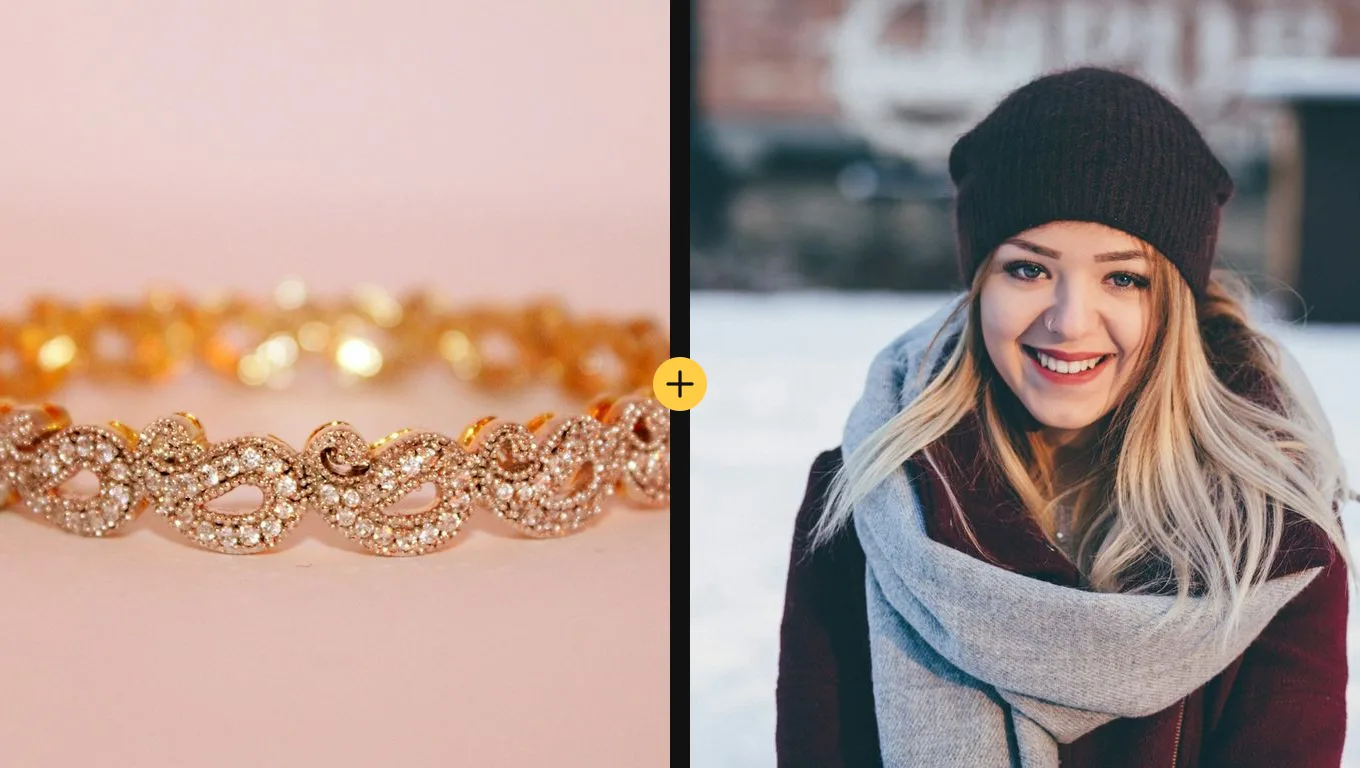
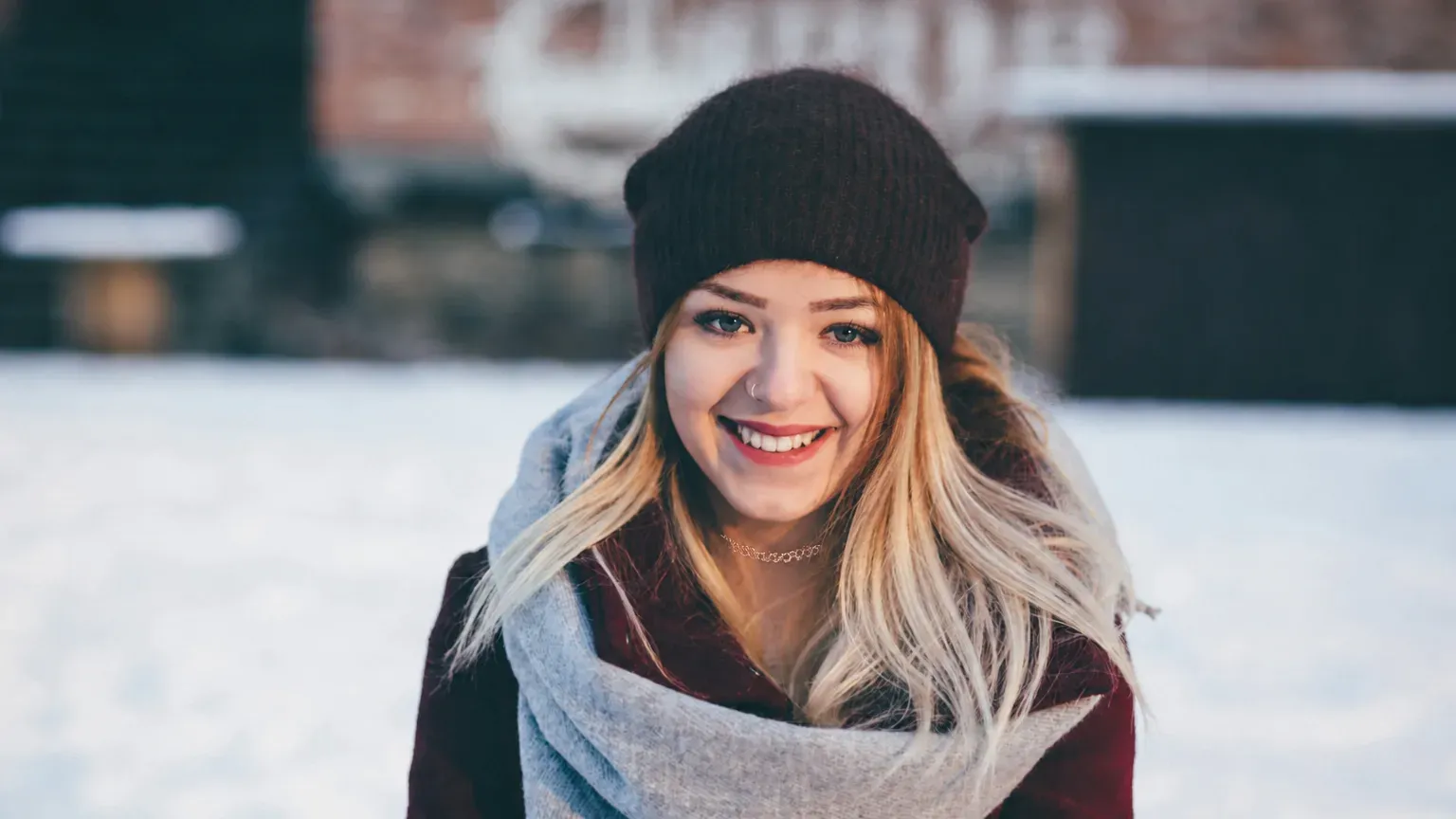
Jewelry on a portrait
Put the jewelry from Figure 1 on the person from Figure 2. Keep their face and clothing. Match the lighting.
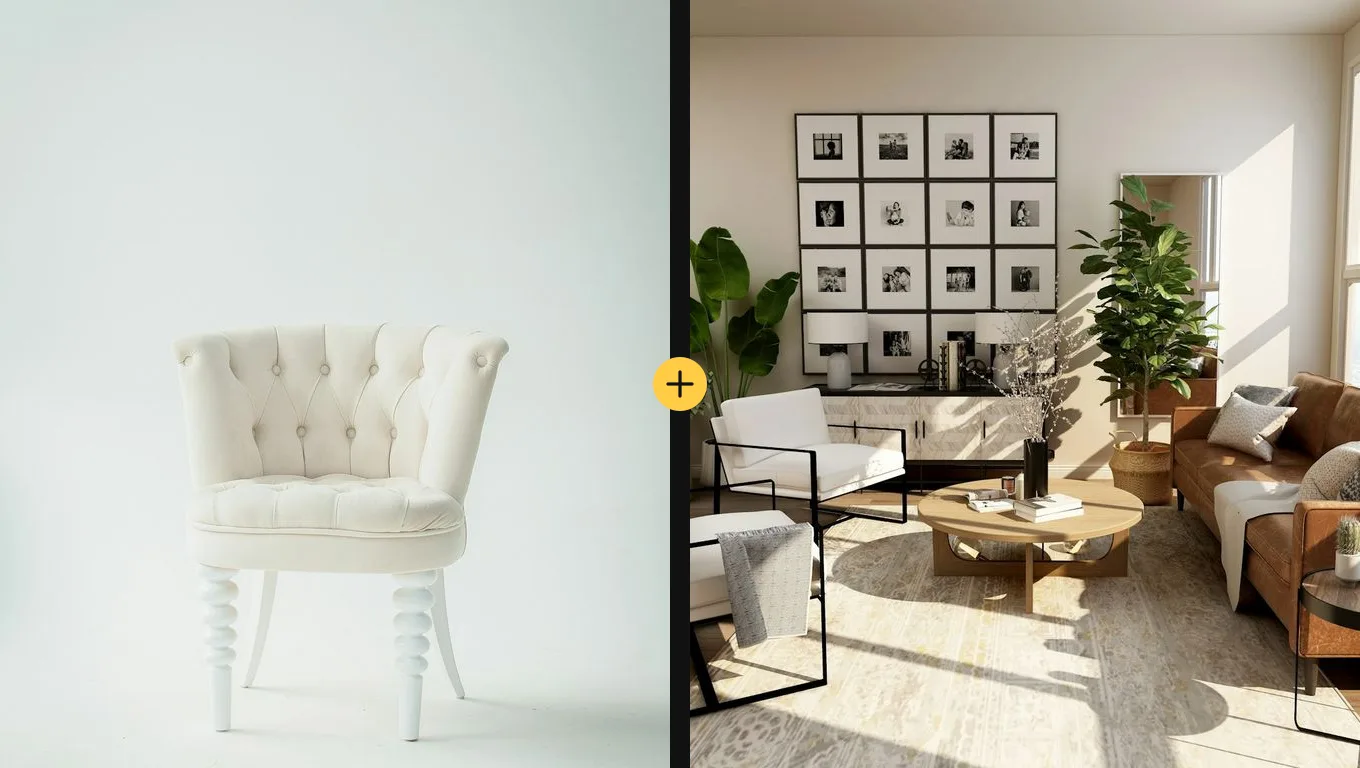
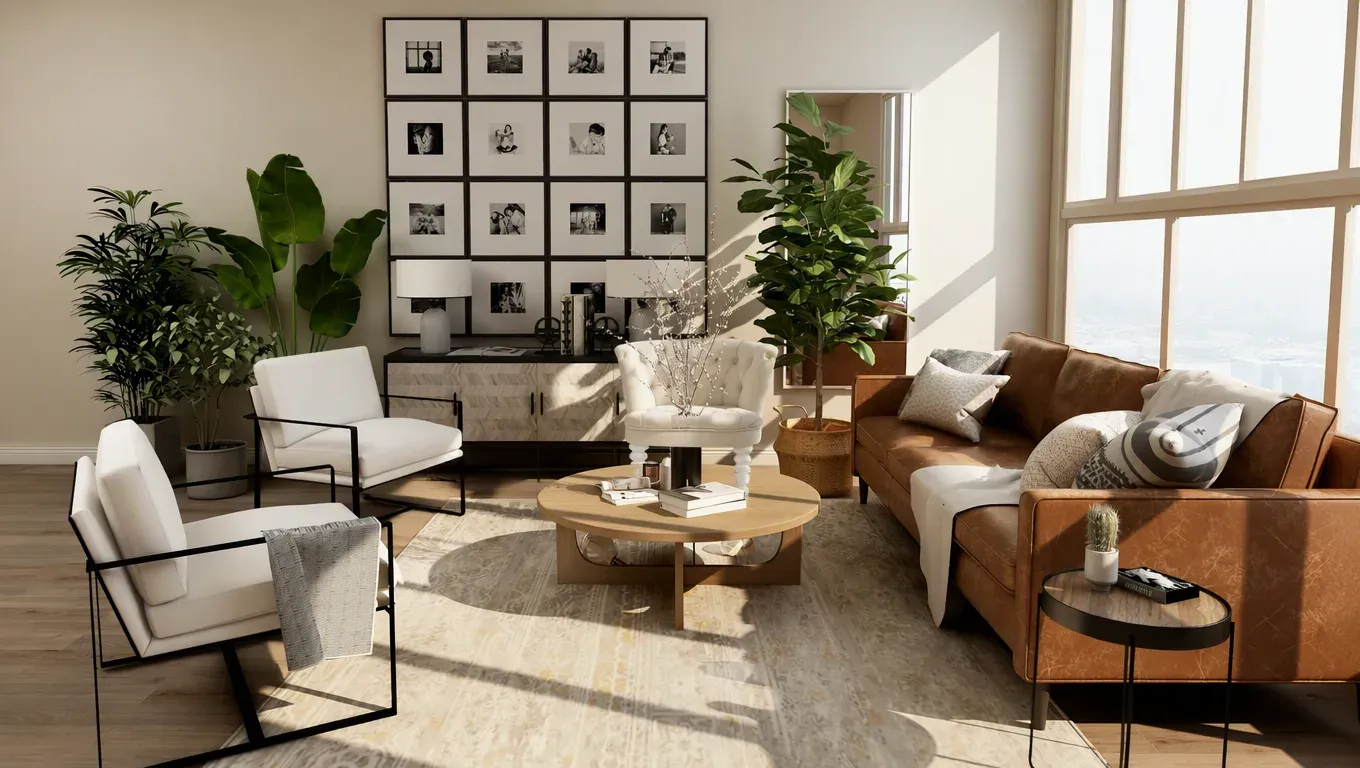
Furniture in a room
Place the furniture from Figure 1 into the room from Figure 2. Keep the furniture shape. Match the room lighting and scale.
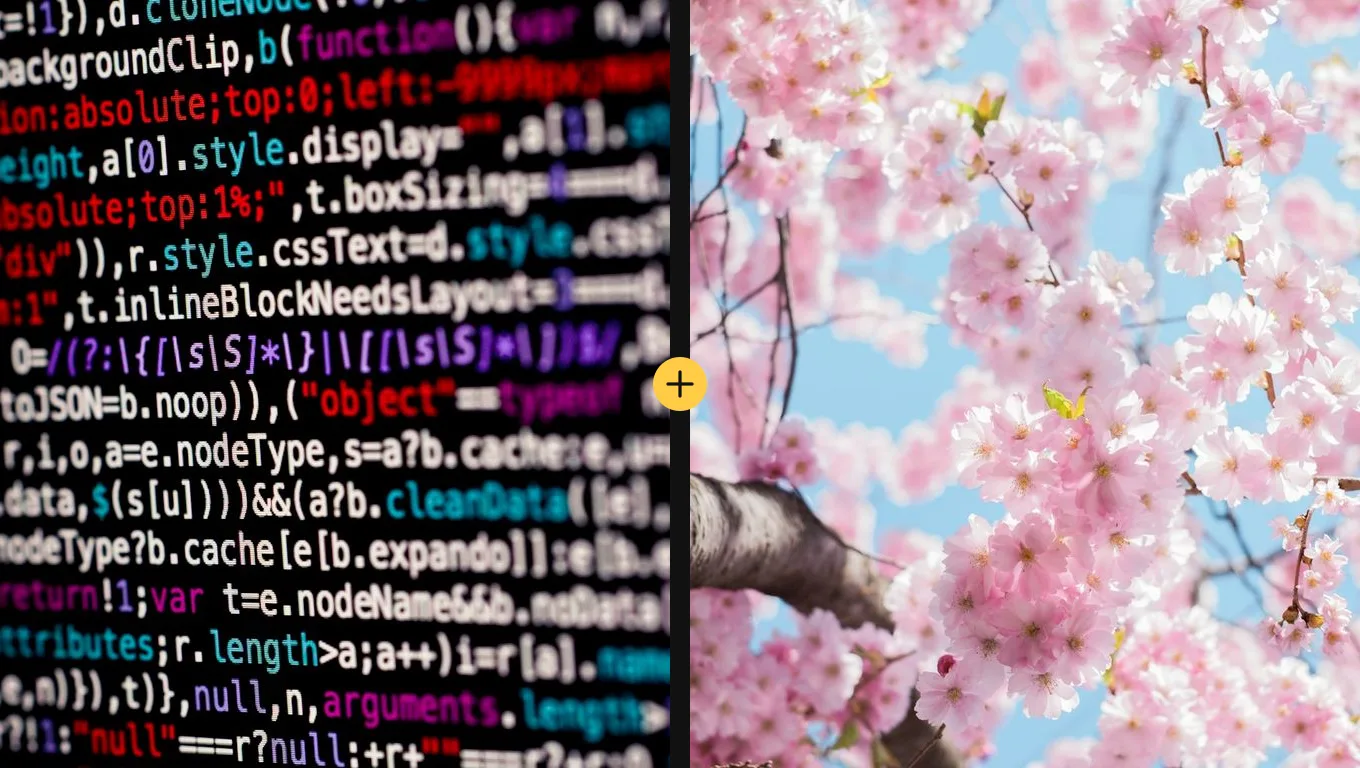
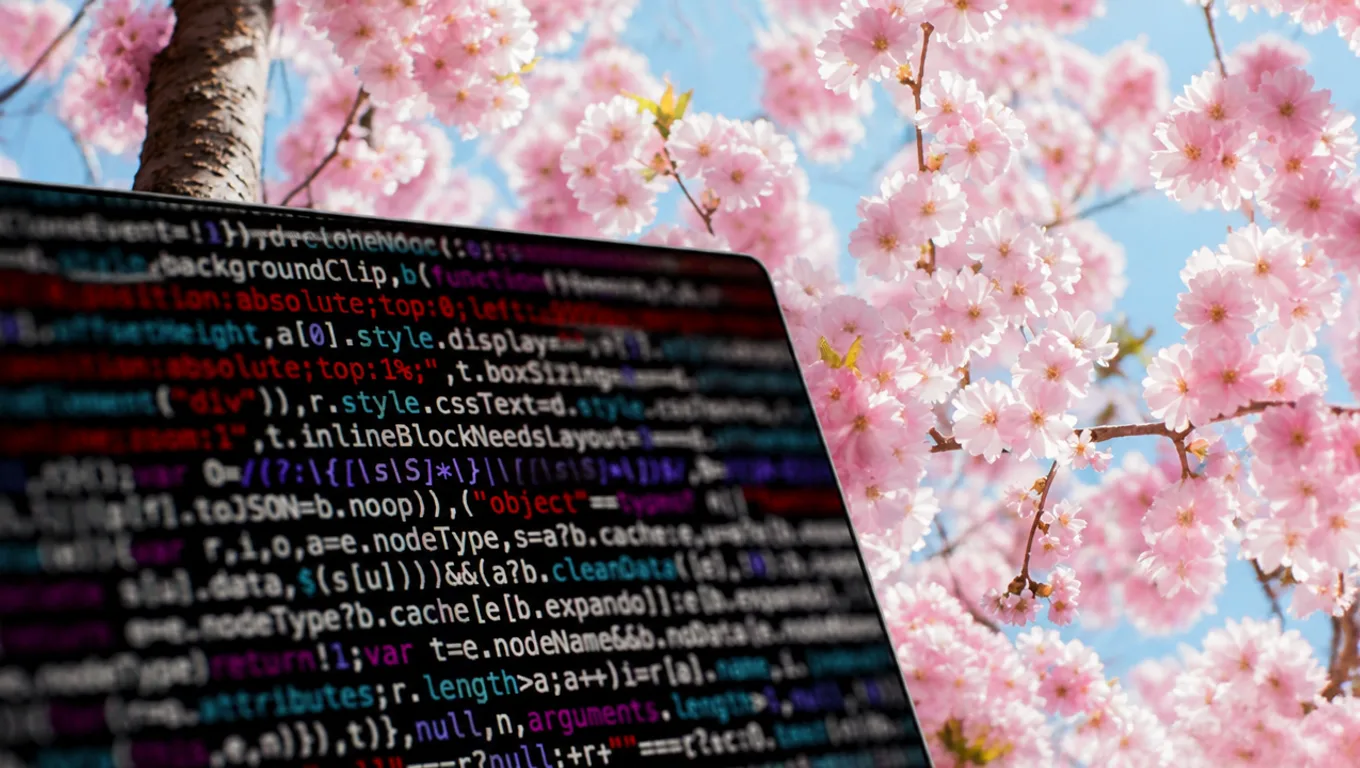
Object with flowers
Combine the object from Figure 1 with the flowers from Figure 2 into one still-life photo. Keep both recognizable. No extra text.
Explore image models
More AI Image Generators
Explore specialized AI image models — each built for different creative styles and production needs.







Features
AI Image Combiner Features
The page is built for one job: several photos in, one composite out.
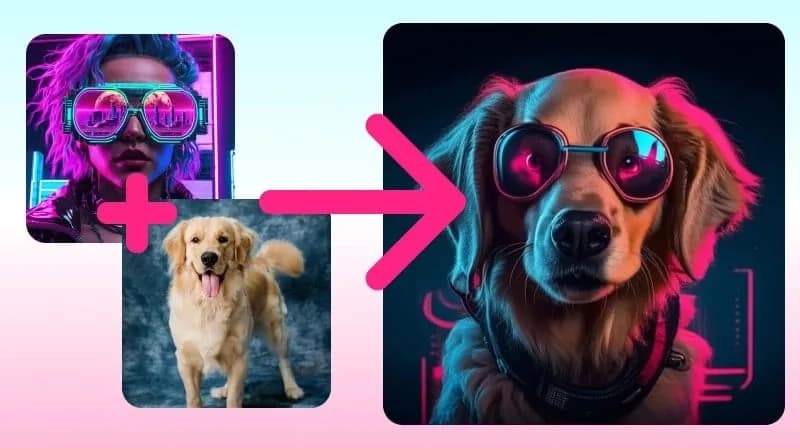
Every Upload Stays in the Request
The run includes each photo you add, in upload order, as Figure 1 through Figure 5. If your goal is a real combine — not a new picture that forgets one source — start here instead of a single-image edit.
Upload two photos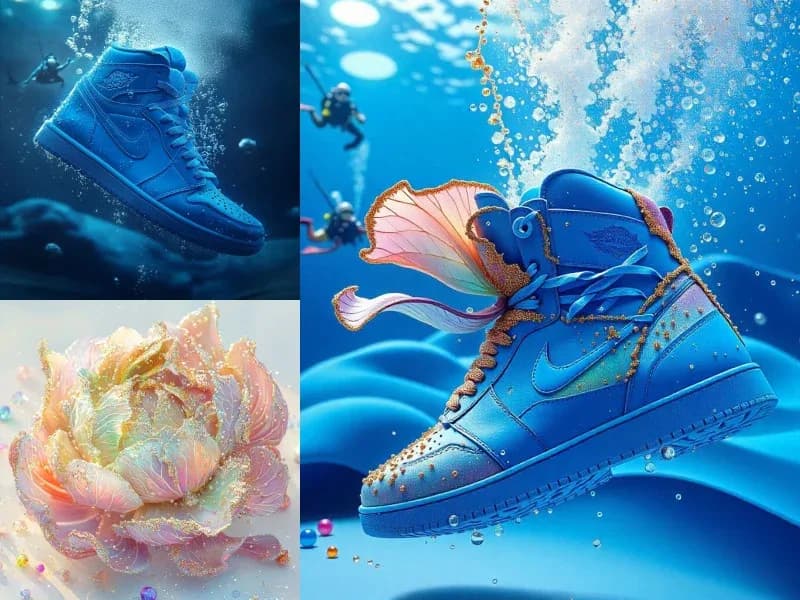
You Direct the Combine
Write what should move where: who stays, which background wins, whether clothes or a product should transfer. The instruction is the visible prompt; the page does not lock you to one merge recipe.
Write a merge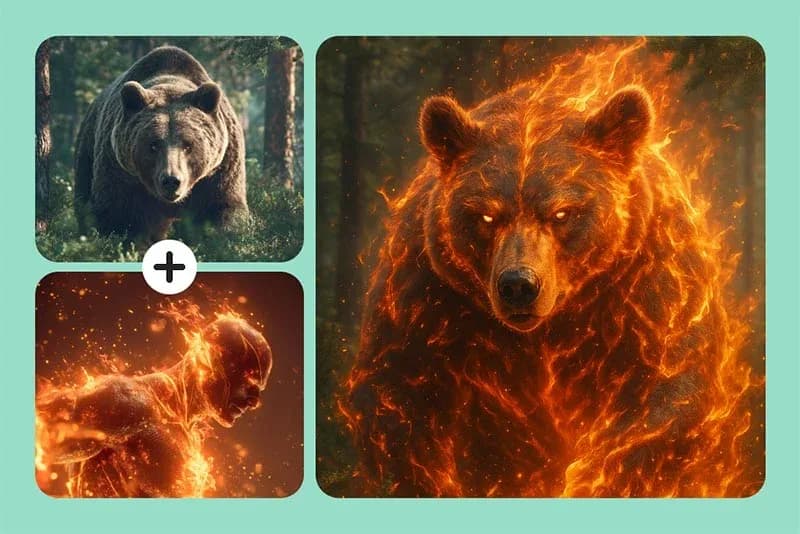
Two Photos Minimum, Five Maximum
A merge needs at least two uploads. You can add up to five when the composite needs more than a pair — a second person, a surface, or an extra prop. One photo is not enough to start a run.
Add a third photo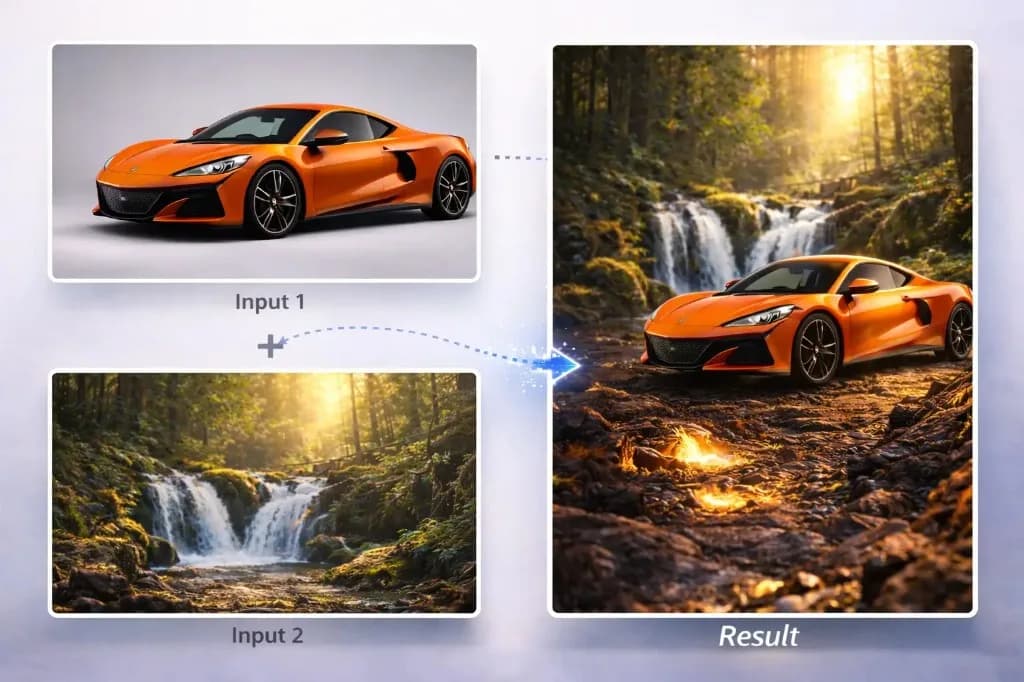
Cost Visible Before You Run
You choose 1K, 2K, or 4K. Extra photos add credits, and the charge appears before you run it.
Check the creditsHow to use
How to Use AI Image Combiner
Upload the photos, describe the merge, then review the single composite.
Upload Two or More Photos
Add the pictures in the order you will name them. Figure 1 is the first upload, Figure 2 the second. Clear, well-lit sources give the model more to hold onto.
Describe the Merge
Say what should come from each figure — person, background, product, or outfit. Name the figures in the same order you uploaded them.
Generate and Review
Run the combine and check faces, labels, and whether every source actually appears. The credit cost is shown before you generate.
Adjust and Re-run
If one source dropped out or the lighting feels off, tighten the instruction and run again. Keep the same uploads so you are iterating the merge, not starting a new set.
Who it's for
Who Should Use AI Image Combiner
People who already have the photos and need them in one frame.
Marketers & Ad Teams
Hero stills, campaign mockups, and product-in-context shots when a location shoot is not on the calendar. The multi-photo upload keeps the product and the setting in the same request.
E-commerce & Product Photographers
Catalog variants, lifestyle placements, and surface changes from existing packshots. If your goal is the same SKU on a new table or backdrop, upload both photos and name them in the prompt.
Creators & Social Editors
Pair shots, collab stills, and outfit tests from photos you already have. Two portraits in, one shared frame out — useful when the people were never in the same room.
Designers Building Composites
Early layout frames, mood boards, and client options before a retoucher opens Photoshop. This page is a first composite, not a layered PSD with masks.
Explore creative tools
More AI Image Tools
Explore focused AI image tools, each designed for a specific task — see how AI can turn your concepts into finished work.

FAQ
AI Image Combiner FAQ
Photo limits, credits, and what this page does not do.
- What is an AI Image Combiner?
- An AI Image Combiner combines two to five uploaded photos into one generated image. Upload your source photos, describe how the people or objects should appear together, then generate and download the combined result.
- How many photos can I combine?
- At least two, and at most five, in one run. One photo is not enough — the generate button stays blocked until two uploads are in place.
- Do I need to write a prompt?
- A short instruction helps. Name the uploads in order (Figure 1, Figure 2) and say what should move where. If you leave the box empty, the run still asks for a single scene that uses every upload.
- Is AI Image Combiner free?
- Runs use credits. You choose 1K, 2K, or 4K. Extra photos add credits. The exact charge is shown before you generate.
- Is this the same as Photoshop layers?
- No. You get one generated image, not editable layers, masks, or a guaranteed pixel-perfect cutout. If you need a layered file, finish the composite in an editor after you download.
- Can I use this for a passport or ID photo?
- No. This page does not check official size, background, or acceptance rules. Use it for creative composites only.
Start now
Combine Your Photos into One Image
Upload two or more pictures, describe the merge, and review the composite on this page.
Combine images now