


Overview
Turn a Photo into a Silhouette in One Step
Upload a photo and get a clean silhouette back — the exact outline of your subject as a solid shape on a plain background. Classic black on white is the default, with White on Dark, Golden, Sunset Gradient, and Pastel styles one click away. The converter keeps the pose, proportions, and distinctive edges that make the subject recognizable, strips out every interior detail, and clears the background. It works on portraits, couples, kids, pets, and group shots, and the result is ready for wall art, decals, logos, and craft projects.
- Upload one photo
- 5 silhouette styles
- Exact outline kept
- Clean background
- Works on people & pets

Gallery
Photo to Silhouette examples
Real conversions from uploaded photos — the original outline preserved as a clean solid shape.
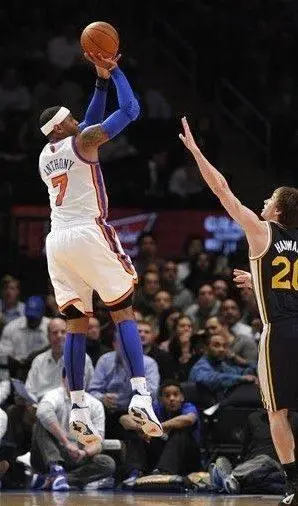
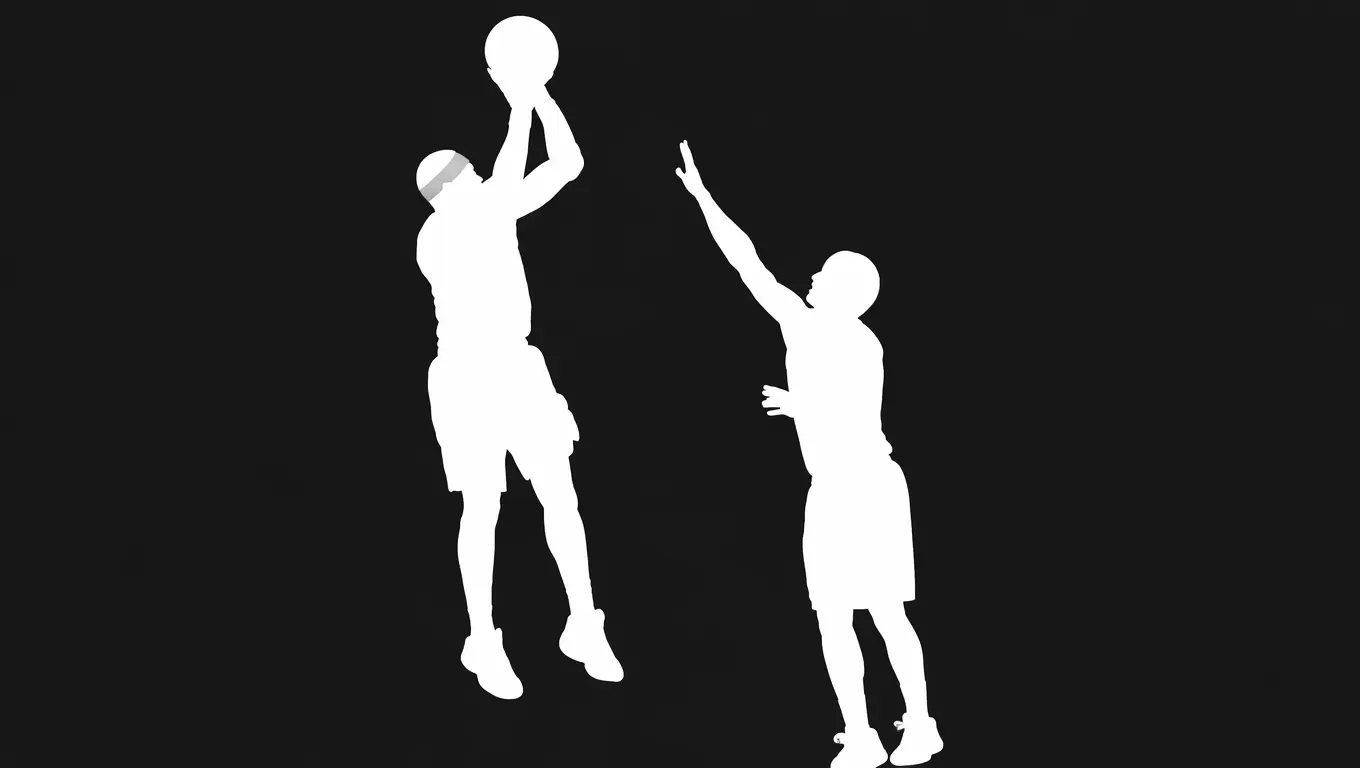
Players stay in formation
Two basketball players mid-jump — White on Dark style keeps both outlines in the original arrangement.
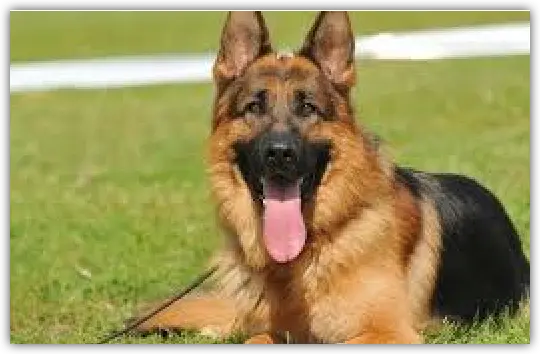
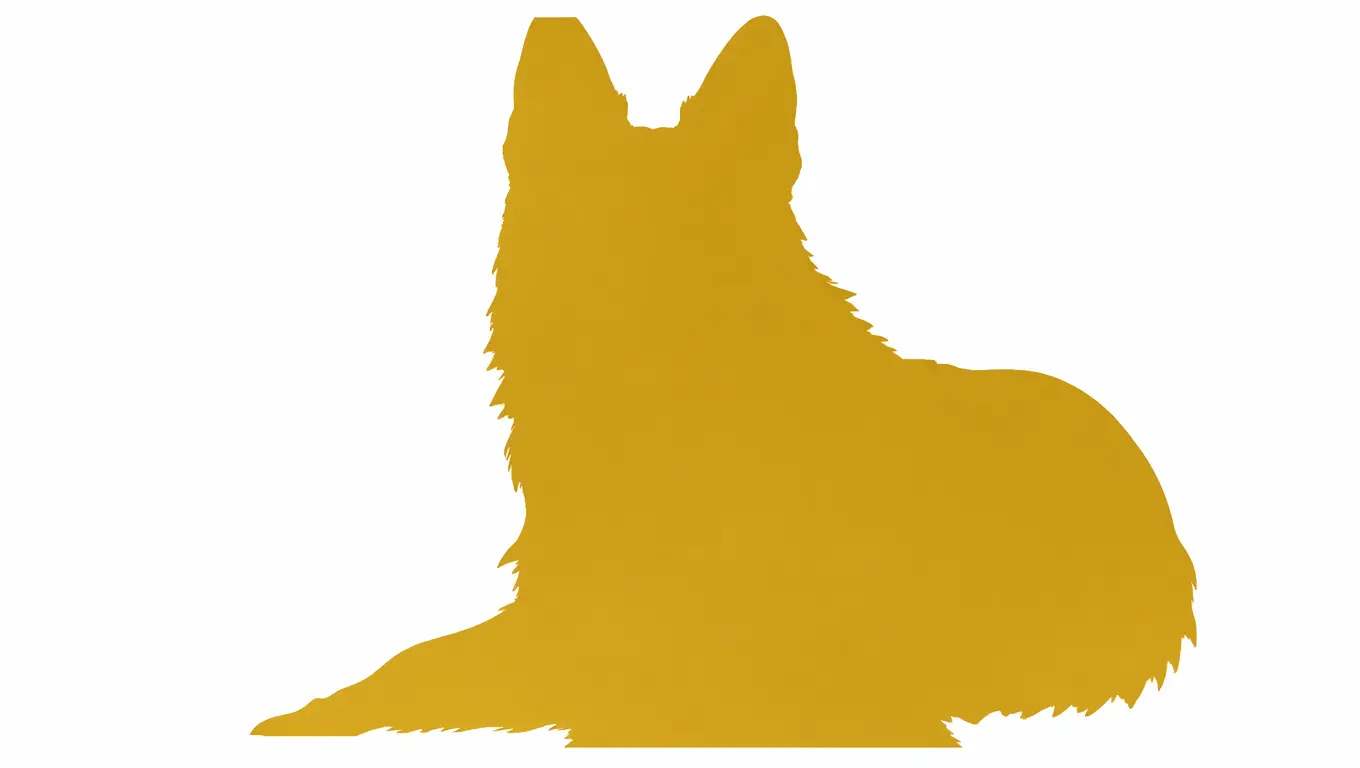
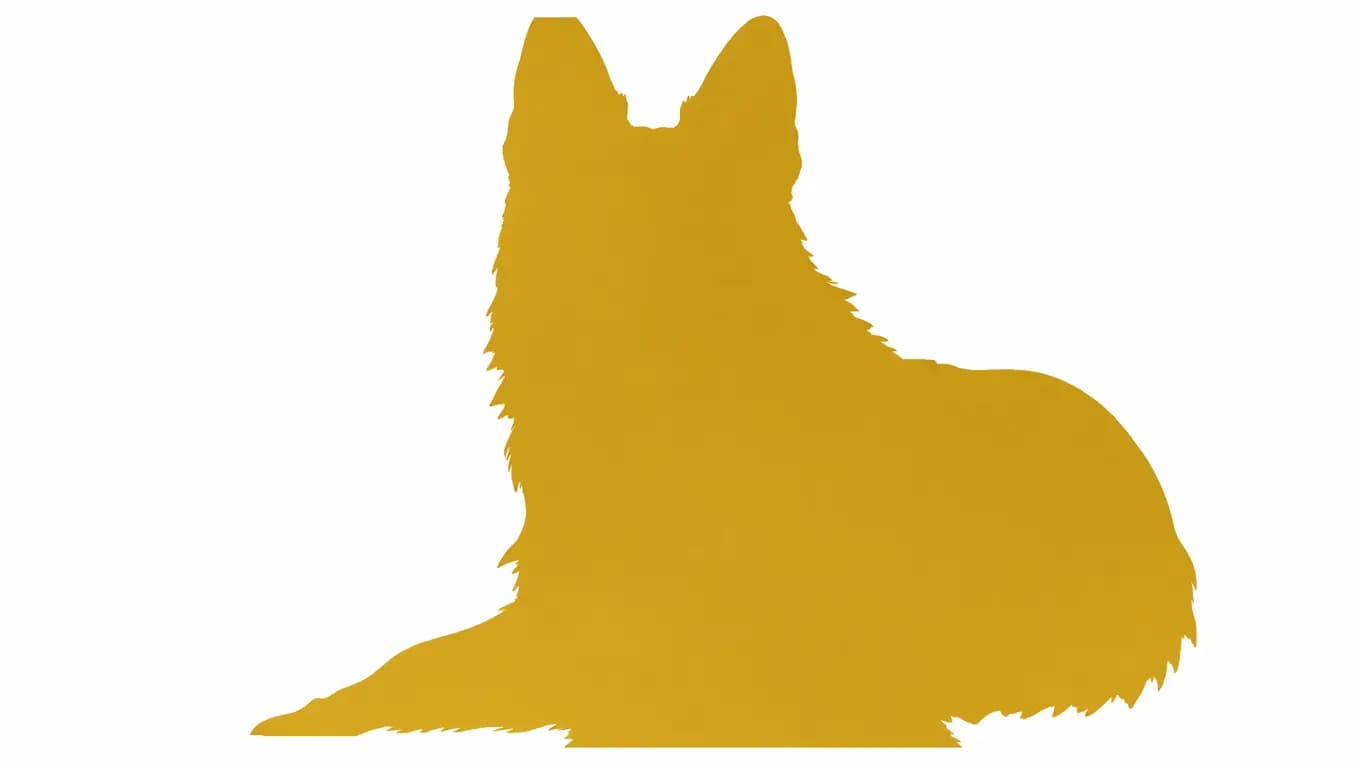
Fur detail in the outline
A german shepherd lying in the grass — Golden style, the ears and coat edges stay recognizable.
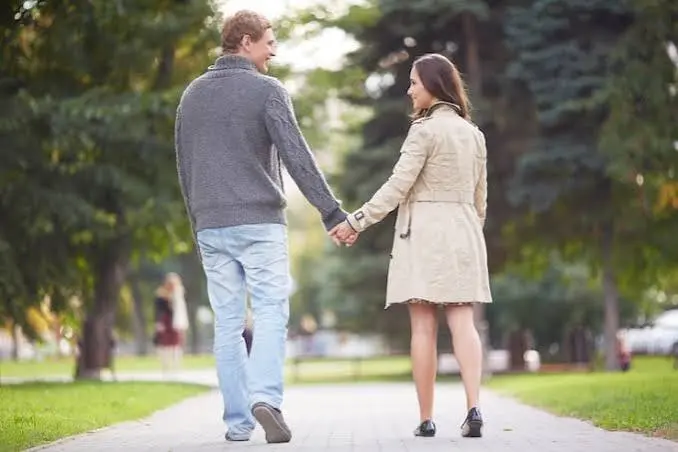
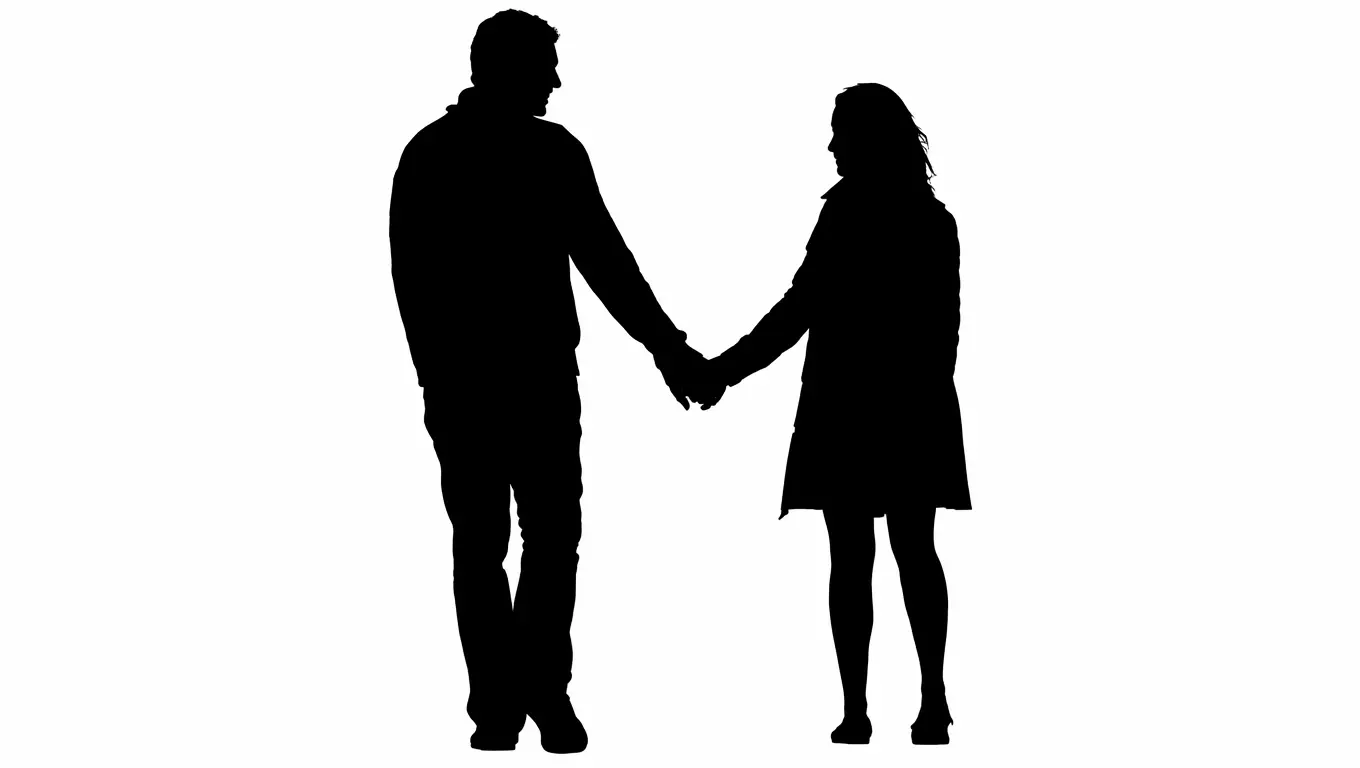
A couple, one clean shape
A couple holding hands in the park — Classic Black drops the background and keeps the pose.

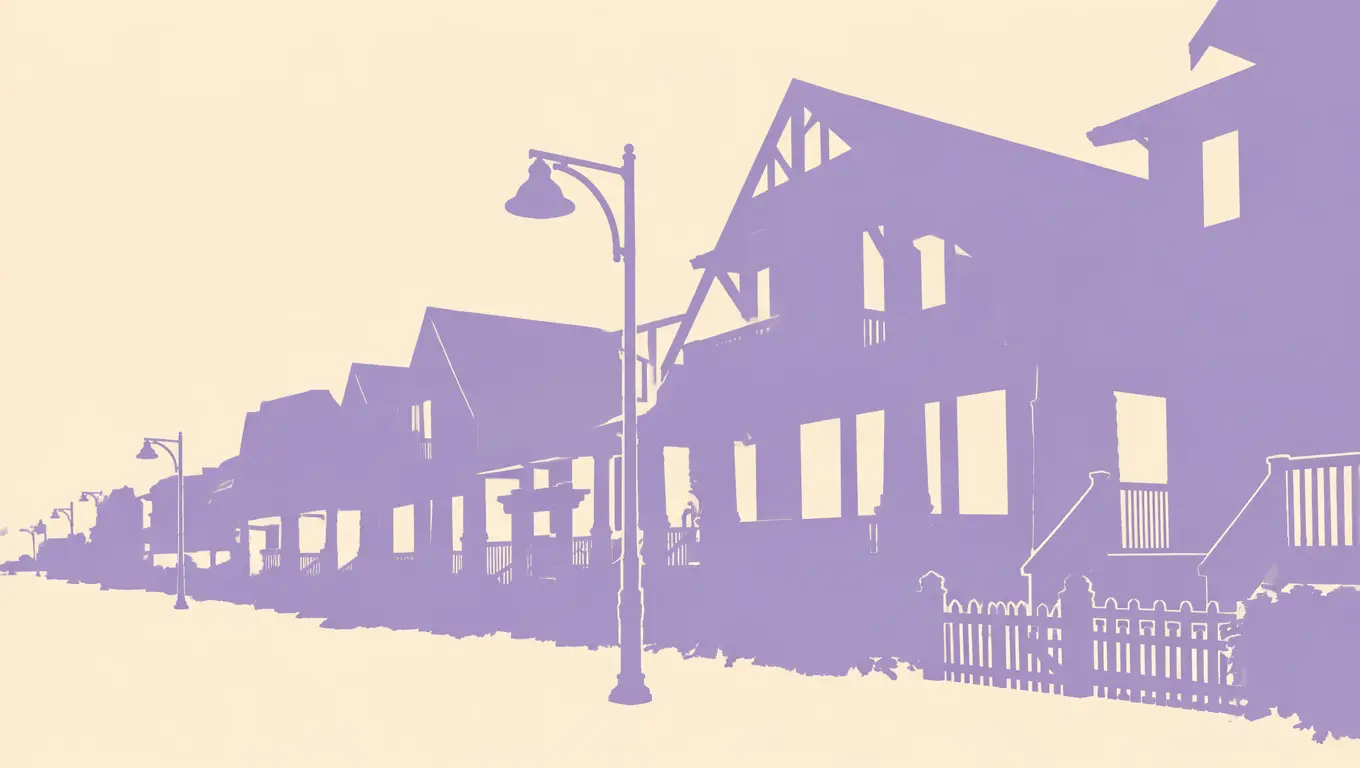
Scenes work too
A street of craftsman houses — Pastel style turns architecture into a flat two-tone scene.
Explore image models
More AI Image Generators
Explore specialized AI image models — each built for different creative styles and production needs.













Features
What the Silhouette Maker Keeps — and Removes
A good silhouette is defined by what survives the conversion: the outline stays exact, everything else goes.
The Outline Stays Exact
The converter reads the true edge of your subject — pose, hair shape, ear tips on a dog, the gap between an arm and a torso — and keeps it. That fidelity is what makes a silhouette recognizable at a glance, and it is the difference between a cutout of your child or pet and a generic clip-art shape.
Convert a photo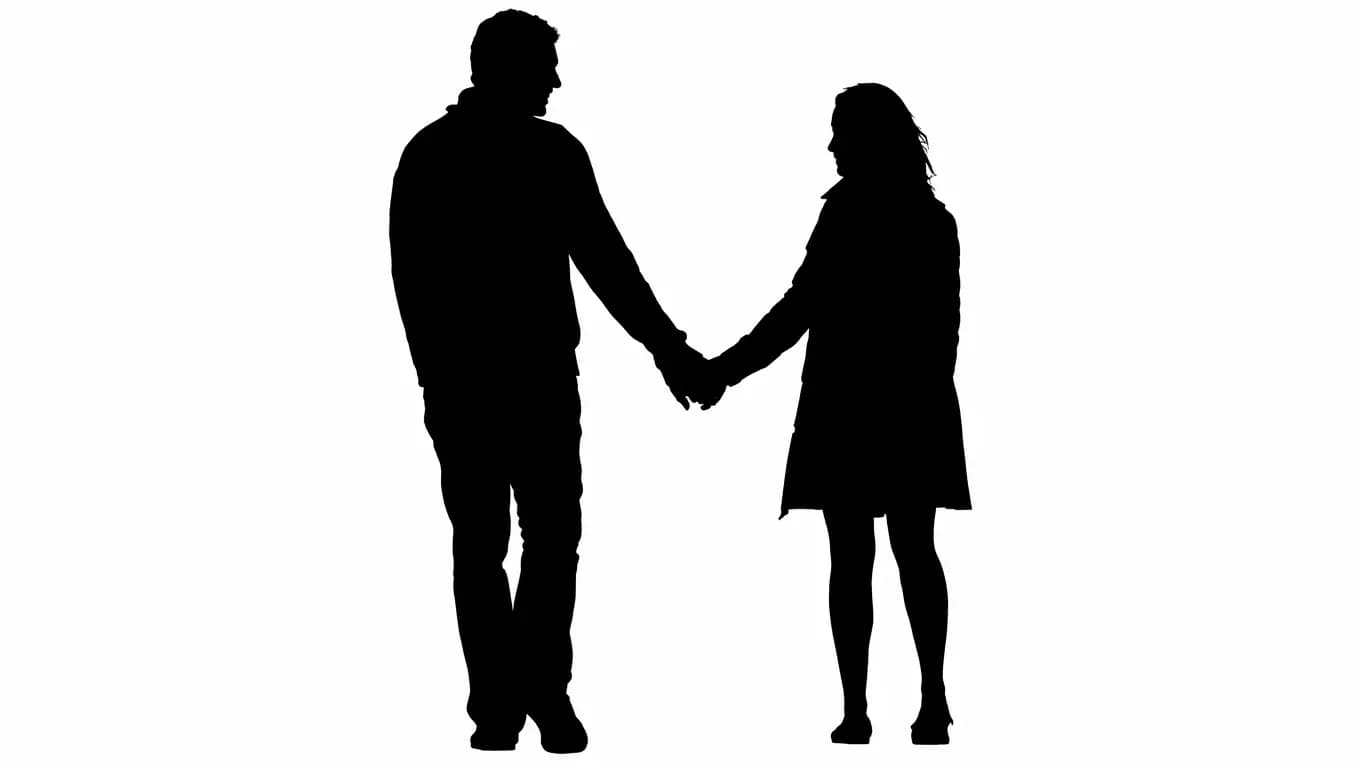
Interior Detail Drops to Solid Black
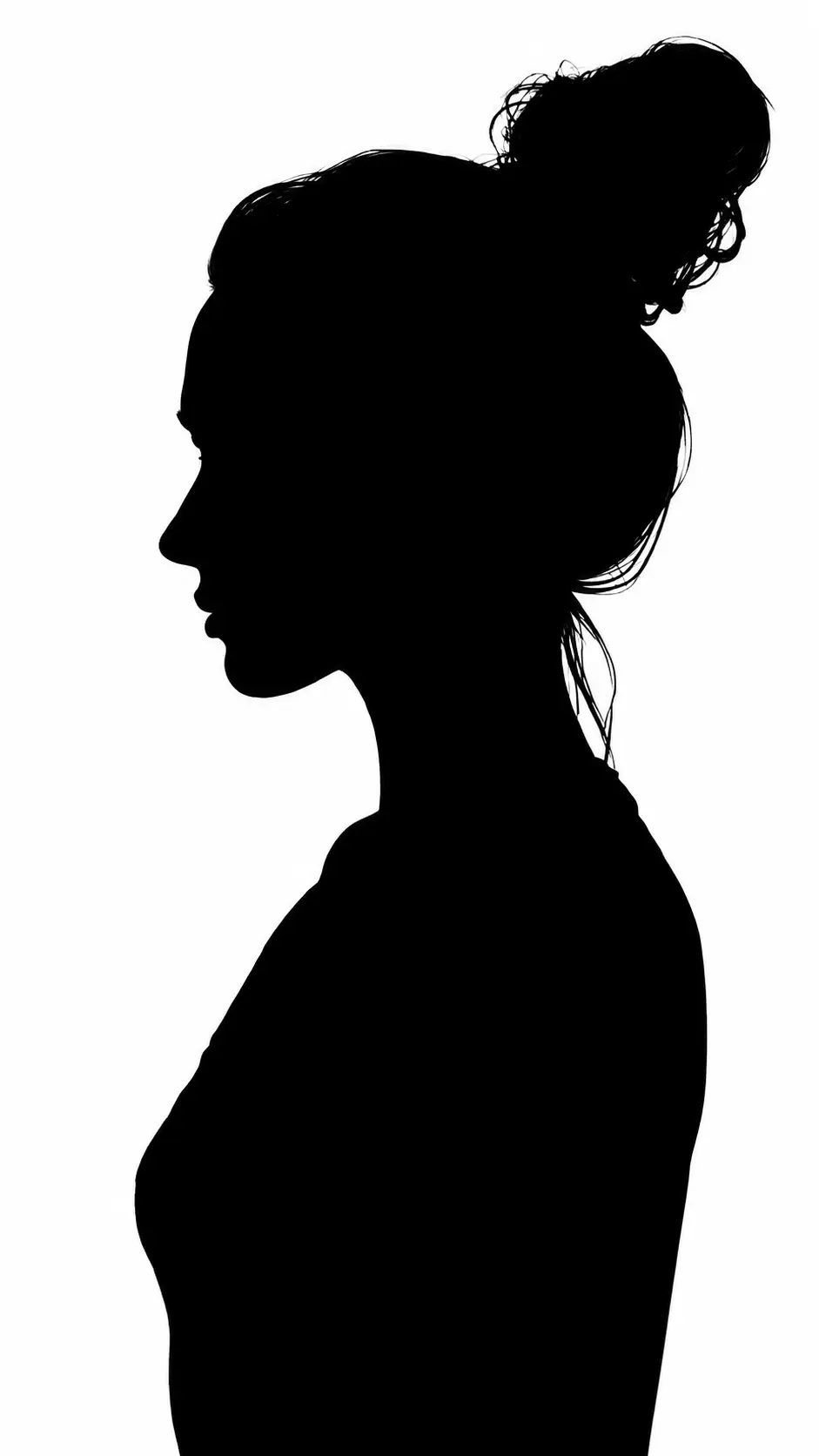
Faces, clothing, texture, and color all collapse into one solid fill. No shading, no gradients, no leftover half-tones — the flat shape is what prints cleanly on cards and cuts cleanly on vinyl. The default is pure black on white, the classic silhouette look.
See the classic look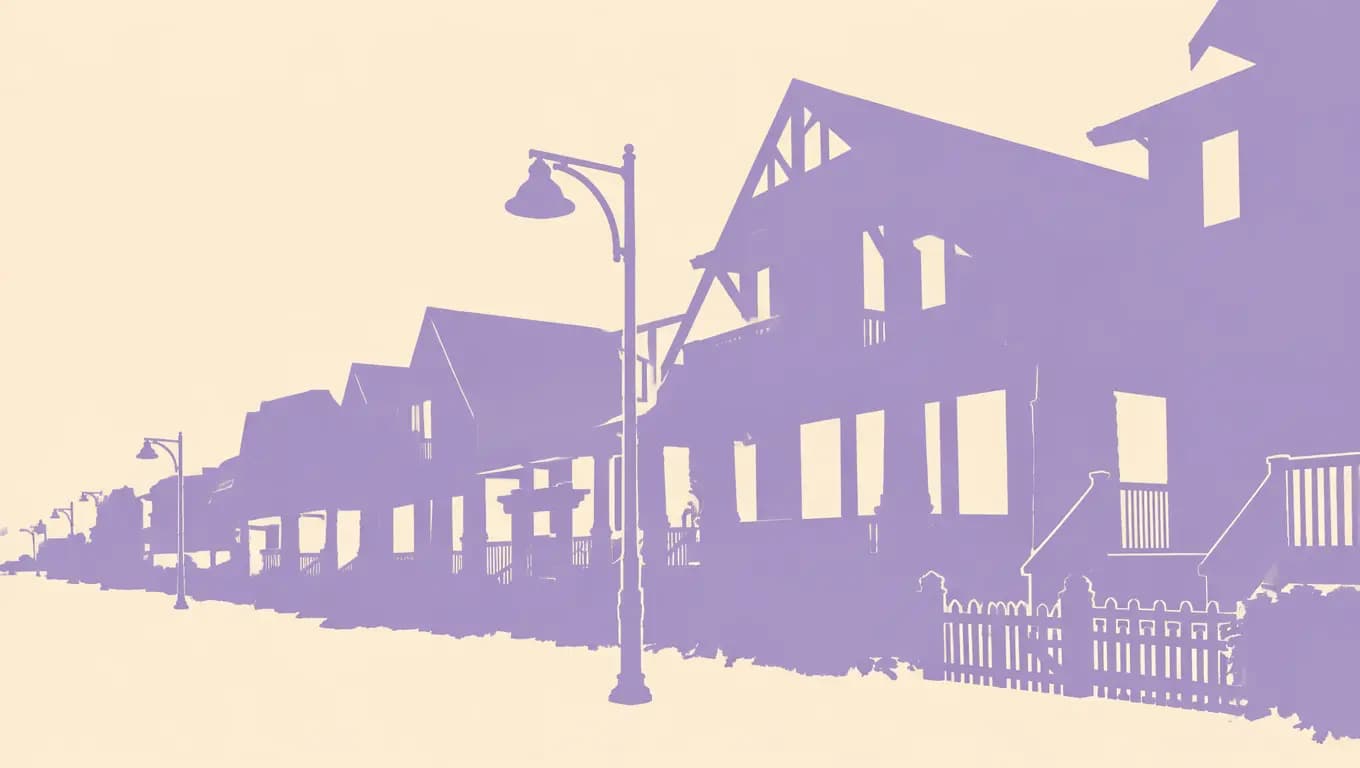
The Background Comes Out Clean
Whatever was behind your subject — a cluttered room, a beach, other people — is removed entirely. You get the shape on an empty background, ready to place on any color, card, or design without masking work.
Try a busy background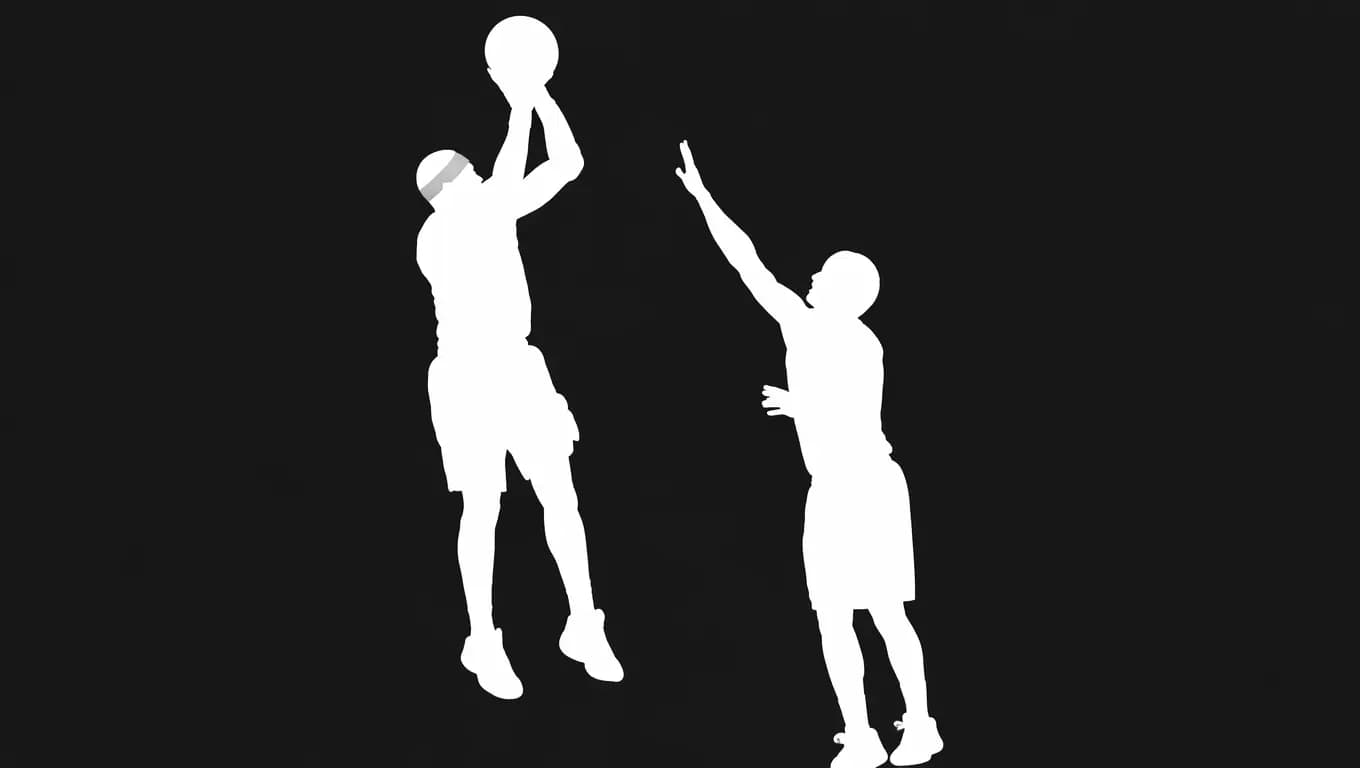
Groups Stay in Formation
A family photo or a couple stays a family or a couple: each person converts to their own silhouette in the original arrangement. Multi-subject shots are where hand-tracing costs the most time, and where one-step conversion saves the most.
Convert a group shotHow to use
How to Turn a Photo into a Silhouette
Three steps from photo to finished cutout — the whole flow runs on this page.
Upload the Photo
Pick a photo where the subject reads clearly against the background — a side profile, a jumping dog, a family lineup. Clear outlines in, clean silhouettes out.
Run the Conversion
One click. The converter finds the subject, traces the true outline, fills it solid, and clears the background. The credit cost is shown before you run.
Download and Use It
Save the result and put it to work — print it for wall art, send it to a cutting machine, drop it into a logo draft, or layer it in a design tool.
Who it's for
Who Uses a Photo to Silhouette Converter
Anyone who needs a clean cutout of a real subject — without tracing it by hand.
Gift & Keepsake Makers
The classic use: a child’s profile, a wedding pose, or a pet portrait turned into framed wall art, ornament designs, or anniversary cards. The silhouette keeps the person recognizable while looking timeless.
Crafters & Cutting-Machine Users
A solid single-color shape is exactly what vinyl cutters and laser engravers want. Convert the photo here, export the shape, and skip the manual trace that usually eats the first hour of a project.
Designers & Logo Sketchers
Silhouettes make strong marks: a founder’s profile, a product outline, a mascot pose. Convert the reference photo and use the shape as a starting point for logo and icon exploration.
Social & Content Creators
Silhouette reveals, guess-who posts, minimalist thumbnails, and profile-art series — a clean cutout of a real photo reads instantly at feed size and stands out against photo-heavy timelines.
Explore creative tools
More AI Image Tools
Explore focused AI image tools, each designed for a specific task — see how AI can turn your concepts into finished work.




FAQ
Photo to Silhouette FAQ
What works best, what it costs, output details, and the current limits.
- How do I turn a photo into a silhouette?
- Upload one photo on this page and run the conversion — the tool traces the outline of the main subject, fills it solid black, and removes the background in a single step. No editing skills or software needed.
- What photos work best?
- Photos where the subject’s outline is distinct: side profiles, full-body poses, pets mid-motion, or group lineups. Very low light, heavy motion blur, or subjects that blend into the background give the converter less edge to work with.
- Can I convert a photo with multiple people?
- Yes. Each person or pet in the photo converts to their own silhouette and the original arrangement is kept — a family of four stays a family of four.
- Is the silhouette always black on white?
- Black on white is the default and the classic look. The Style picker also offers White on Dark, Golden, Sunset Gradient, and Pastel — each keeps the same solid-shape treatment in a different color scheme. And since the output is a flat shape, recoloring it further in any design tool takes seconds.
- Is the tool free to use?
- No. The converter runs on credits — you choose 1K, 2K, or 4K, and the exact credit cost is shown before you convert.
- What can I use the silhouette for?
- Anything a flat cutout works for: printed wall art, greeting cards, vinyl-cutter and laser projects, logos and icons, social posts, and scrapbooking. The clean background means no masking before you use it.
Start now
Turn Your Photo into a Silhouette
Upload a portrait, pet, or group shot and get a crisp solid-black cutout back in one step.
Convert a photo