


Qwen Image 3.0 AI Image Generator
Generate and edit with Qwen Image 3.0 on Epochal — Alibaba's third-generation Qwen Image, with fifteen aspect ratios and a 1K or 2K render tier you pick.
Overview
Qwen Image 3.0 Is Alibaba's Third-Generation Image Model
Alibaba's third-generation Qwen Image. Against the 2.0 page here, it opens up fifteen aspect ratios instead of seven and lets you pick the render tier — 1K while you work, 2K for the file you send.
- Third generation
- Fifteen aspect ratios
- 1K or 2K, your choice
- 1–3 reference images
Gallery
See what Qwen Image 3.0 can create
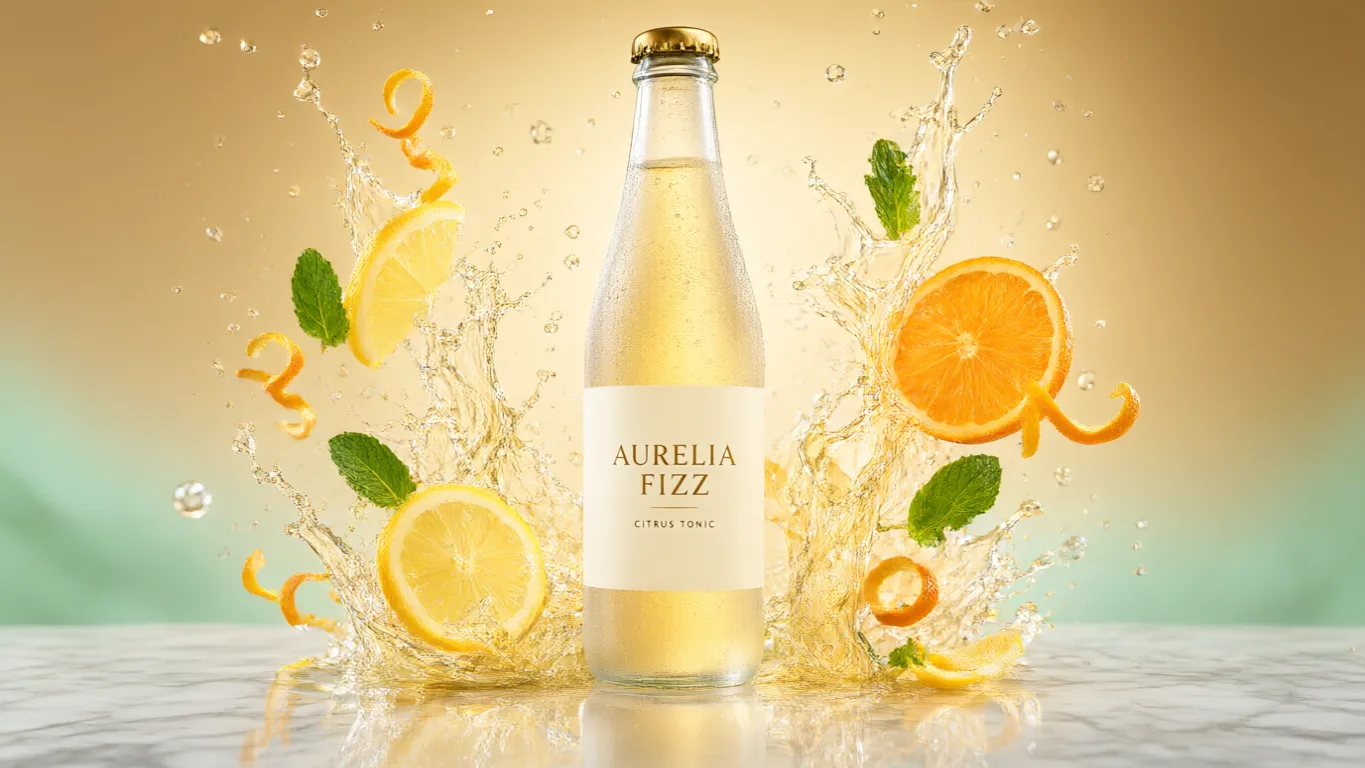
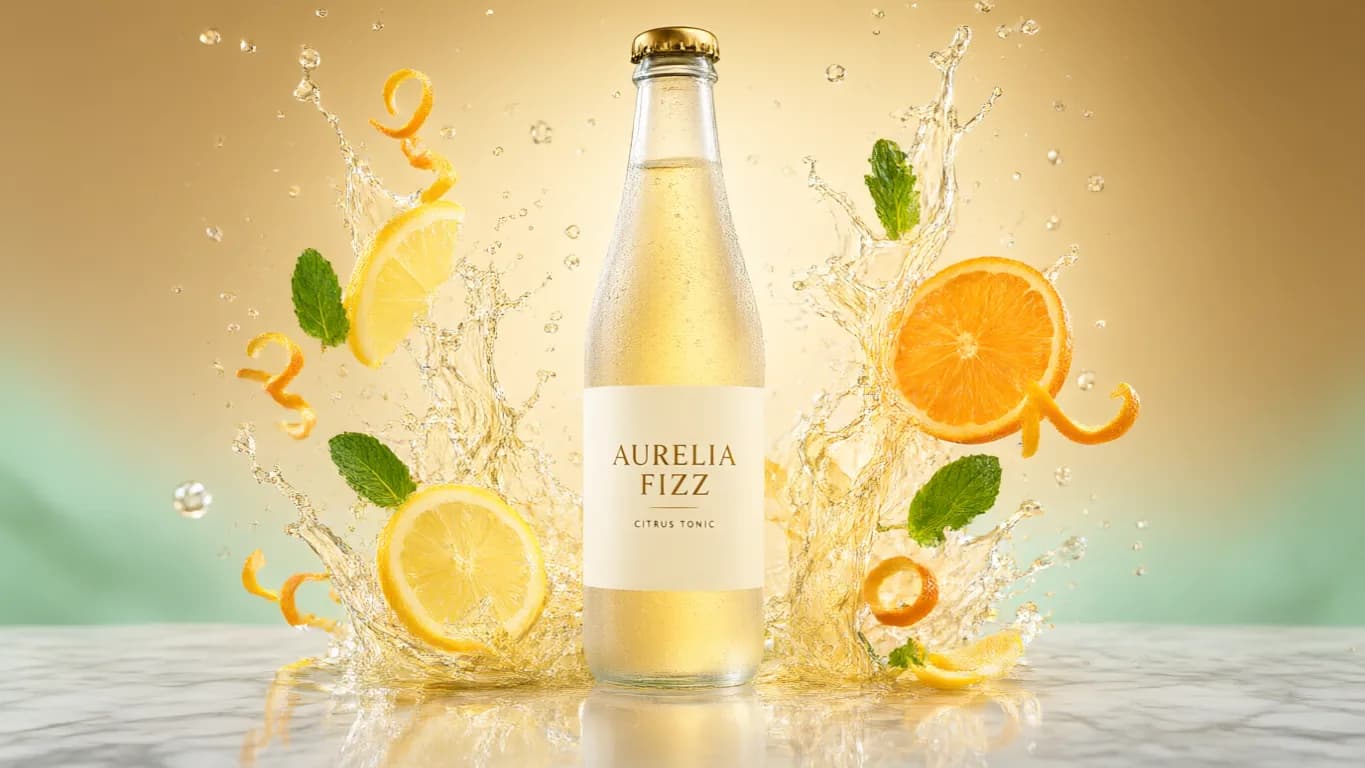
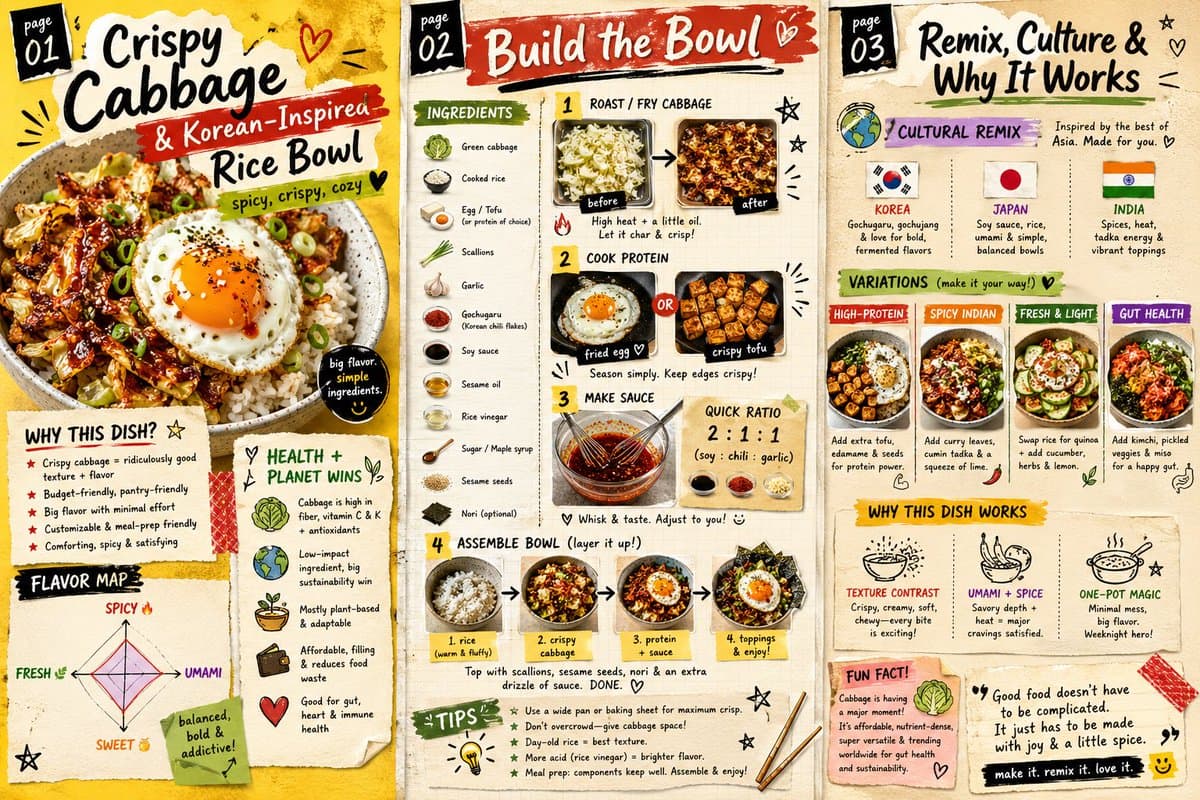
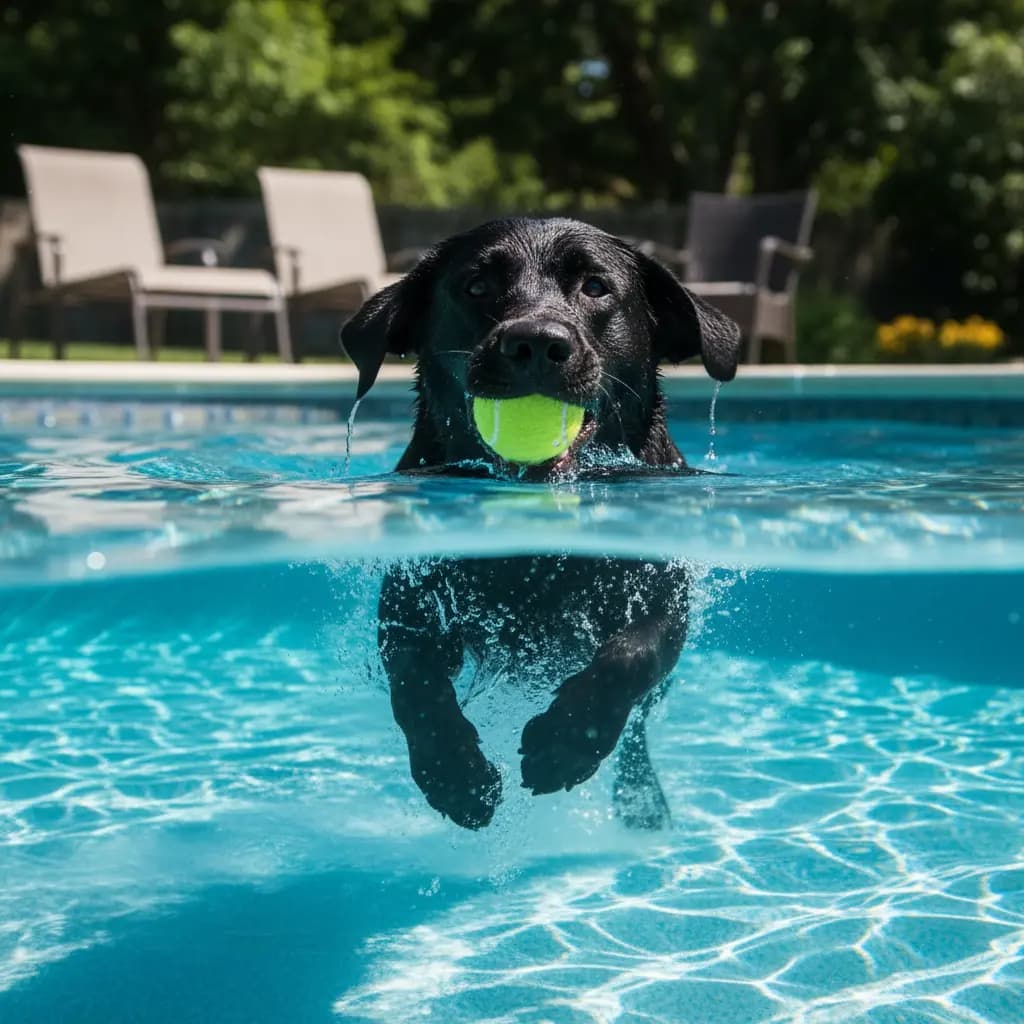
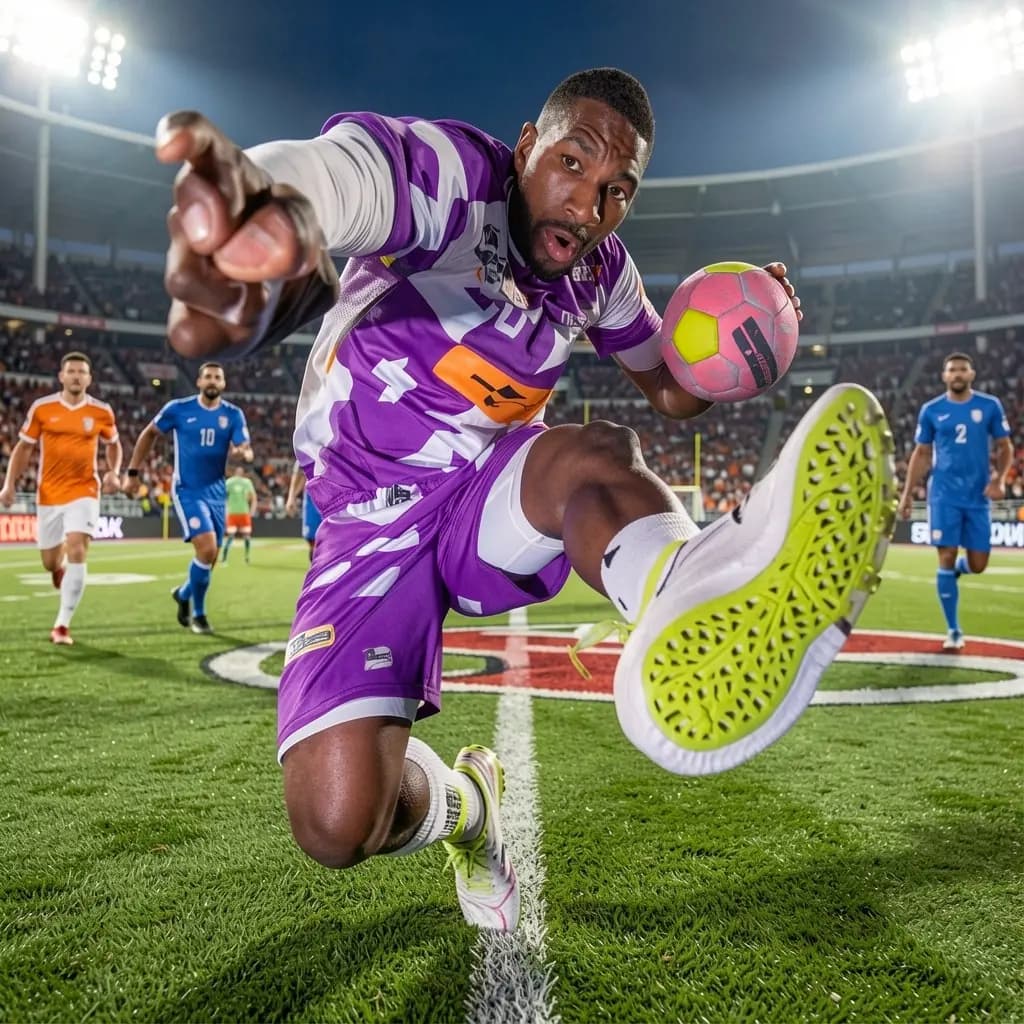
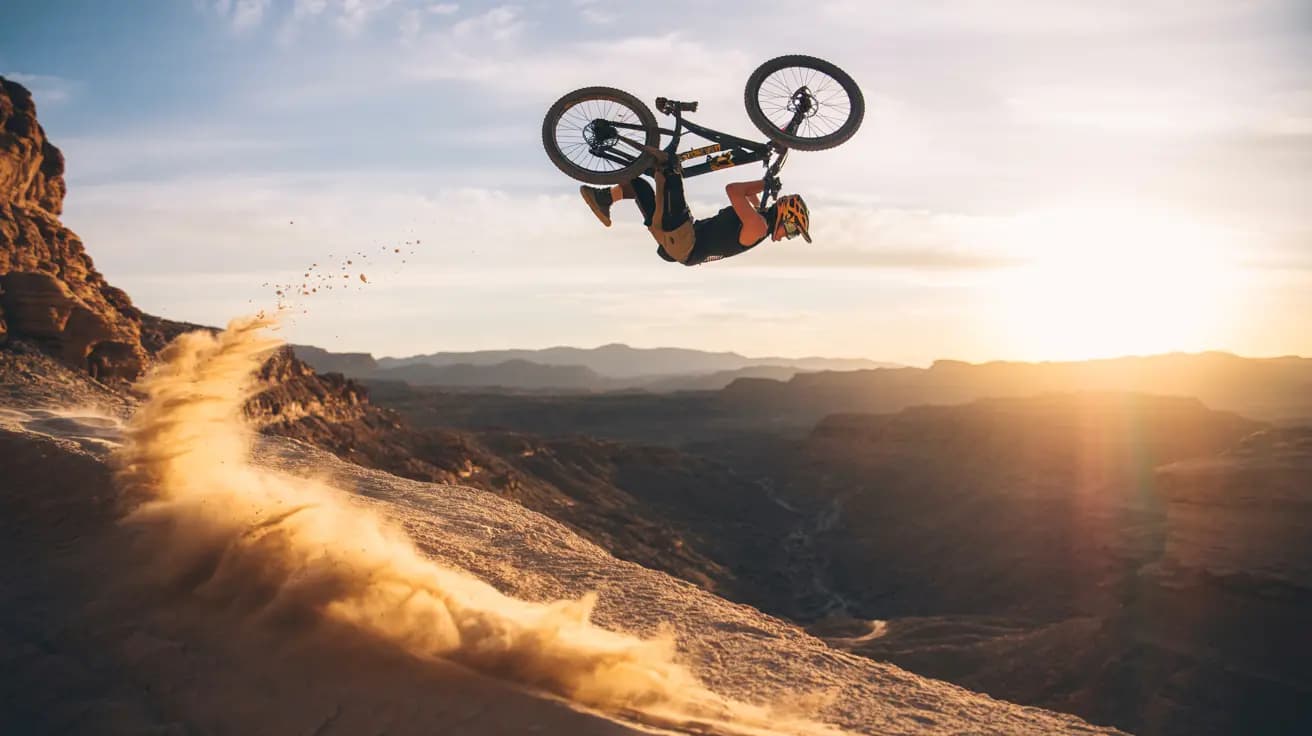
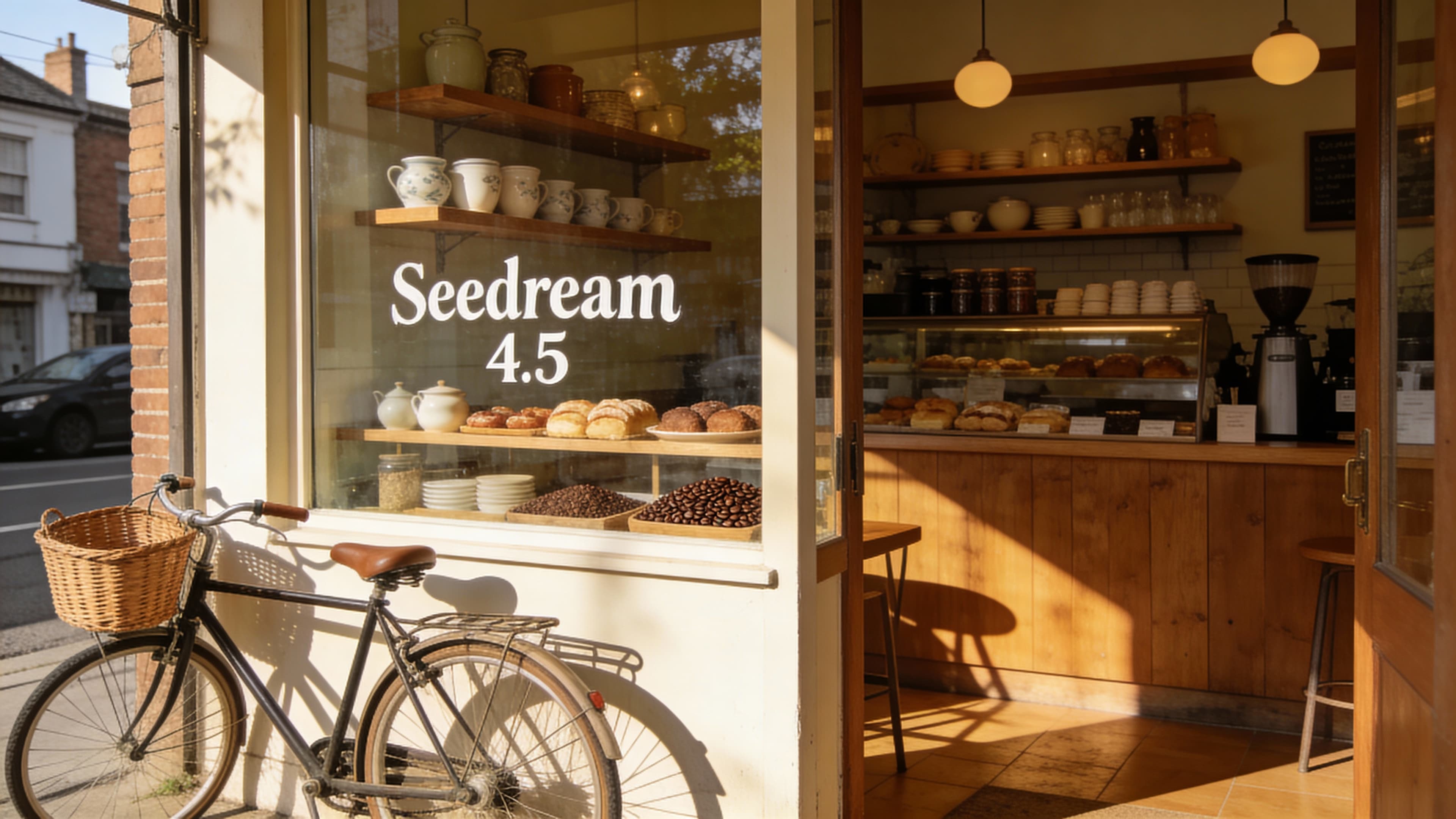
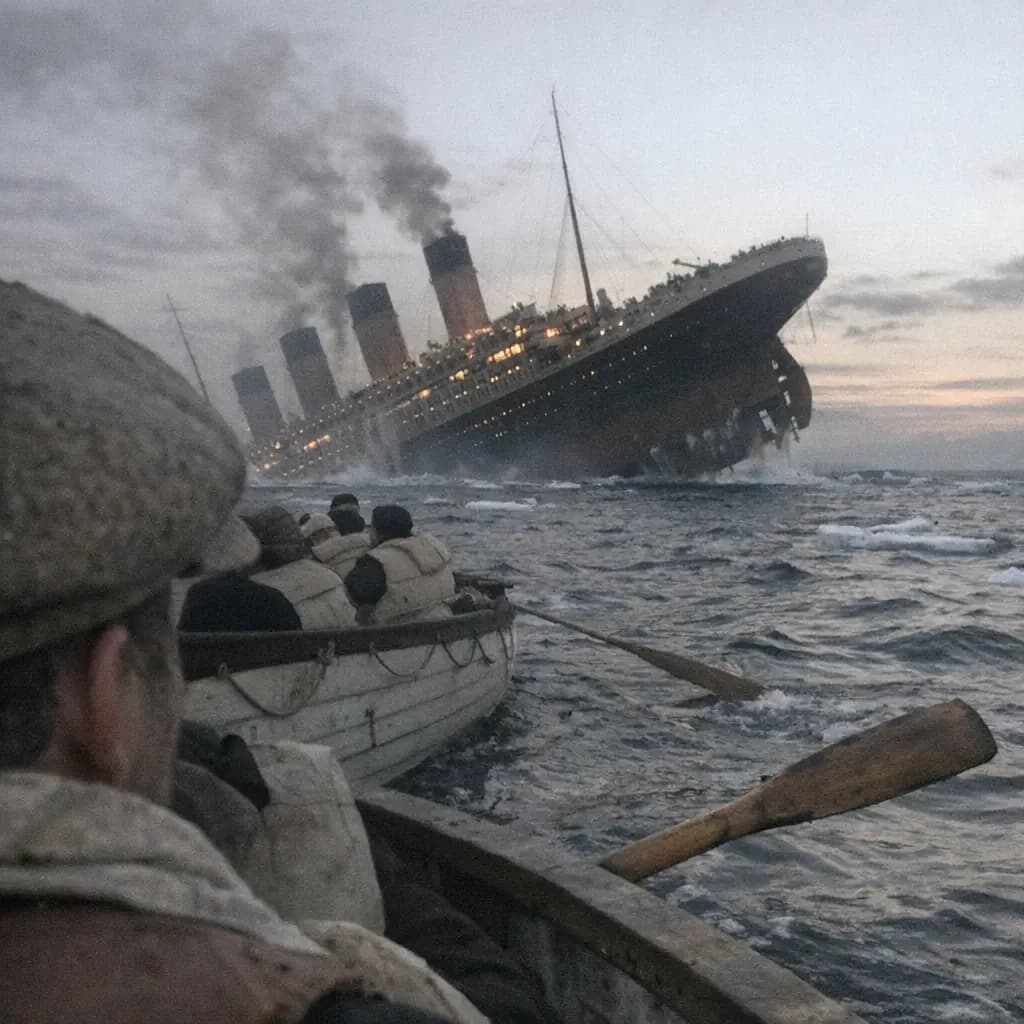
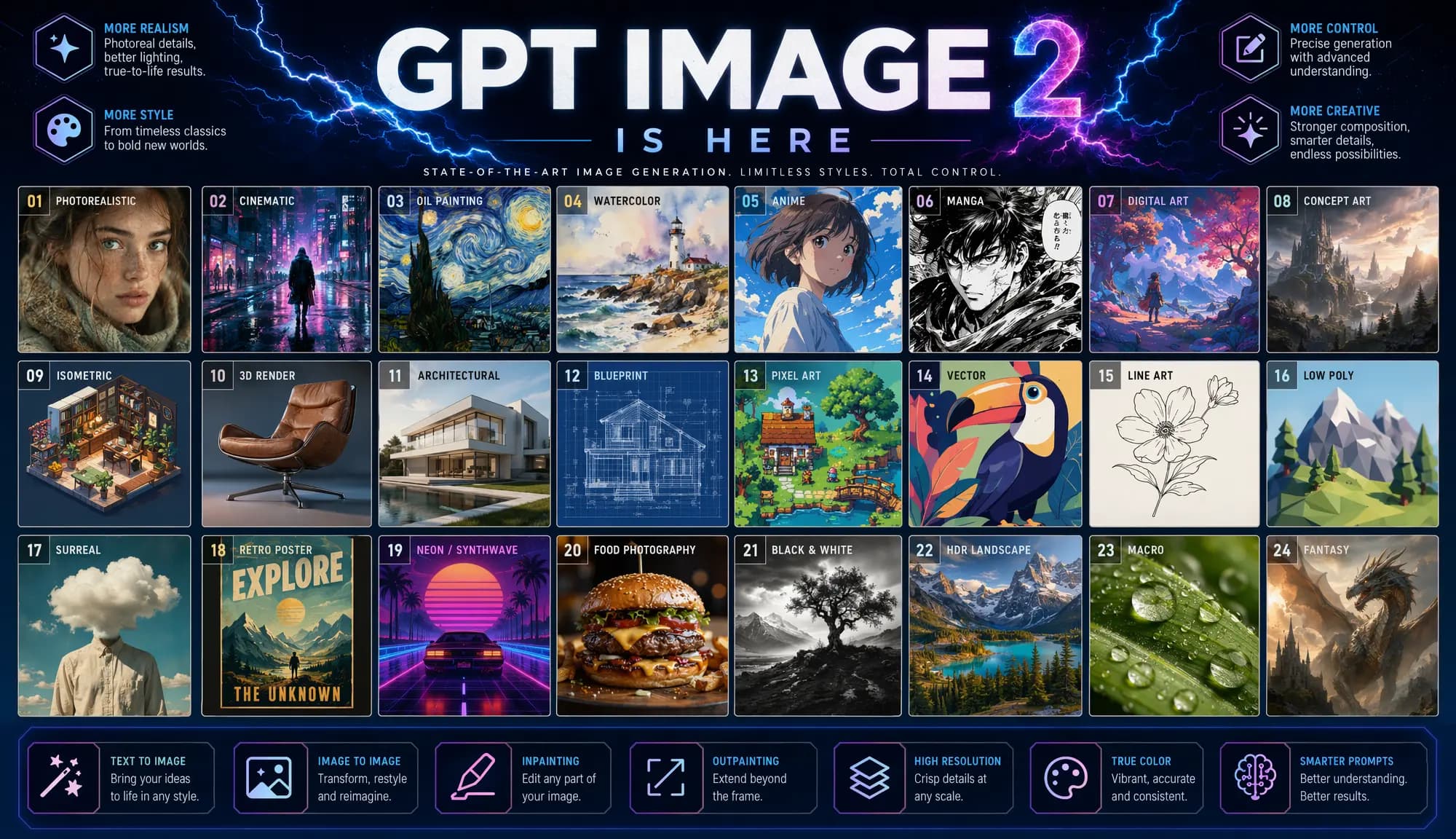
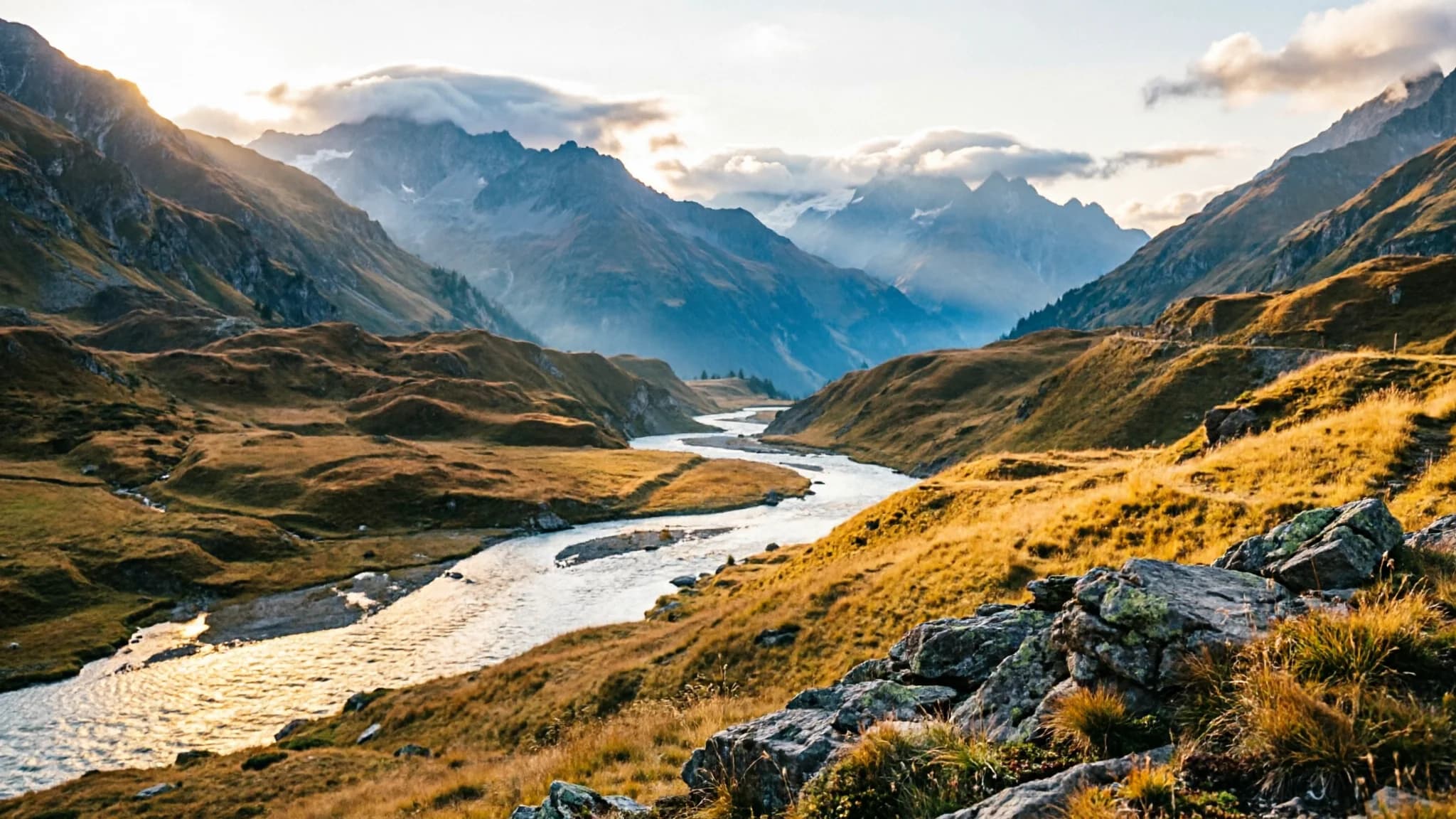
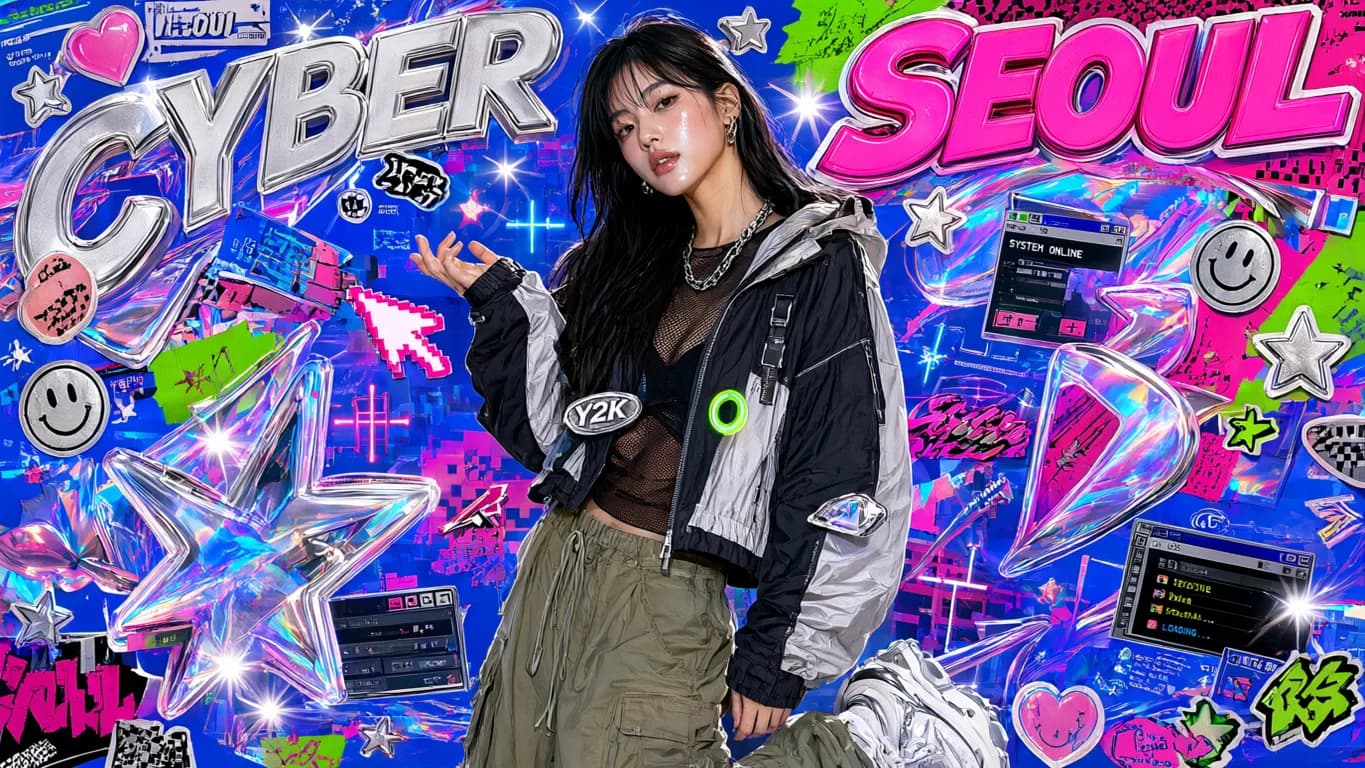
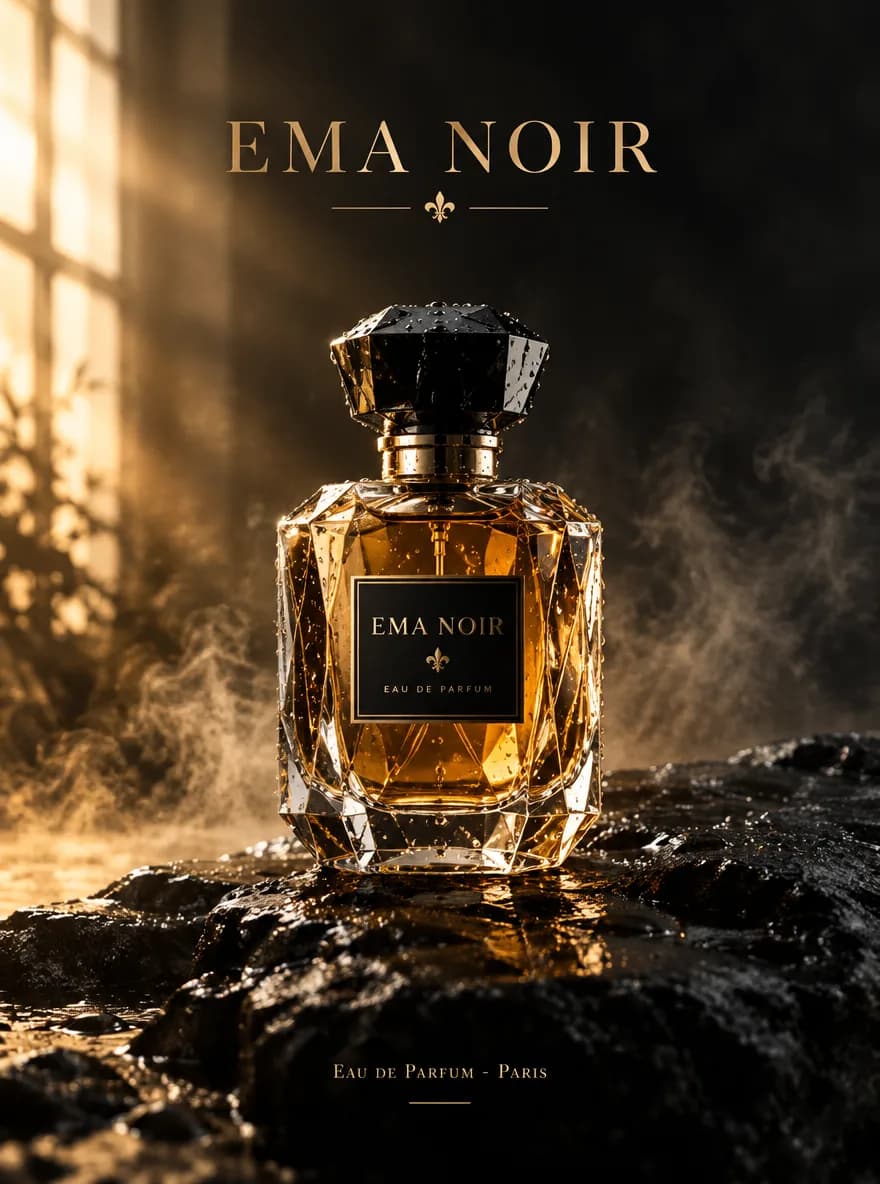
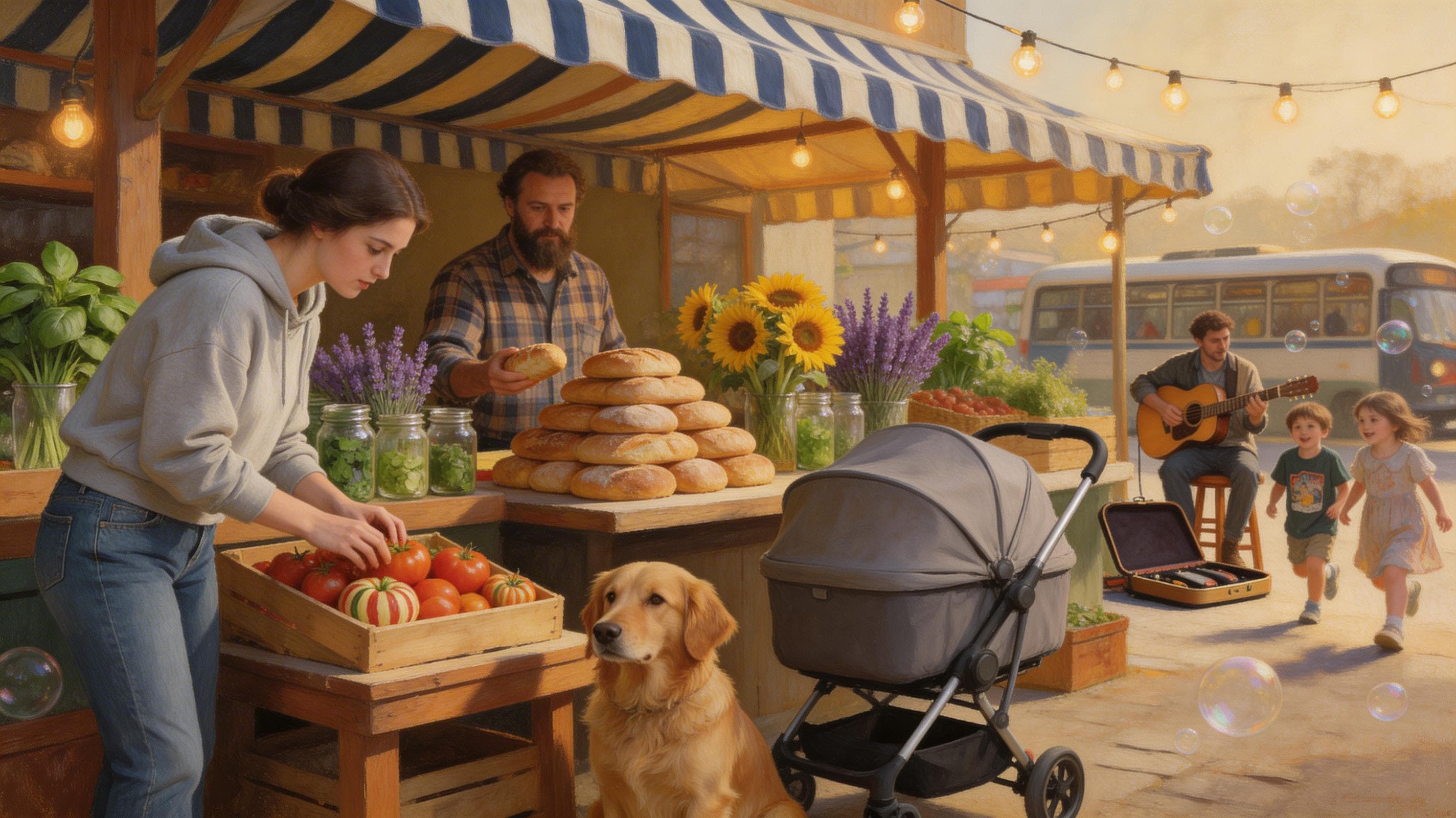
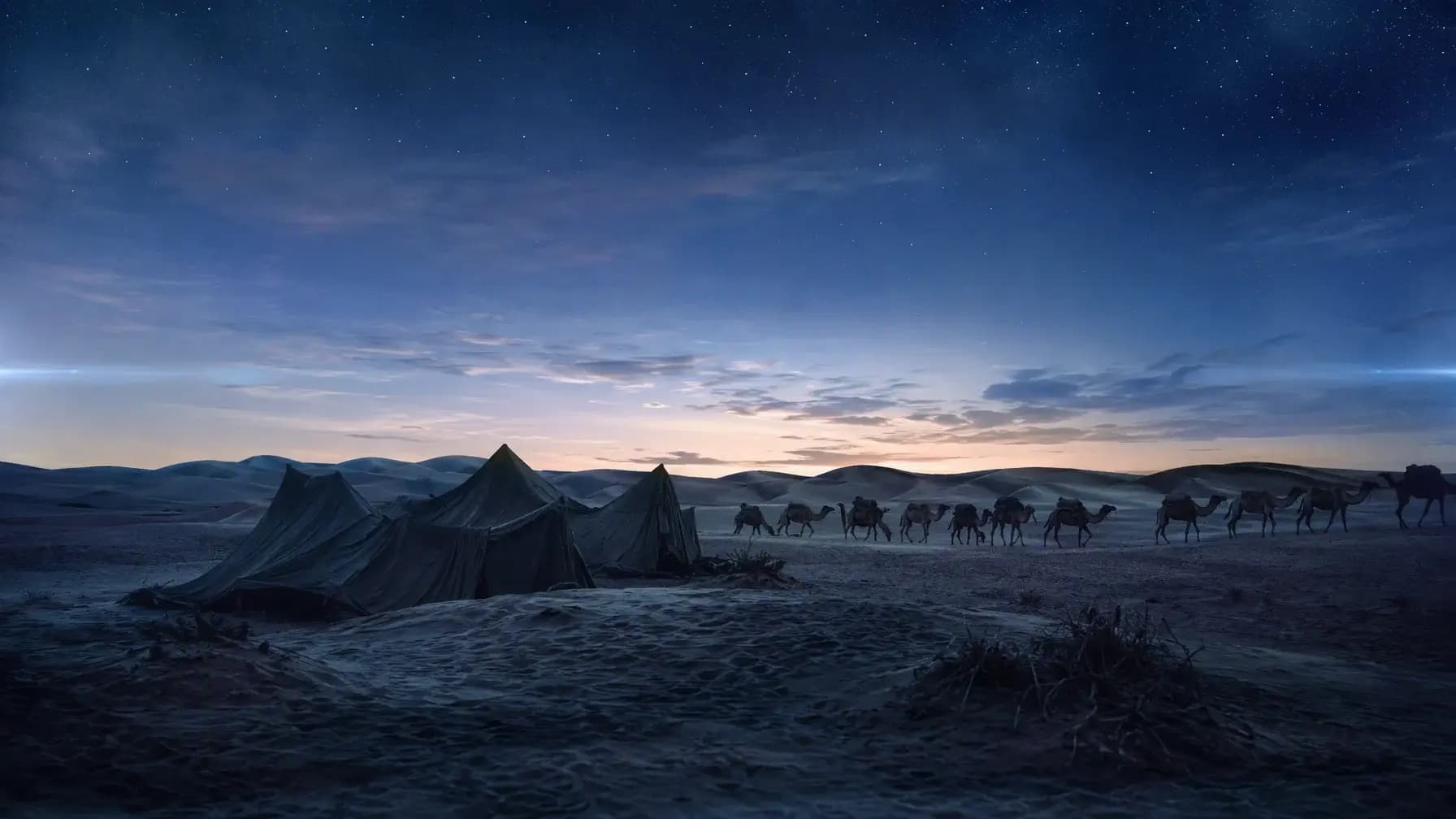
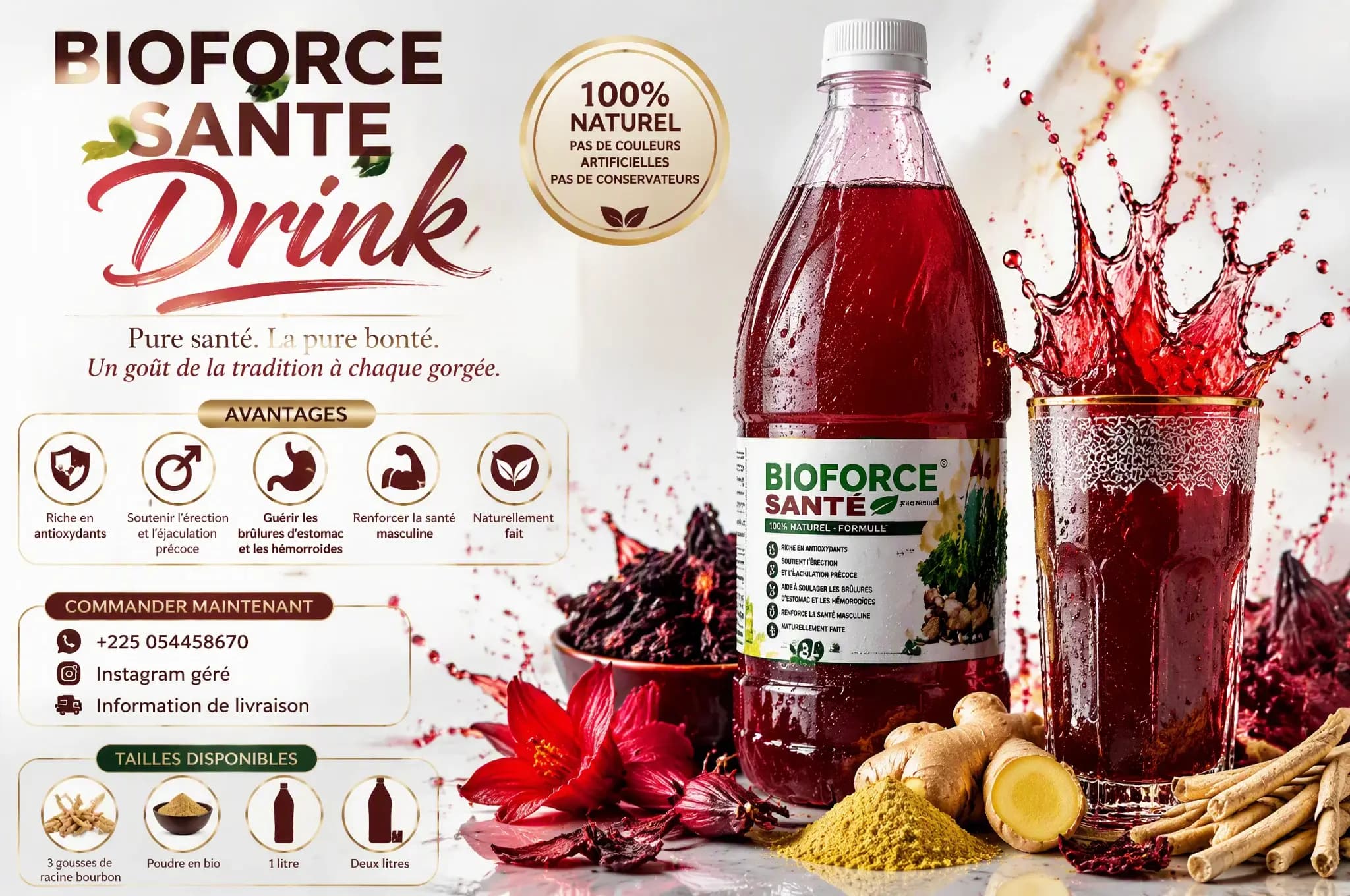
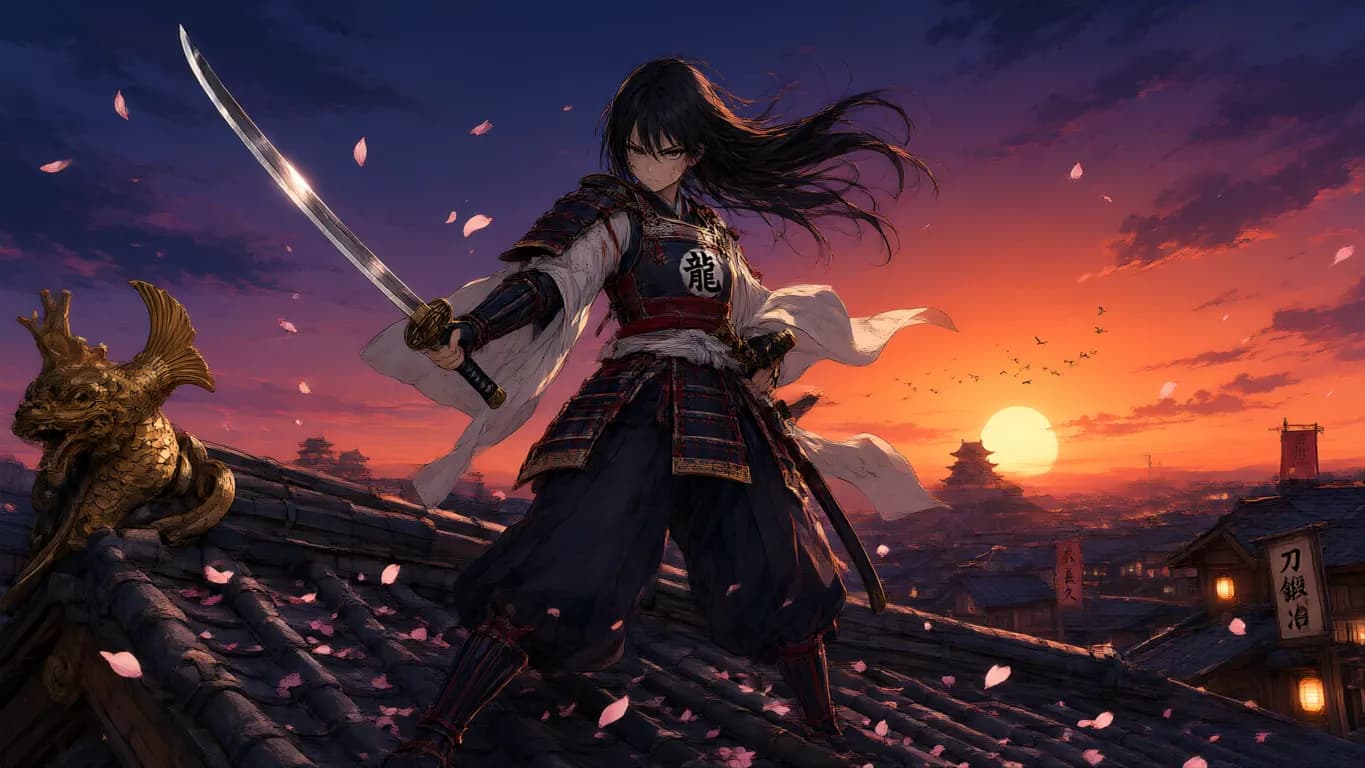
Clay toys, sunlit portraits, picture-book scenes, food posters — click a tile to drop its prompt into the workbench.
Explore image models
More AI Image Generators
Explore specialized AI image models — each built for different creative styles and production needs.





Features
Qwen Image 3.0 Features
What the third generation adds over the Qwen Image page you may already be using.
The Third Generation of Qwen Image
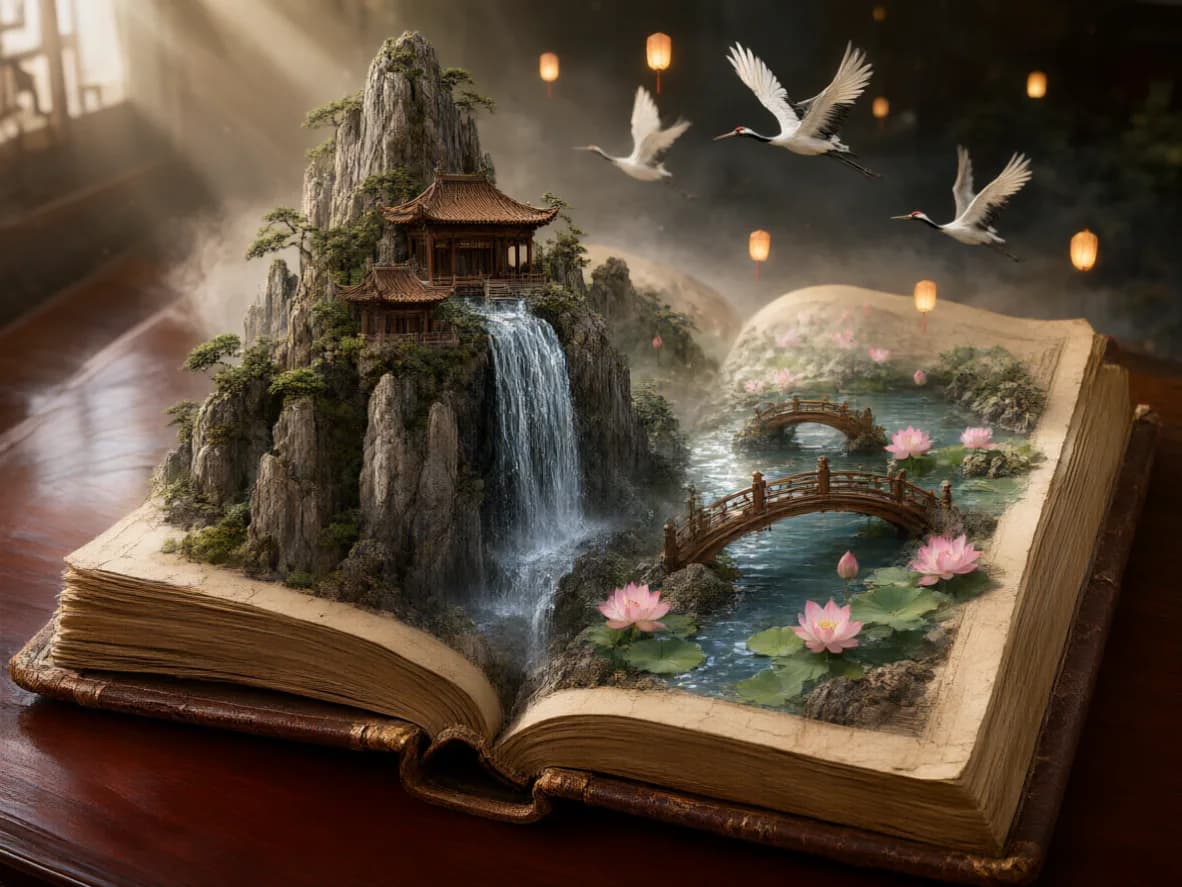
Alibaba built the Qwen Image series toward images that are practical rather than merely pretty, and 3.0 is where that lands. It handles both workflows on this page — a prompt from scratch, or an edit steered by photos you supply.
Try a prompt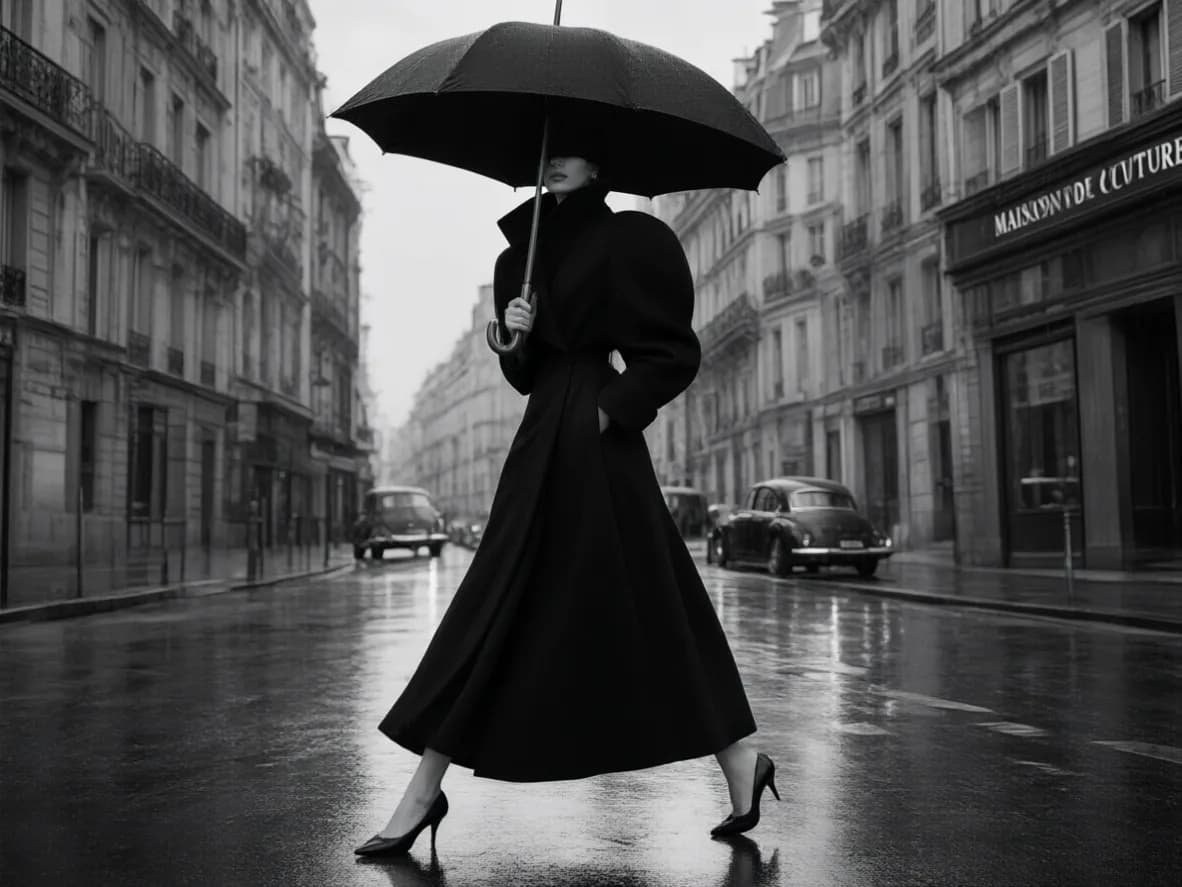
Fifteen Aspect Ratios
Squares, portrait, landscape, and the long strips 2.0 never offered — 21:9 and 9:21 for banners, 3:1 and 1:3 for headers and sidebars. Fifteen ratios in all, so the frame is decided before you generate rather than cropped afterwards.
See every ratio
Pick 1K or 2K Yourself
The render tier is a control, not a fixed setting. Work at 1K while the idea is still moving, then re-run the keeper at 2K for the file you hand over. No upscale pass, no second tool.
Compare 1K and 2K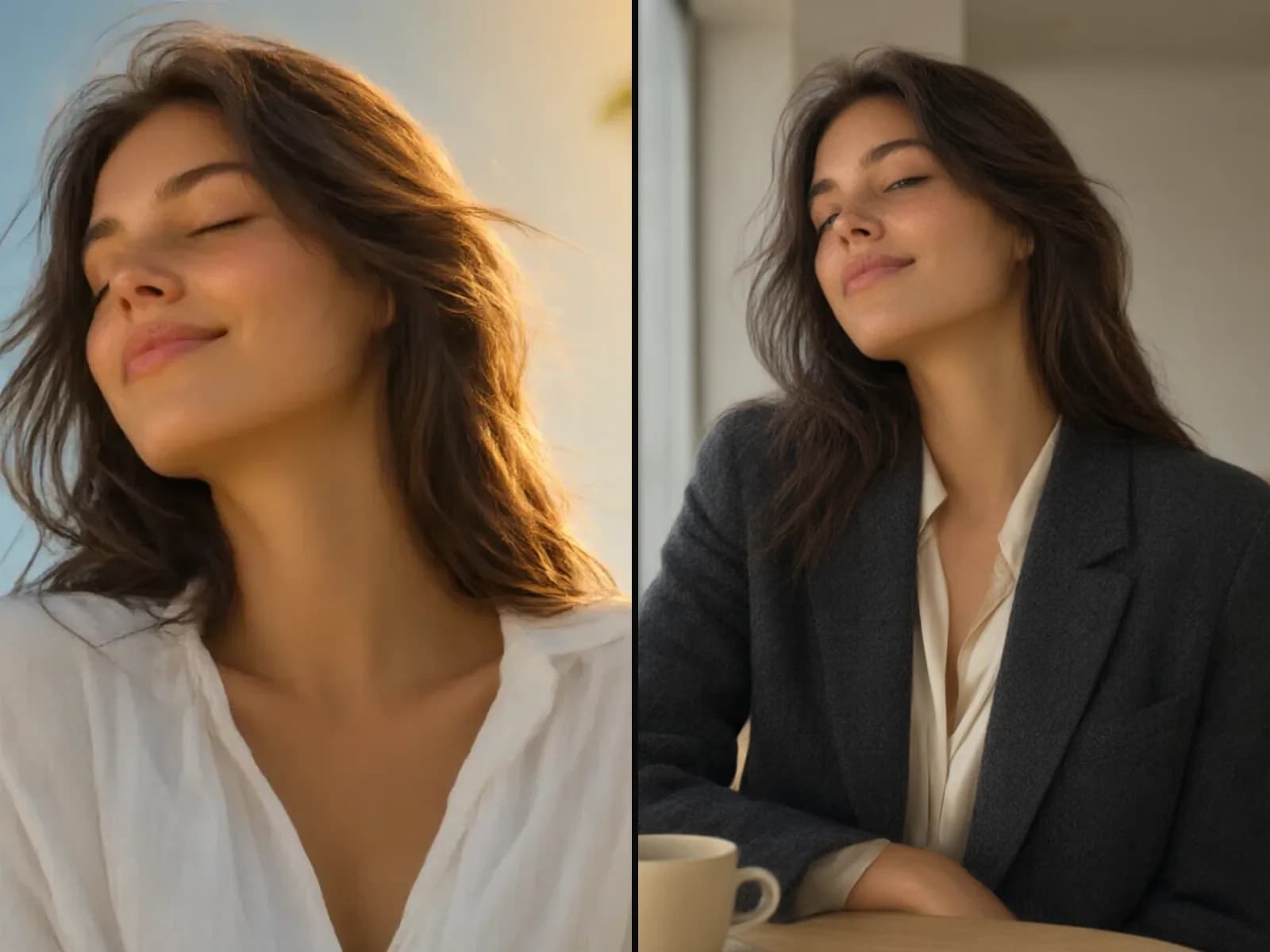
Lock a Subject Across an Edit
Upload one to three photos, keep the face, product, or layout still, and rewrite the clothes, the room, or the light. Same person, new mood; same bottle, new set.
Start an editHow to use
How to Use Qwen Image 3.0
Write the prompt, pick the frame and the tier, then generate — or add references and edit.
Write the Prompt
Name the subject, the light, the mood. Chinese or English go in the same field, so a bilingual brief needs no translation step first.
Pick the Frame and the Tier
Choose the aspect ratio for where the image is going, then 1K to work or 2K to render the final file.
Add References to Edit
Upload 1 to 3 photos and say what has to stay — the face, the bottle, the layout. Everything else in the prompt is fair game to rewrite.
Review and Re-run
Check the subject against your references, then tighten the prompt or swap a photo and go again.
Who it's for
Who Should Use Qwen Image 3.0
Teams who need a specific frame, a subject that stays put, and a file they can hand over.
E-commerce & Product Teams
Catalog stills, lifestyle scenes, and pack shots — then the same bottle on a new set. References carry the product silhouette, its light, and its finish, so fewer SKUs need a reshoot.
Marketing & Ad Teams
Campaign key visuals, social graphics, and thumbnails. A bilingual brief stays in one field, which matters when the product name is Chinese and the art direction is English.
Designers & Illustrators
Character concepts, posters, and scene studies. Compare directions cheaply, then render only the one you keep at full size.
Content Creators
Feed posts, story frames, and cover art, each sized to its platform before the run instead of cropped after it.
Cross-Market Teams
One model for two languages. A brief that starts in Chinese and ships in English — or the reverse — never leaves the workbench.
Brand & Production Teams
Hold a face or a product steady across a short series: new outfit, new set, new light, same identity.
Explore creative tools
More AI Image Tools
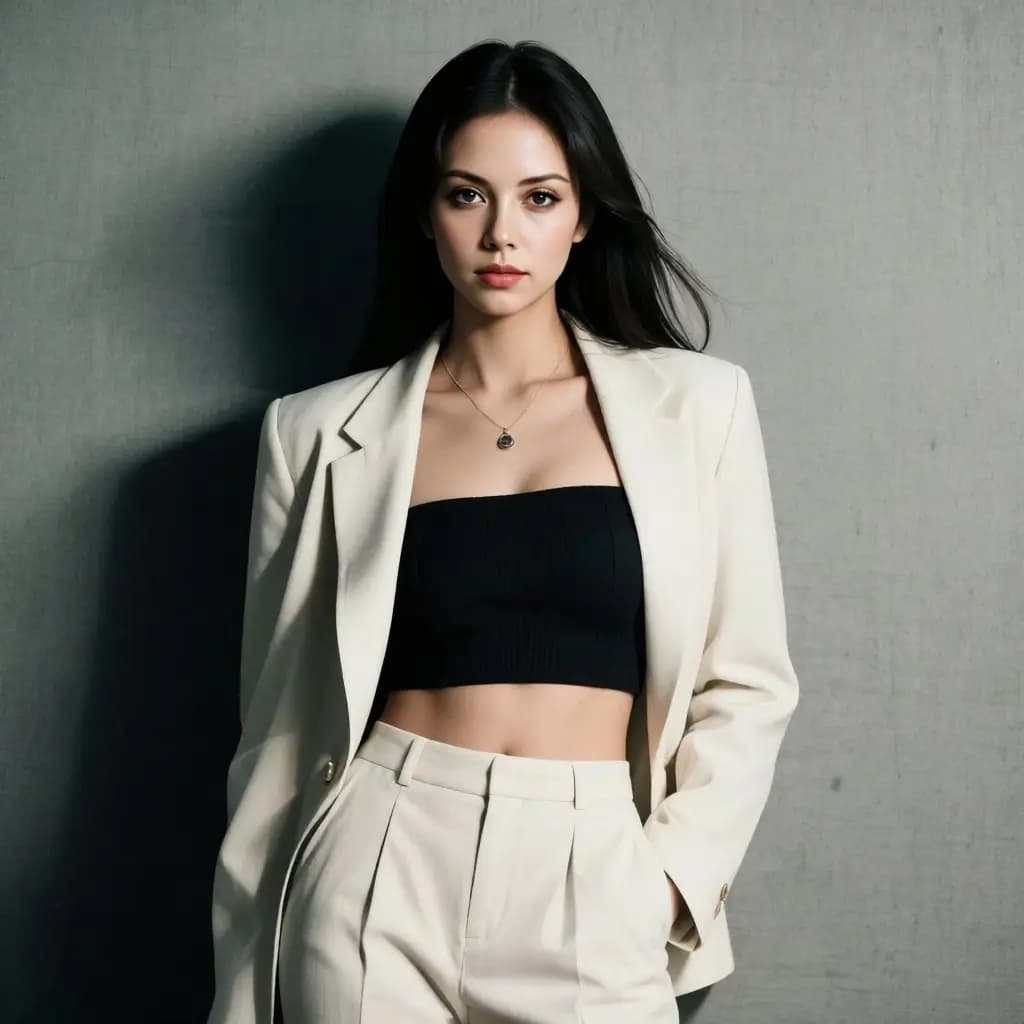
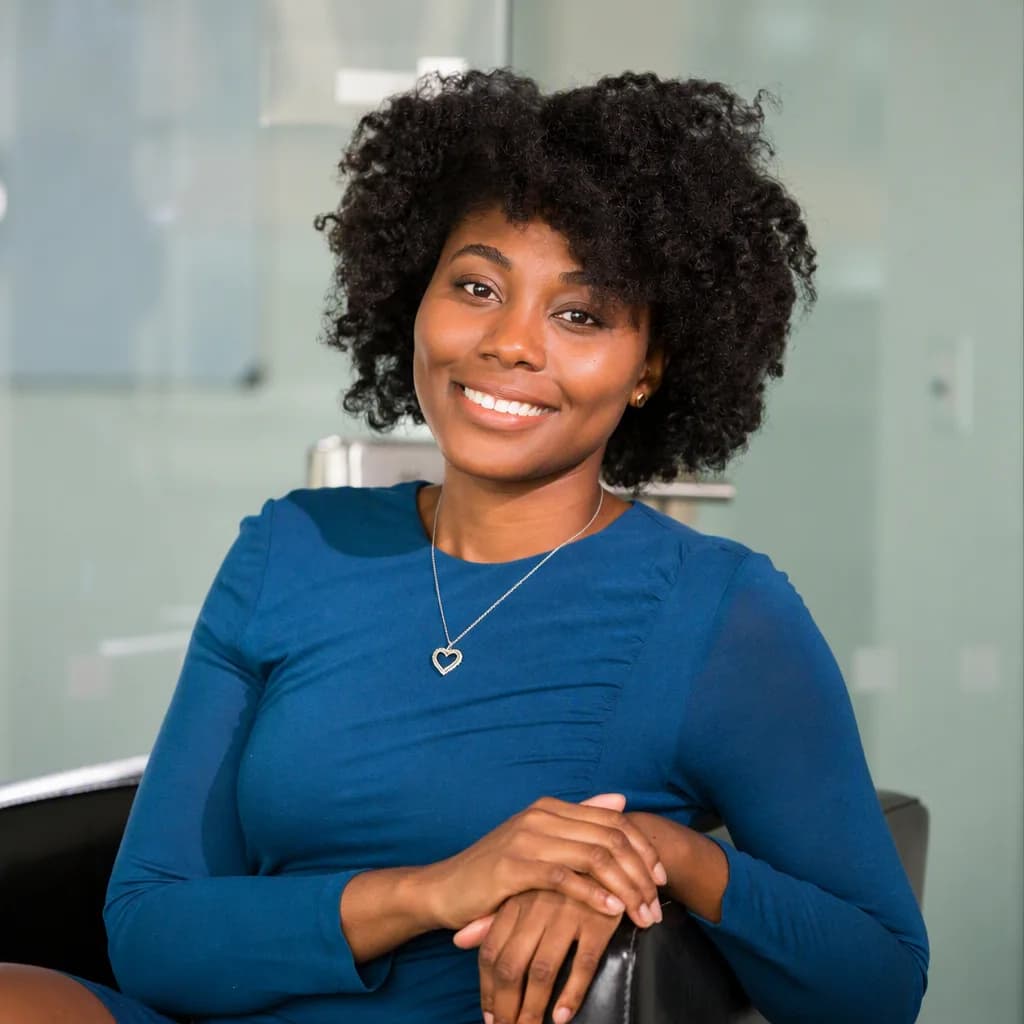
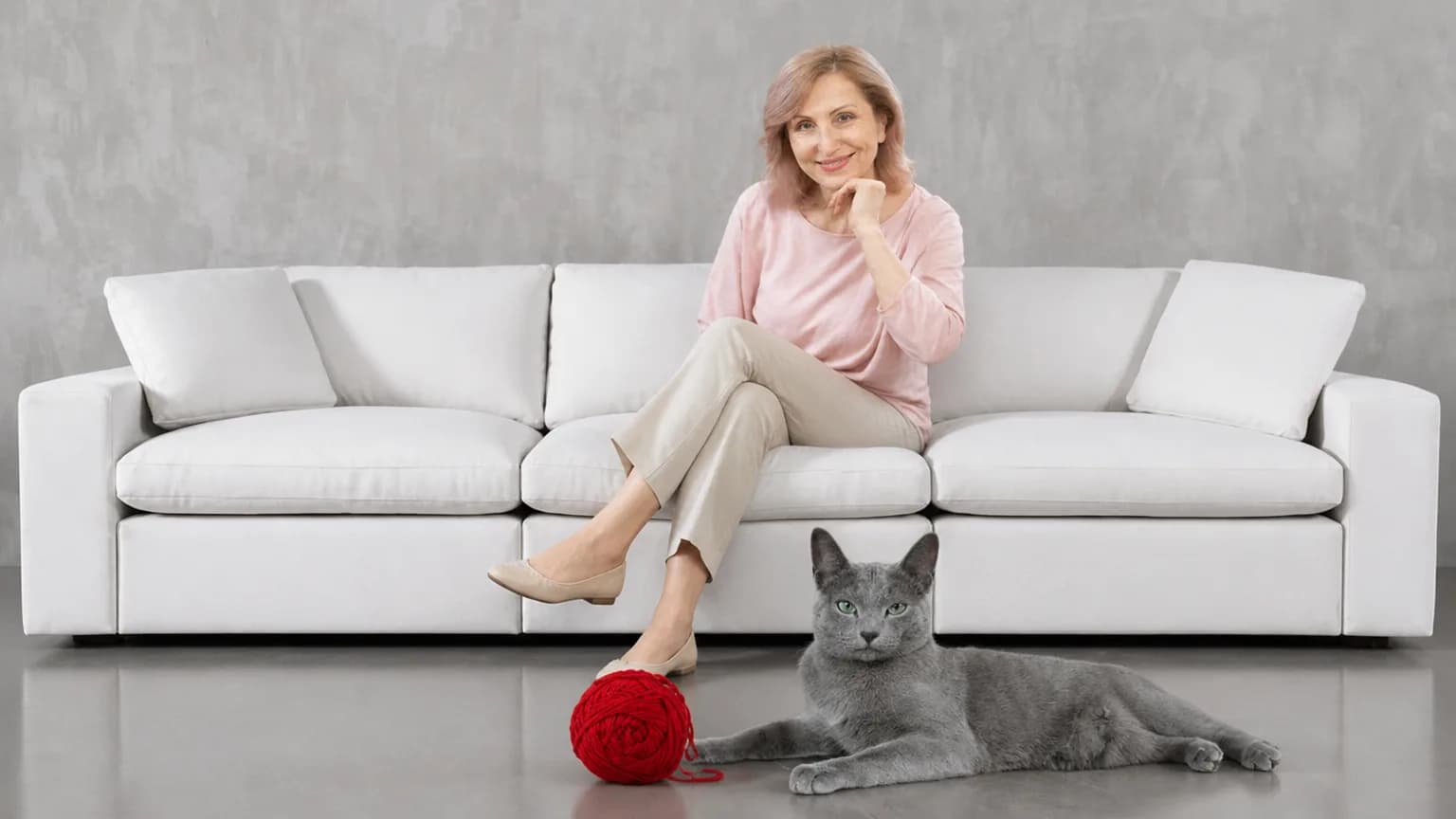
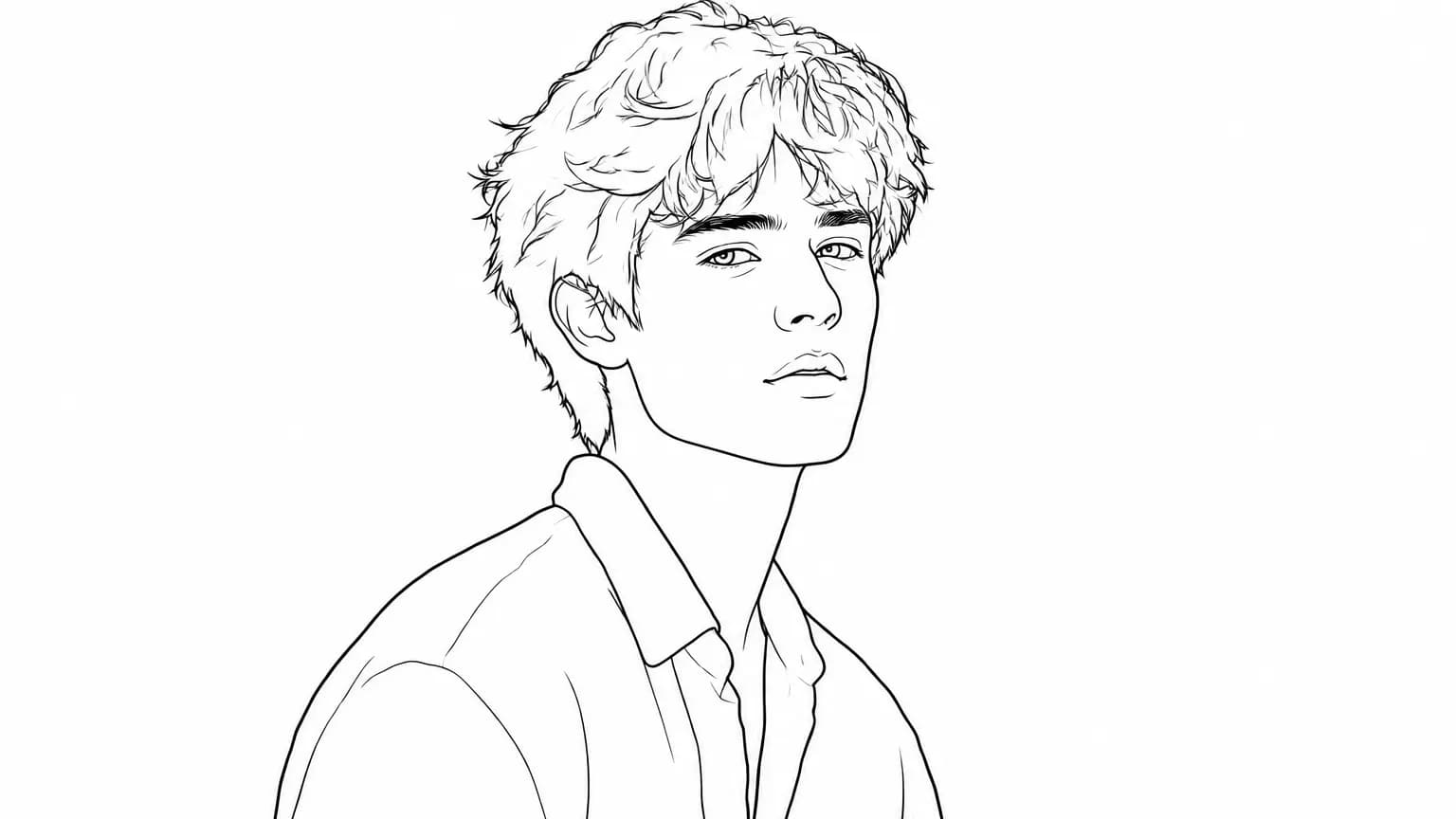
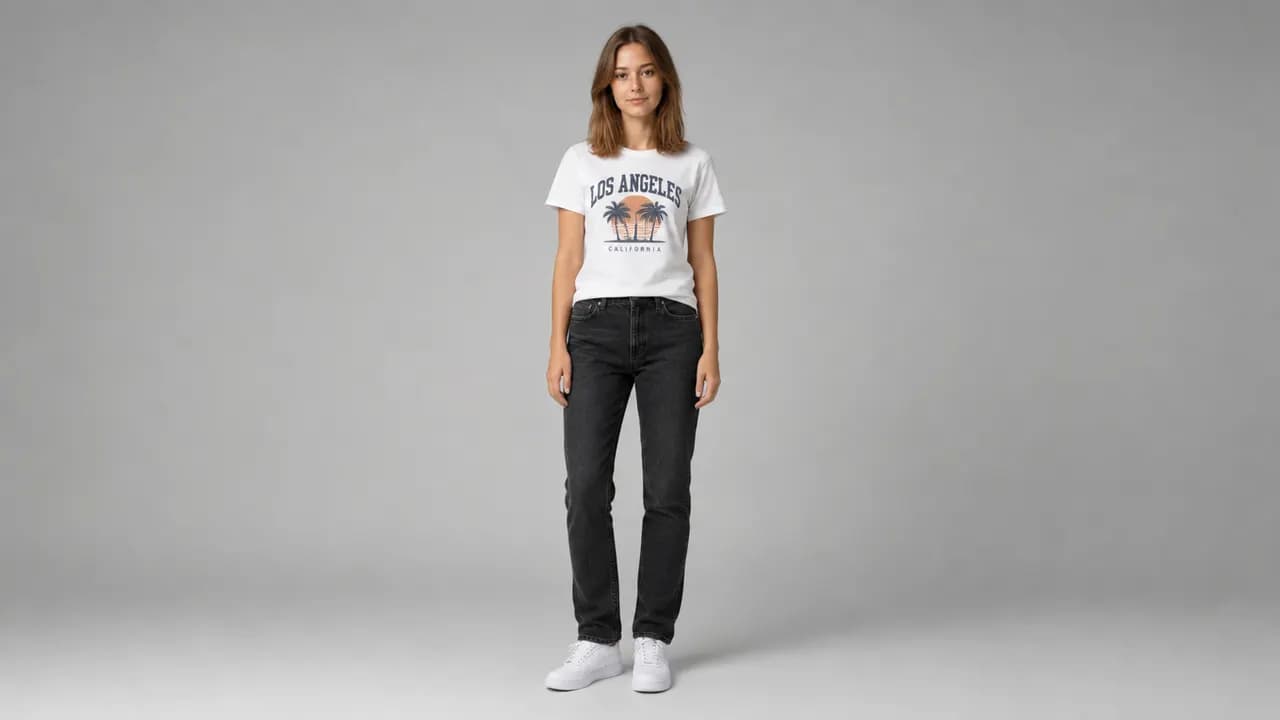
Explore focused AI image tools, each designed for a specific task — see how AI can turn your concepts into finished work.
FAQ
Qwen Image 3.0 FAQ
What it is, what changed since 2.0, and what a run costs.
- What is Qwen Image 3.0?
- Alibaba's third-generation Qwen Image model. Write a Chinese or English prompt to generate an image, or upload 1 to 3 photos and edit from them.
- What's new versus Qwen Image 2.0?
- Two things you can see in the workbench: fifteen aspect ratios instead of seven, and a 1K or 2K render tier you choose per run. Both models take Chinese or English prompts and up to three reference photos.
- Is this the same as Qwen Image on Hugging Face?
- No. Hugging Face Qwen-Image is the earlier open-weight model. This page is Qwen Image 3.0 — text-to-image plus edits from 1 to 3 photos.
- Does Qwen Image 3.0 support image editing?
- Yes. Upload 1 to 3 references and say what moves — a new background, a new outfit, a tighter frame — while the face or product stays put. The ratio follows your first photo unless you pick another.
- How many reference images can I use?
- One to three on an edit. Order matters: the first photo sets the ratio when you leave that control alone.
- Can I write prompts in Chinese?
- Yes. Chinese, English, or both in the same prompt. No translation step.
- What resolution and ratios can I choose?
- 1K or 2K per run, across fifteen aspect ratios — from square posts and tall stories to 21:9 banners. On an edit, the ratio matches your first photo unless you change it.
- How much does a run cost?
- Text-to-image is 9 credits at 1K and 18 at 2K. An edit at 1K is 10 credits with one reference, 11 with two, 12 with three — 2K doubles those.
- Can I use the results commercially?
- Yes — use what you generate under your Epochal account. Don't prompt trademarks, copyrighted characters, or real people you don't have rights to.
Start now
Run your first frame on Qwen Image 3.0
Write a prompt in either language, or upload references and edit from them.
Try Qwen Image 3.0