



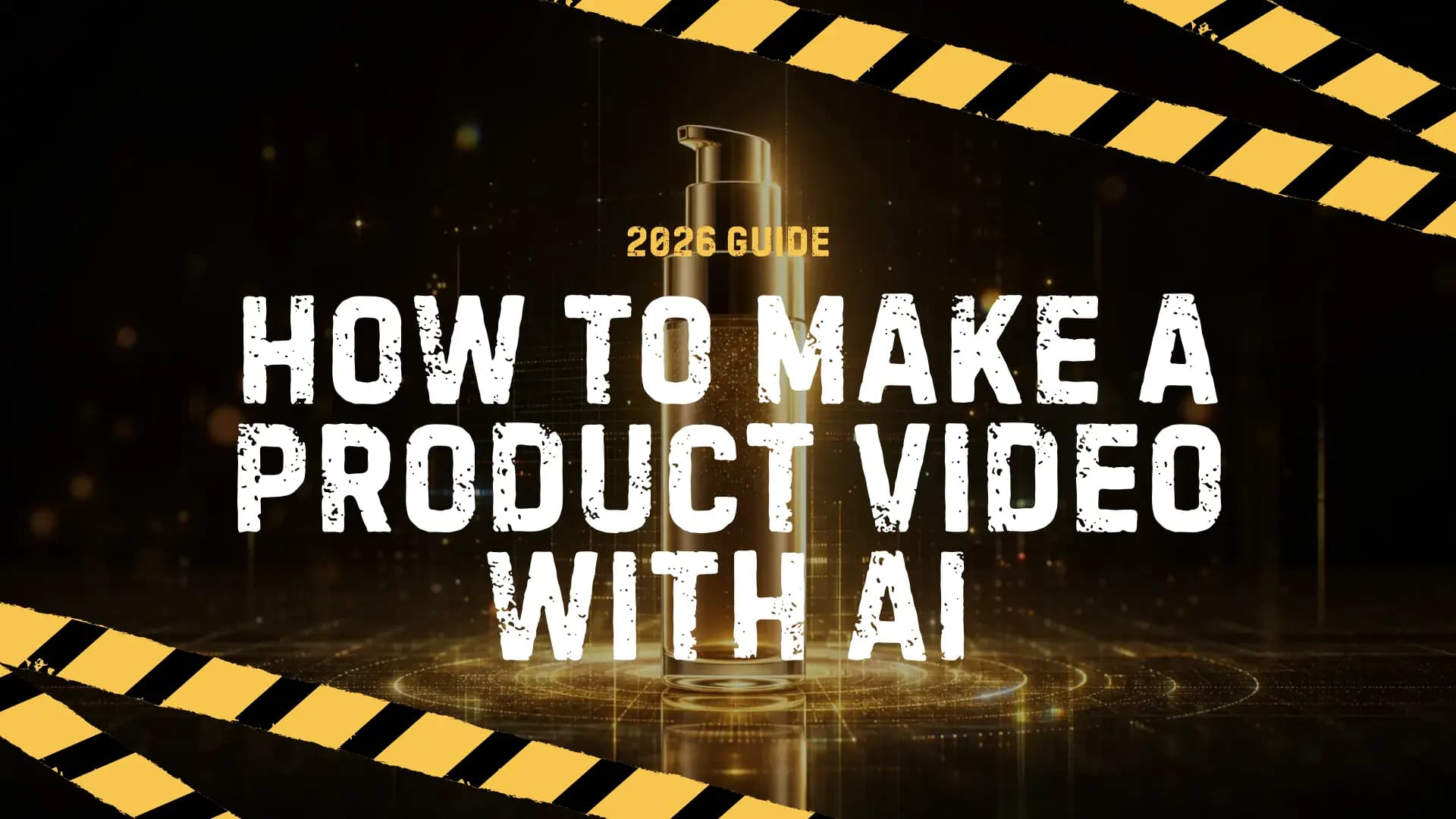
How to Make a Product Video with AI in 2026

A practical guide to making product videos with AI: three approaches, prompt examples, model choices, and real use cases for ads, e-commerce, and social.
Most "AI product video" results on Google are tool landing pages asking you to sign up. This guide does the opposite. It explains how to actually make one: which approach fits your product, how to write the prompt, which model to pick, and what to check before you publish.
By the end you will know:
- The three ways AI can generate a product video, and when each works
- A repeatable step-by-step workflow
- Prompt examples you can adapt
- How to choose between Veo 3.1, Seedance, and shorter-form models
- What AI product videos can and cannot do today
What is an AI product video?
An AI product video is a short clip a model generates from a text description, a product photo, or both. You are not filming or editing by hand. The model handles the motion, the lighting, and sometimes the audio, and gives you a finished clip you can drop into an ad, a listing, or a social post.
It is not the same as:
- A template editor (Canva, Renderforest) where you drag clips into a timeline
- An AI avatar video (Synthesia, InVideo AI) where a virtual presenter reads a script
- A slideshow of product photos with transitions
Those have their place. This guide is about generative AI video, where the model creates the actual footage.
Three approaches (and when to use each)
There are three generation paths. The right one depends on what you have and what you want.
1. Text-to-video
You describe the product and scene in words. The model generates the video from scratch.
Best when: You want a concept-driven clip (a mood, a setting, a feeling around the product) and do not need the output to match a specific real product.
Trade-off: The model may invent product details that don't match yours, because it is working from imagination, not from your photo.
2. Image-to-video
You upload a product photo as the first frame. The model animates it.
Best when: You have a clean product shot and want motion (a slow pan, a rotate, a reveal) that starts from your actual product, so the look stays consistent with your brand.
Trade-off: The motion is anchored to that one image. You have less control over what happens after the first frame.
3. Product-photo-driven generation
A middle ground. You provide one or more product photos as references plus a text prompt. The model uses the references to keep the product recognizable, and still builds a clip with its own motion and lighting.
Best when: You want both consistency (the product looks right) and creative direction (the scene, the camera, the mood).
This is what the AI Product Video Generator on Epochal is built around.
Step-by-step: making a product video with AI
Step 1. Prepare your product visuals
Gather 1 to 4 clean product photos: a hero shot, a detail shot, and a lifestyle or packaging shot if you have them. White or simple backgrounds work best as references. The model adds the scene.
If you only have a text idea and no photos, text-to-video still works. Just know the output will be more concept than literal product.
Step 2. Choose your approach
- Have product photos and want them to look right? Go product-photo-driven (image references + prompt).
- Have a product photo and want simple motion from it? Go image-to-video.
- Only have a concept or script? Go text-to-video.
Step 3. Write the prompt
A good product-video prompt has four parts:
- The subject: the product and its key feature
- The motion: a camera move or action (slow pan, push-in, rotate, reveal)
- The look: lighting, mood, style (studio, cinematic, clean, premium)
- The structure: a clear flow (hook, then feature, then benefit, then call-to-action)
Example prompt:
Create a short product video for a skincare bottle. Open on a hero shot with soft studio lighting and a slow camera push-in. Reveal the packaging detail and one key benefit. End on a clean, premium shot. Cinematic, realistic textures, smooth motion.Keep the prompt focused on one product idea. Asking the model to show five features in one clip usually gives you a muddled result.
Step 4. Pick a model and settings
Choose based on what matters most (see the model section below). Set the aspect ratio for where the video will live: 16:9 for product pages and YouTube, 9:16 for TikTok and Reels. Keep the duration short. Five to ten seconds is enough for a product moment, and most models cap at 15 seconds per clip.
Step 5. Generate, review, and refine
Generate a first version and check:
- Does the product look right (if you used a reference)?
- Is the motion smooth and the message clear at a glance?
- Is there anything distracting?
If the clip is unclear, tighten the prompt (one idea, one motion) before you add more style direction. Style is easier to add once the structure works.
Choosing an AI model
Different models suit different needs. Here is a practical breakdown: not "which is best," but which fits which job.
| Model | Strengths | Good for |
|---|---|---|
| Veo 3.1 | Cinematic quality, native audio, strong prompt control | Premium product ads, launch clips where polish matters |
| Seedance | Fast iteration, predictable output | Testing many variations quickly, finding the right direction |
| Short-form generators (5 to 15s) | Quick, affordable, often include automatic audio | Social product clips, e-commerce displays |
If you are not sure where to start, begin with a short, low-cost generation to validate the direction. Then move to a higher-end model for the final clip.
You can test and compare several of these in one place on Epochal: Veo 3.1, Seedance, and the AI Product Video Generator.
Real use cases
- Product ads: a 10 to 15 second clip for a landing page or paid social, driven by a product photo and a benefit-focused prompt.
- E-commerce listings: a short clip that turns a static product image into motion, useful on a product detail page.
- Social clips: a 5 to 9 second vertical hook for TikTok or Reels, built around one visual moment.
- Launch teasers: a cinematic reveal clip for a new product, where mood matters more than listing every feature.
What AI product videos can and cannot do
Being clear about the limits saves time.
- Duration: most generative models cap at 5 to 15 seconds per clip. Longer product videos need multiple clips edited together.
- Audio: some models generate native audio automatically (music, ambient sound, dialogue), but you usually cannot feed in a custom voiceover script and have the model speak it. For spoken narration, pair the clip with a separate voiceover or lip-sync step.
- Product accuracy: text-to-video may invent product details. Use a product photo as a reference when the product needs to look right.
- Text in video: AI models are still unreliable at rendering correct on-screen text (logos, slogans). Add text in post if you need it crisp.
How Epochal fits
Epochal lets you try all three approaches from one workspace: text-to-video, image-to-video, and the reference-driven AI Product Video Generator. Multiple models (Veo, Seedance, and others) sit side by side, so you can compare outputs, iterate on prompts, and keep what works without juggling separate tools.
FAQ
Can I make a product video with AI for free?
Most AI video generation is paid because it is compute-heavy. On Epochal you can start with free check-in credits to test a short clip before buying more, and the cost is shown before you generate.
Can I use my own product photos?
Yes. Upload 1 to 4 product photos as references and the model will keep the product recognizable while it builds the scene and motion around it.
How long can the video be?
Most models generate 5 to 15 second clips. For a longer product video, generate several short clips and edit them together.
Does the video include audio?
Some models generate native audio automatically (ambient sound, music). You cannot currently feed in a custom narration script for the model to speak. Use a separate voiceover step if you need spoken delivery.
Can I use the result commercially?
Yes. Outputs generated on Epochal can be used in ads, listings, and social posts. Always double-check the final clip before publishing.
Which model should I start with?
If you want to test quickly and cheaply, start with a short-form generator. If you need the highest polish for a launch, Veo 3.1 is a strong choice. If you want fast iteration, Seedance works well.
Start making
Pick one product photo, write a focused prompt, and generate a first clip. Try the AI Product Video Generator on Epochal and compare models side by side.
More Posts
Hailuo 3 Prompt Guide: How to Write Prompts for MiniMax H3 (and H3 Max)
The actual prompt format MiniMax H3 responds to: shot structure, camera moves, dialogue tags, sound fields, and when to let the prompt optimizer do the work.
Veo 3.1 vs Seedance 2.0: Which One Fits Your Content Workflow?
If you are comparing Veo 3.1 and Seedance 2.0, this guide breaks down where each model fits best across quality, control, output speed, and commercial use.
Veo 3.1 vs Sora 2: Which AI Video Model Fits Your Workflow?
Comparing Google Veo 3.1 and OpenAI Sora 2 across quality, speed, audio, cost, and practical workflows. See which model fits your use case.