






YouTube · Prompt Warrior
Creator ReviewGPT Image workflow review and practical image tests
A creator-side review that helps frame GPT Image as a usable image workflow for prompt-led generation and edits rather than only a product announcement.
Generate images free with GPT Image 2 — your first images are covered by 15 signup credits. Crisp text rendering for posters, menus, and UI mockups.
GPT Image 2 is the GPT image model workflow available on this page. OpenAI's image generation documentation describes the GPT image stack as supporting both image generation and image editing from text and uploaded images. In Epochal, the same model is currently exposed through prompt-led generation and reference-led editing, with controls for size preset, quality, output count, and export format. Your first images are free — sign up to get 15 credits, enough for several images at the default low-quality setting.
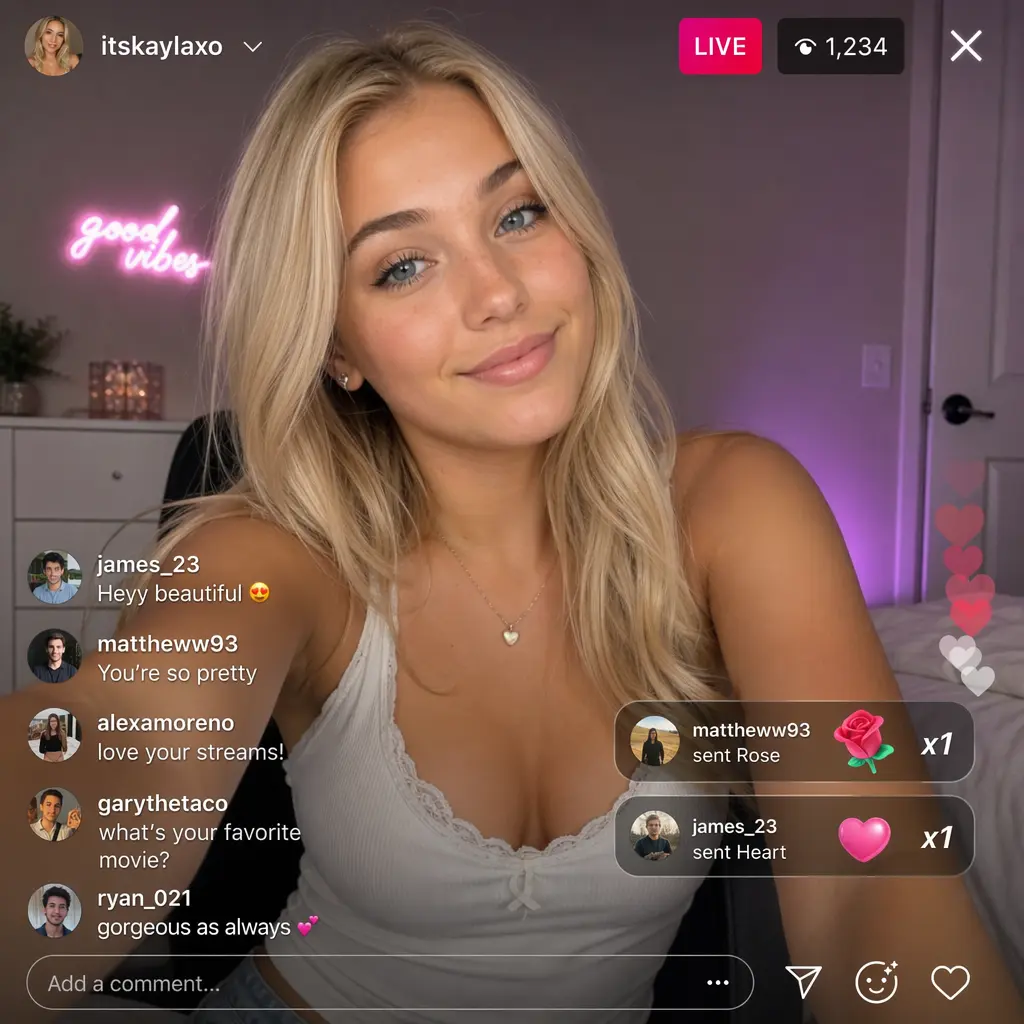
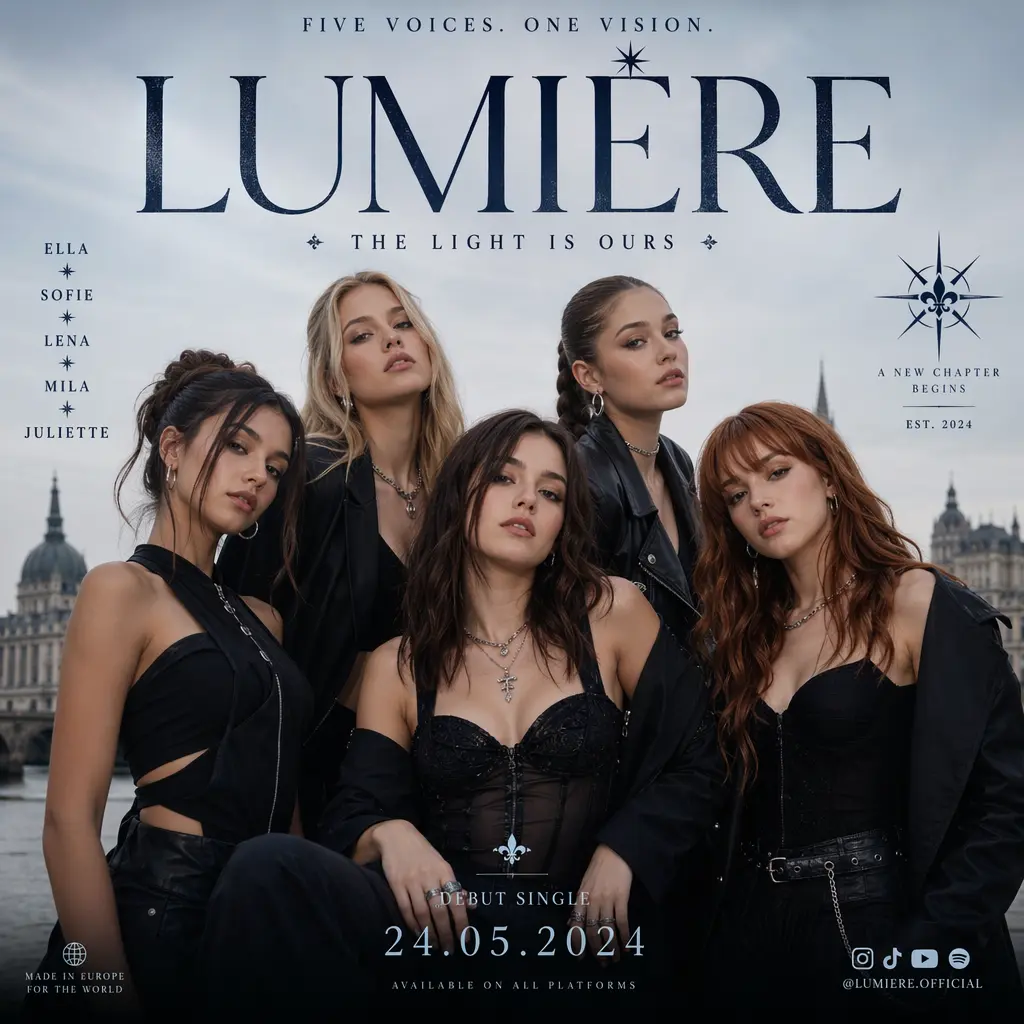
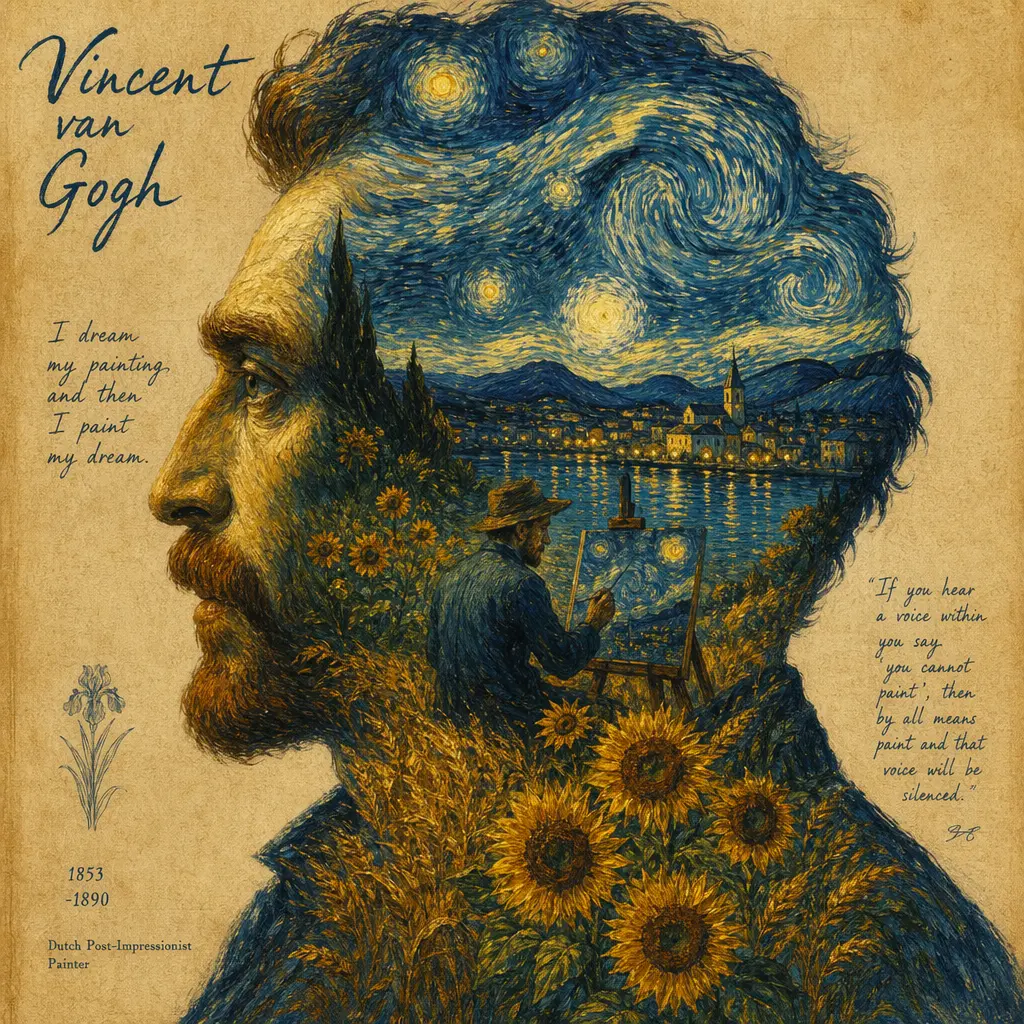
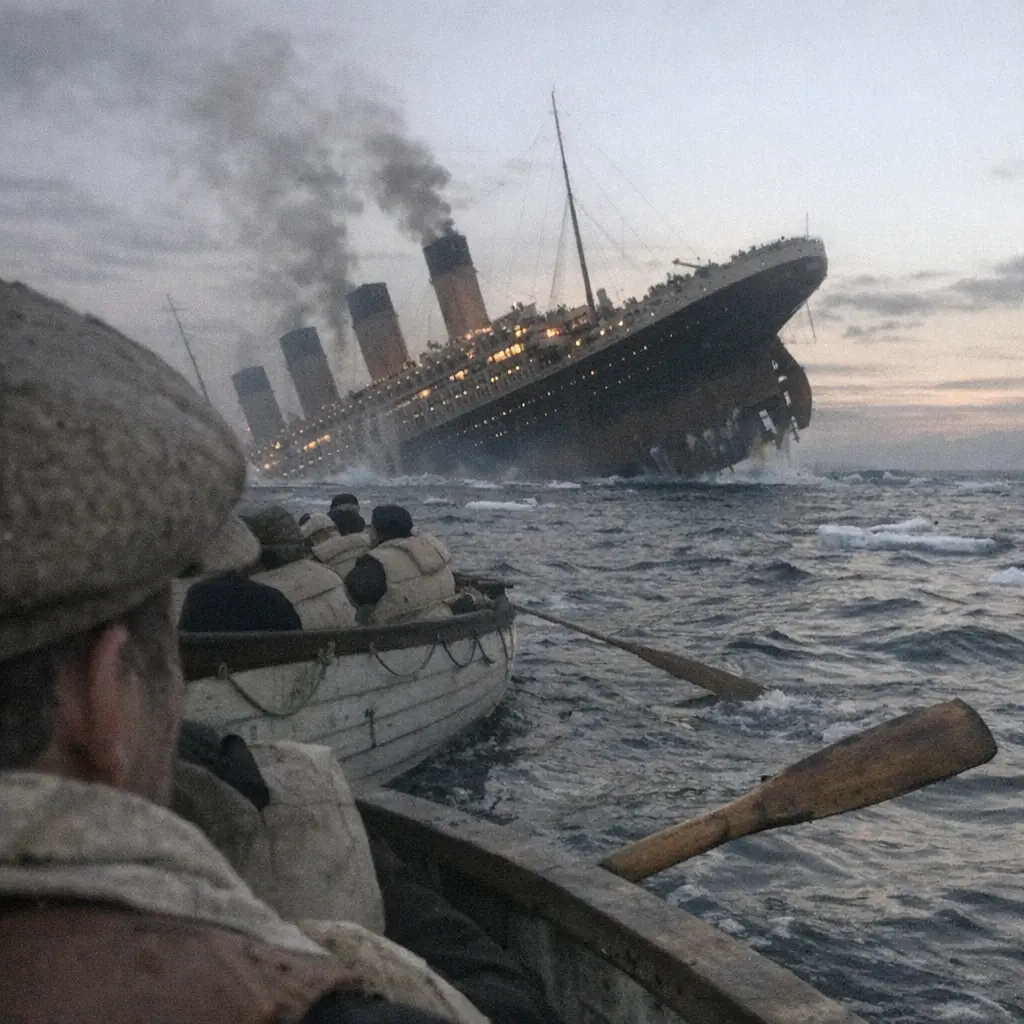
GPT Image 2 preview 1
GPT Image 2
The current public GPT Image 2 page should be read as a GPT image workflow that covers both fresh generation and reference-led editing. Epochal keeps image size, quality, output count, and export format visible up front, while the related editing workflow also adds reference image input and an auto size option. Because this page only relies on OpenAI's general image-generation documentation plus implementation-verified facts, you should judge results against your prompt, source images, and selected settings rather than unsupported model-ranking claims.
GPT Image 2 can be used either from a written prompt or from existing images. In the current Epochal workbench, that means a text-to-image workflow and a reference-led image-to-image workflow built around the same model.
Epochal currently exposes the 6 official GPT Image 2 size presets, while the editing workflow also adds an auto option. Pick the frame before the first run so the output is judged in the right composition.
The current implementation exposes low, medium, and high quality modes. That keeps cost and output intent visible before generation starts.
Both public workflows can return one to four images per run. That is useful when you want to compare several prompt-consistent directions before choosing the next pass.
Epochal currently exposes JPEG, PNG, and WEBP output. Set the file format up front when the result is already headed toward a specific delivery path.
Creator walkthroughs that are useful for understanding GPT Image style workflows, editing behavior, and prompt-led image generation in practice.
A creator-side review that helps frame GPT Image as a usable image workflow for prompt-led generation and edits rather than only a product announcement.
Useful for understanding how creators compare GPT Image against another leading image model on editing, speed, and prompt control.
Helpful as a practical workflow example for how OpenAI’s newer image stack is used in repeatable design and content-production tasks.
Public creator and ecosystem references that help explain how GPT Image is being framed around editability, quality, and production-style output.
The current public GPT Image 2 page should be read as a GPT image workflow that covers both fresh generation and reference-led editing. Epochal keeps image size, quality, output count, and export format visible up front, while the related editing workflow also adds reference image input and an auto size option. Because this page only relies on OpenAI's general image-generation documentation plus implementation-verified facts, you should judge results against your prompt, source images, and selected settings rather than unsupported model-ranking claims.
Use GPT Image 2 when you want to see how one written brief lands across a small set of outputs before you lock the direction.
Switch to the related editing workflow when the base image already exists and the next job is to restyle, revise, or refine it without changing models.
It is useful when the main job is to compare one to four outputs under the same size and quality settings before choosing the next pass.
The current page is practical when file format matters early and the result is already headed toward a JPEG, PNG, or WEBP delivery flow.

OpenAI
GPT Image 1.5 AI Image Generator

Ideogram
Ideogram V3 AI Image Generator for Brand Graphics & Text-Heavy Posters

Black Forest Labs
FLUX.2 Pro AI Image Generator

Nano Banana
Google: Nano Banana Pro AI Image Generator for Infographics, Posters & Mockups
Nano Banana
Google: Nano Banana 2 AI Image Generator for Precise Text Editing & Wider Layouts

ByteDance
Free Seedream 5.0 Lite AI Image Generator
Your first images are. Sign up to get 15 credits, and at the default low-quality setting each image only costs a few credits — enough to generate several before you need more. Higher quality settings use more credits; earn extra with daily check-in or upgrade for a larger allowance.
In the current Epochal workbench, GPT Image 2 exposes image size preset, quality, number of images, and output format. The related editing workflow also adds reference image input plus an auto size option.
The current public workflow supports one to four images from the same prompt.
Yes. In the current Epochal workbench, GPT Image 2 is available as a text-to-image workflow and as a reference-led image-to-image workflow.
Quality, image size preset, selected number of outputs, and how many reference images you include in the editing workflow have the biggest effect on the current credit estimate.
The current workbench exposes JPEG, PNG, and WEBP output for GPT Image 2.
Start generating with free credits. Upgrade later when you need more credits, private generations, or higher usage.
Comparing Google Veo 3.1 and OpenAI Sora 2 across quality, speed, audio, cost, and practical workflows. See which model fits your use case.
Kling 3.0 is not free on any platform. See what trials actually give you and generate AI video for free with Seedance 1.5 Pro.
A practical guide to running AI video generation locally, covering setup tools, hardware requirements, privacy benefits, and when cloud tools save you time.