YouTube · Ferdy Korpershoek
Nano BananaNano Banana tutorial for generating and refining images in Gemini
A good first pass for seeing prompt-led generation, follow-up edits, and multi-image combinations inside one workflow.
Use Text to Image on Epochal to turn text prompts into images fast, then compare, edit, and export results in one workspace.
Ready to create images
Generate in this workspace and the latest result will appear here with the supporting content below.
Text-to-image generation starts from a text prompt and outputs a still image. Describe what you want — subject, scene, style, lighting — and the model renders it directly. On Epochal, you can switch between 10 image models without leaving the workspace, so comparing visual directions takes seconds instead of tabs.
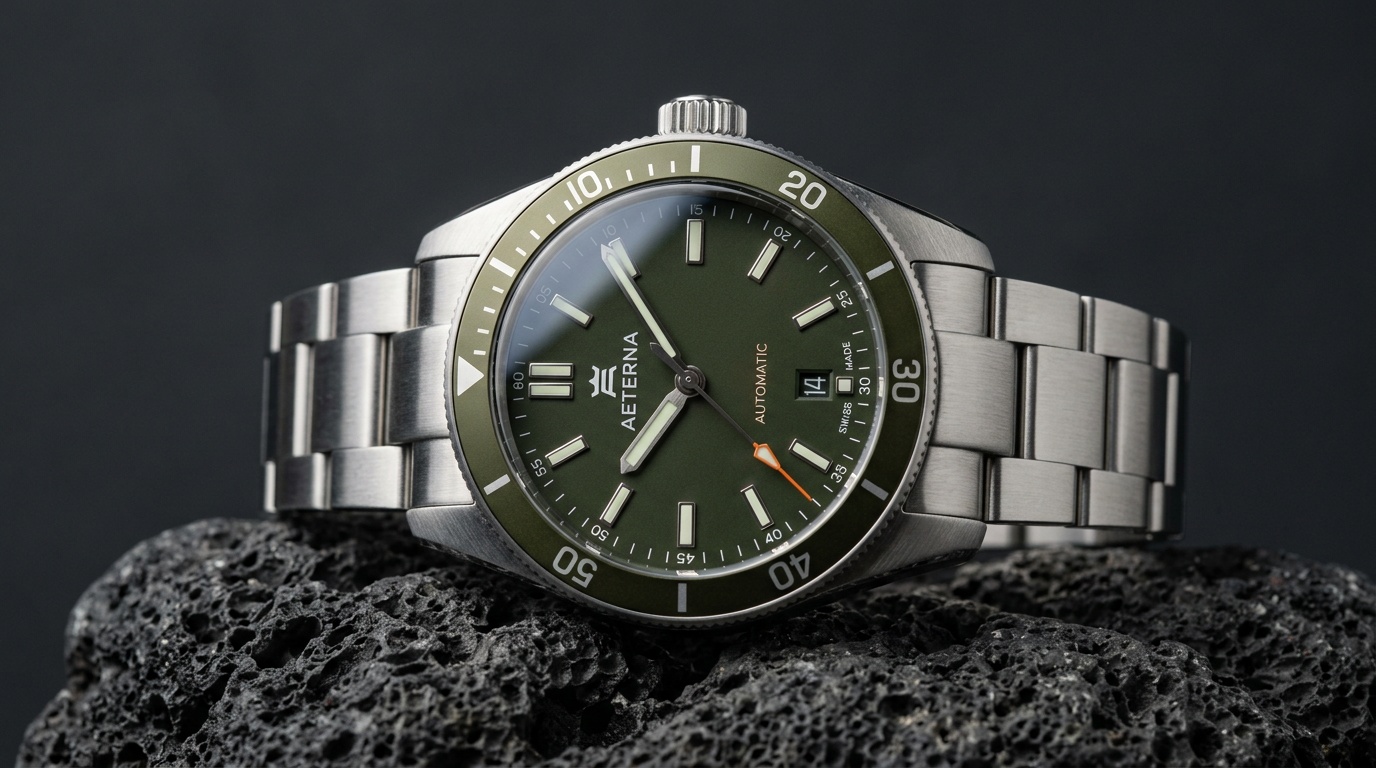
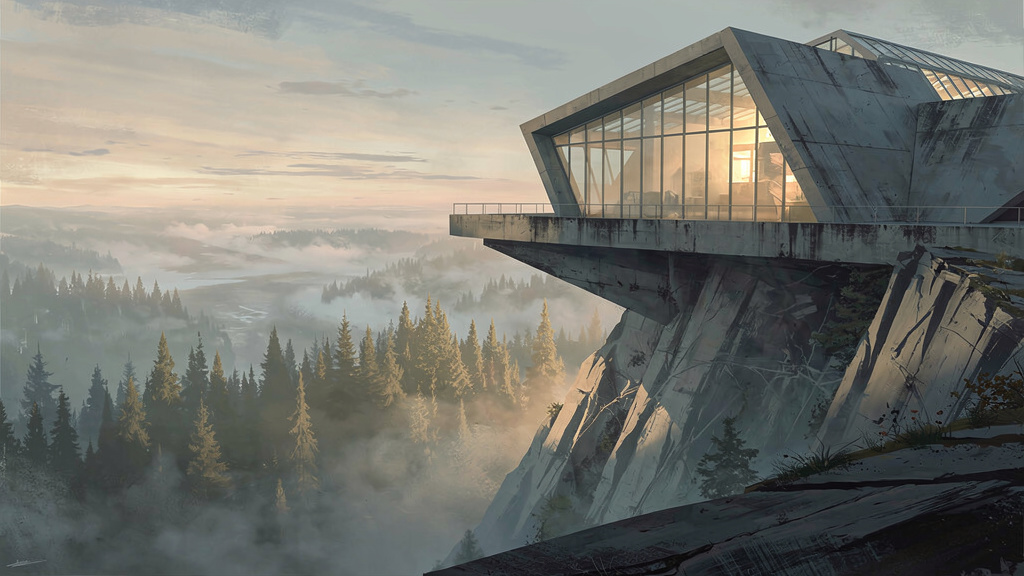

Studio product shot on clean background
Your prompt, aspect ratio, and settings carry over when you swap between Nano Banana, FLUX, Ideogram, or any other model — no copy-paste, no reloading.
All generation results stay in the same workspace history. See what each model produces from the same prompt before deciding which direction to take.
Once you have a result you like, move it into image-to-image editing from the same page — keeping the original as a reference throughout.
Tutorials and model walkthroughs that are useful when you want to compare prompt-following, style range, and how different image models behave from scratch.
A good first pass for seeing prompt-led generation, follow-up edits, and multi-image combinations inside one workflow.
Useful when you want a cleaner text-to-image example focused on scene building rather than heavy post-editing.
A practical reference for prompt adherence, local/open workflows, and how FLUX is used when people want strong text-led image generation.
Helpful when you want one creator-side overview that compares several modern image models instead of watching isolated demos.
A more reliable long-form reference for how one major open image model gets introduced, tested, and compared in practice.
Shorter public references for launches, leaderboard movement, prompt structure, and the kinds of image results creators are actually sharing.
Pick a model, describe what you want, and preview the result in the same workspace.
Different models have different strengths — Nano Banana is fast and handles iterative edits well; FLUX.2 Pro handles fine detail; Ideogram V3 handles text in images. Start with what fits the task.
Describe subject, environment, style, and lighting. The more specific the prompt, the less revision you'll need. Set the aspect ratio before generating.
Review the result against your prompt. If the subject is right but the style is off, adjust the style terms rather than rewriting everything. Small changes reveal the model's behavior faster.
Run the same prompt on a different model to see if another direction works better. Or stay in one model and keep iterating. Both paths stay in the same workspace.
Best used when the main job is to move from a written idea to a first visual result quickly, then refine from there.
Generate early product shots for review before a studio shoot — test background, surface, and lighting choices without booking time or renting props.
Generate rough scene or character directions before deciding which to develop. Text-to-image is the right tool for breadth over polish at this stage.
Create marketing graphics, event posters, and social media assets from a written brief. Models like Ideogram V3 can render legible type inside the image.
Both workflows live in the same workbench. Here is when to use each.
Common questions, answered.
Text-to-image generates a new image from a prompt alone. Image-to-image takes an existing image as input and modifies it based on a prompt — useful when you want to change one element without rebuilding the whole scene.
For general-purpose image generation, Nano Banana is fast and handles most prompt types well. For poster or graphic content with text, use Ideogram V3. For detailed photorealistic outputs, try FLUX.2 Pro.
Be specific about subject, style, lighting, and framing. Vague prompts lead to inconsistent outputs. Set the aspect ratio in the controls, not in the prompt text. Avoid generic terms like "beautiful" or "amazing" — describe what you actually want.
Commercial usage rights depend on the specific model's terms. Check the model provider's usage policy for the model you generated with. Epochal does not alter the underlying model's licensing terms.
Available aspect ratios depend on the model selected. Most image models on Epochal support common ratios including 1:1, 4:3, 3:4, 16:9, and 9:16. Some models support additional presets — check the controls for the active model.
Your prompt and settings are preserved when you switch models. Previously generated results stay in the workspace history so you can compare output from different models against the same prompt.
Start with free credits on sign-up. Upgrade only when recurring production, private generation, or higher volume starts to matter.
For lighter recurring creation.
Switch fixed steps to match your monthly output.
3,000 credits/month
Up to 12,000 images
Up to 996 videos
Higher monthly capacity
No watermark
Private generation
Faster speed
Image and video workflows
Try the core flow before you upgrade.







 0.2% of purchases contributed to Stripe Climate
Keep reading the newest posts on model capabilities, workflow tips, and creative practice.
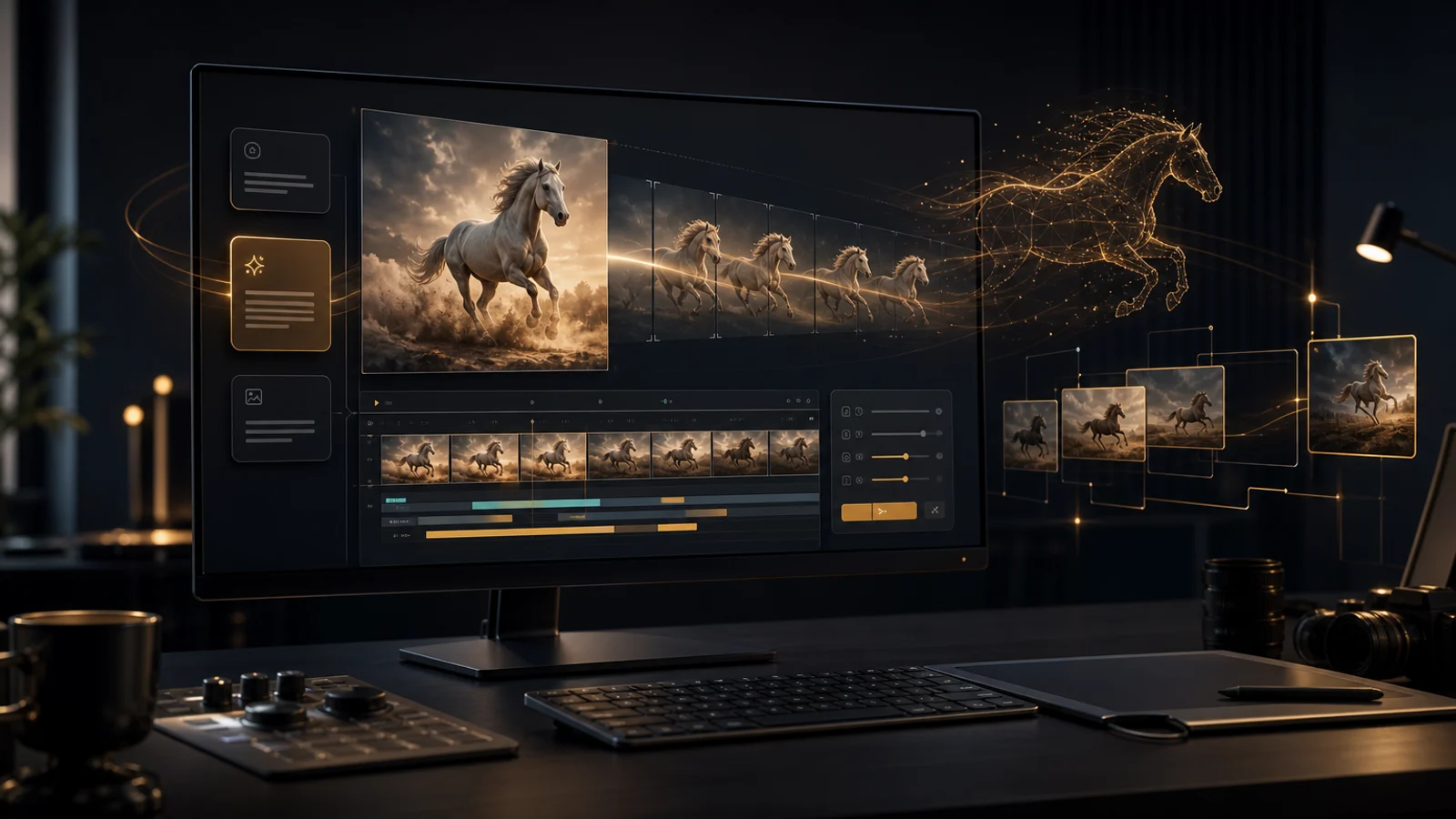
HappyHorse 1.0 supports text-to-video and image-to-video for creative drafts, first-frame animation, ad testing, and short cinematic shots.
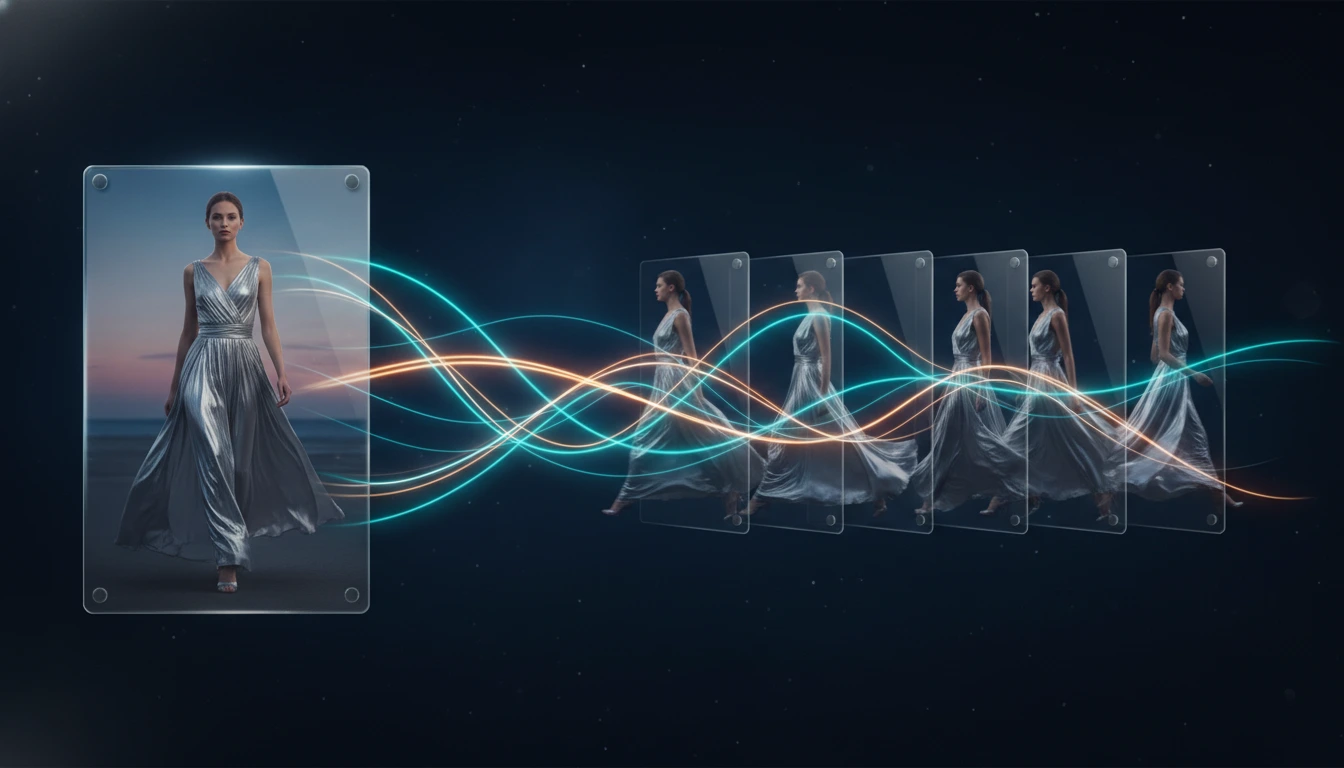
A practical guide to the best image to video AI tools in 2026, comparing Kling 3.0, Veo 3.1, Seedance 2.0, Wan 2.7, and Grok Imagine Video for frame preservation, motion quality, speed, and workflow fit.
A practical comparison of the best AI video generators available in 2026, covering output quality, audio generation, prompt control, speed, and which model fits each workflow.