YouTube · Mindiosity
SoraOpenAI Sora examples with prompts in one reel
A compact way to see how different written prompts turn into fully staged video moments.
Use Text to Video on Epochal to turn text ideas into videos fast, then compare, refine, and export results in one workspace.
Ready to create videos
Generate in this workspace and the latest result will appear here with the supporting content below.
Text to Video starts from a written scene and turns it into motion. Use it when you have an idea, ad concept, storyboard beat, or visual treatment but no source frame yet. On Epochal, you can run the same prompt across Veo 3.1, Kling 3.0, Seedance 2.0, Wan 2.7, and Grok Imagine without rebuilding the workflow each time, which makes model comparison practical instead of tedious.
Organic alien behemoth crushing a downtown skyline
Keep one prompt, switch models, and judge how each engine handles motion, pacing, prompt adherence, and overall scene logic without resetting the rest of the workspace.
Duration, aspect ratio, audio options, and model-specific controls stay next to the prompt, which makes it easier to test one variable at a time instead of guessing what changed.
The goal is not one lucky render. It is building a shortlist of prompts, models, and motion directions you can reuse in the next round or hand off to production.
Tutorials, model walkthroughs, and result breakdowns — helpful for understanding what these tools can do before you start.
A compact way to see how different written prompts turn into fully staged video moments.
Useful for judging dialogue, sound design, and how much more complete AI video feels once audio is part of the result.
A straightforward reference for cinematic motion, stylized scenes, and how prompt-driven video direction is evolving.
More useful when you want to understand scene transformation, shot changes, and how AI video is moving beyond one-pass generation.
A good reference for stylized short-form film direction, character treatment, and more polished creator workflows.
Prompts, model comparisons, and shared results from people exploring the same tools — a snapshot of what the community has figured out.
Pick a model, describe what you want, and preview the result in the same workspace.
Use Veo 3.1 when you want more cinematic motion, Kling 3.0 when prompt-led control matters, Seedance 2.0 when sequencing and transitions matter, Wan 2.7 when cost efficiency matters, and Grok Imagine when you want fast stylized exploration.
Describe subject movement, camera movement, timing, environment changes, and shot progression. A still-image prompt usually gives you a weak clip because it defines what the frame looks like, not how it evolves.
Choose the output shape that matches the destination and keep the first pass short unless you already know the shot needs more time. This makes comparison cheaper and faster.
Change either the model, the motion wording, or the duration on the next pass, but not everything at once. That is the fastest way to understand what actually improved the result.
Best used when the real task is to explore motion directions quickly, compare models against the same idea, and turn rough prompts into a clearer production path.
Block out mood, pacing, and shot rhythm before you invest in a full production path. This is useful when a written treatment exists but the motion direction is still open.
Turn campaign lines, product benefits, and launch ideas into short moving scenes that a team can review before committing to filming or post-production.
Generate multiple opening beats, visual hooks, and mood variants quickly, then keep the versions that earn a second round instead of over-investing in the first draft.
Both workflows live in the same workbench. Choose based on whether the main problem is exploration or control.
Common questions, answered.
Text to Video is best for concept clips, ad directions, storyboard validation, social hooks, product scenes, and other prompt-first video tasks where speed and iteration matter more than locked continuity.
You can compare Veo 3.1, Kling 3.0, Seedance 2.0, Wan 2.7, and Grok Imagine in the same Text to Video workflow. Each model responds differently to motion, pacing, realism, and prompt structure, so model choice is part of the creative decision.
Be specific about movement, camera behavior, setting, mood, and shot order. If the prompt only describes the final frame, the clip usually feels static even when the visuals are attractive.
No. Text to Video is the right workflow when you are starting from a written idea alone. If you already have a strong frame and want to preserve it, move into image-to-video instead.
Switch when the first frame, product layout, or character look is already decided and continuity matters more than broad exploration. Text to Video is better for discovery; image-to-video is better for control.
Start with free credits on sign-up. Upgrade only when recurring production, private generation, or higher volume starts to matter.
For lighter recurring creation.
Switch fixed steps to match your monthly output.
3,000 credits/month
Up to 12,000 images
Up to 996 videos
Higher monthly capacity
No watermark
Private generation
Faster speed
Image and video workflows
Try the core flow before you upgrade.







 0.2% of purchases contributed to Stripe Climate
Keep reading the newest posts on model capabilities, workflow tips, and creative practice.
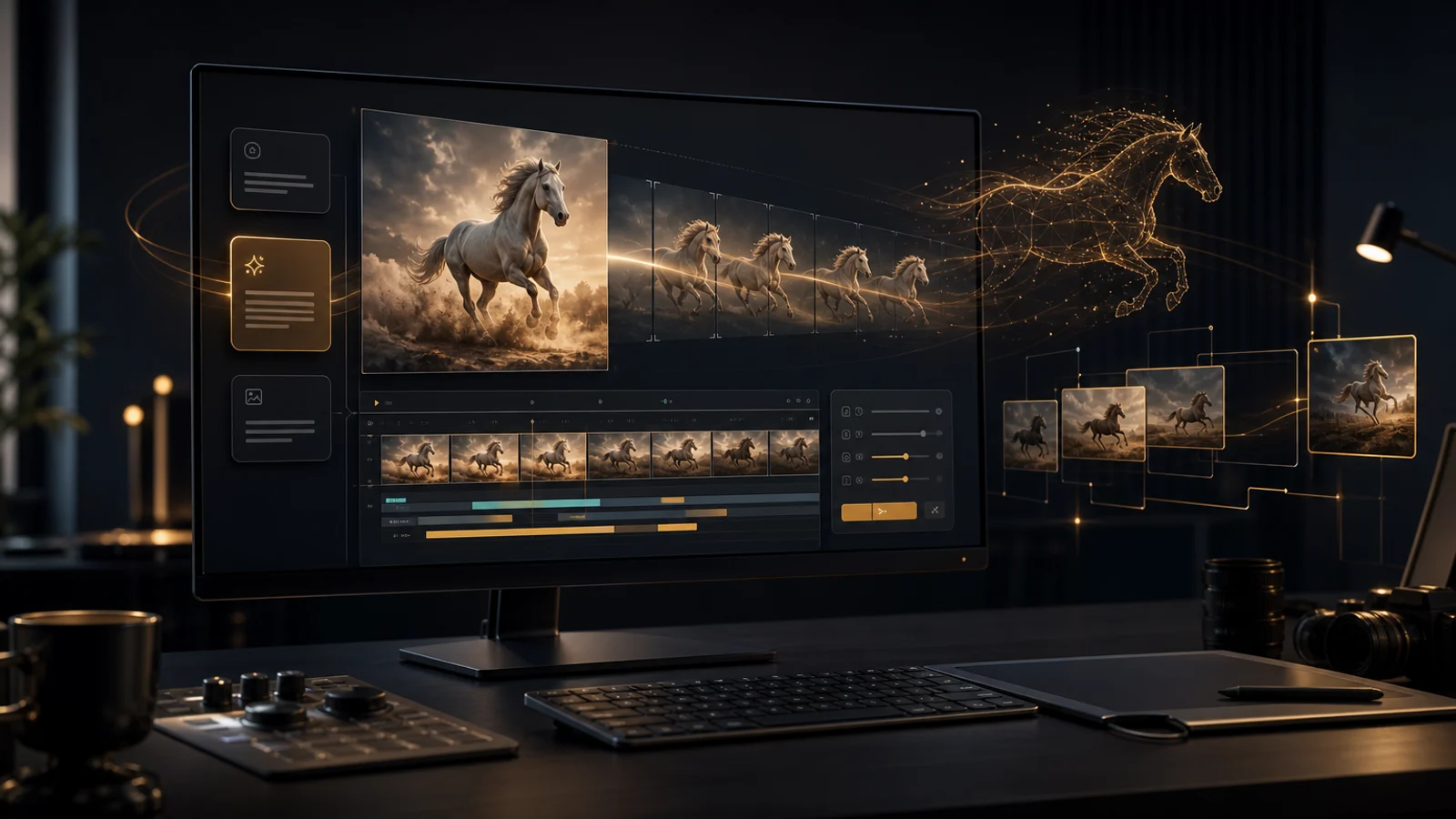
HappyHorse 1.0 supports text-to-video and image-to-video for creative drafts, first-frame animation, ad testing, and short cinematic shots.
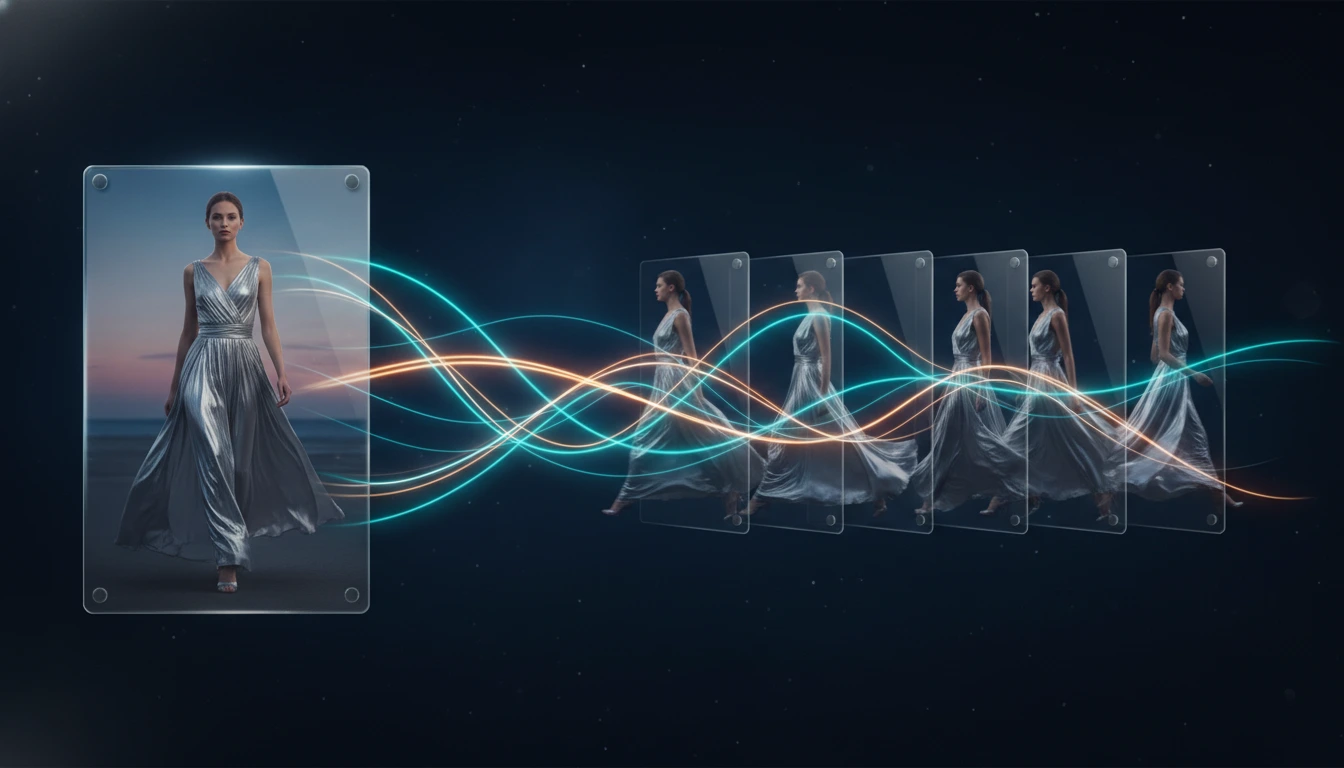
A practical guide to the best image to video AI tools in 2026, comparing Kling 3.0, Veo 3.1, Seedance 2.0, Wan 2.7, and Grok Imagine Video for frame preservation, motion quality, speed, and workflow fit.
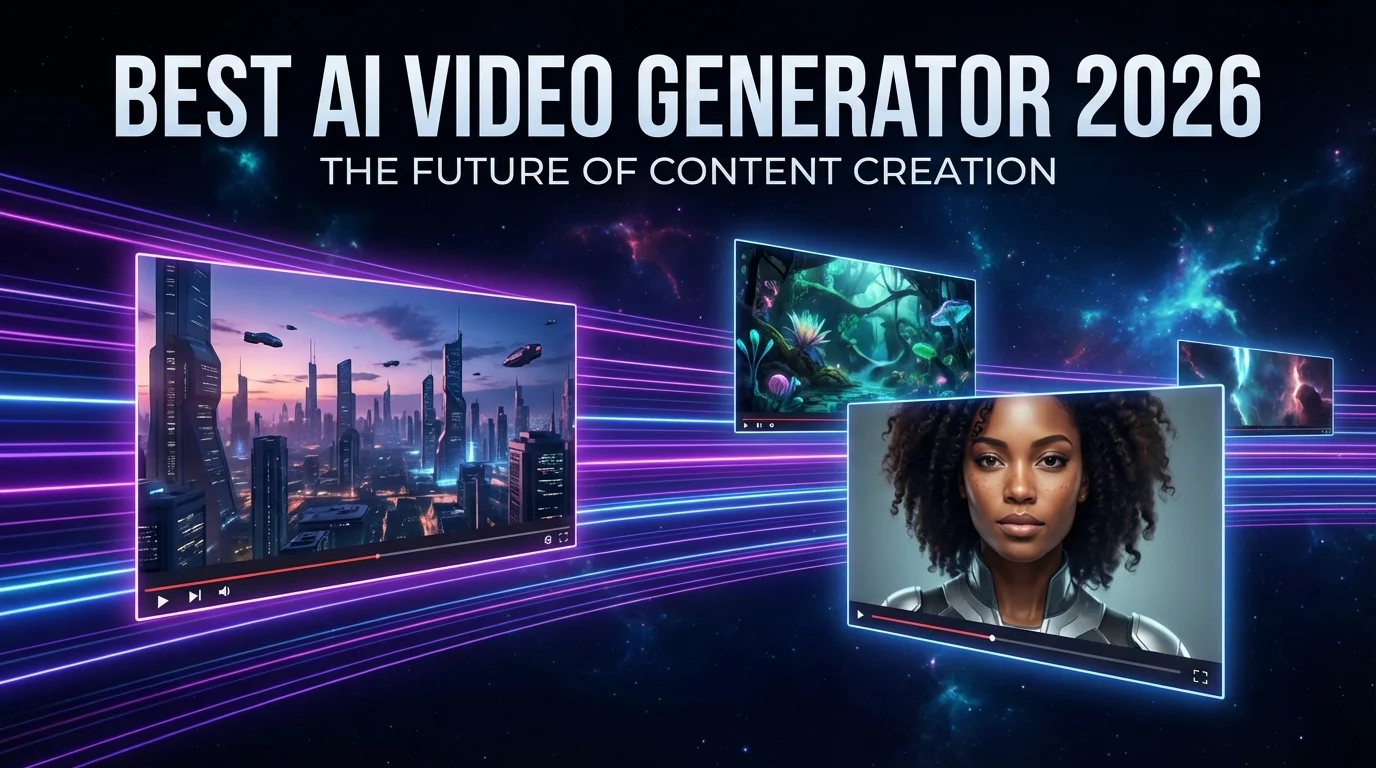
A practical comparison of the best AI video generators available in 2026, covering output quality, audio generation, prompt control, speed, and which model fits each workflow.