YouTube · Prompt Warrior
Creator ReviewGPT Image workflow review and practical image tests
A creator-side review that helps frame GPT Image as a usable image workflow for prompt-led generation and edits rather than only a product announcement.
Better suited to posters, infographics, menus, UI mockups, and other stills where text and image structure need to hold together, with reference-led follow-up edits.
Ready to create images
Generate in this workspace and the latest result will appear here with the supporting content below.
GPT Image 2 is the GPT image model workflow available on this page. OpenAI's image generation documentation describes the GPT image stack as supporting both image generation and image editing from text and uploaded images. In Epochal, the same model is currently exposed through prompt-led generation and reference-led editing, with controls for size preset, quality, output count, and export format.
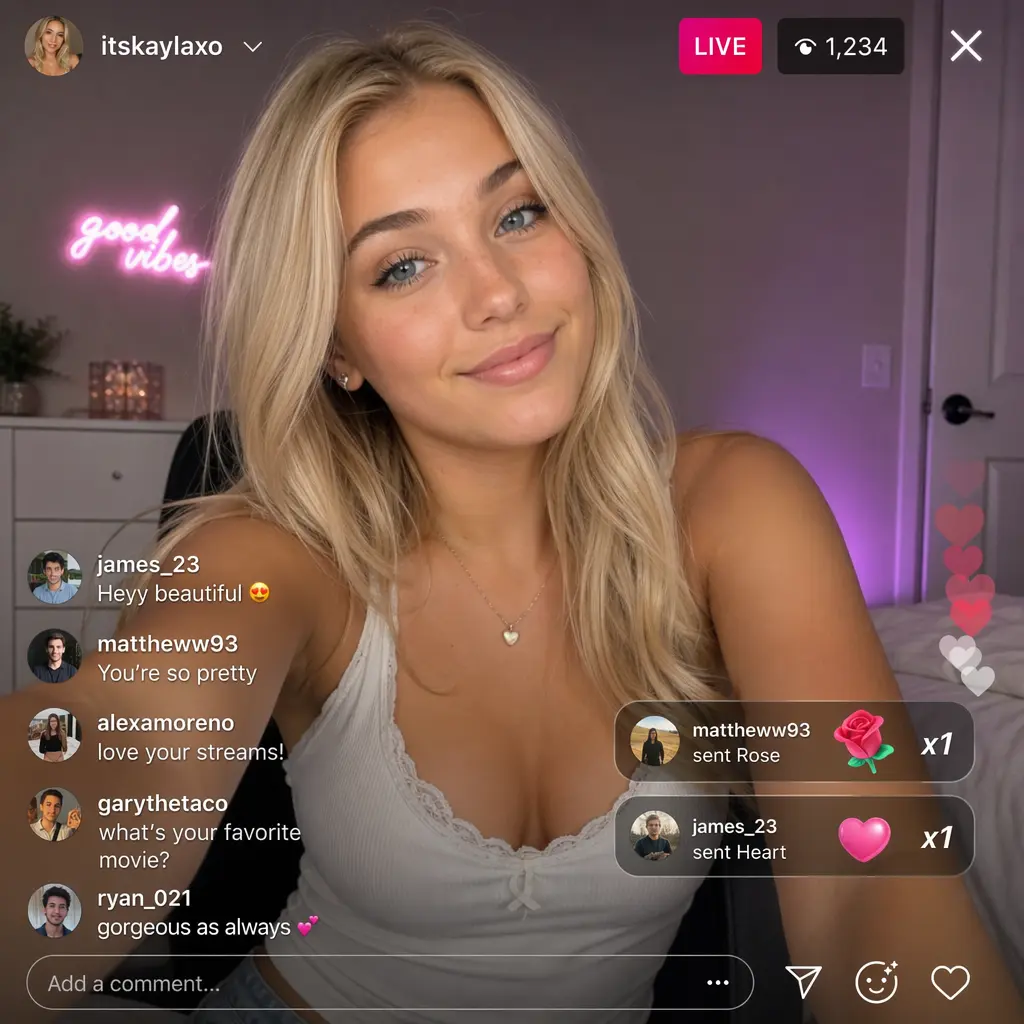
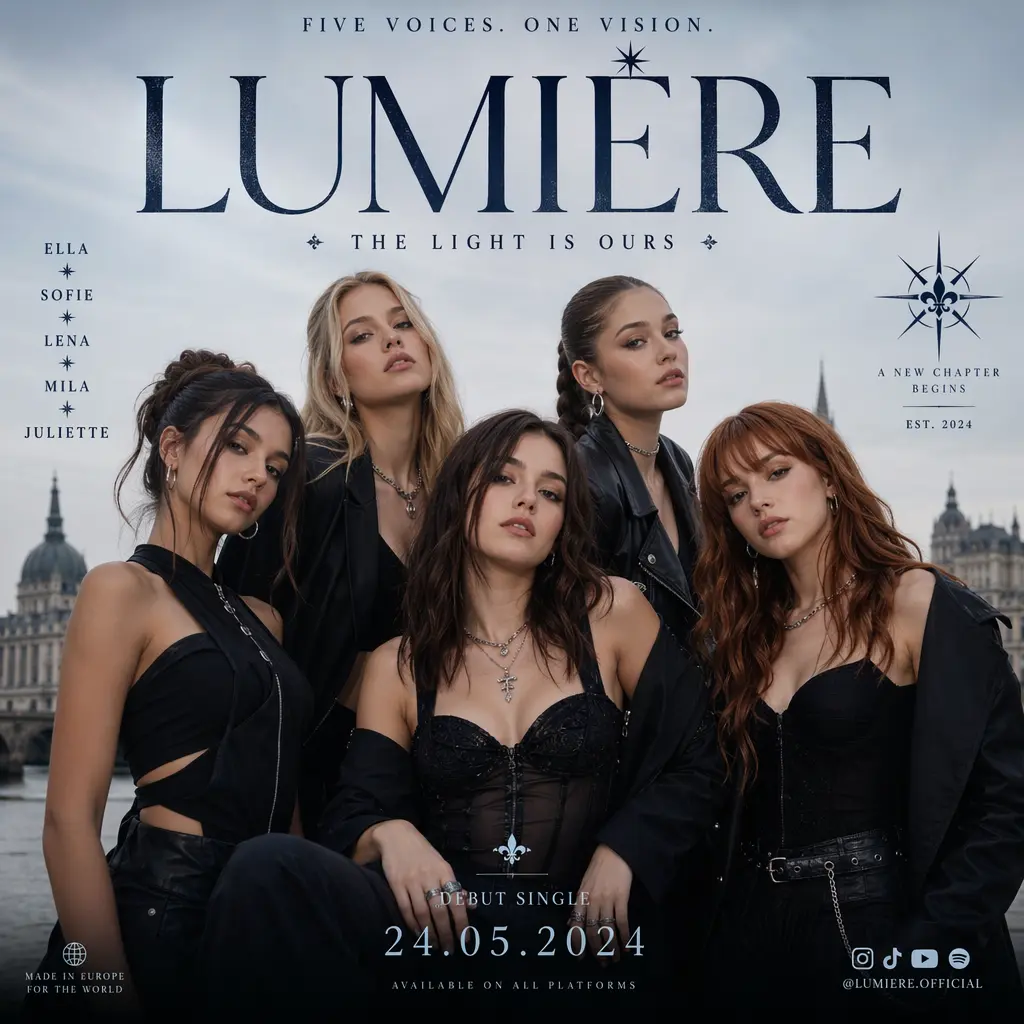
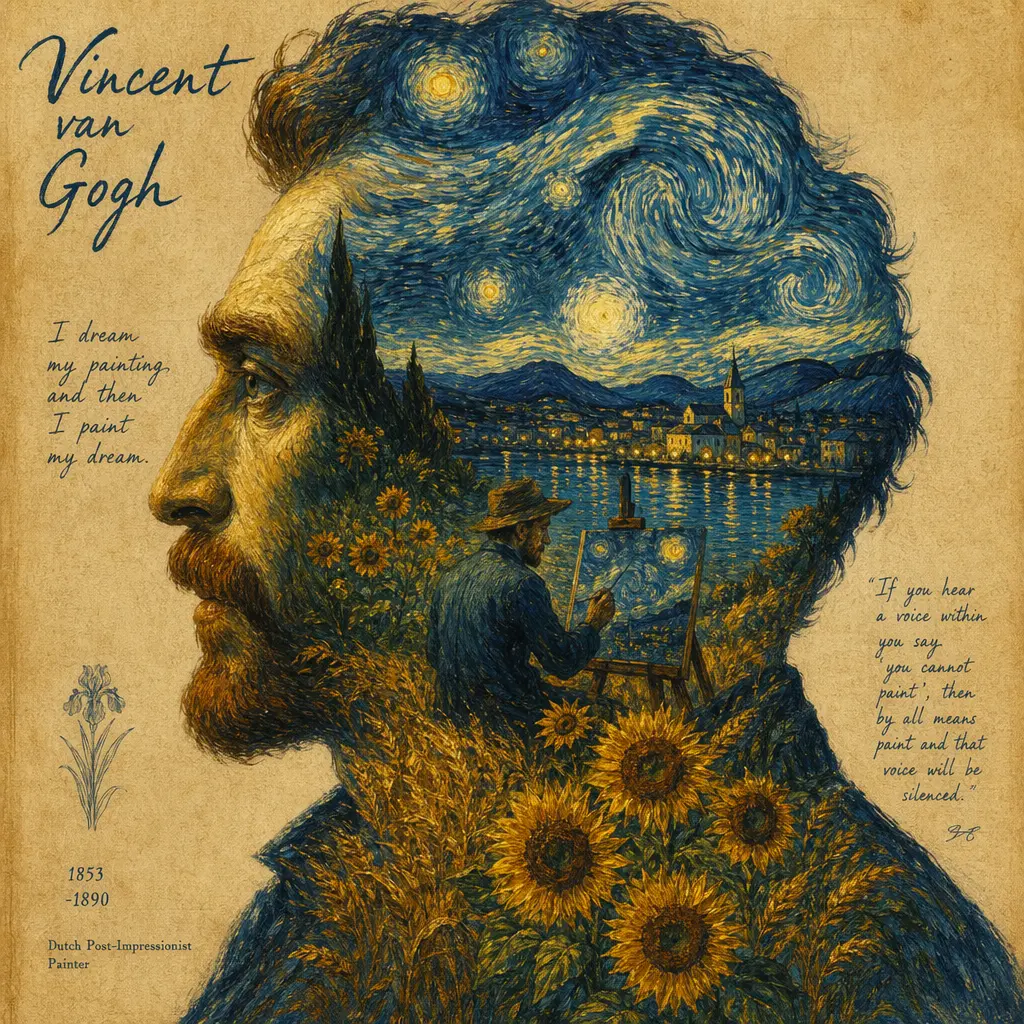
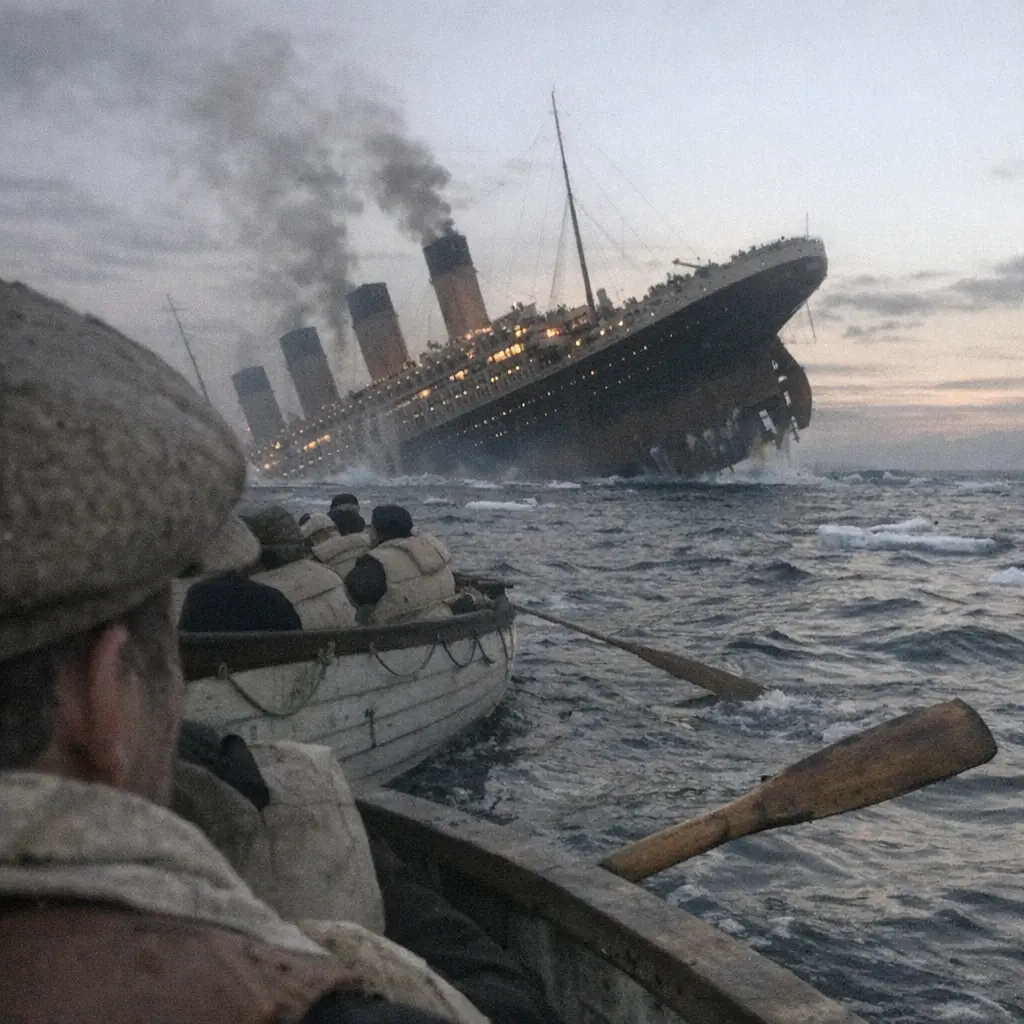
GPT Image 2 preview 1
GPT Image 2 can be used either from a written prompt or from existing images. In the current Epochal workbench, that means a text-to-image workflow and a reference-led image-to-image workflow built around the same model.
Epochal currently exposes the 6 official GPT Image 2 size presets, while the editing workflow also adds an auto option. Pick the frame before the first run so the output is judged in the right composition.
The current implementation exposes low, medium, and high quality modes. That keeps cost and output intent visible before generation starts.
Both public workflows can return one to four images per run. That is useful when you want to compare several prompt-consistent directions before choosing the next pass.
Epochal currently exposes JPEG, PNG, and WEBP output. Set the file format up front when the result is already headed toward a specific delivery path.
Creator walkthroughs that are useful for understanding GPT Image style workflows, editing behavior, and prompt-led image generation in practice.
A creator-side review that helps frame GPT Image as a usable image workflow for prompt-led generation and edits rather than only a product announcement.
Useful for understanding how creators compare GPT Image against another leading image model on editing, speed, and prompt control.
Helpful as a practical workflow example for how OpenAI’s newer image stack is used in repeatable design and content-production tasks.
Public creator and ecosystem references that help explain how GPT Image is being framed around editability, quality, and production-style output.
Begin with a written image request, or switch to the related editing workflow when you already have a source image to revise. The same model page is meant to support both directions.
Set image size and quality in the workbench first. That keeps cost, composition, and output intent visible before the model starts the run.
Use one image when the direction is already clear, or increase the output count when you want a few variations from the same prompt or edit instruction.
Choose JPEG, PNG, or WEBP according to the next step in your workflow, then keep iterating from the prompt or move into reference-led editing when the image direction is established.
The current public GPT Image 2 page should be read as a GPT image workflow that covers both fresh generation and reference-led editing. Epochal keeps image size, quality, output count, and export format visible up front, while the related editing workflow also adds reference image input and an auto size option. Because this page only relies on OpenAI's general image-generation documentation plus implementation-verified facts, you should judge results against your prompt, source images, and selected settings rather than unsupported model-ranking claims.
Use GPT Image 2 when you want to see how one written brief lands across a small set of outputs before you lock the direction.
Switch to the related editing workflow when the base image already exists and the next job is to restyle, revise, or refine it without changing models.
It is useful when the main job is to compare one to four outputs under the same size and quality settings before choosing the next pass.
The current page is practical when file format matters early and the result is already headed toward a JPEG, PNG, or WEBP delivery flow.
Each generation with GPT Image 2 consumes credits inside Epochal.
Processing time varies with quality, image size, output count, prompt density, and queue state.
Use the active workflow cost shown on the page as the current GPT Image 2 credit reference. Higher quality settings, larger presets, and more outputs increase total credits.
In the current Epochal workbench, GPT Image 2 exposes image size preset, quality, number of images, and output format. The related editing workflow also adds reference image input plus an auto size option.
Start with free credits on sign-up. Upgrade only when recurring production, private generation, or higher volume starts to matter.
For lighter recurring creation.
Switch fixed steps to match your monthly output.
3,000 credits/month
Up to 12,000 images
Up to 996 videos
Higher monthly capacity
No watermark
Private generation
Faster speed
Image and video workflows
Try the core flow before you upgrade.







 0.2% of purchases contributed to Stripe Climate
Keep reading the newest posts on model capabilities, workflow tips, and creative practice.
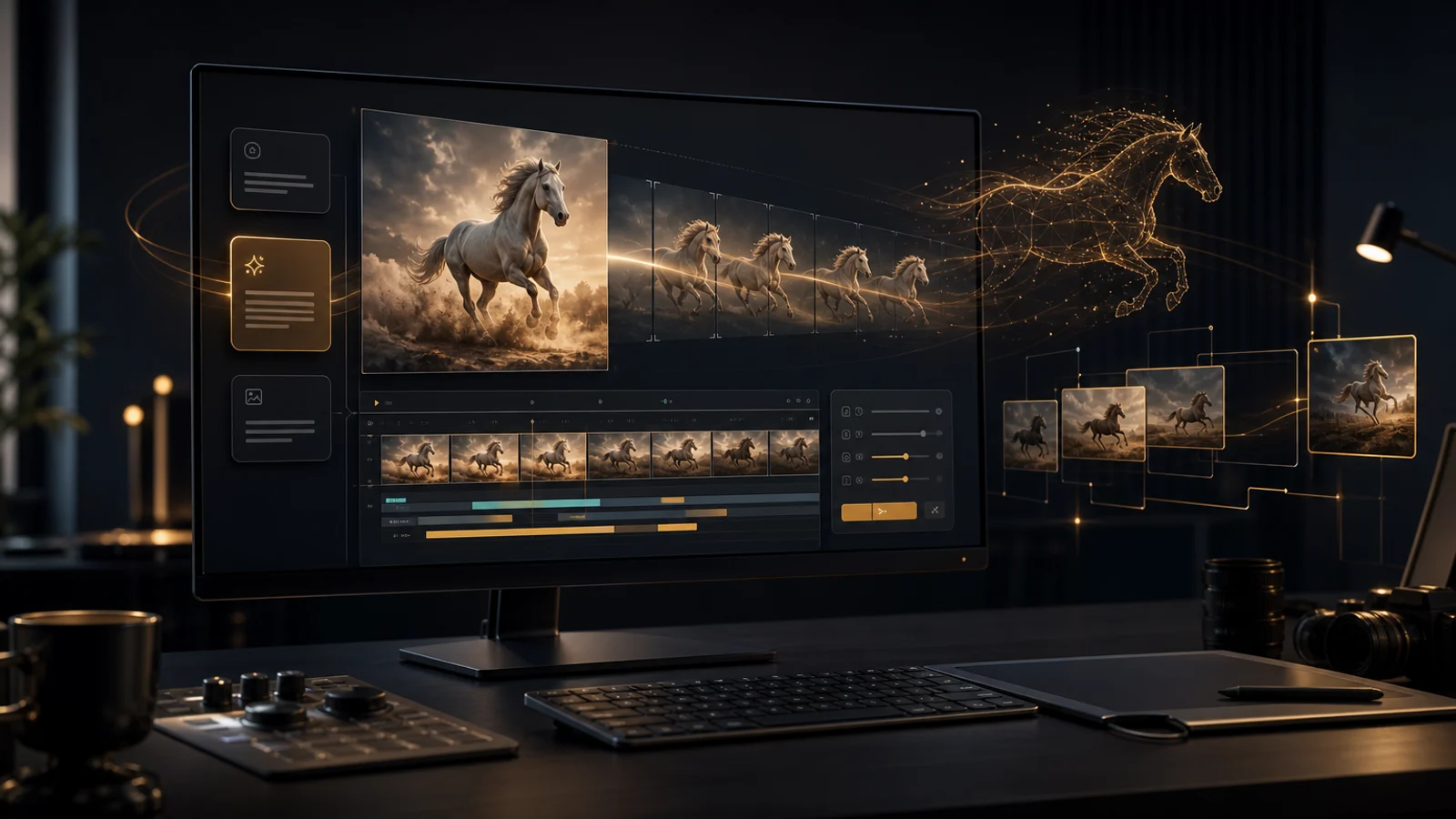
HappyHorse 1.0 supports text-to-video and image-to-video for creative drafts, first-frame animation, ad testing, and short cinematic shots.
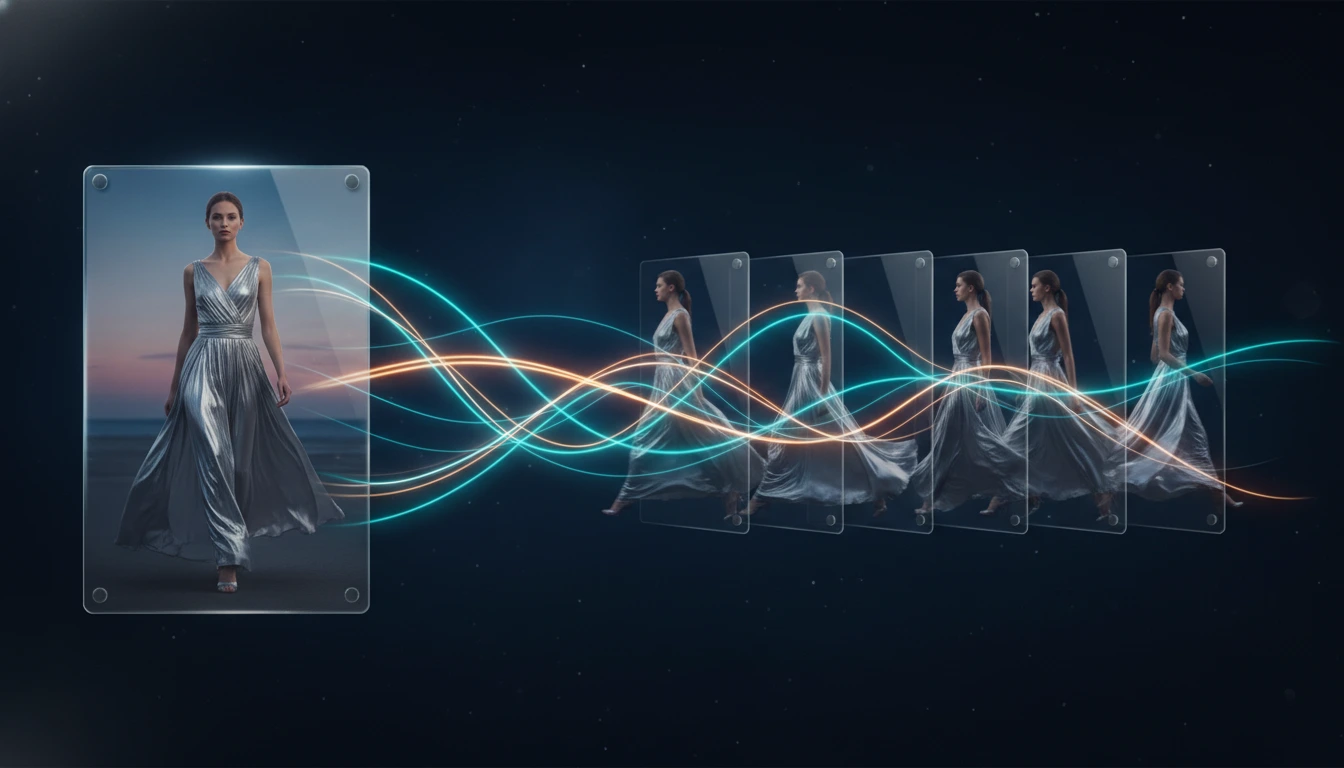
A practical guide to the best image to video AI tools in 2026, comparing Kling 3.0, Veo 3.1, Seedance 2.0, Wan 2.7, and Grok Imagine Video for frame preservation, motion quality, speed, and workflow fit.
A practical comparison of the best AI video generators available in 2026, covering output quality, audio generation, prompt control, speed, and which model fits each workflow.